
As discussed in the previous chapter, we have learned about the LUA API documentation and basic LUA syntax. In this chapter, we will display the phrase 'HELLO LUA' on the text control.
The relevant interface functions involved in this tutorial document are as follows:
- Set the text display string content: set_text(screen, control, text)
- User modifies the control callback function through touch: on_control_notify(screen, control, value)
Applicable scope: M series, W series, X series, F series (firmware version >= V4.2.401.0)
Routine download link: "Display HELLO LUA" (click to jump)
1.1 LUA Editor
1.1.1 VisualTFT comes with
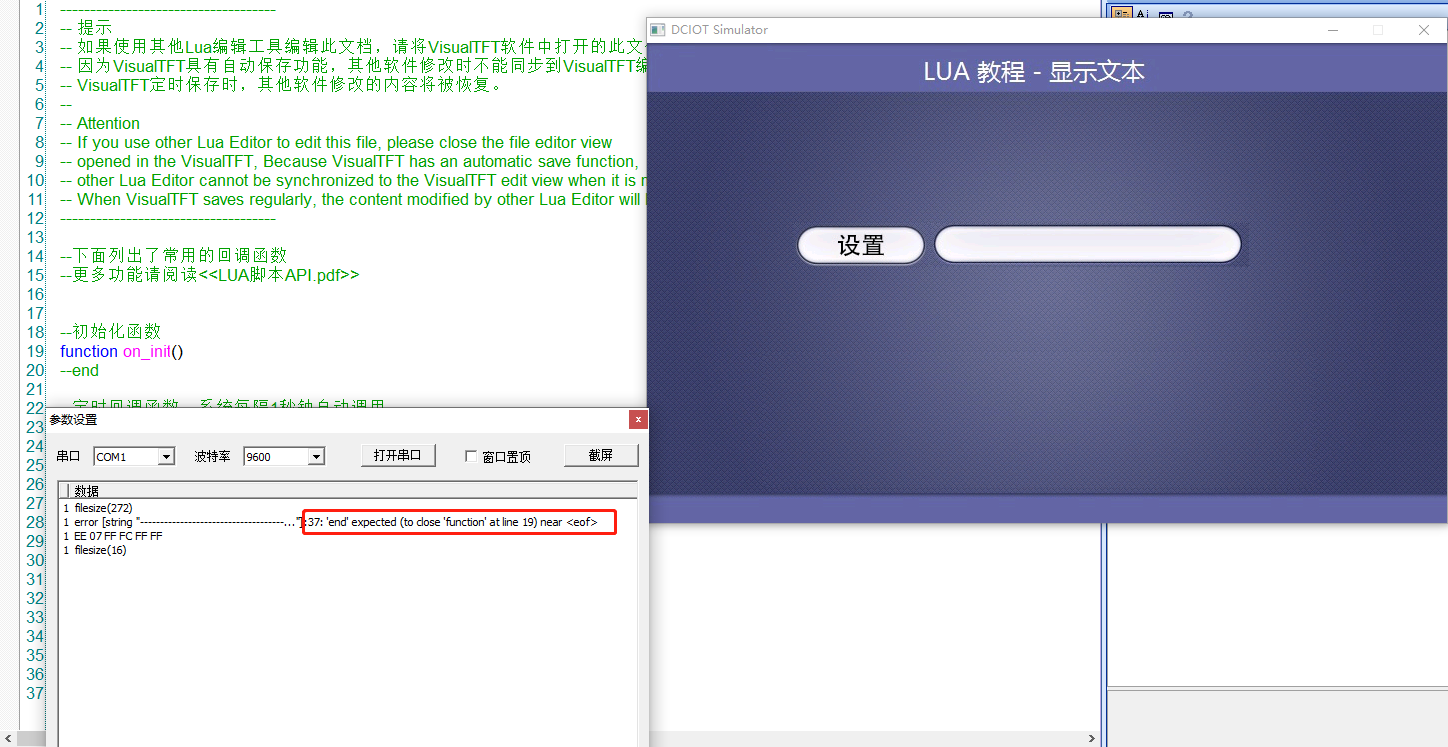
Our VisualTFT integrates a Lua editor (not a compiler). It can be opened in the "Tools" section - "LUA Script Programming..." as shown below.
Note: The "Tools" section - "LUA Script Programming..." is only an editor, not a compiler, and does not support setting breakpoints for debugging.
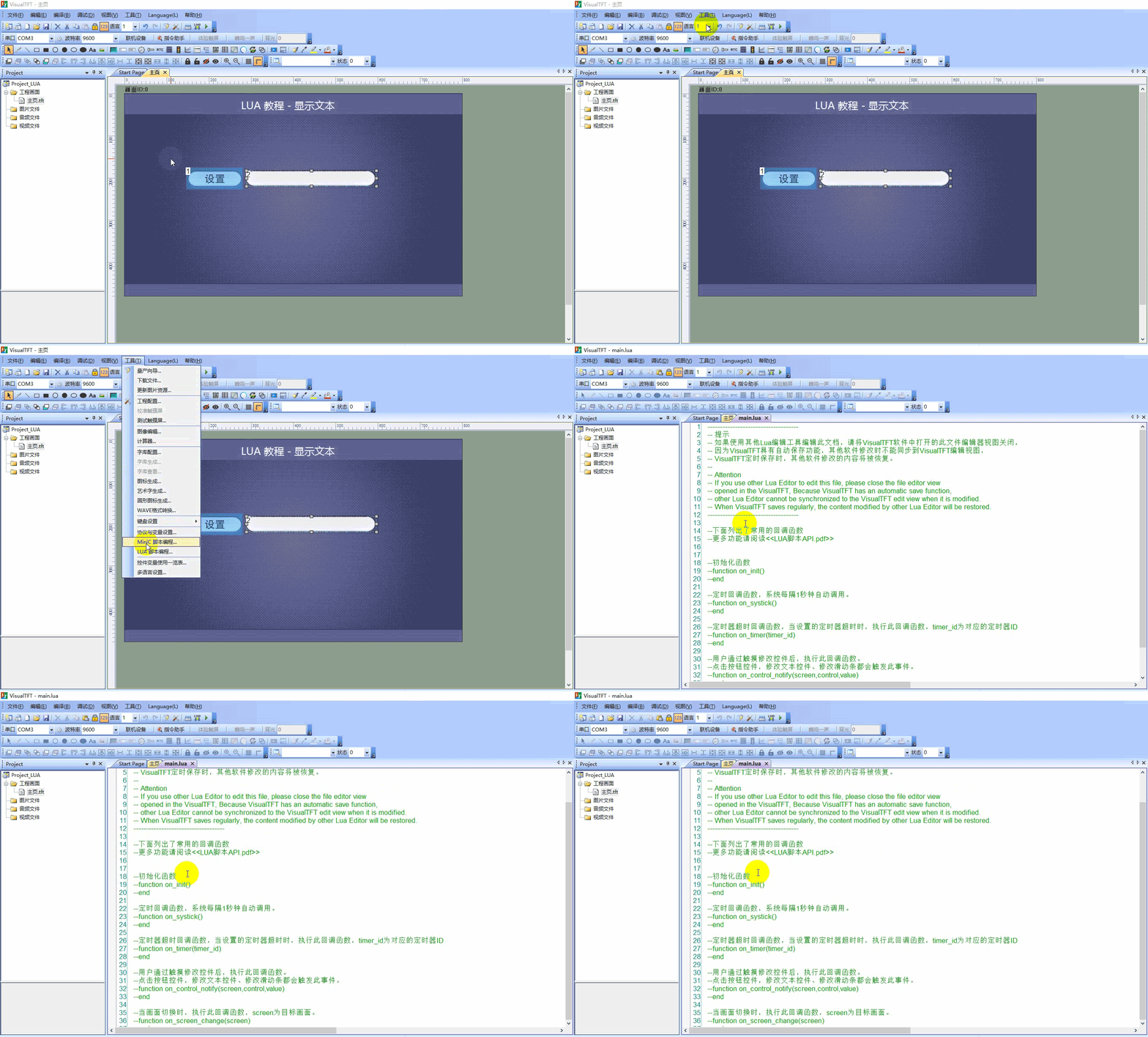
If the script has syntax errors or may encounter errors after specific logical operations, you can view them by running the virtual screen, as shown below. Error messages will be prompted, and it is expected that the function has an end symbol 'end'. Users can troubleshoot the issue based on the context and content prompts.
error [string "------------..."]:37: 'end' expected (to close 'function' at line 19) near eof
1.1.2 Third-party Editor
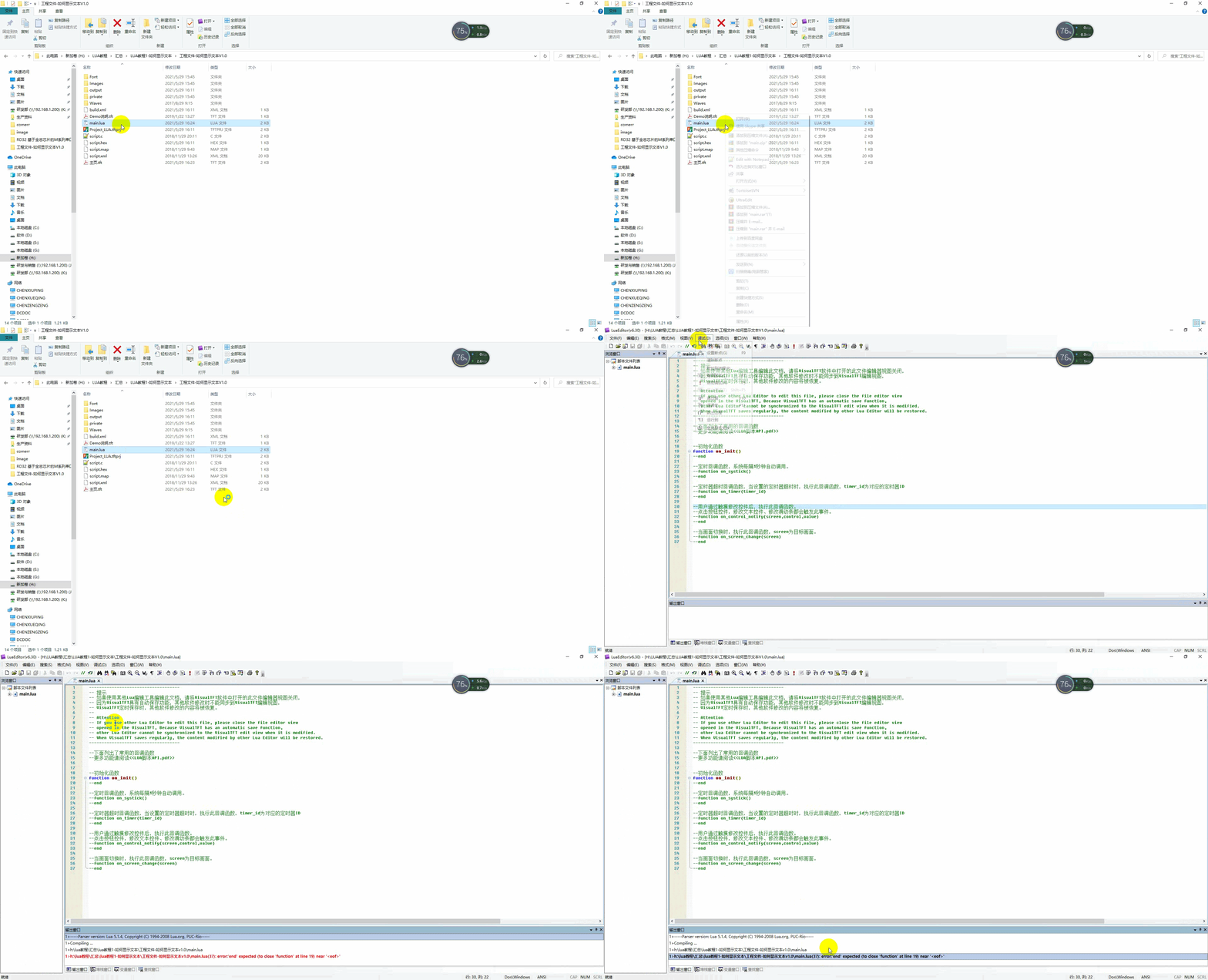
We recommend using LuaEditor (v6.30) for editing. Simply open the Lua file in the project directory, make your edits, and click "Save". It also supports basic syntax checking, as shown below, but for specific logic errors, a virtual screen is still required for debugging.
1.2 Display "HELLO LUA"
Screen Configuration
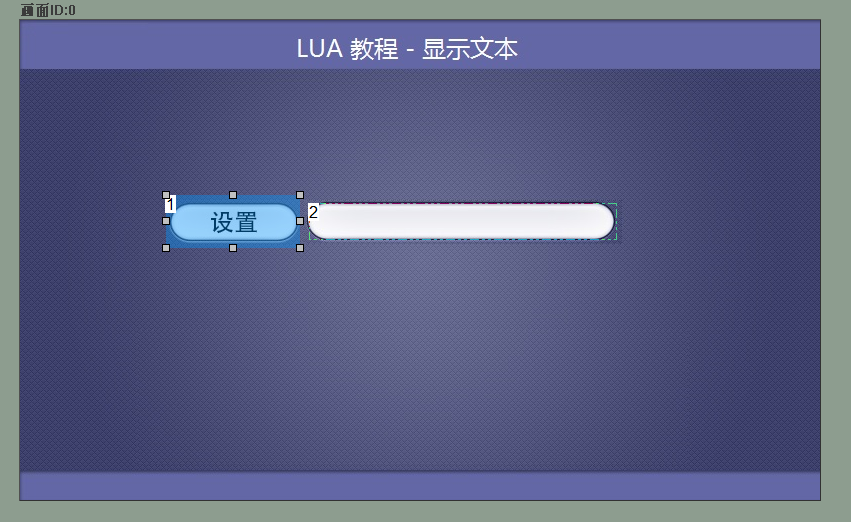
Add a button control (ID1) and a text control (ID2) to the screen. When the user presses the button, display "HELLO LUA" on the text control. The screen configuration is shown below.
LUA Script
After pressing the button, the on_control_notify(screen,control,value) function is triggered. It checks the corresponding screen ID, control ID, and control value. If the conditions are met, the set_text(screen,control,text) function is executed to display "HELLO LUA" in the text box.
--[[***************************************************************************
** Function name: on_control_notify
** Descriptions : 用户通过触摸修改控件后,执行此回调函数。
                  点击按钮控件,修改文本控件、修改滑动条都会触发此事件。
                  注意:回调函数的参数和函数名固定不能修改
** Input value :  screen  画面ID
                  control 控件ID
                  value   控件值(包括文本控件输入的值)
***************************************************************************--]]
function on_control_notify(screen,control,value)
    if screen == 0 and control == 1 and value == 1
    then
        set_text(0,2,"HELLO LUA")
    end
end
Run Preview
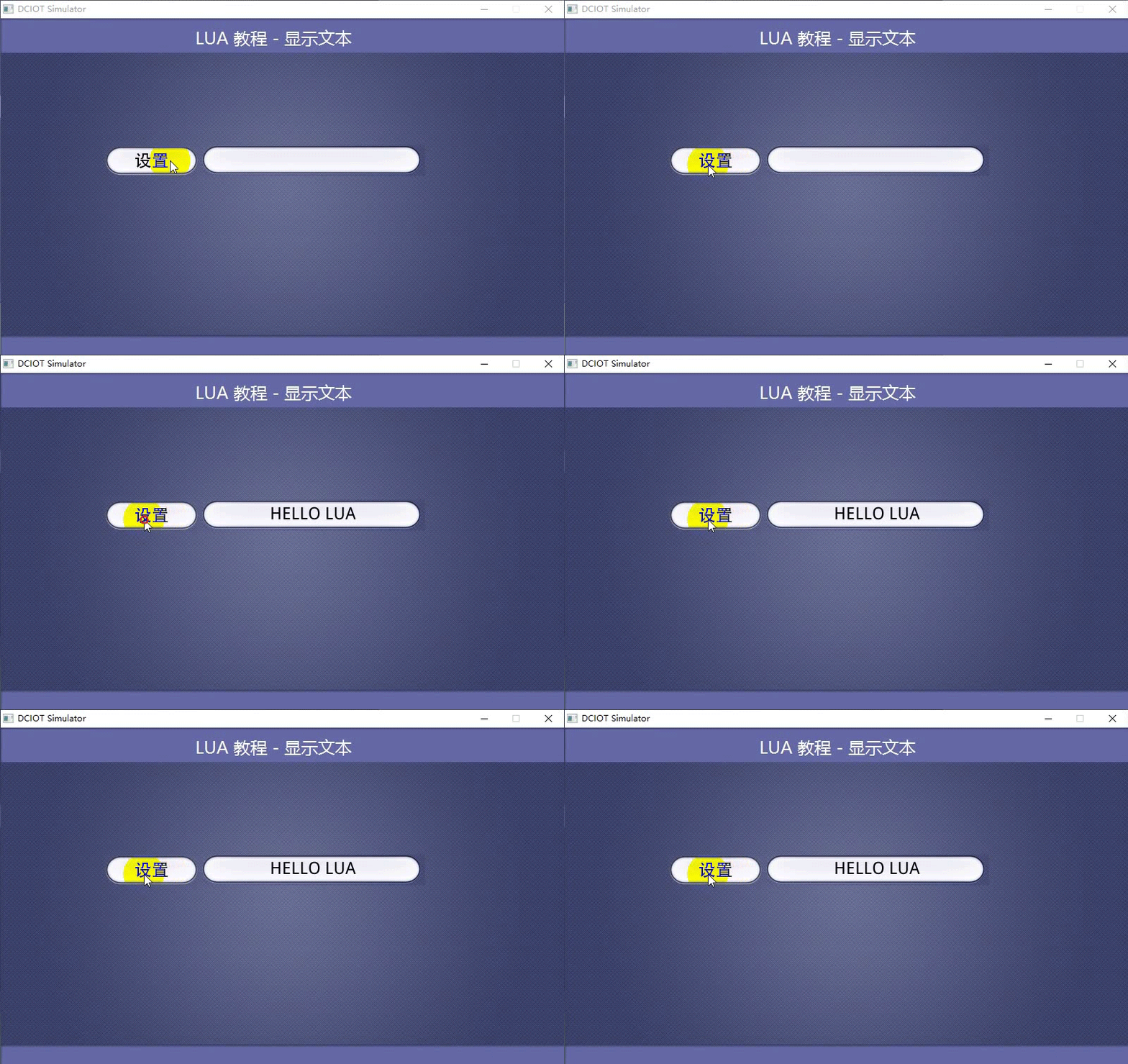
Click "Settings", and the text displays "HELLO LUA". The running effect is shown below


Leave a Reply