
What is a QR code control?
A QR code is a pattern of black and white squares arranged in a specific pattern on a plane, using a certain geometric shape to record data symbol information. It is used in applications such as scanning to pay. QR codes can be input by the user's host computer or set through properties during project editing, and then displayed on a serial port screen.
This routine introduces common applications of QR code controls, and describes the configuration of each application in conjunction with the screen images in the project. Common applications are as follows:
- Update QR code
- Button to update QR code
Scope of application: full series
Download link for the routine: "QR Code Control Application" (click to jump)
12.1 Introduction to QR code properties
The properties of the QR code control are as follows
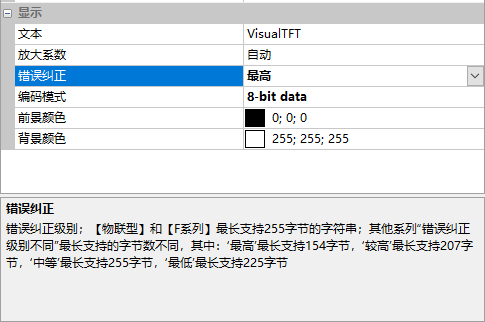
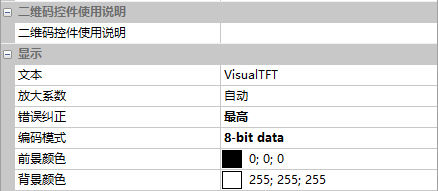
Text
Initial default display content of QR code
Magnification factor
Set the display size of a single point. Set to automatic, and the QR code will automatically fill the entire area of the control.
Error correction
Refers to the fault tolerance capability of the QR code, which has an error correction function. This enables the QR code to be correctly read even when partially obscured due to screen dirt or other factors.
Encoding mode
The encoding mode of the QR code, supporting the following encodings
- Numeric: Numerical encoding, from 0 to 9. If the number of digits to be encoded is not a multiple of 3, then the last remaining 1 or 2 digits will be converted to 4 or 7 bits, while every other 3 digits will be encoded as 10, 12, 14 bits. The length of the encoding depends on the size of the QR code
- Alphabet numeric: Character encoding. Includes 0-9, uppercase A to Z (without lowercase), and symbols $ % * + – . / : including spaces
- 8-bit data: Eight-bit bytes. Can be ISO-8859-1 characters from 0-255. Some QR code scanners can automatically detect whether it is encoded in UTF-8
- Kanji (shift-jis): Japanese encoding, also a double-byte encoding. Similarly, it can also be used for Chinese encoding
- ECI: Used for special character sets. Not all scanners support this encoding
- FNC1-first position/FNC1-second position: Primarily intended for specific industries or sectors. For example, GS1 barcodes and the like.
Foreground/background color
Foreground/background color of the QR code. This attribute should ideally remain unchanged. Specifically, setting the foreground color to black and the background color to white will yield the following effect.
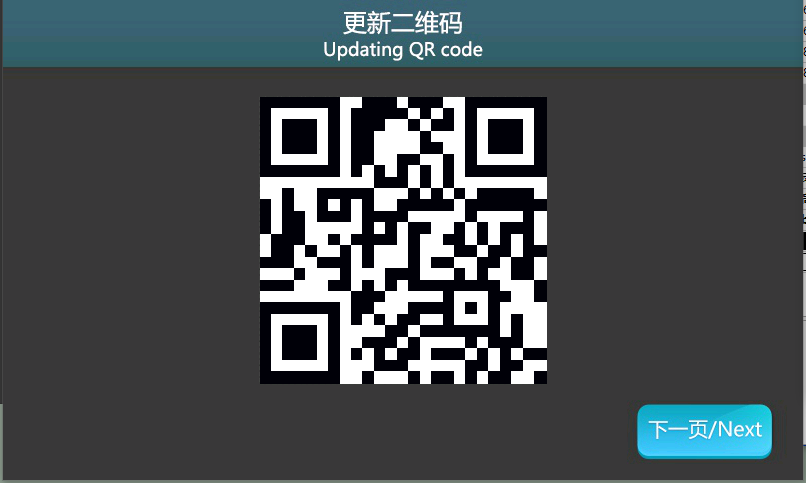
To enhance the QR code recognition success rate, it is advisable not to modify this attribute, that is, to use the default color of the control.
12.2 Update QR code
In the "Update QR Code" screen, when introducing the communication between the user device and the serial port screen, the user device sends instructions to the serial port screen to update the content of the QR code control
Screen configuration
Import the corresponding artwork image for the "Background Image" in the "Update QR Code" screen. Add a QR code control in this screen as shown below
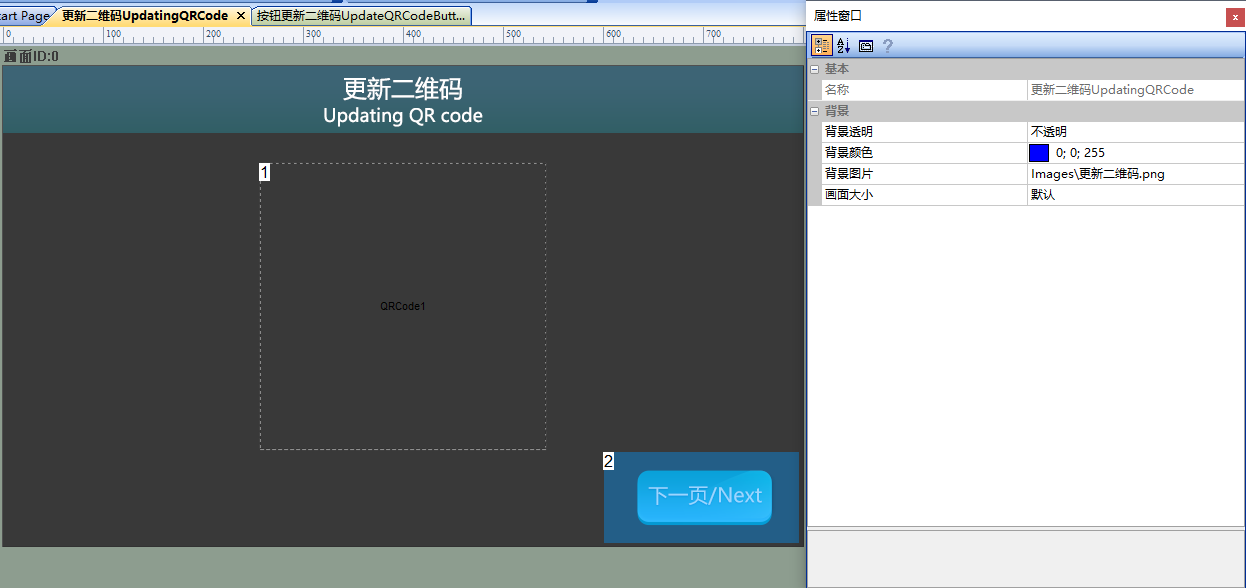
Attribute configuration
Set the properties of the QR code control with a control ID of 1, set the [Text] to "Guangzhou Dacai", and the configuration is as follows:
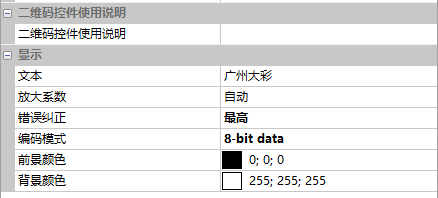
Run preview
Run the virtual screen, and establish a connection between the VisualTFT software and the virtual screen using "Virtual Serial Port".
Open the "Command Assistant", select "QR Code Control" from the left navigation bar, and in the "Update QR Code Control" section, set the screen ID to 0, the control ID to 1, and fill in the text "Text" as "Beating Symbol Serial Port Screen". Click "Send". Then, in the virtual screen, it will display as "Beating Symbol Serial Port Screen". Please use a QR code scanner to view the content. The running effect is shown below
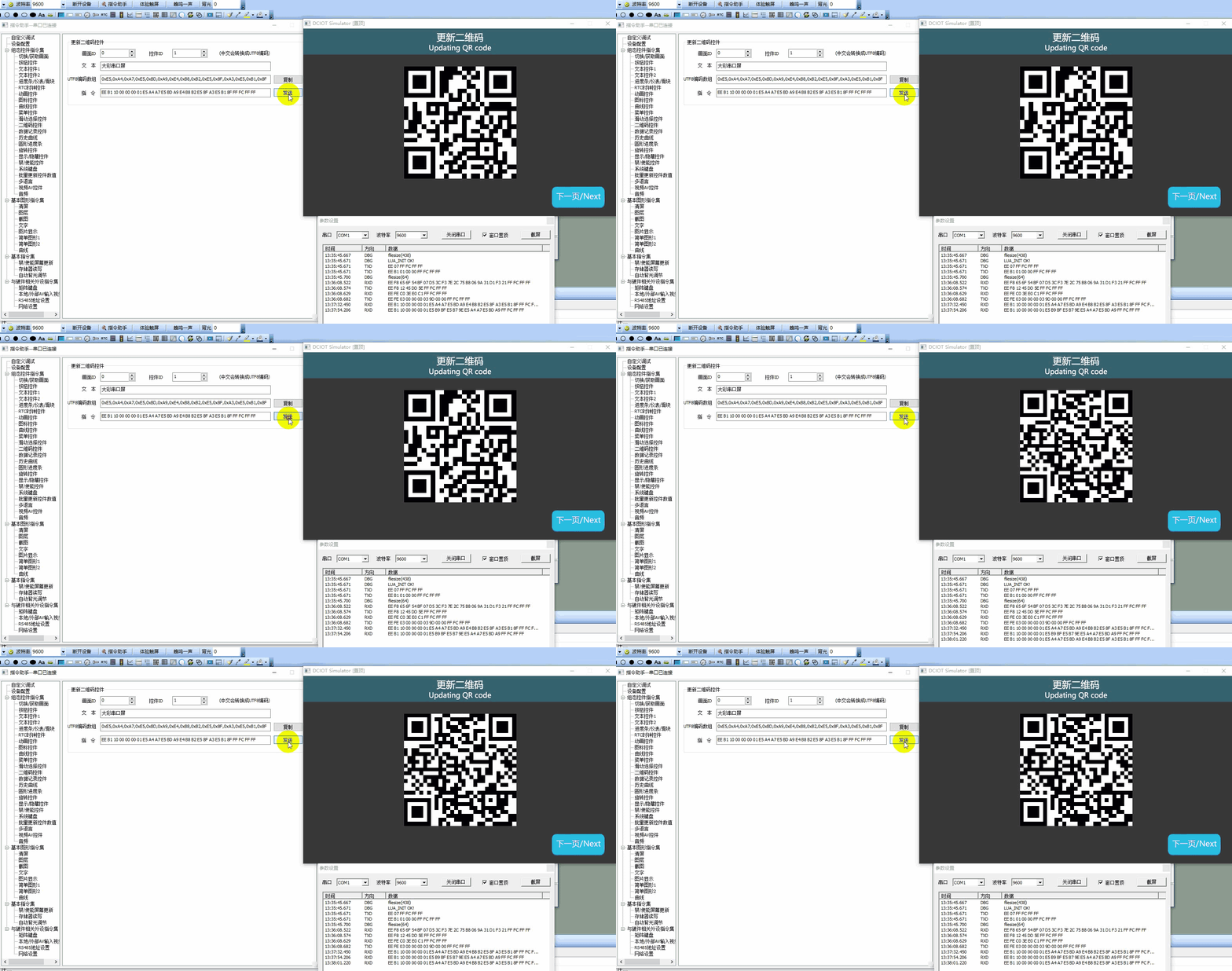
MCU controls the display of QR codes
. Refer to the function declaration in the him.dover. h file and the definition in the him.dover. c file in the Keil program of the development package.
For example, if a user needs to display a "large color serial port screen" with a QR code, they can directly call the QR code setting function SetTextValue(). The code is as follows:
/*********************************************************************
** Function name:    void SetTextValue(uint16 screen_id,
**                                     uint16 control_id,
**                                     uchar *str);
** Descriptions    :    设置二维码值
** input parameters:  screen_id:  画面ID
**                   control_id:  控件ID
**                          str:  二维码的值
** output parameters: 无
** Returned value   : 无
*********************************************************************/
{
    ……
    SetTextValue(0,1,”跳动符号串口屏”);  //设置画面0二维码控件1的值为“跳动符号串口屏”
    ……
}
12.3 button to update the QR code
The screen for "Button to Update QR Code" introduces how the content of the QR code control is updated after the user presses the button
screen configuration
Import the corresponding artwork image for the "Background Image" in the "Update QR Code with Button" screen. Add one QR code control (Control ID: 1) and one button control (Control ID: 2) to the screen, as shown below
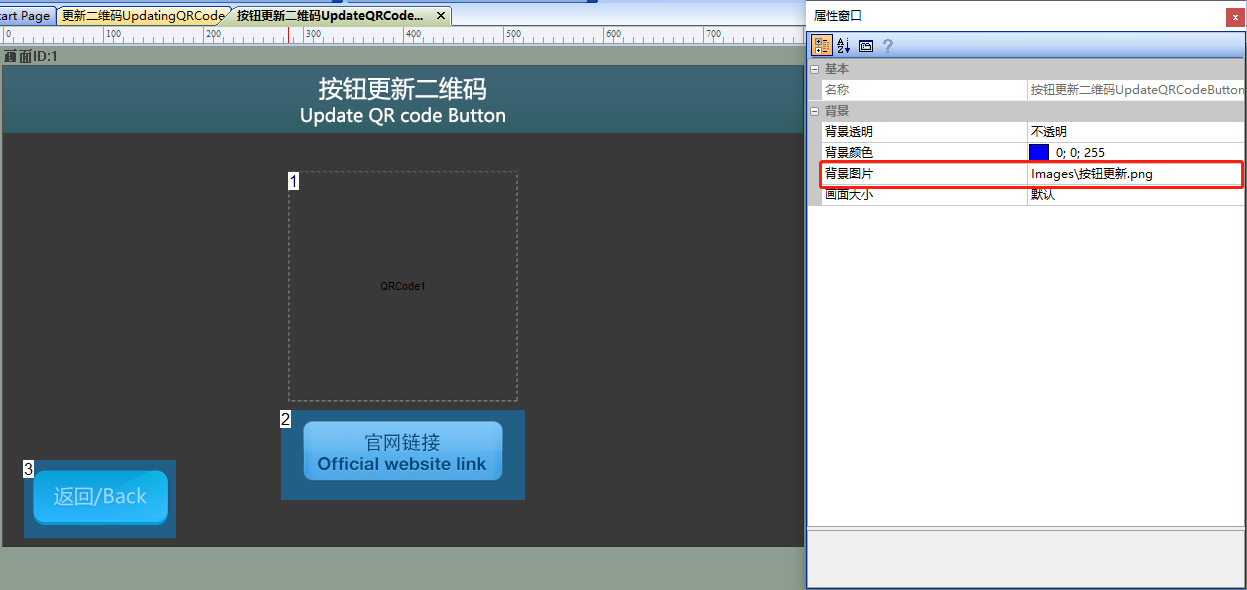
Property Configuration
QR code control
Set the properties of the QR code control with a control ID of 1, set the "QR Code" to "Bouncing Symbol", and the configuration is as follows:
Button Control
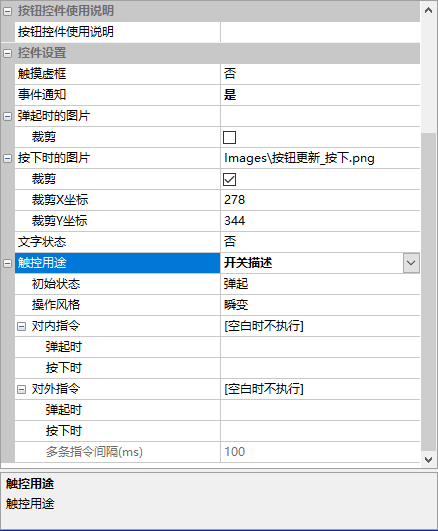
Set the properties of the button control with ID 2. Set the "Touch Virtual Frame" to "No", select the image for the pressed state in the "Button When Pressed" field, check "Crop", set the "Touch Purpose" to "Switch Description", and set the "Operation Style" to "Transient". The configuration is shown below.
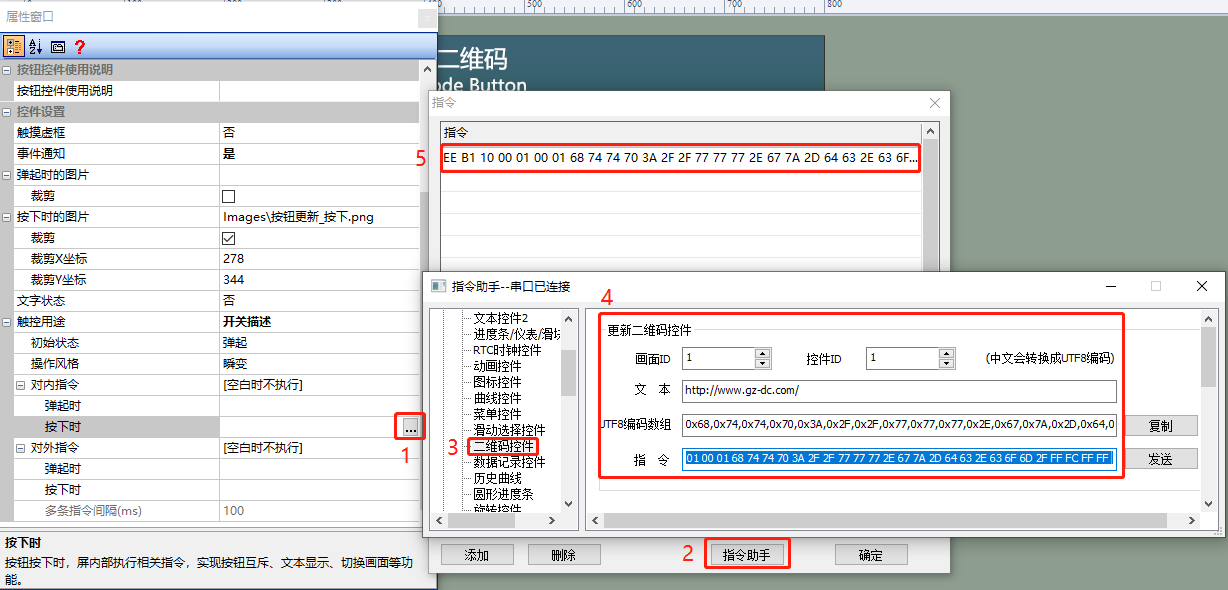
In the Command Assistant interface, select "QR Code Control" from the left navigation bar, set the command parameters in the "Update QR Code Control" area, and fill in the corresponding parameters. As in the example, the QR code control (control ID: 1) in the control screen (screen ID: 1) displays "www.gz-dc.com", as shown below.
Run Preview
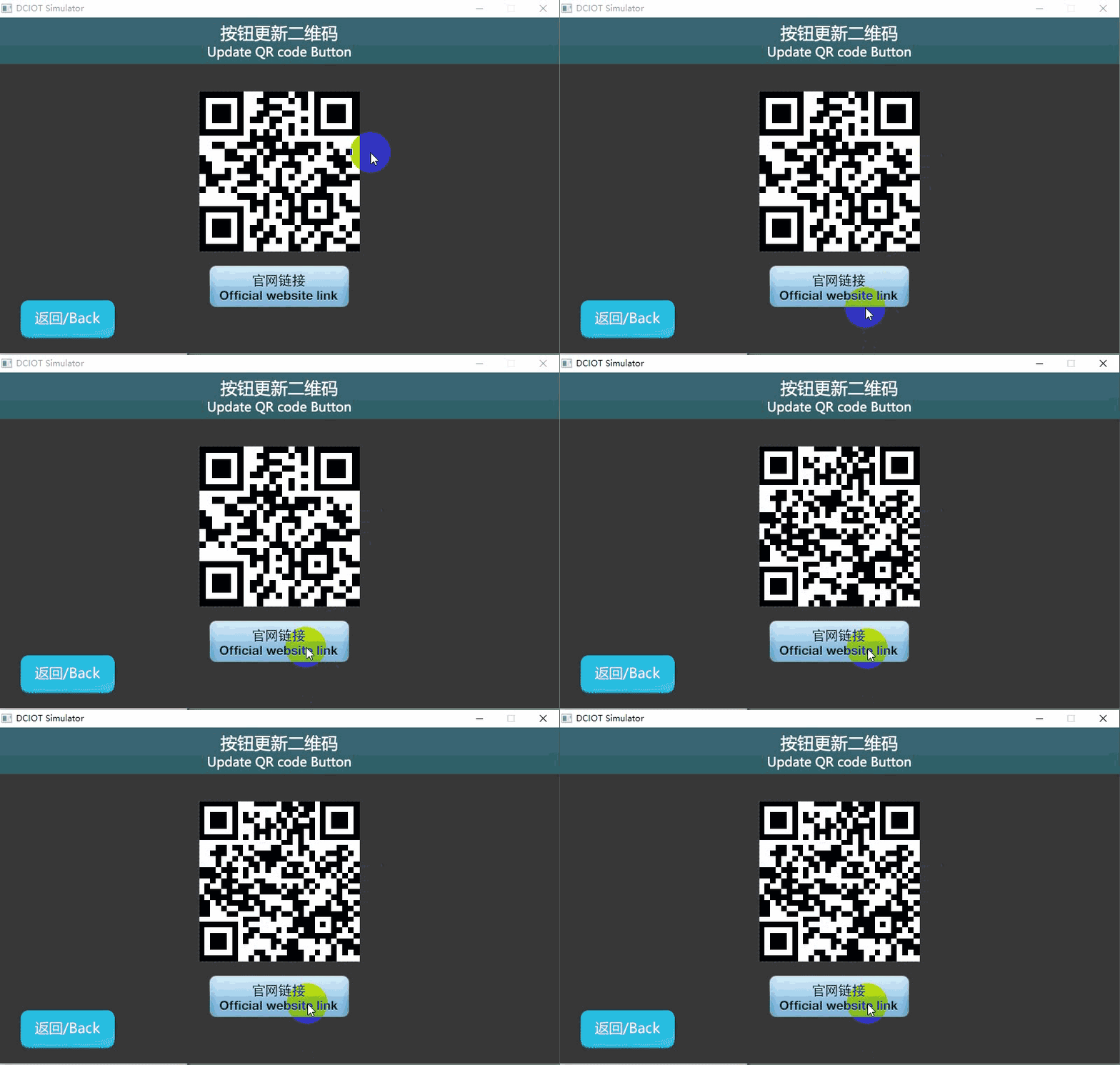
Run the virtual screen, and establish a connection between the VisualTFT software and the virtual screen using "Virtual Serial Port". Click the button "Official Website Link", and the QR code is updated to "www.gz-dc.com". The running effect is shown below.
MCU controls display string
Refer to the function declarations in the him.dever.h file and the definitions in the him.dever.c file in the development package Keil program.
For example, if the user needs to implement a "bouncing symbol serial port screen" for QR code display, they can directly call the QR code setting function SetTextValue() with the code shown below
/*********************************************************************
** Function name:    void SetTextValue(uint16 screen_id,
**                                     uint16 control_id,
**                                     uchar *str);
** Descriptions    :  设置二维码
** input parameters:  screen_id:  画面ID
**                    control_id:  控件ID
**                    str:      二维码的值
** output parameters: 无
** Returned value   : 无
*********************************************************************/
{
    ……
    SetTextValue(1,1,”跳动符号串口屏”);  //设置画面1文本控件1的值为“跳动符号串口屏”
    ……
}

Leave a Reply