
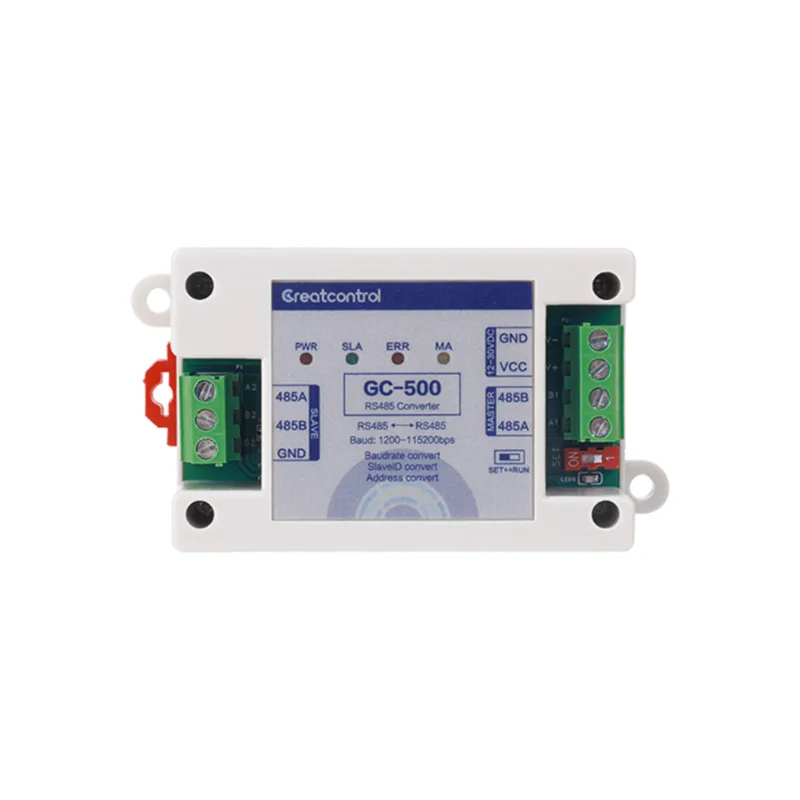
Application Overview
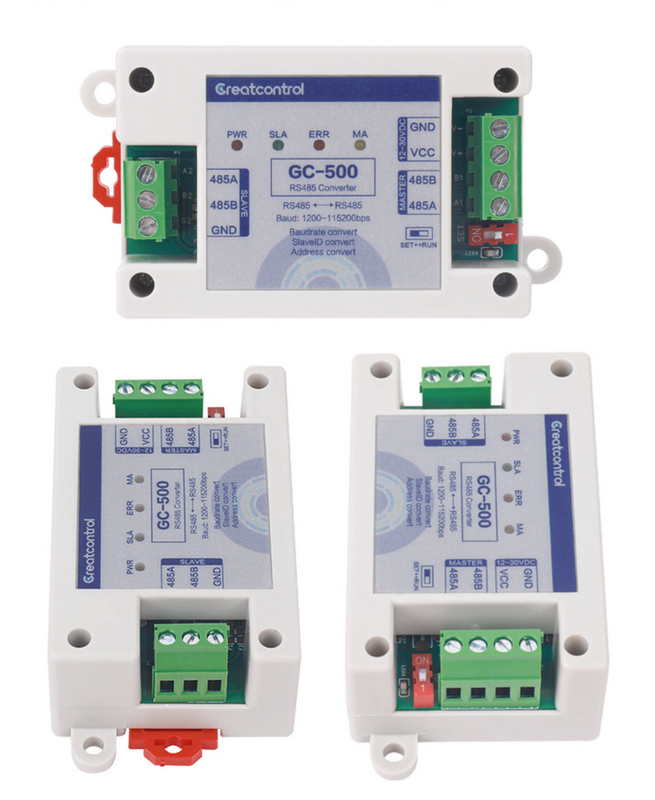
GC-500 is an efficient RS-485 communication converter module. Its core function is to convert one or more communication parameters of the slave station, such as baud rate, checksum, and stop bit. In addition, it can also adjust the slave address and register address, providing a solution to address conflicts or parameter mismatches that may occur in the RS485 bus. To enhance stability, GC-500 has added optoelectronic isolation technology between the master station interface and the slave station interface to ensure that the master station equipment is protected from external interference. At the same time, its circuit design includes 15KV ESD protection and 5KA lightning surge protection, greatly reducing the risk of damage caused by lightning strikes and static electricity. In addition, each communication interface of the module is equipped with indicator lights, allowing users to intuitively understand the operating status of each communication port. It is worth mentioning that the GC-500 ensures transparent data transmission between the master and slave interfaces, making data exchange smoother and more efficient.
To enhance stability, GC-500 has added optoelectronic isolation technology between the master station interface and the slave station interface to ensure that the master station equipment is protected from external interference. At the same time, its circuit design includes 15KV ESD protection and 5KA lightning surge protection, greatly reducing the risk of damage caused by lightning strikes and static electricity.
In addition, each communication interface of the module is equipped with indicator lights, allowing users to intuitively understand the operating status of each communication port. It is worth mentioning that the GC-500 ensures transparent data transmission between the master and slave interfaces, making data exchange smoother and more efficient.
Typical application scenarios
Need to convert one or more baud rates of RS485 slave stations
Need to convert one or more parity bits of RS485 slave stations
Need to convert one or more stop bits of RS485 slave stations
Need to convert one or more Modbus RTU slave station addresses
Need to convert one or more Modbus RTU slave station register addresses
Module parameters
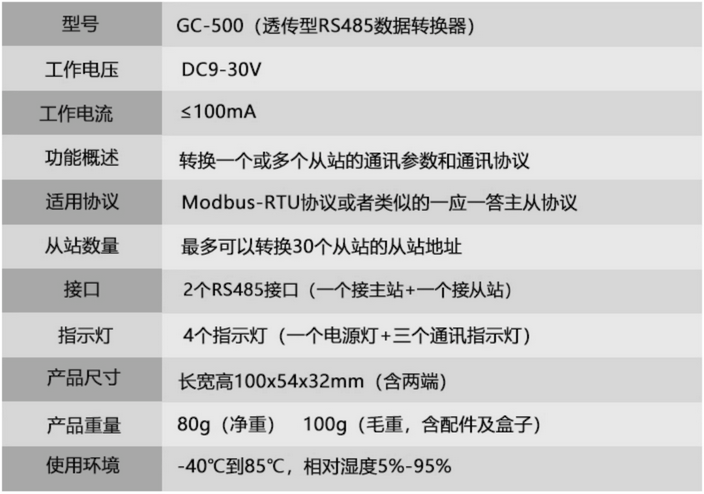
Communication parameters
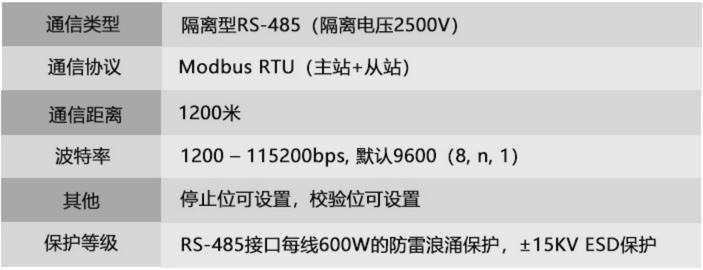
Product Size
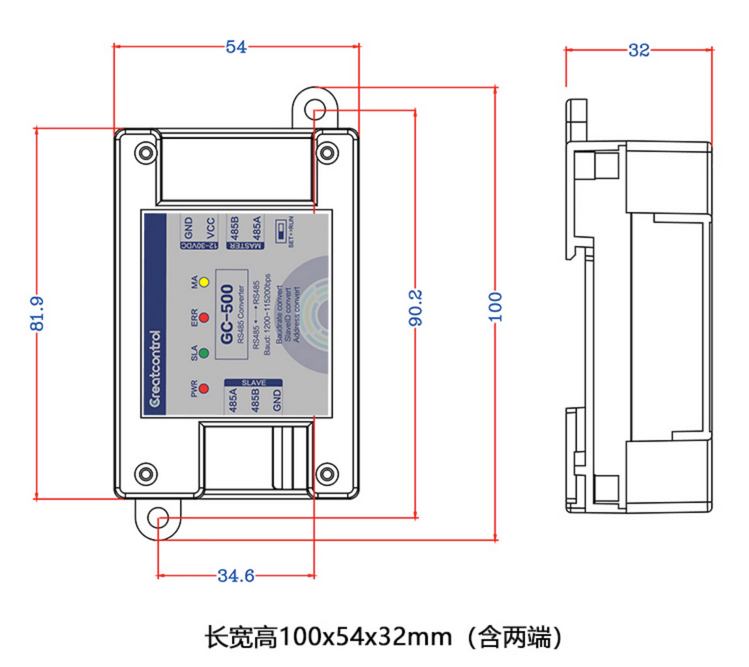
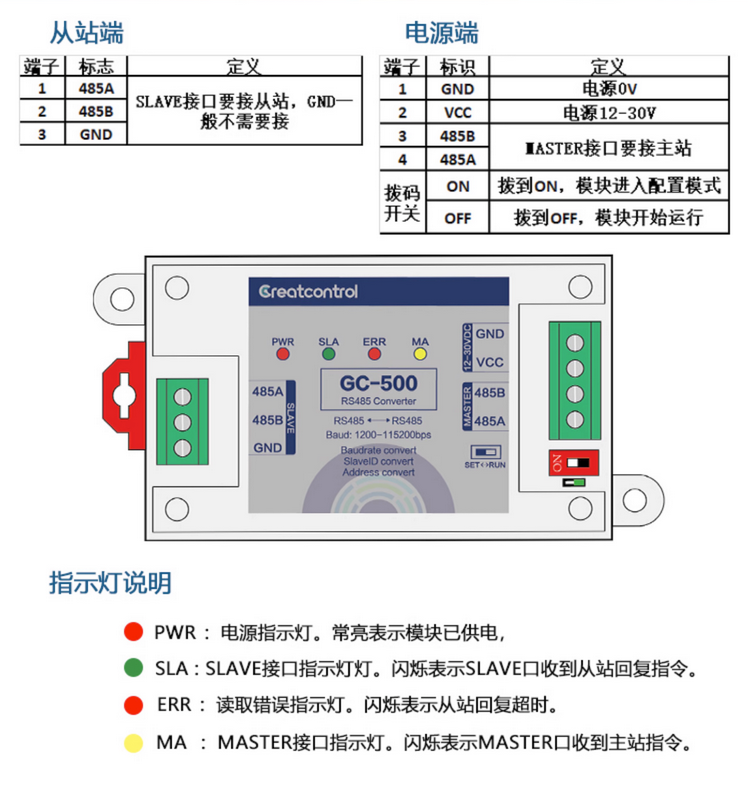
Interface Definition
Application 1 Multiple Slave Station to Baud Rate
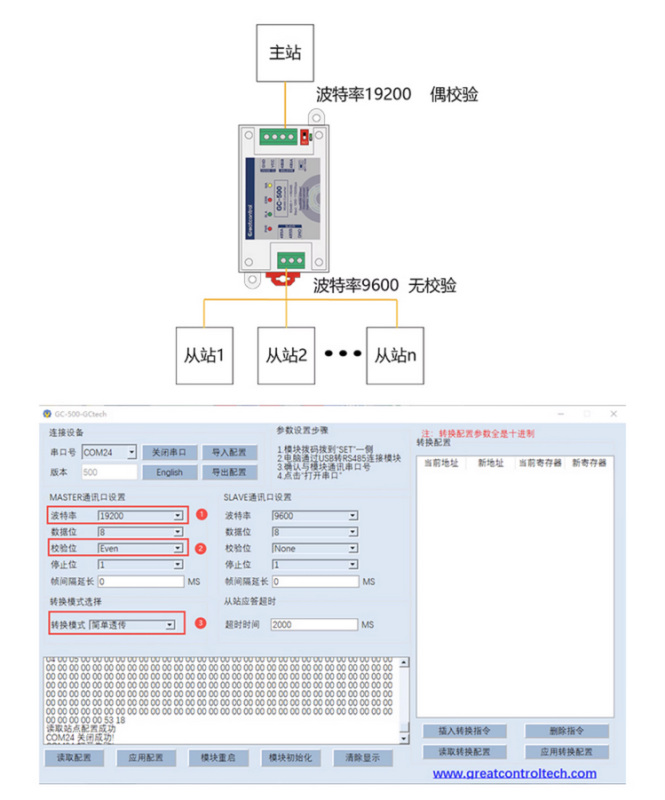
Wiring and configuring parameters as shown in the above figure, the module can convert baud rates and parity bits of multiple slave stations. As shown in the figure, the original baud rate of the slave station was 9600 without parity, which was converted to 19200 even parity after passing through the module.
As shown in the figure, the original baud rate of the slave station was 9600 without parity, which was converted to 19200 even parity after passing through the module.
Apply multiple slave to address transfers
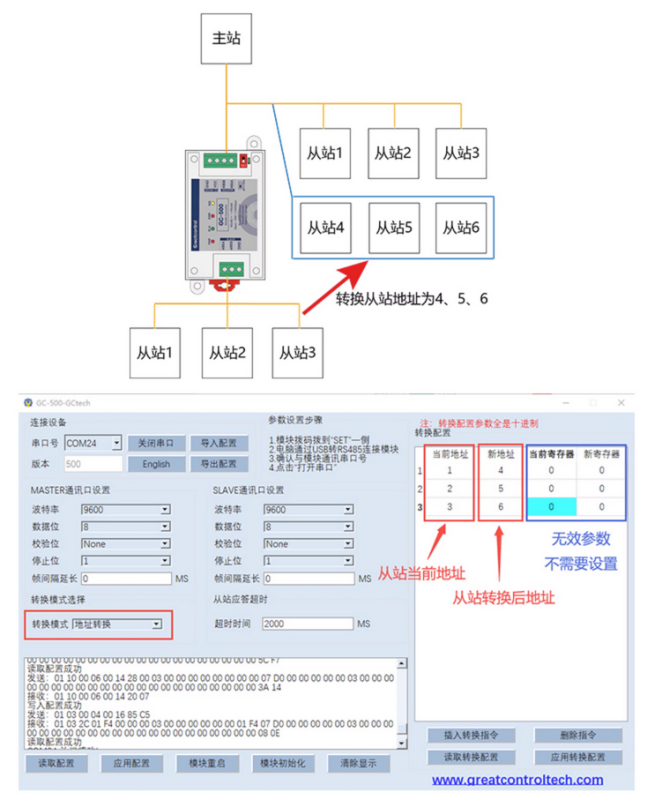
Connect and configure parameters as shown in the diagram, and the module can convert slave addresses 1, 2, and 3 into slave addresses 4, 5, and 6, respectively; Parallel connection to the bus already connected to slave addresses 1, 2, and 3 avoids address conflicts.
The 'Address Translation' mode is only applicable to the Modbus RTU protocol. Up to 30 slave addresses can be transferred.
Parameter configuration instructions
1. Power the module
2. The computer connects the MASTER interface of the module through USB to 485 conversion
3. Turn the dip switch on the module to the "ON" position to enter the "parameter setting" mode
4. Enter configuration mode, the indicator light next to the dial code will light up

Parameter configuration instructions
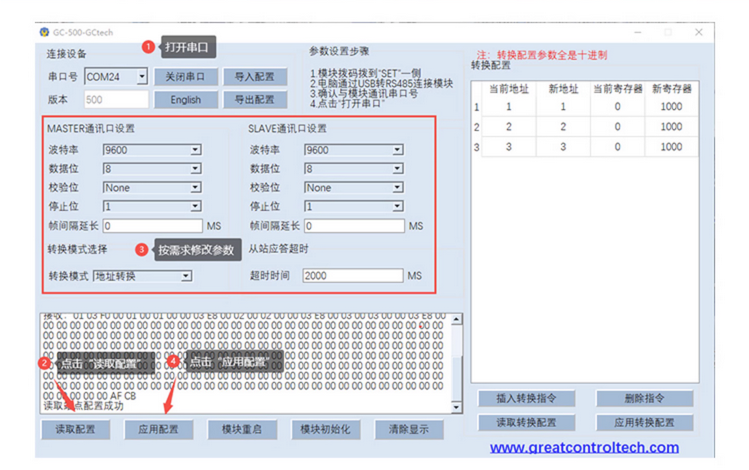
The interface of the configuration software is shown in the figure. The parameters on the left are the communication parameters of the module's two ports, and the address translation configuration list is in the box on the right
Communication parameter configuration:
STEP1: Select the serial port number corresponding to the module and click the "Open Serial Port" button
STEP2: First click the "Read Configuration" button to obtain module parameters, and then modify them based on this
STEP3: Select all parameters
STEP4: Click the "Application Configuration" button to modify the module parameters and take immediate effect
Conversion configuration:
STEP1: Click on "Read Conversion Configuration"
STEP2: Fill in the conversion configuration instructions as needed
STEP3: Click "Apply Conversion Configuration
Multi angle photos
Product purchase:https://item.taobao.com/item.htm?ft=t&id=844438927201


Leave a Reply