

Control Display and Hiding and Multi-Language Functionality
This section mainly introduces the display and hiding of controls, as well as the application of multi-language functionality. Only configuration controls support display and hiding. For the types of configuration controls, refer to the introduction of the VisualTFT work interface. Controls that support multi-language include text, buttons, menus, slider selection, data logging (alarms), and so on.
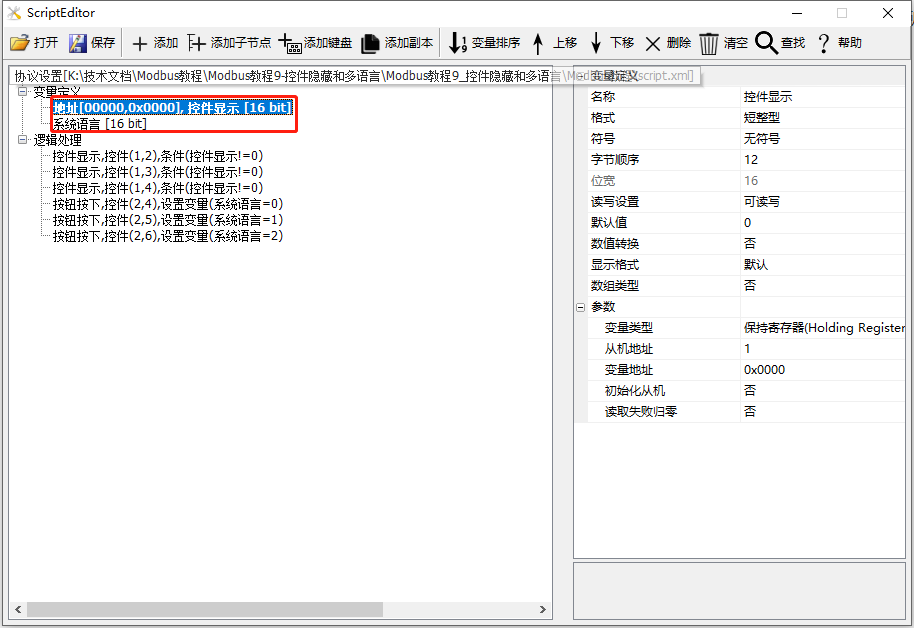
This section uses the screen as the main station, creating one save register to control the display and hiding of configuration controls, and one system variable for language control selection, as shown below.
Control Display and Hiding
The [Show/Hide Controls] screen primarily provides an example of how to use the show/hide controls function. It demonstrates the application of hiding or showing one or multiple controls when a certain condition is met
Screen/Logic Configuration
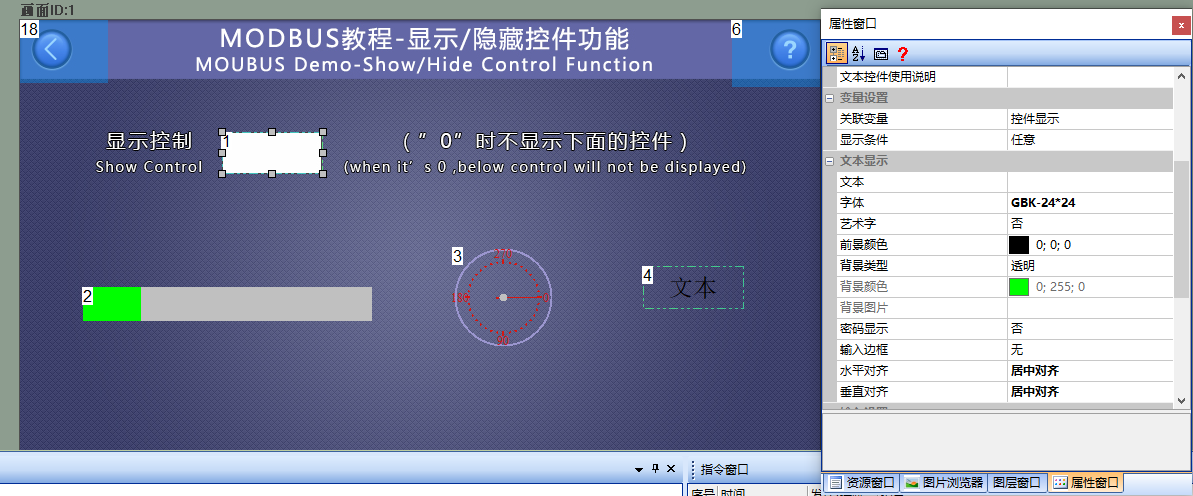
Add a text control (control ID: 1) to the screen to control the hiding and display of controls. Add a progress bar control (control ID: 1), an instrument control (control ID: 2), and a text control (control ID: 3) as controls to be displayed or hidden, as shown below.
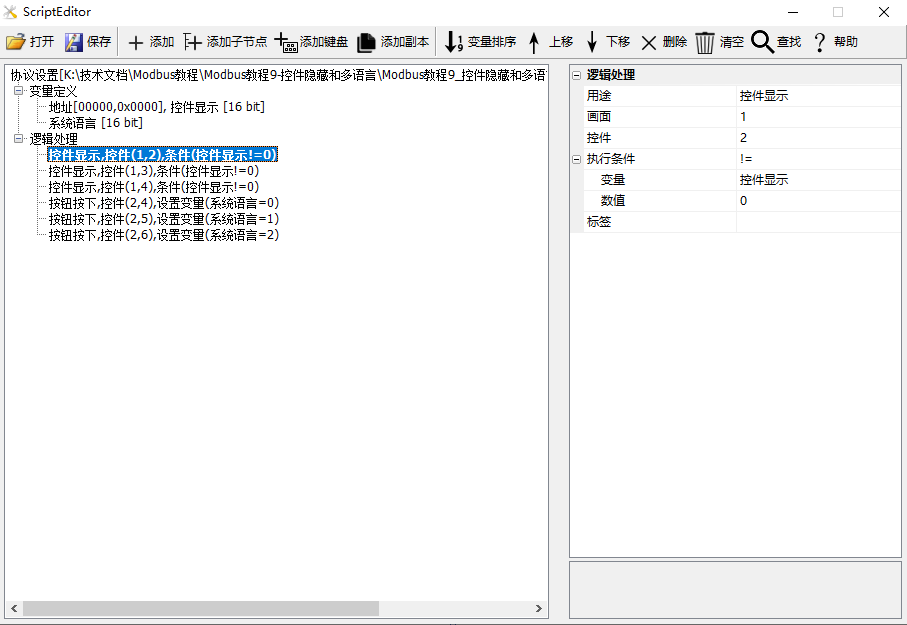
Add three logic processes in [Protocol and Variable Settings]: The first one: Purpose is "Control Display"; Screen is "1"; Control is "2"; Execution condition is "Variable [Control Display] is not 0". Similarly, the second and third settings are similar
Run Preview
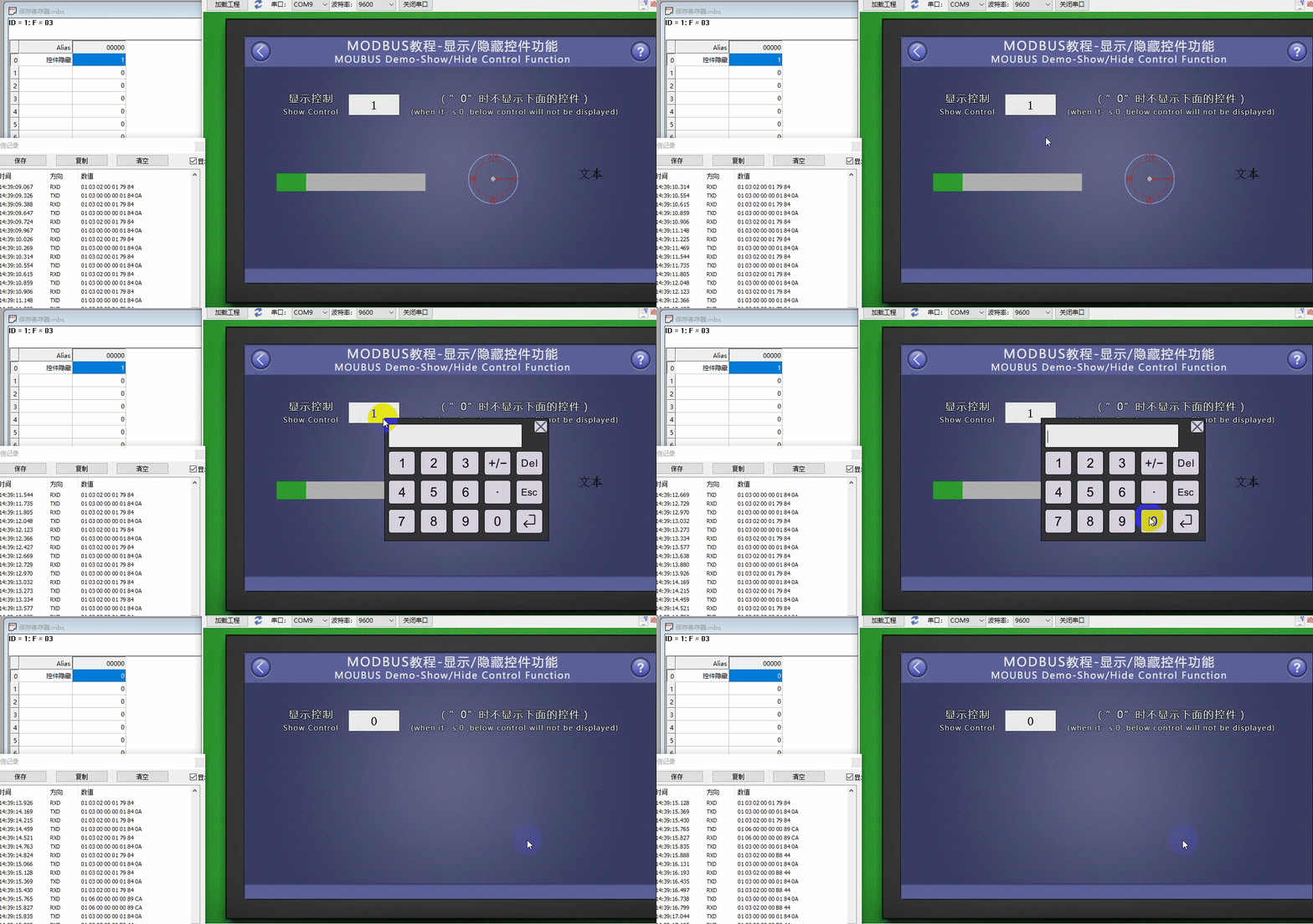
At this point, compile the project and run the virtual serial port screen, establishing a connection with the Modbus Slave software. When the value of the variable "Control Display" is "0", the slider control (control ID: 2), instrument control (control ID: 3), and text control (control ID: 4) are hidden; when the value of the variable "Control Display" is "1", these controls are displayed. Additionally, clicking the text control (control ID: 1) pops up a keyboard to enter "0" or "1" to control the display or hiding of the control.
Multi-Language
[Multi-language function] The screen primarily demonstrates the use of the multi-language function. Given the need for multi-language applications catering to diverse customers, the screen supports multi-language settings for text, menu controls, and sliding selection controls. The project employs three buttons to control the display of Chinese, English, and traditional Chinese for text, menu controls, and sliding selection controls
Screen/Logic Configuration
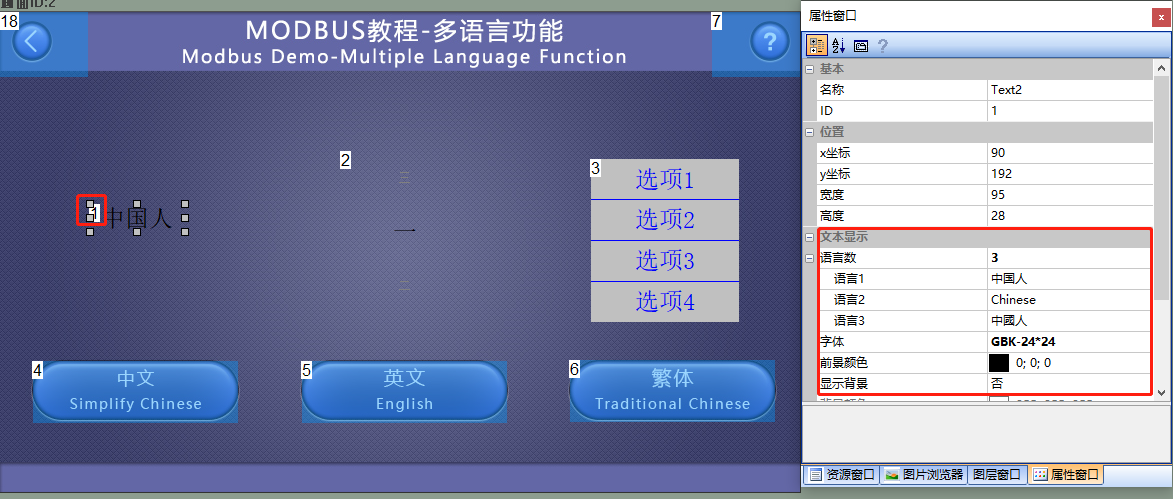
Add a Text (ID: 1), a Slider Selection Control (Control ID: 2), and a Menu Control (Control ID: 3) to the screen for displaying different languages. Taking the Text Control as an example, the control property settings are as follows
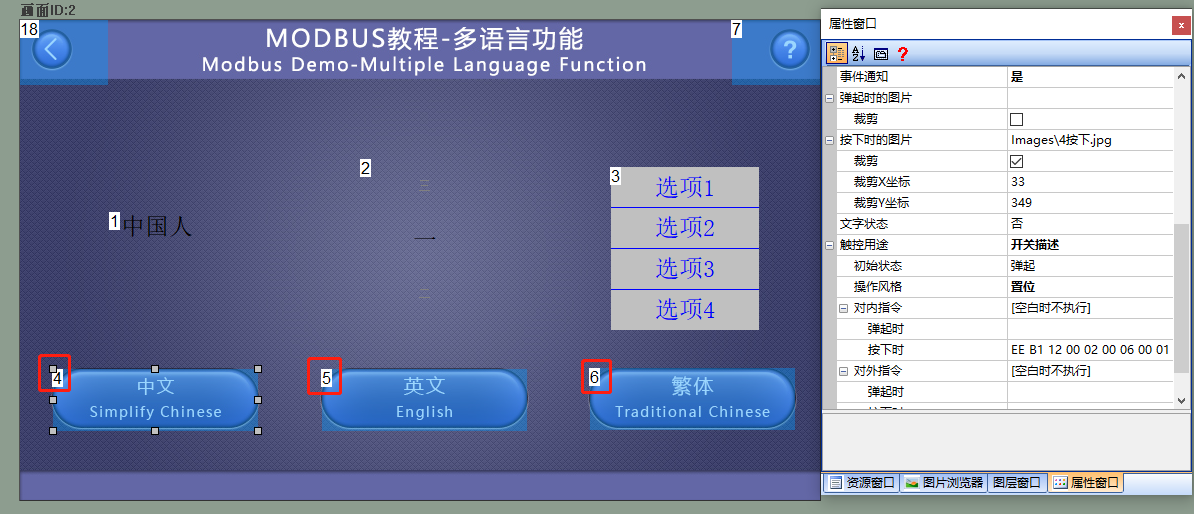
Add three Button Controls (Control IDs: 4, 5, 6) to the screen for controlling the display of different languages. Taking Button Control ID4 as an example, the control property configuration is as follows
Button Controls ID4~6 have a mutual exclusion function (only one can be selected at a time, refer to Section 1.3 "Button Mutual Exclusion" in the "Configuration Control Tutorial - Button Controls")
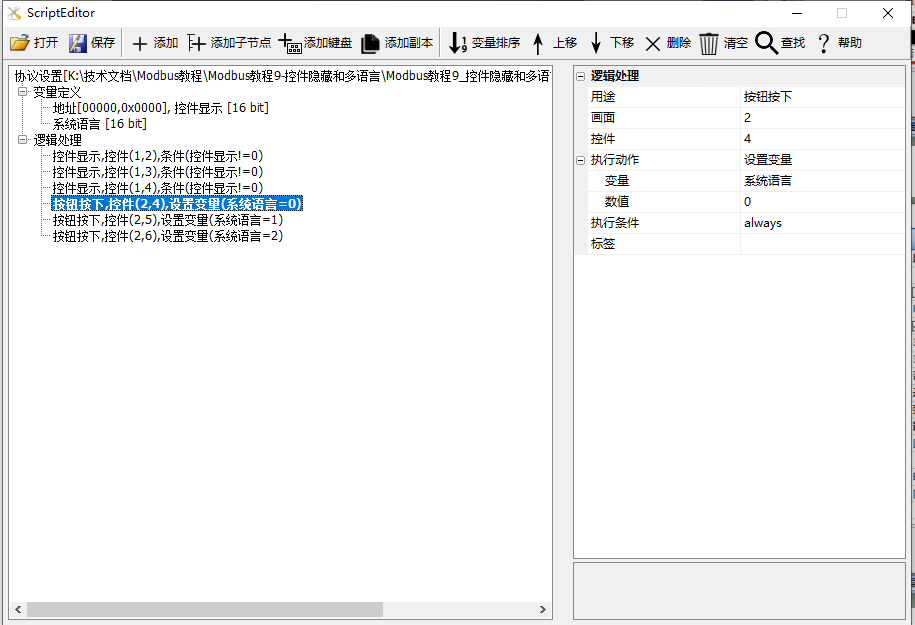
Add three logic processes to [Protocol and Variable Settings]: The first one has a purpose of "Button pressed"; the screen is "2"; the control is "4"; the execution condition is "Set [System Language] to 0", corresponding to the display of "Language 1". Similarly, the second and third settings are as follows:
Run Preview
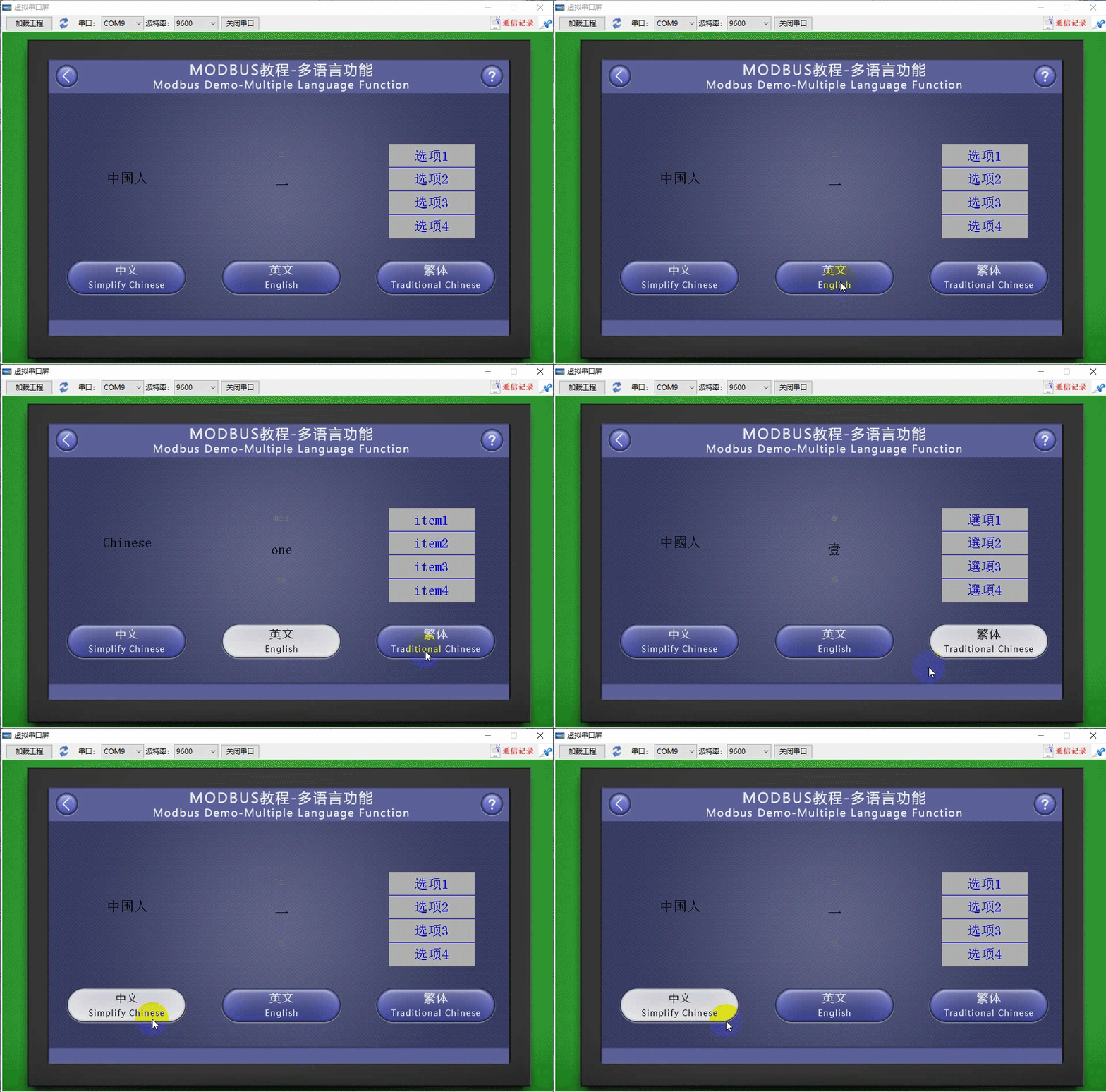
At this point, compile the project and run the virtual serial port screen, connecting it to the Modbus Slave software. When the Button Control (Control ID: 1) is pressed, Chinese is displayed; when the Button Control (Control ID: 5) is pressed, "English" is displayed; and when the Button Control (Control ID: 5) is pressed again, "Traditional Chinese" is displayed


Leave a Reply