
LUA API Callback Function Description
Overview
This article will introduce the usage of callback functions in the LUA scripting API functions of Dacai, as well as the considerations for calling callback functions. It will also introduce common API callback interfaces, as shown below:
- Initialization function: on_init()
- System tick callback function (1s): on_systick()
- Control trigger callback function: on_control_notify(screen, control, value)
- Screen switching callback function: on_screen_change(screen)
- Timer timeout callback function: on_timer(timer_id)
- Drawing/line/geometry callback function: on_draw(screen)
- U-disk and SD card callback functions: on_usb_inserted(dir)/on_usb_removed()/on_sd_inserted(dir)/on_sd_removed()
Note: For more LUA information, please refer toLUA scripting API function interfaceSection and Website: www.runoob.com/lua
Scope of Application: M Series, W Series, X Series, F Series (Firmware Version >= V4.2.401.0)
Routine Download Link: "LUA API Callback Function Description](Click to Jump)
Precautions
- The callback function in the Dacai Lua API cannot be called by other functions. It is triggered passively and automatically called back. For example, when the user enters a key value into the text control, the callback function on_control_notify(screen, control, value) is triggered
- The function name and parameters of the callback function cannot be changed
1.1 Function on_init()
After the system powers on and loads the LUA script file, this callback function is immediately called. It is usually used to perform initialization operations and is executed only once
Screen Configuration
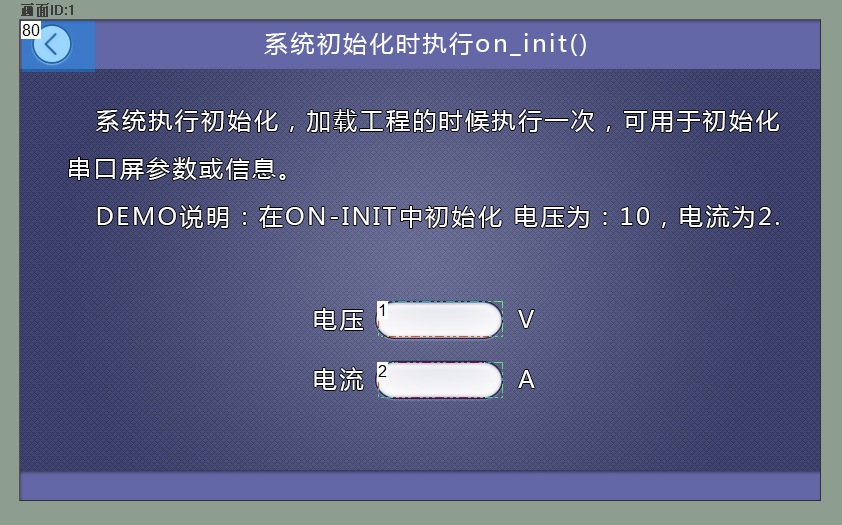
Add two text controls to the screen, with ID1 used to display the voltage value and ID2 used to display the current, as shown below
LUA script
Fill in the API function for setting the value of the text box in the on_init() function, which is called and executed during system initialization. The specific code is shown below
 --[[***************************************************************************
** Function name: on_init()
** Descriptions:   系统初始化时,执行此回调函数。
                   注意:回调函数的参数和函数名固定不能修改
***************************************************************************--]]
function  on_init( )
    set_value(1,1,10) --设置文本控件的值
    set_value(1,2,2)  --设置文本控件的值
end
Run Preview
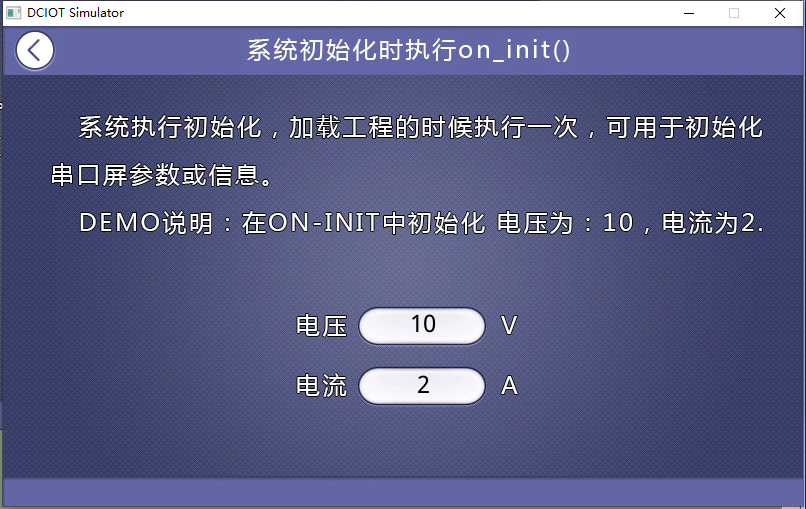
Run the virtual screen, with the voltage value of this screen being 10 and the current value being 2, as shown below. Users can modify the corresponding values through the Lua script to further familiarize themselves with it
1.2 Function on_systick()
The system automatically calls this callback function every 1 second
Screen Configuration
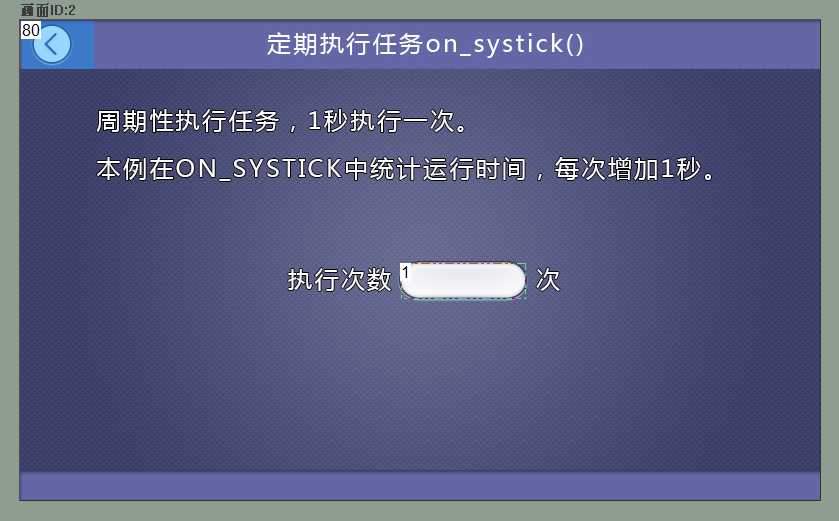
Add a text control to this screen for accumulating the number of times the on_systick() callback is triggered
LUA script
In the tutorial, a program for displaying the number of times the callback function is executed has been added in the on_systick() function. The specific code is shown below
--[[***************************************************************************
** Function name: on_systick
** Descriptions:  定时回调函数,系统每隔1秒钟自动调用。
                  注意:回调函数的参数和函数名固定不能修改
***************************************************************************--]]
function  on_systick( )
    sys_timer = sys_timer +1
    set_value(2,1,sys_timer)
end
Run Preview
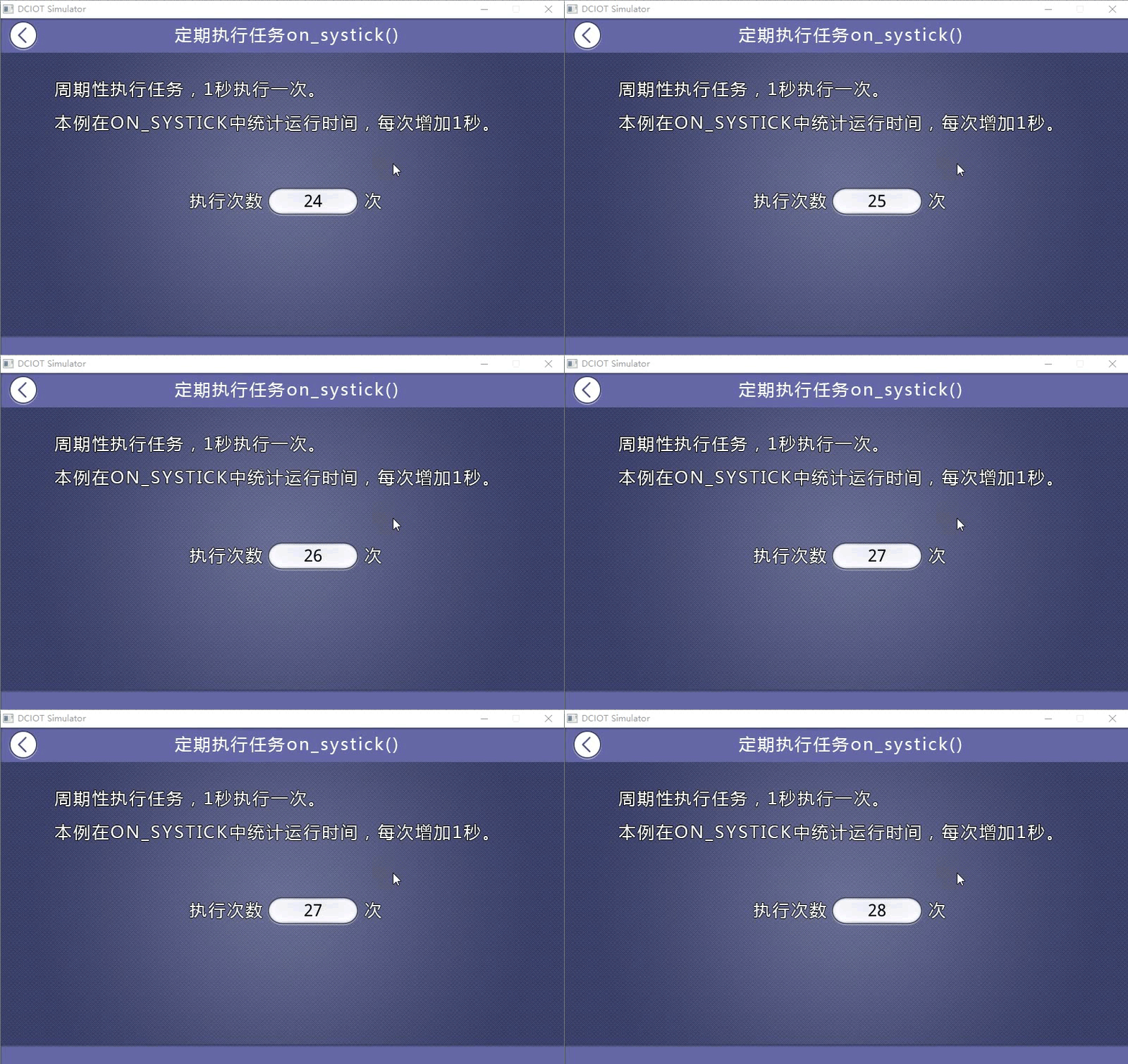
The on_systick() function is triggered every second, with the effect shown below
1.3 Function on_timer(timer_id)
on_timer(timer_id) is a timer timeout callback function that does not work alone. This function triggers a callback only when used in conjunction with start_timer(timer_id, timeout, countdown, repeat) to start a timer. The timer triggers on_timer(timer_id) only when it overflows and times out.
Screen Configuration
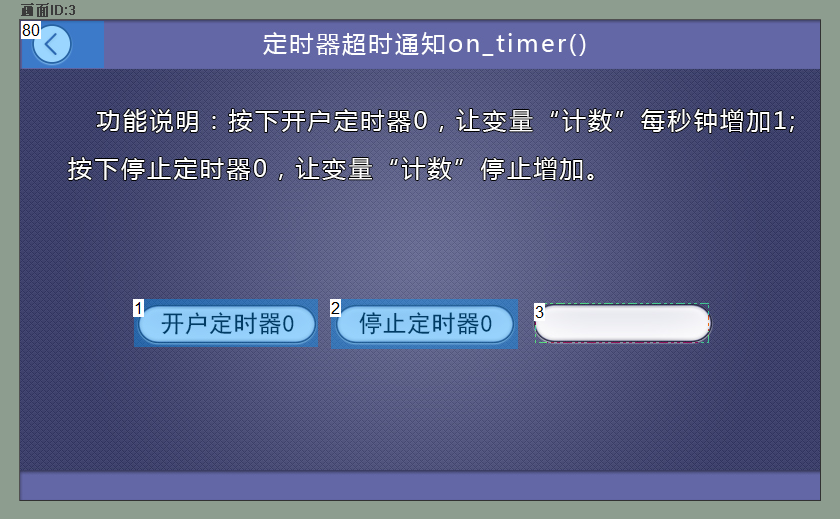
Two buttons are placed in the screen, one to enable the timer, one to stop the timer, and a text box to display the number of times the callback function is called after the timer times out, as shown below.
LUA Script
The tutorial adds a program to display the number of times the callback function is executed in the on_timer() function, as shown in the following code.
--[[***************************************************************************
** Function name: on_timer
** Descriptions:  定时器超时,执行此回调函数
                  注意:回调函数的参数和函数名固定不能修改
** Input value :  timer_id 定时超时的定时器ID号,定时器编号0~31
***************************************************************************--]]
function  on_timer(timer_id)
     --定时器0超时触发
    if  timer_id == 0
    then
        timer_out = timer_out +1
        set_value(3,3,timer_out)
    end
end

--[[***************************************************************************
** Function name: on_control_notify
** Descriptions:  用户通过触摸修改控件后,执行此回调函数。
                  点击按钮控件,修改文本控件、修改滑动条都会触发此事件。
                  注意:回调函数的参数和函数名固定不能修改
** Input value :  screen 画面ID
                  control 控件ID
                  value  控件值(包括文本控件输入的值)
***************************************************************************--]]
function  on_control_notify(screen,control,value)
 --***********************************************************
 --功能:按下画面4的控件1启动定时器0
 --调用函数:start_timer(timer_id, timeout, countdown, repeat)
 --函数功能:启动定时器
 --参数: timer_id, 定时器ID;
 --      timeout, 超时时间;
 --      countdown,1顺计时,0倒计时
 --      repeat   计时次数,0无限循环
 --***********************************************************
    if  screen == 3  and  control == 1 and  value == 1
    then
        start_timer(0,1000,1,0)       --开启定时时器0工作,设置计时1秒触发一次on_timer
    elseif  screen == 3  and  control == 2 and  value == 1
    then
       stop_timer(0)          --停止定时时器0工作
       timer_out = 0
    end
    ……
end
Run Preview
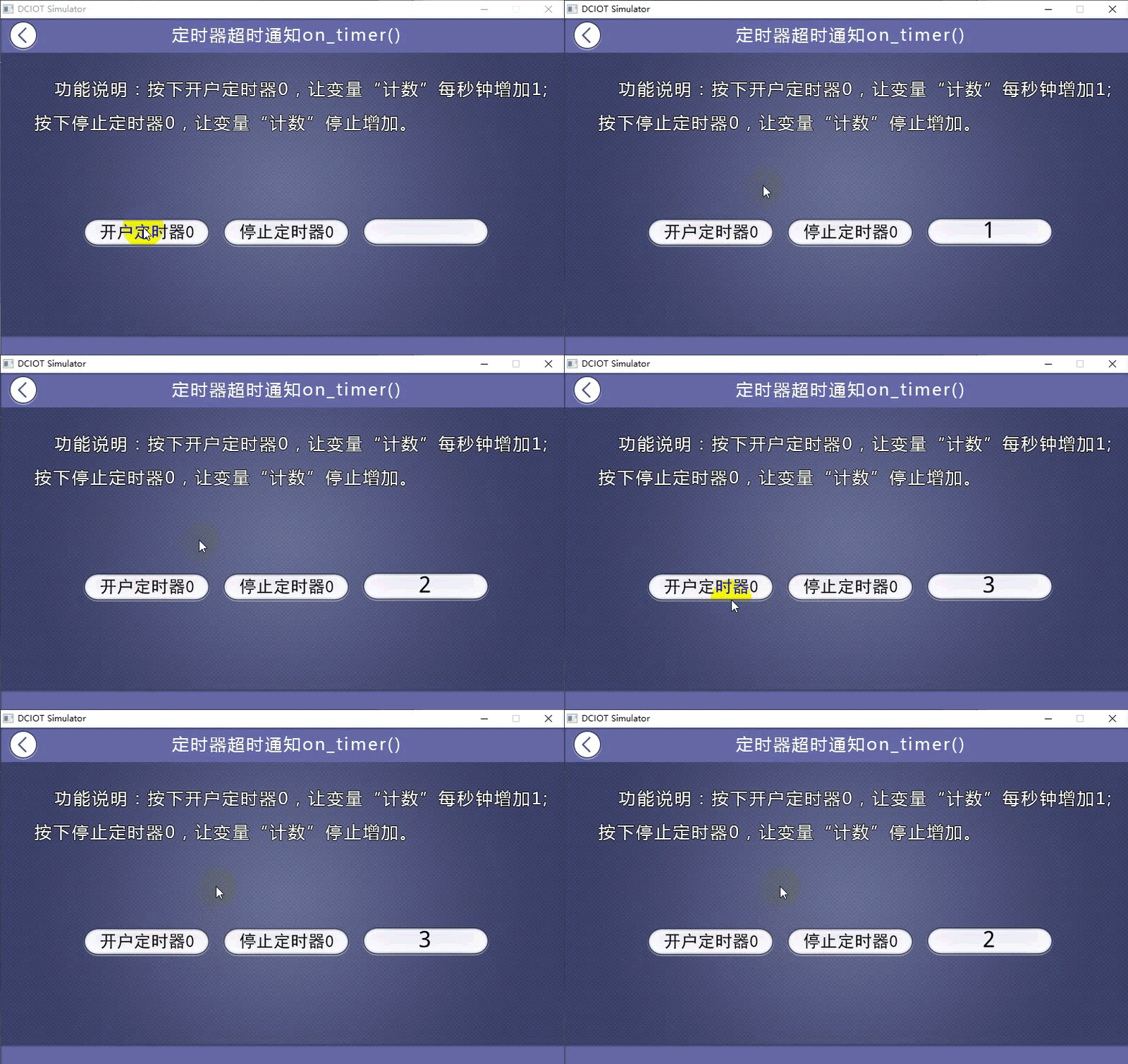
After starting the timer, the timeout triggers on_timer(), and the effect is as shown below.
1.4 Function on_control_notify(screen,control,value)
This callback function is executed after the user touches and modifies a control. Clicking a button control, modifying a text control, modifying a slider, etc. will trigger this function. If the microcontroller serial port command modifies the control value, the script sets set_value, or the button triggers other controls with built-in commands, this callback function will not be triggered. Only user operations on screen controls will trigger it.
PS: For button controls, setting one of the following two configurations will prevent the button control from triggering on_control_notify():
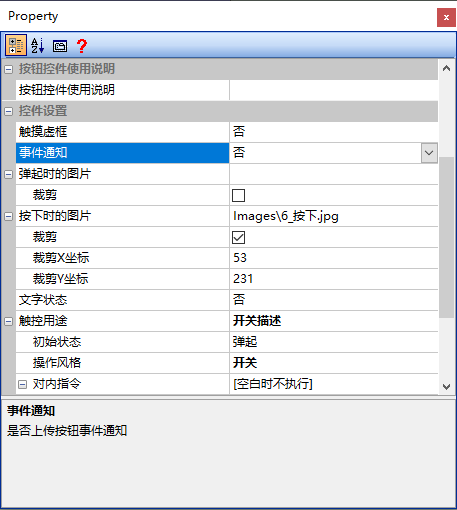
1. For a single button control, if the "Event Notification" is set to "No", when the button control is pressed, on_control_notify() will not be triggered, as shown below
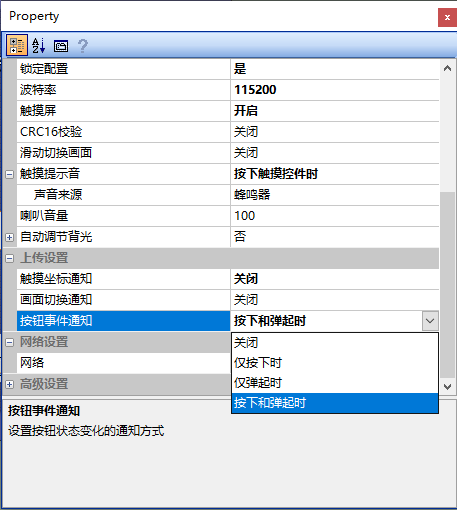
2. Engineering attribute configuration, the global configuration button attribute [Button Event Notification] is shown below
- If set to "Off": All button controls will not be triggered
- If set to "Only when pressed": All button controls will only be triggered when pressed
- If set to "Only when released": All button controls will only be triggered when released
- If set to "When pressed and released": All button controls will be triggered when both pressed and released
Screen configuration
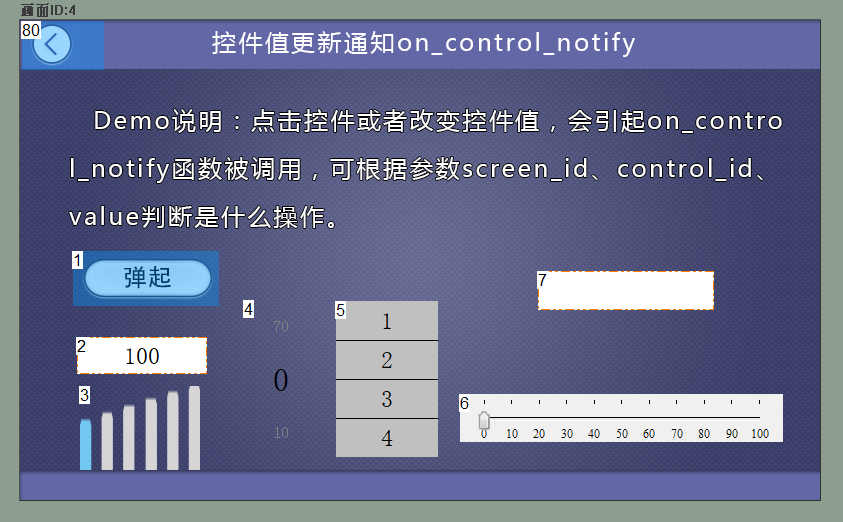
Place common controls in the screen for example, add 1 button control (ID1), 1 text control (ID2, keyboard input), 1 icon control (ID3, touch-enabled), 1 slider control (ID4), 1 menu control (ID5), and 1 slider control (ID6). Add a text control (ID7) to record which control triggered it, as shown below
LUA script
In this section, the callback function displays the control corresponding to the triggered on_control_notify event, and displays the pressed information in the text control ID7. The specific code is shown below
--[[***************************************************************************
** Function name: on_control_notify
** Descriptions : 用户通过触摸修改控件后,执行此回调函数。
                  点击按钮控件,修改文本控件、修改滑动条都会触发此事件。
                  注意:回调函数的参数和函数名固定不能修改
** Input value :  screen 画面ID
                  control 控件ID
                  value  控件值(包括文本控件输入的值)
***************************************************************************--]]
function  on_control_notify(screen,control,value)
 --***********************************************************
 --功能:按下画面4的控件1启动定时器0
 --调用函数:start_timer(timer_id, timeout, countdown, repeat)
 --函数功能:启动定时器
 --参数:  timer_id, 定时器ID;
 --       timeout, 超时时间;
 --     countdown,1顺计时,0倒计时
 --     repeat   计时次数,0无限循环
 --***********************************************************
    ……
    if screen == 4
    then
        if control == 1 and value == 1        --value == 1 按钮按下
        then
            set_text(4,7,"按钮按下")
        elseif control == 1 and value == 0    --value == 0 按钮弹起
        then
            set_text(4,7,"按钮弹起")
        elseif  control == 2                  --文本输入
        then
            set_text(4,7,"文本输入")
        elseif  control == 3                  --图标控件
        then
            set_text(4,7,"触摸图标")
        elseif control == 4                   --滑动选择控件
        then
            set_text(4,7,"滑动选择")
        elseif control == 5                   --菜单控件
        then
            set_text(4,7,"菜单选择")
        elseif control == 6                   --滑块控件
        then
            set_text(4,7,"滑块滑动")
        end
    end
    ……
end
Run preview
Click controls ID1~ID6 in order, and the effect is as follows
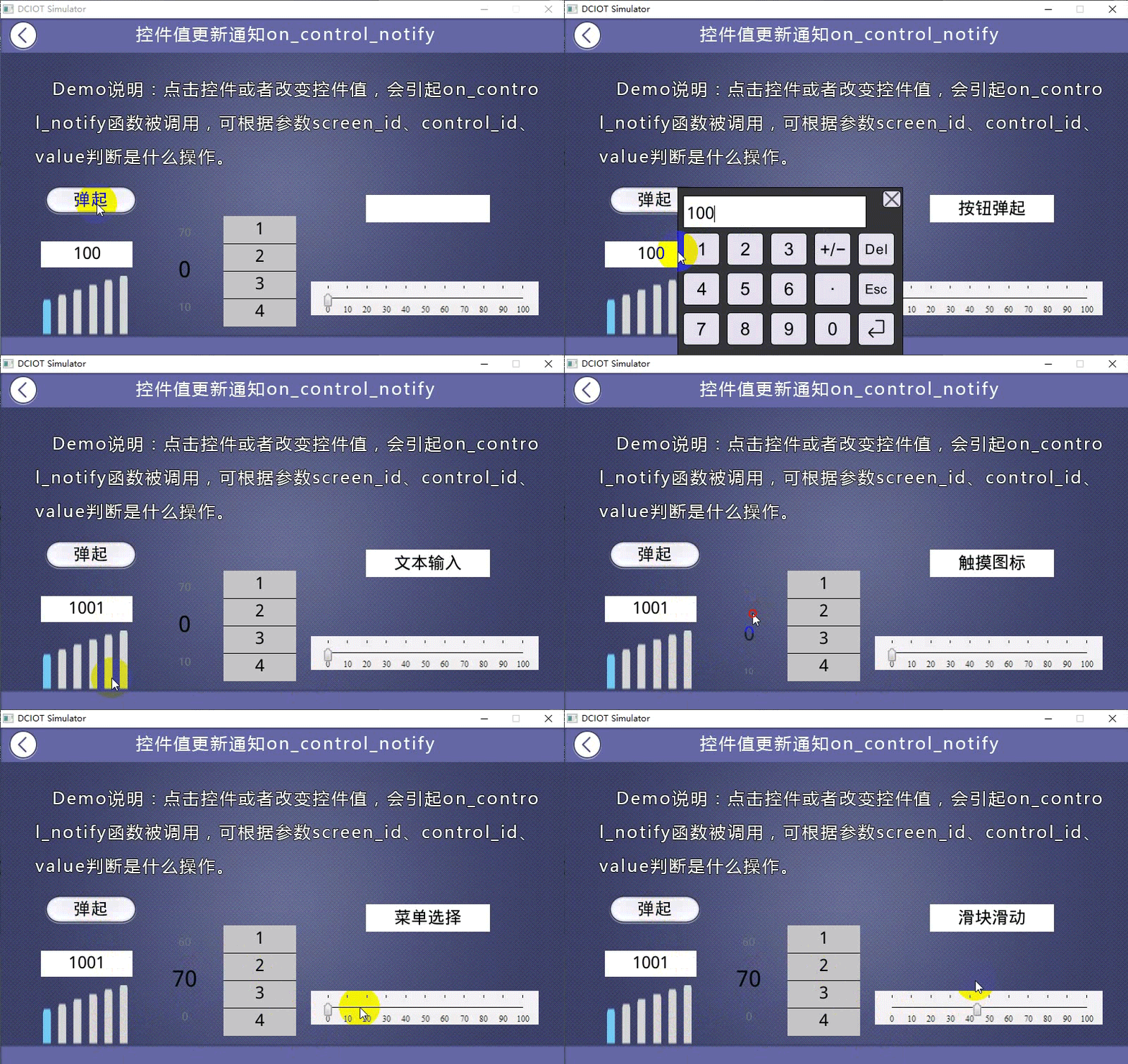
1.5 Function on_screen_change(screen)
After the screen transitions, execute this callback function
- `screen`: The ID of the target screen after the transition. Assuming screen A transitions to screen B, after this action is completed, `screen` will be the 'screen ID' value of screen B.
Note: Calling `change_screen` within `on_screen_change(screen)` to switch screens will not trigger `on_screen_change` again.
Screen Configuration
The attribute of the button control in this article is set to screen transition. Clicking the button control will switch the screen to the specified screen, as shown below.
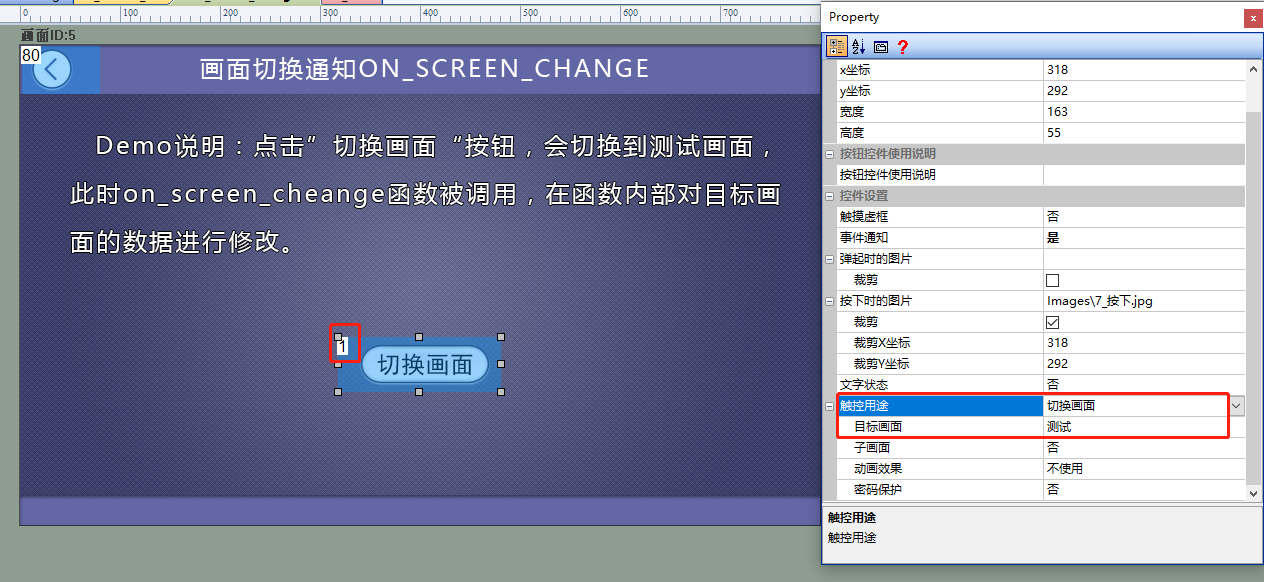
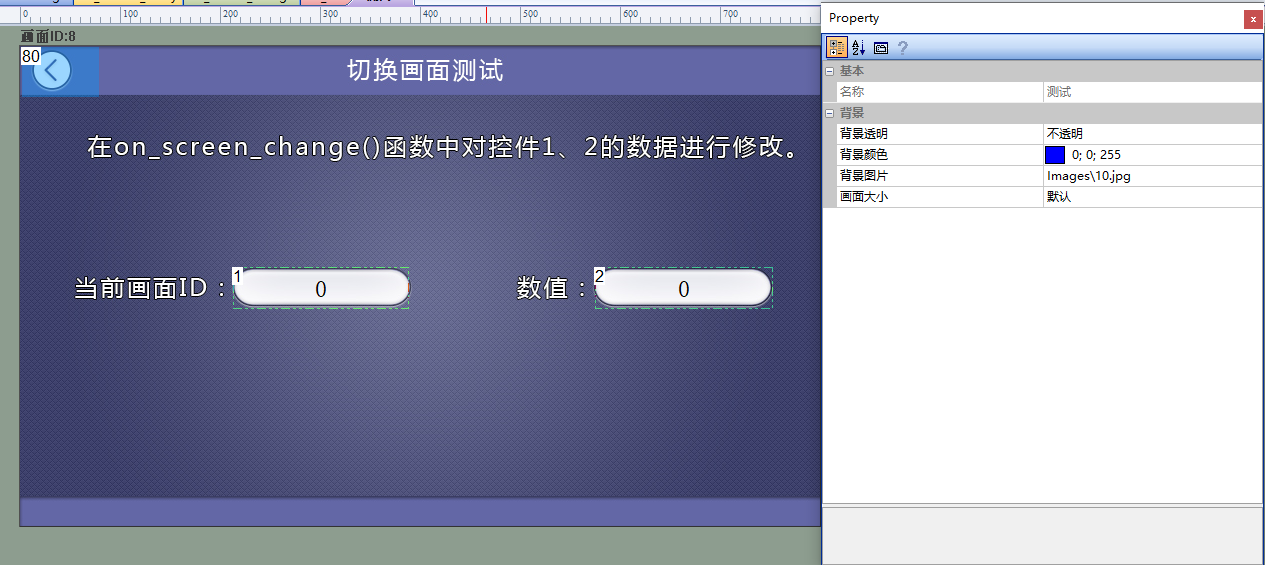
In the test screen, add two text controls. When the script triggers the callback function `on_screen_change`, set control ID1 to display the current screen ID, and control ID2 to display a numerical value. The configuration is as follows.
LUA Script
When the screen transitions, the callback function `on_screen_change` is triggered, enabling modifications to the two text controls of the target screen during the transition. The specific code is as follows.
--[[***************************************************************************
** Function name: on_screen_change
** Descriptions:  当画面切换至目标画面ID时,执行此回调函数
                  注意:回调函数的参数和函数名固定不能修改
** Input value :  screen 目标画面ID
*******************************************************************************--]]
function on_screen_change(screen)
    if screen == 8 then             --切换到画面9时,修改控件1,2的数据
        set_value(8,1,screen)       --修改控件1的数据
        set_value(8,2,30)           --修改控件2的数据
    end
end
Run Preview
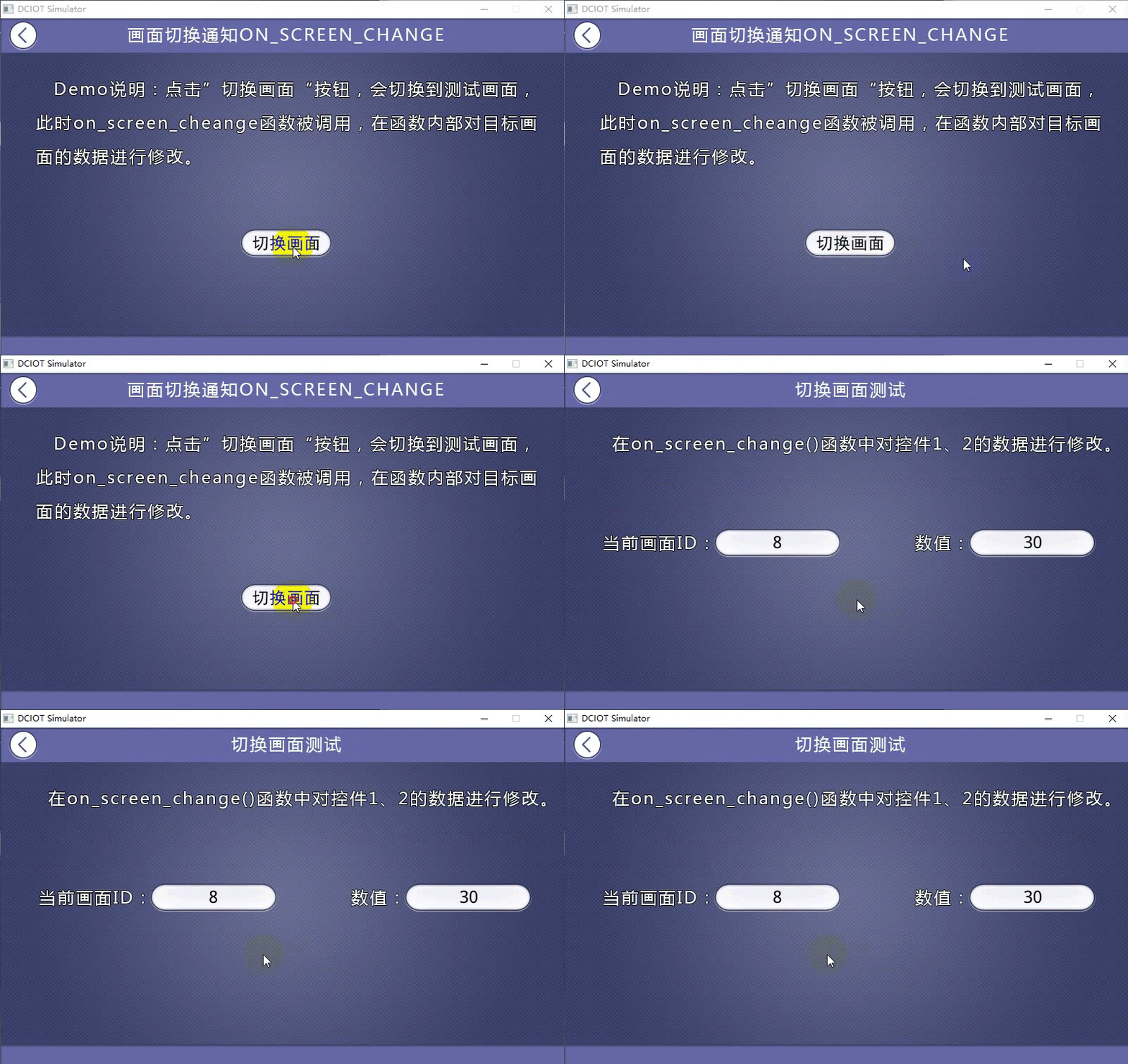
Trigger `on_screen_change`, and the effect is as follows.
1.6 Function `on_draw()`
This callback function is executed during redrawing. Typically, all drawing and geometric drawing (circles, rectangles, lines, points, etc.) operations are implemented in this function. This function is also triggered when the controls on the screen are refreshed, and is generally used in conjunction with `redraw()`.
- Screen: The ID of the screen that requires drawing
Screen configuration
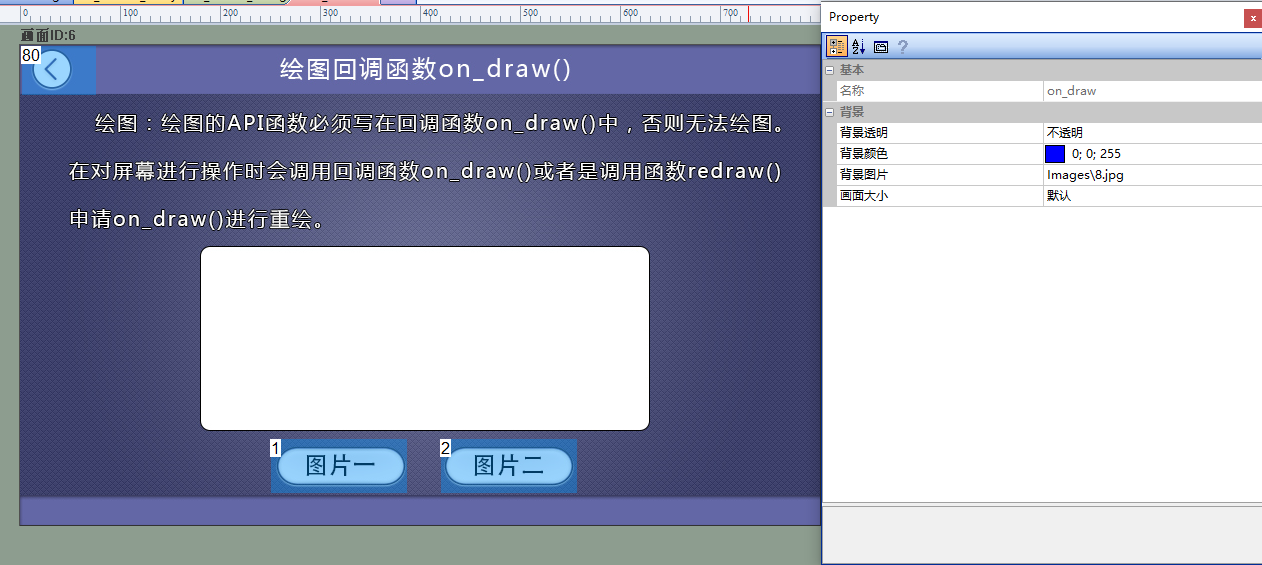
Add two button controls to this screen. When each button is pressed, display a different image
LUA script
When the LUA button is pressed, assign different values to show_picture. Call redraw() to trigger the callback function on_draw() to display the specified image
--[[***************************************************************************
** Function name: on_draw
** Descriptions : 画面刷新时,或者使用API函数 redraw 申请重绘,执行此回调函数
                  注意:回调函数的参数和函数名固定不能修改
** Input value  : screen 目标画面ID
***************************************************************************--]]
function  on_draw(screen)
    --******************************************************************************
    --调用函数:draw_image(image_id,frame_id,dstx,dsty,width,height,srcx,srcy)
    --函数功能:根据图片ID绘图
    --参数:  image_id 图片资源的 ID
    --frame_id 对应图标, 可以设置帧 ID,其他图片固定为 0
    --dstx   图片显示 X 坐标
    --dsty   图片显示 Y 坐标
    --width    图片显示宽度
    --height   图片显示高度
    --srcx   图片裁剪 X 坐标
    --srcy   图片裁剪 Y 坐标
    --*****************************************************************************
    if screen == 6 and show_picture  == 1
    then
        draw_image(23,0,190,160,430,230,0,0)
    elseif screen == 6 and show_picture == 2
    then
        draw_image(24,0,190,160,430,230,0,0)
    end
end

function  on_control_notify(screen,control,value)
    if  screen == 5
    then
        if control == 1 and value == 1             --绘制图片1
        then
            show_picture = 1
            redraw()                             --申请重绘
        elseif control == 2 and value == 1         --绘制图片2
        then
            show_picture = 2
            redraw()                               --申请重绘
        end
    end
end
Run preview
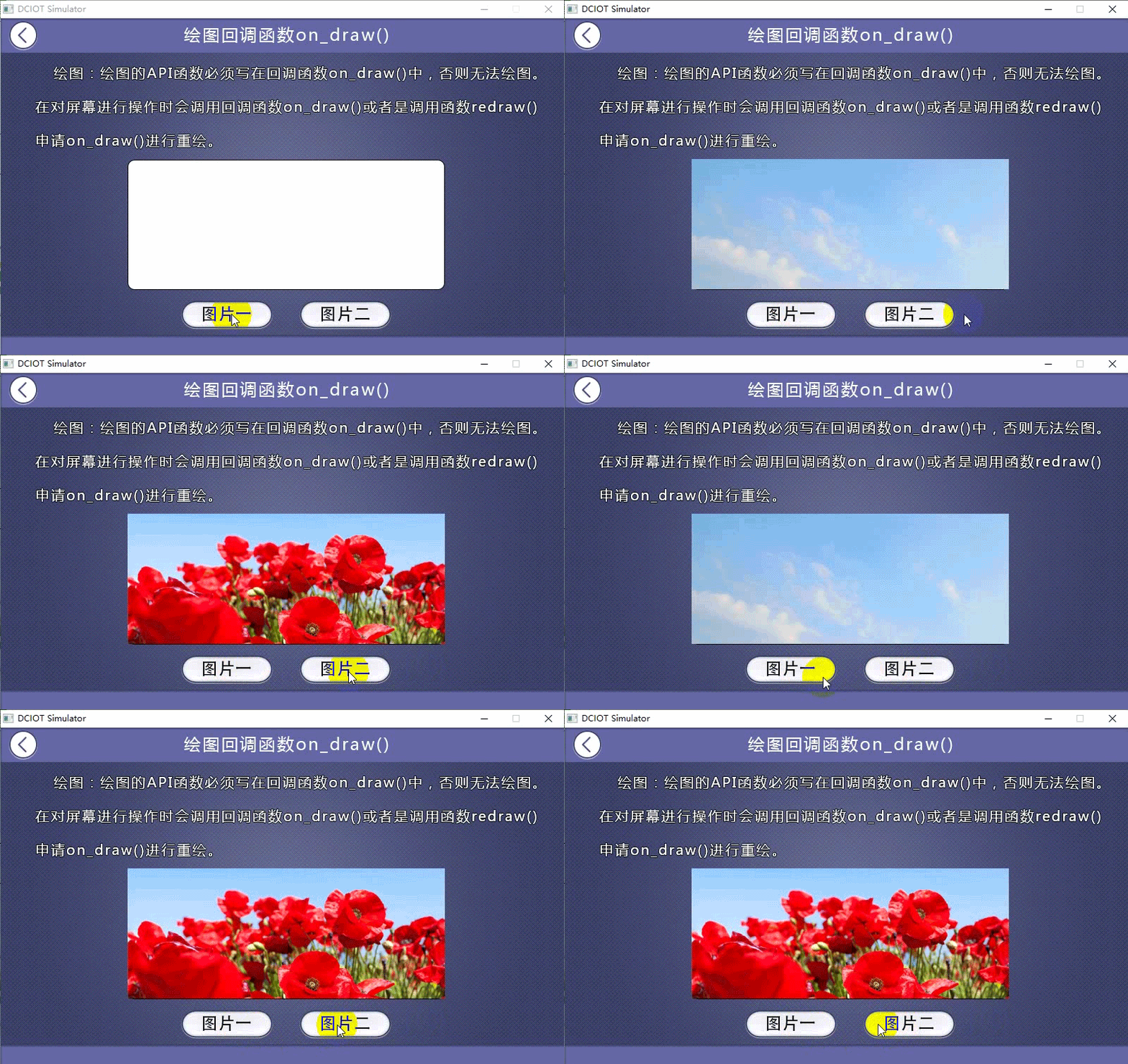
The drawing effect is shown below
1.7 U-disk/SD card callback function
When a U-disk or SD card is inserted, the on_usb_inserted(dir) or on_sd_inserted(dir) function is triggered. When a U-disk or SD card is removed, the on_usb_removed() or on_sd_removed() function is triggered
- dir: This parameter indicates the drive letter of the U-disk or SD card
Note: Whether it is an SD card or a U-disk, the actual screen should prevail. To test the API, please test on the actual screen
Project configuration
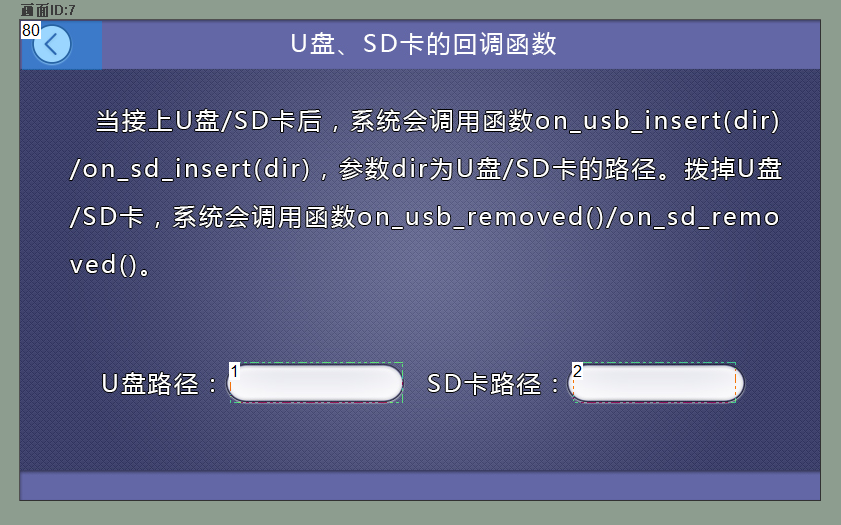
In the screen, add two text controls. Control ID1 is used to display the relevant information triggered by the U-disk, and Control ID2 is used to display the relevant information triggered by the SD card, as shown below.
LUA script
The LUA script code for the insertion and removal of U-disks/SD cards is shown below
--[[***************************************************************************
** Function name: on_usb_inserted
** Descriptions : 插入U盘后,执行此回调函数
                  注意:回调函数的参数和函数名固定不能修改
** Input value  : dir  U盘的路径
***************************************************************************--]]
function  on_usb_inserted(dir)
       set_text(7,1,dir)    --显示U盘路径
end
--[[***************************************************************************
** Function name: on_sd_inserted
** Descriptions : 插入SD卡后,执行此回调函数
                  注意:回调函数的参数和函数名固定不能修改
** Input value  : dir  SD卡的路径
***************************************************************************--]]
function  on_sd_inserted(dir)
    set_text(7,2,dir)    --显示SD卡路径
end
--[[***************************************************************************
** Function name: on_sd_inserted
** Descriptions : 拔出U盘后,执行此回调函数
                  注意:回调函数的参数和函数名固定不能修改
***************************************************************************--]]
function  on_usb_removed()
    set_text(7,1,"已拔出U盘")
end
--[[***************************************************************************
** Function name: on_sd_inserted
** Descriptions : 拔出SD卡后,执行此回调函数
                  注意:回调函数的参数和函数名固定不能修改
***************************************************************************--]]
function  on_sd_removed()
    set_text(7,2,"已拔出SD卡")
end

Leave a Reply