
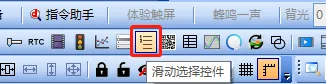
What is a sliding selection control?
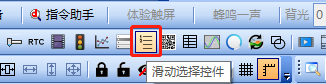
Sliding selection controls primarily facilitate users in setting parameters and displaying statuses. This routine introduces common applications of sliding selection controls, and describes the configuration of each application in conjunction with the screens in engineering projects. The common applications are as follows:
- Sliding selection: Users can select parameter settings by sliding up or down the screen
- Status display: Set to display a certain text status
Scope of application: Full series
Routine download link: "<Sliding Selection Control Application> (click to jump)"
11.1 Introduction to sliding selection control properties
There are two modes for sliders: sliding selection and status display
Sliding selection
Purpose
Slide up and down to change the options to set the parameters you need to select
Font
Change the font size of the displayed text
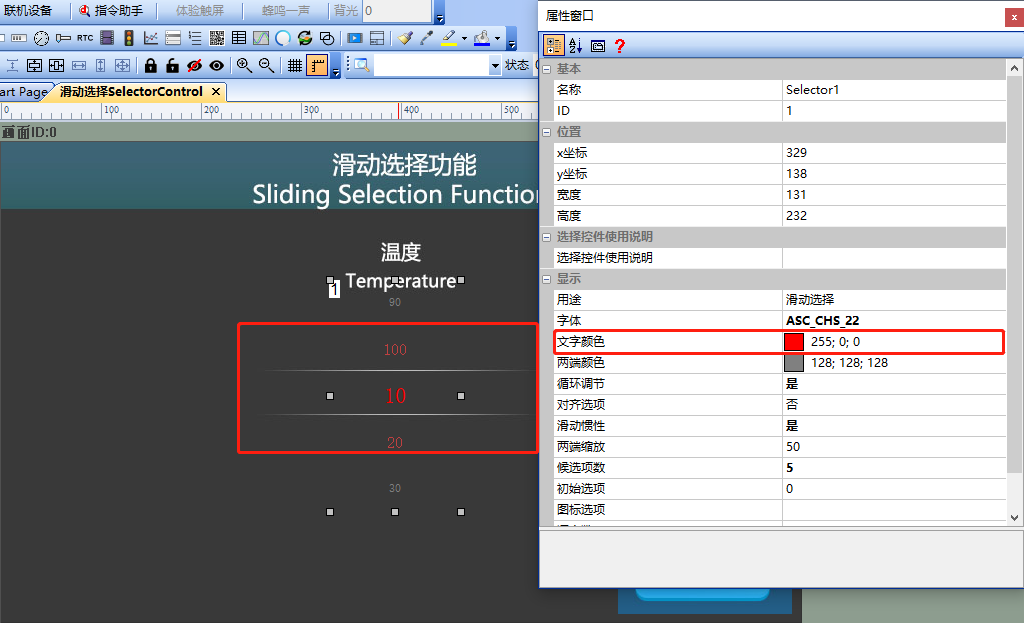
Text color
Specify the font color of the selected item, as shown below
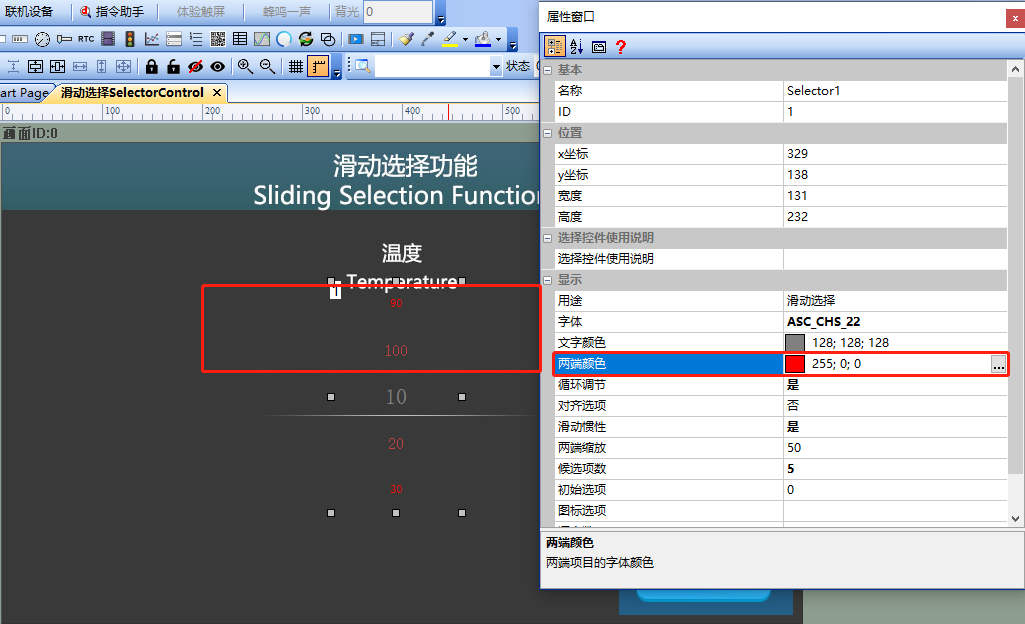
End colors
Used to set the font color of the items to be selected at both ends, as shown below
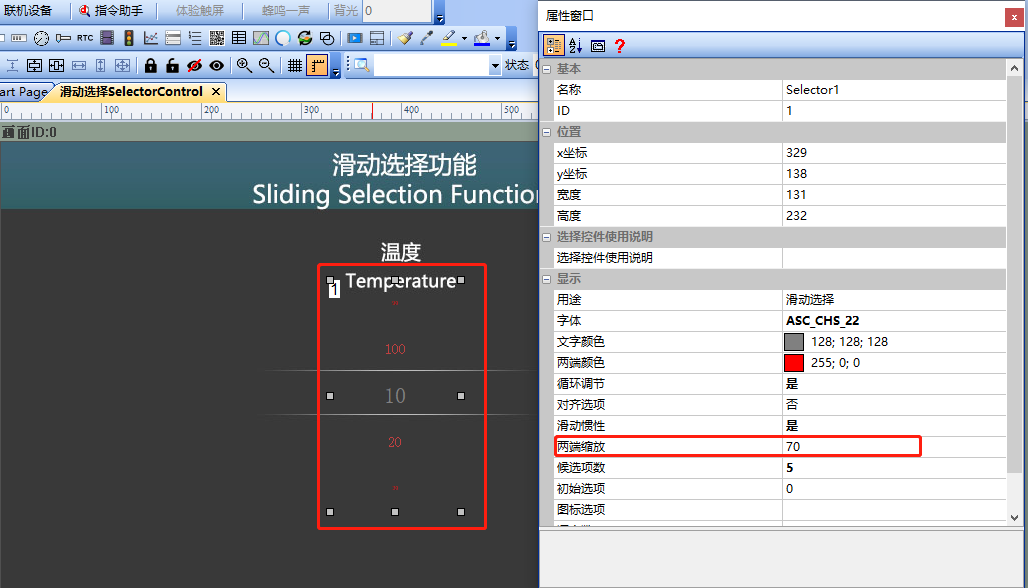
The percentage ratio of the font size between the options at both ends and the selected option in the middle, with a scaling factor range of [0-100]. 0 indicates no scaling. The setting effect is displayed as follows
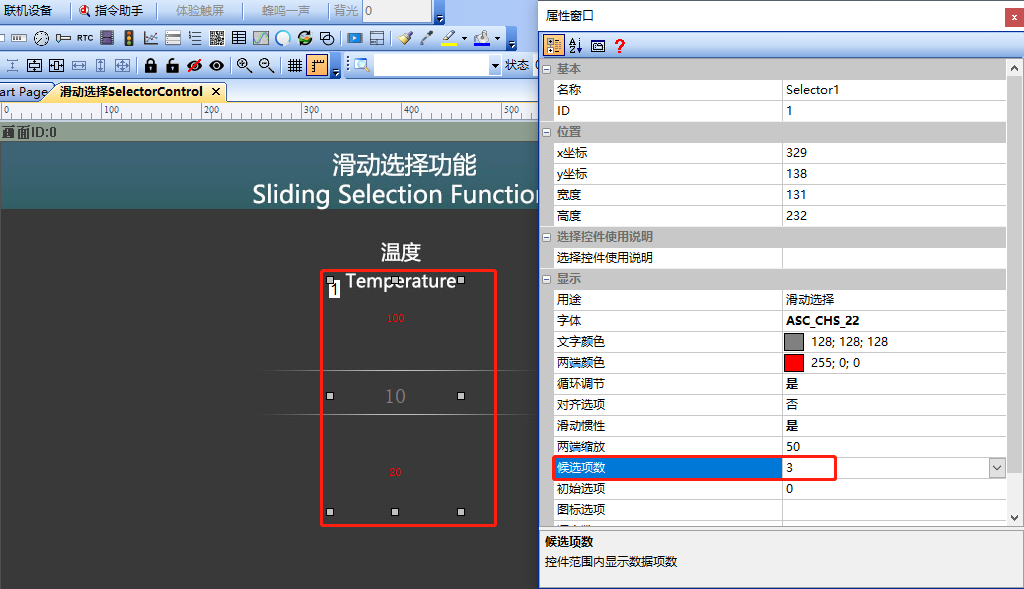
Candidate count
Used to set the number of items to be selected displayed within the visible range of the control, as shown below
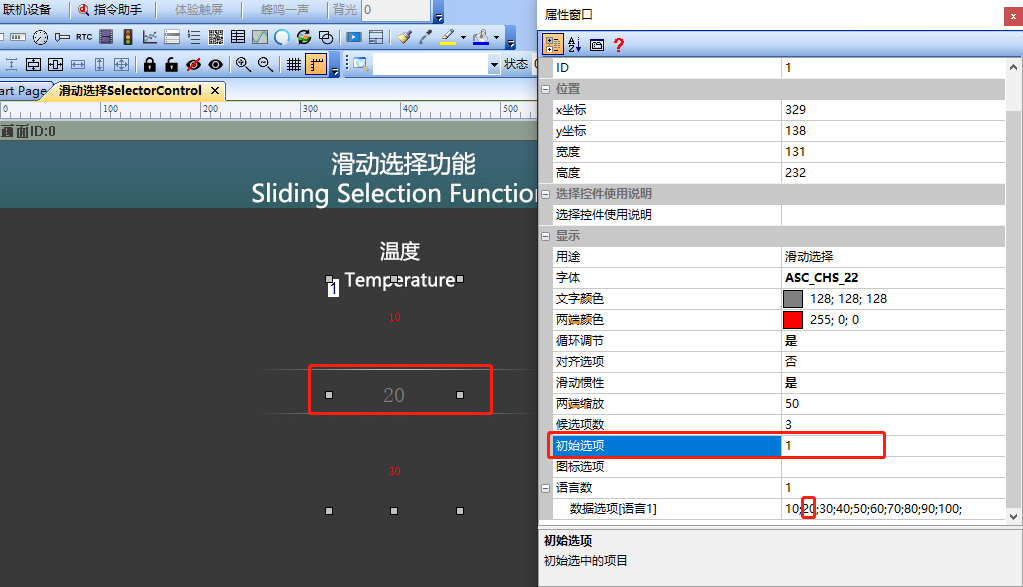
Initial option
Set the default selected item at initialization, with the first item labeled starting from 0. 0 represents the first item starting from the beginning of all items, as shown below
Language Count
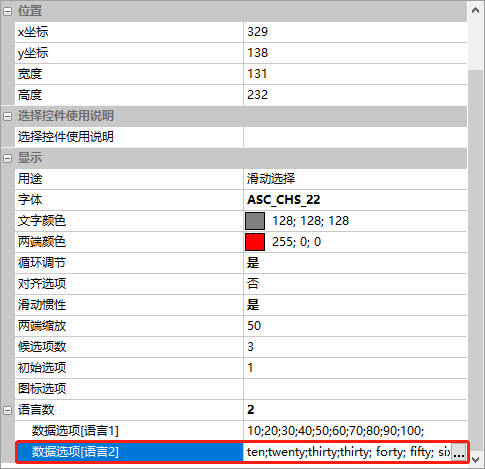
Set the number of displayed text language categories, with a maximum of 10 languages (15 types for the M series) selectable. After selecting the language count, enter the corresponding languages in the various language options in the subsequent data, separating each entry with a semi-colon (;), including the last entry, as shown below
Status Display
Purpose
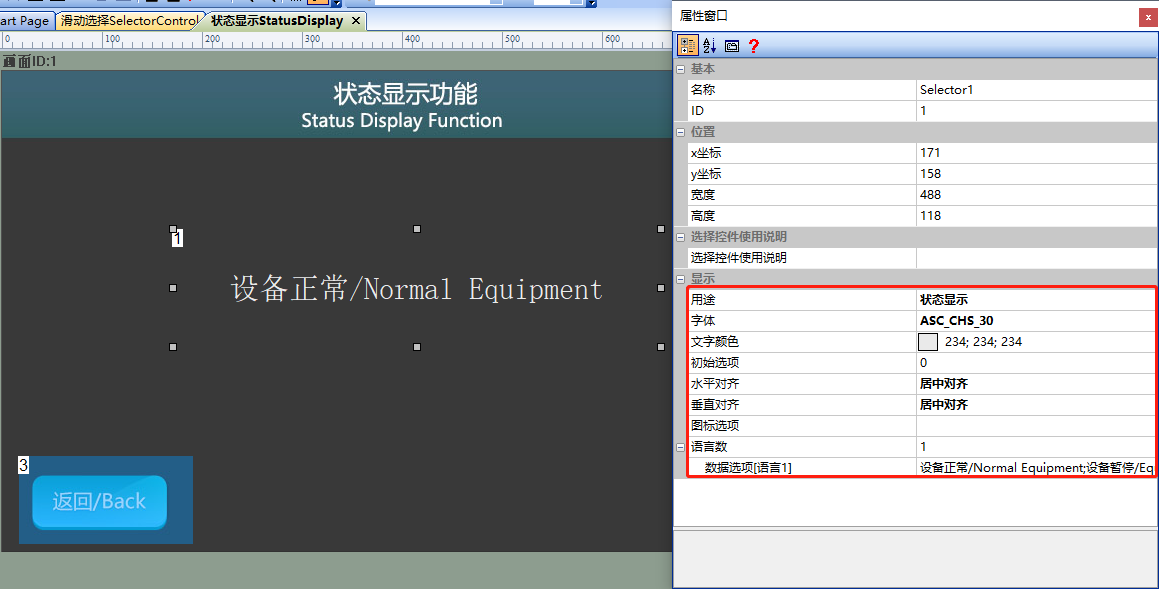
Used to display a certain text status.
Font
Set the font size of the displayed text (here, it only represents the setting of font size).
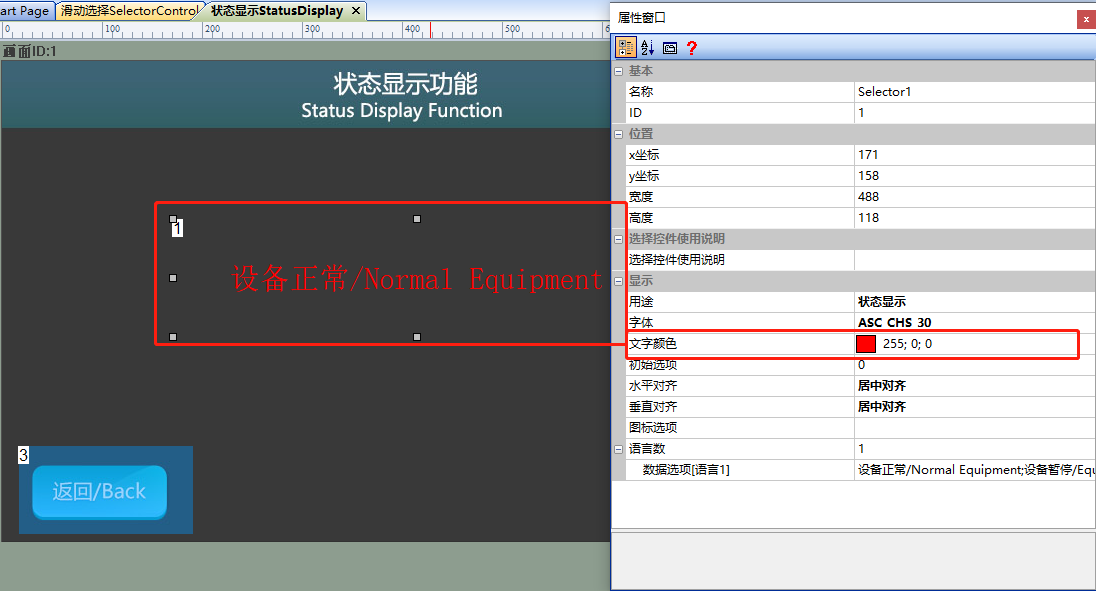
Text Color
Used to set the color of the status display text, as shown below
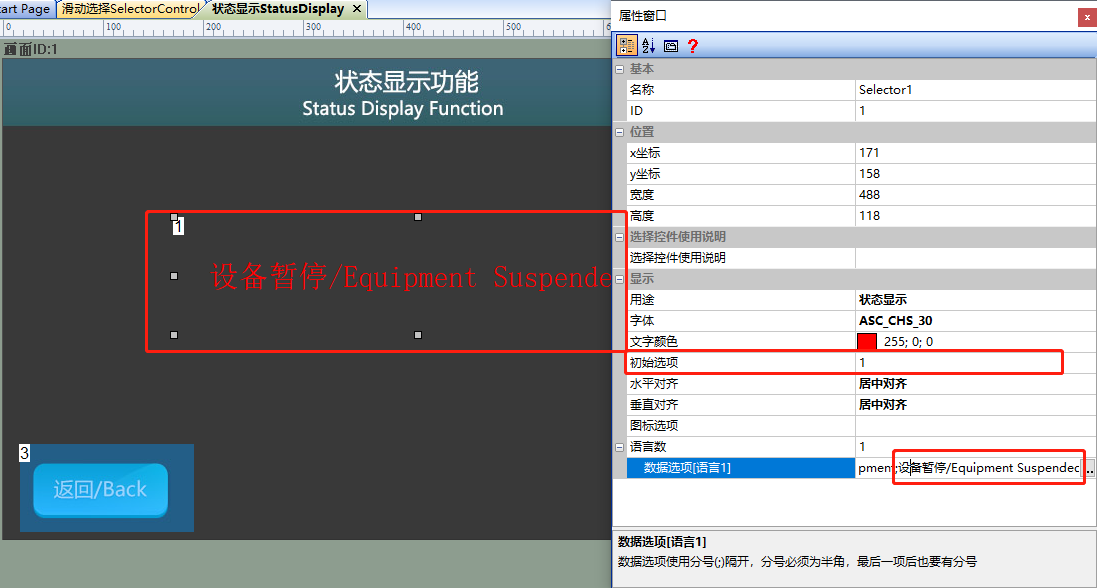
Initial Option
The default selected text status upon initialization, with the first entry labeled starting from 0, representing the first entry in all entries, as shown below
Horizontal Alignment
Horizontal alignment setting of text within the control range
Vertical alignment
Vertical alignment setting of text within the control range
Number of languages
Set the number of language categories for displaying text, with a maximum of 10 languages (15 types for the M series) selected. After selecting the number of languages, write the corresponding languages in the "Data Options" section for each language, separated by a semi-colon (;), including the last item.
11.2 Sliding selection function
The [Slider Selection Function] screen introduces how users can configure a slider selection control that allows them to select set parameters by sliding up or down the screen or by sending instructions to the screen
Screen configuration
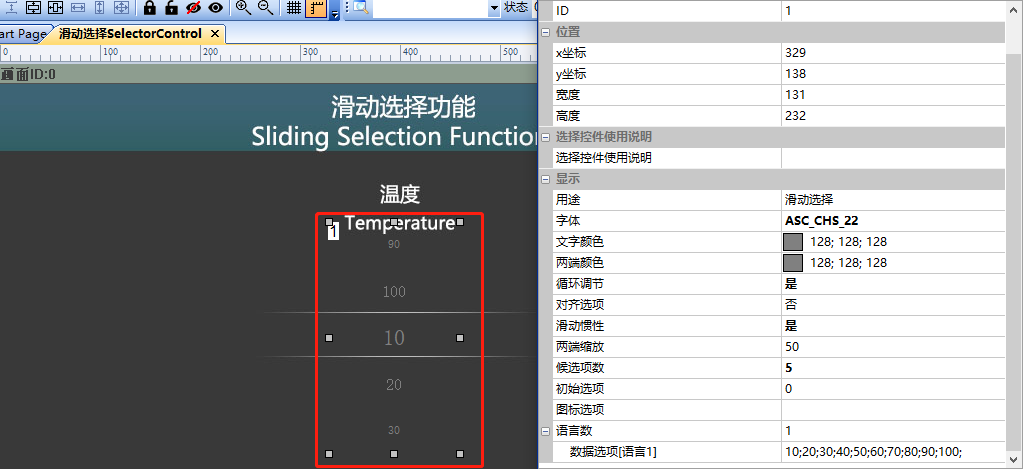
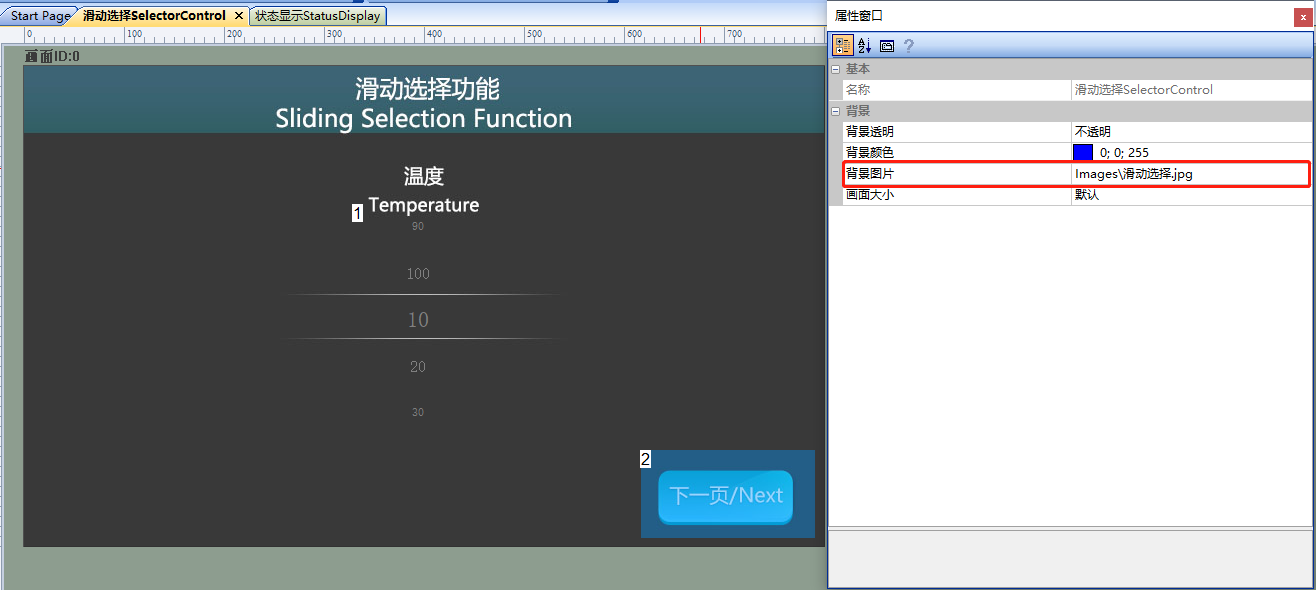
Import the corresponding artwork image for "Background Image" on the "Slide Selection Function" screen. Add a slide selection control on this screen as shown below
Attribute configuration
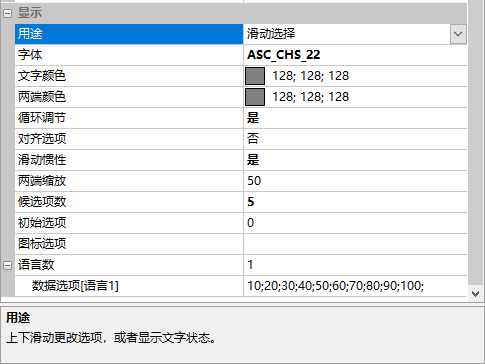
Taking the sliding selection control with a control ID of 1 as an example, set the [Purpose] to "Sliding Selection", [Font] to "ASC_CHS_22", [Text Color] to "128;128;128", [End Colors] to "128;128;128", [End Scaling] to "50", [Number of Candidates] to "5", [Initial Option] to "0", [Number of Languages] to "1", and [Data Options] to "10;20;30;40;50;60;70;80;90;100;". The configuration is shown below
Run preview
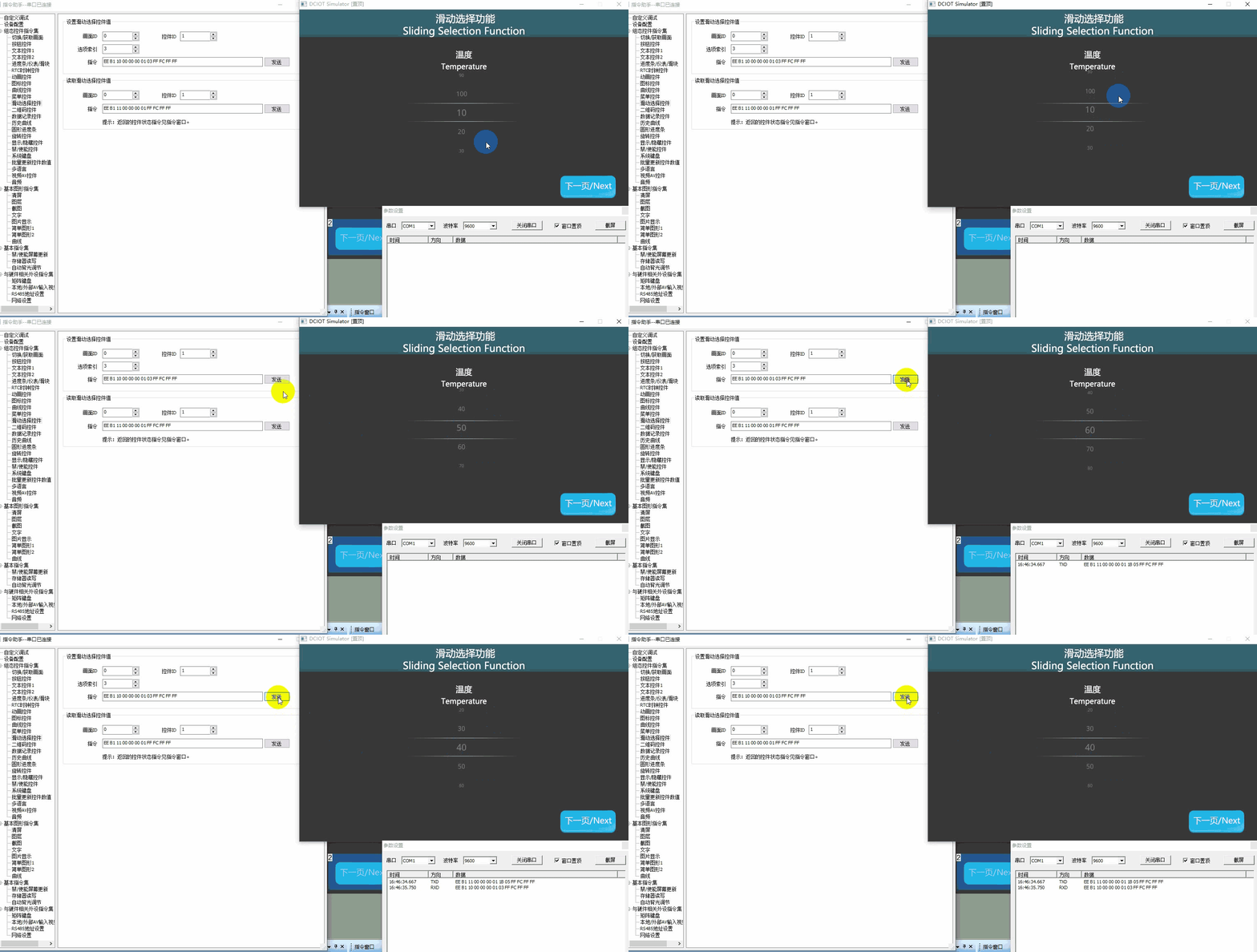
When running the virtual screen, users can use the mouse to slide up and down on the virtual screen to select the setting parameters (if the user has a physical screen, they can simply download the configured project and experience it). They can also send instructions to the virtual screen through the virtual serial port to set the selection options (the VisualTFT software and the virtual screen establish a connection using the "virtual serial port"). Open the "Instruction Assistant", select the "Slide Selection Control" on the left navigation bar, and set the instruction parameters for "Set Slide Selection Control Value". For example, set the slide selection control value for screen 0, control 1 to the third option, and the running effect is shown as follows
External MCU Control
Refer to the function declaration in the him.dever.h file and the definition in the him.dever.c file in the Keil development package. For example, if the user needs to set the value "30" for the third option in the slide selection control data options set above, they can directly call the slide selection control value setting function SetSelectorValue() with the code shown below
/************************************************************************

** Function name: void SetSelectorValue (uint16 screen_id,
**                                       uint16 control_id,
**                                        uint8 item);
** Descriptions    : 设置滑动选择控件值
** input parameters: screen_id: 画面ID
**                  control_id: 控件ID
**                        item: 设置的选项
** output parameters: 无
** Returned value   : 无
************************************************************************/
{
   ……
    SetSelectorValue (0, 1, 2) //画面ID0,控件ID1,设置的选项第三项
    ……
}
11.3 Status Display Function
The "Status Display Function" screen introduces how to configure a slide selection control used to display certain text statuses
Screen Configuration
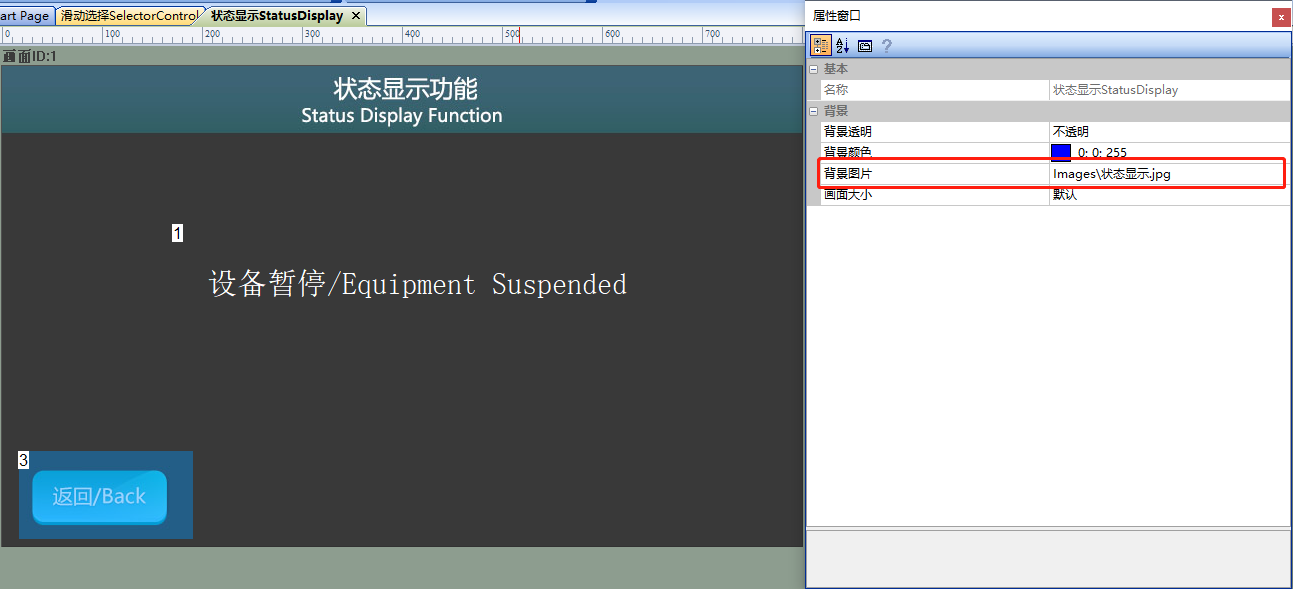
Import the corresponding artwork image in the "Background Image" of the "Status Display Function" screen. Add a slide selection control to the screen as shown below
Attribute Configuration
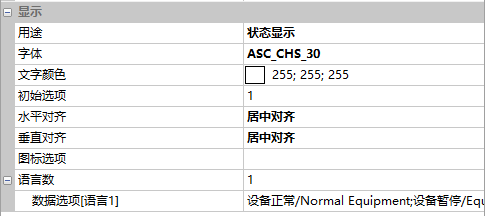
Set the "Purpose" to "Status Display", "Font" to "ASC_CHS_30", "Text Color" to "255;255;255", "Initial Option" to "0", "Horizontal Alignment" to "Center Alignment", "Vertical Alignment" to "Center Alignment", "Number of Languages" to "1", and "Data Options" to "Normal Equipment/Normal Equipment; Equipment Suspended/Equipment Suspended; equipment Maintenance/equipment Maintenance; Equipment Recovery/Equipment Recovery;". The configuration is shown below
Run Preview
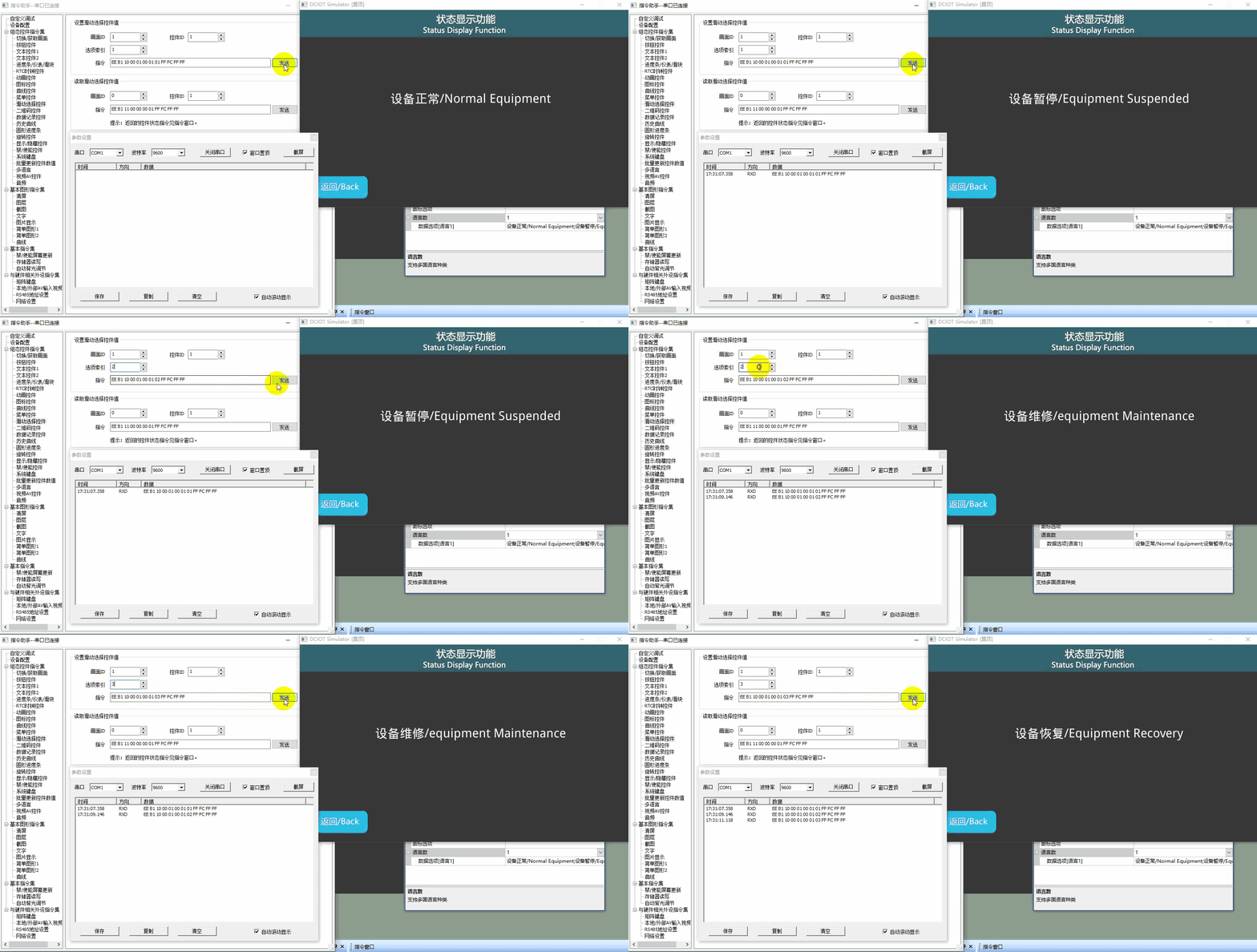
Run the virtual screen, and establish a connection between the VisualTFT software and the virtual screen using the "virtual serial port". Open the "Instruction Assistant", select the "Slide Selection Control" on the left navigation bar, and set the instruction parameters for "Set Slide Selection Control Value".
External MCU control
Refer to the function declarations in the him.dever.h file and the definitions in the him.dever.c file in the Keil development package.
For example, if the user needs to implement the setting of the third item "equipment Maintenance" in the data options of the sliding selection control mentioned above, they can directly call the sliding selection control value setting function SetSelectorValue() as shown below:
/************************************************************************
** Function name:    void SetSelectorValue (uint16 screen_id,
**                                          uint16 control_id,
**                                          uint8 item);
** Descriptions    : 设置滑动选择控件值
** input parameters: screen_id: 画面ID
**                  control_id: 控件ID
**                        item: 设置的选项
** output parameters: 无
** Returned value   : 无
************************************************************************/
{
  ……
  SetSelectorValue (0, 1, 2) //画面ID0,控件ID1,设置的选项第三项
  ……
}

Leave a Reply