Preface
This article will explain with the operation of FF, highlighting the resources available for operation in team management.
Team Creation
When logging into the FF platform for the first time as a super admin, there are no resources by default. You can only proceed with creating a team.
On the FF platform, a team represents a tenant and serves as a means of resource isolation.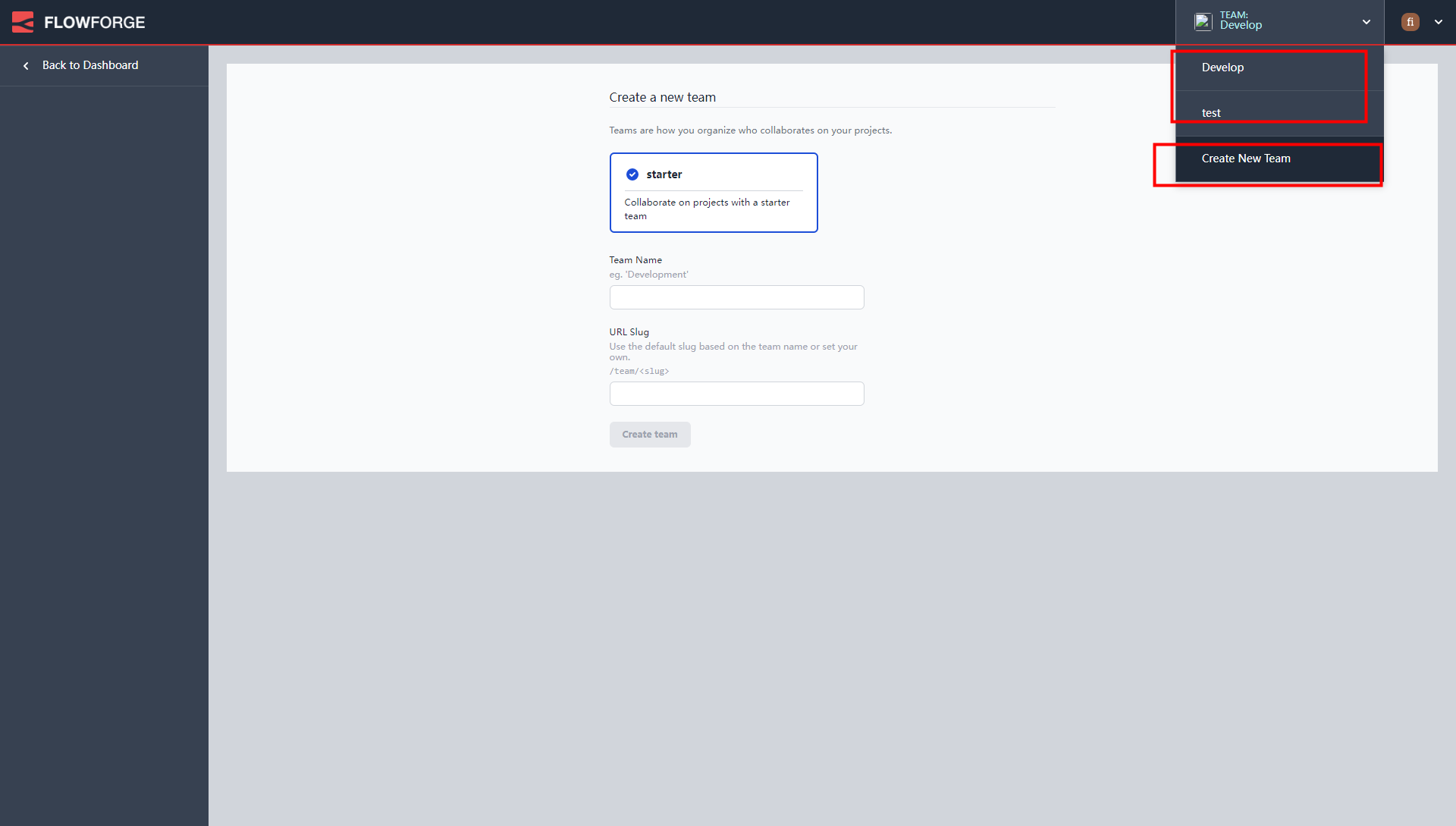
You can create a team by clicking the button in the top right corner, and super admins can also choose to switch to a specific team to view corresponding resources.
To delete a team,
you need to enter the team content, specifically on the team settings page.
If you want to view the status of all teams in the system, you need to go to Admin Settings located in the top right corner under your personal avatar.
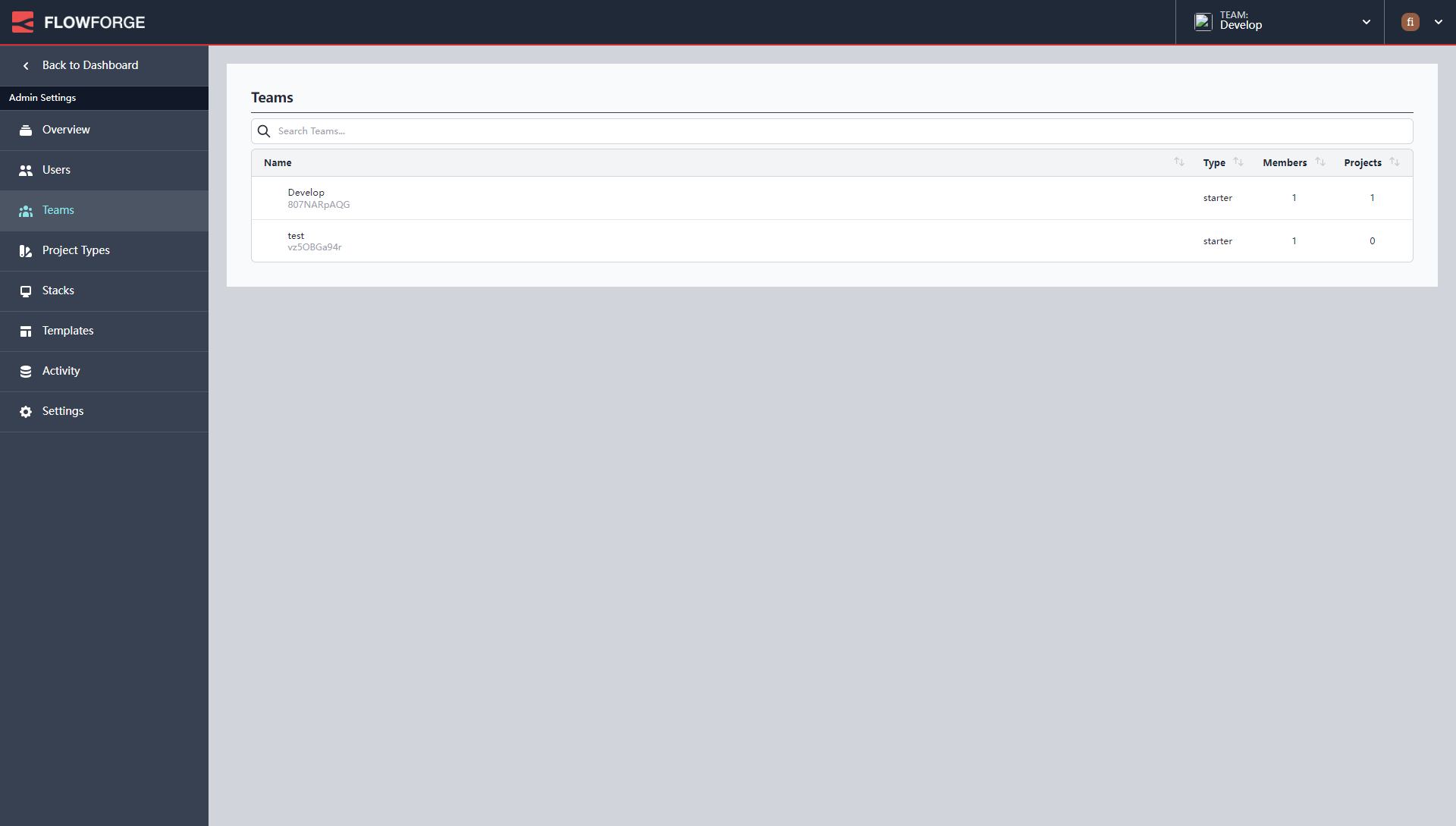
There are many menus on the FF platform.
- Admin Settings menu for super admins
The screenshot above is the Admin Settings menu, which includes- Overview
- User
- Team Member
- Project Type
- Stack
- Template
- Activity
- Settings
- Access to a team's team resource menu
Menu screenshot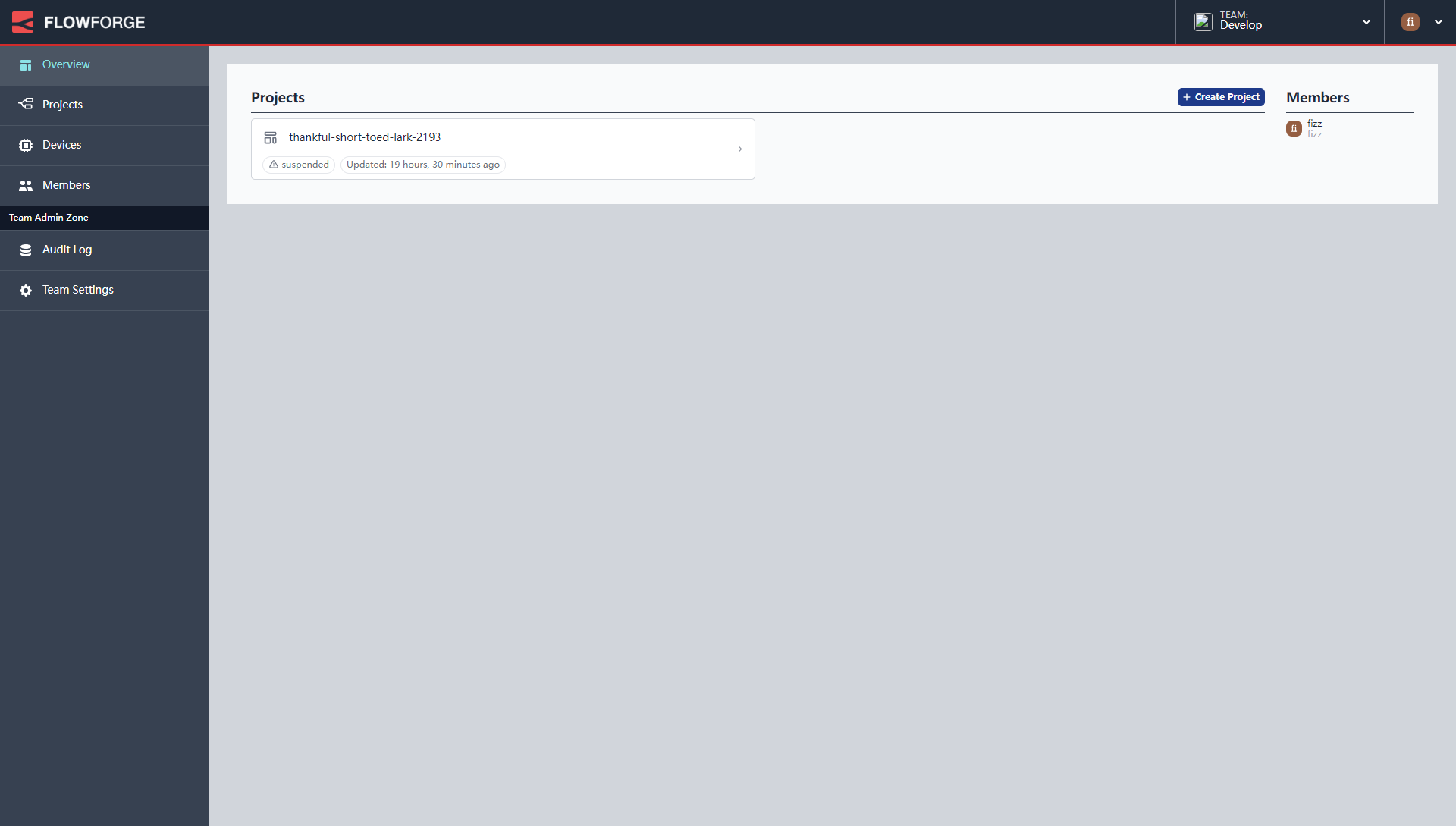
Team menu, including- Overview
- Project
- Device
- Team Member
- Audit Log
- Team Settings
- Enter the team project, the project menu
includes the following submenus- Overview
- Instance
- Snapshot
- Audit Log
- Node-RED Log
- Settings
These three menus are accessible, viewable, and manageable by super administrators (nonsensical, if super administrators can't access them, then they would be invisible to everyone). Among them, the administrator settings page is only viewable by super administrators. The other two menus are only accessible by people with specific roles.
Super administrator functions use
In this article, we will first take a look at what functions are available on the super administrator page.
The access page is http://127.0.0.1:3000/admin/overview.
Based on the overview page, we can see the status of the deployed FF platform.
We have deployed the community edition, which can be used by up to 150 people, with a maximum of 50 teams, 50 projects, and 50 devices.
Version information:
Forge Application v1.4.0
NodeJS v16.18.1
Super administrator user management
Super administrators can manage users, add new users, invite users, edit all user information, or delete users on the user list page.
When creating a user, you cannot directly add them to a team, but you can create a personal team for the newly created user.
When creating a user, you can also specify whether the user is a superuser.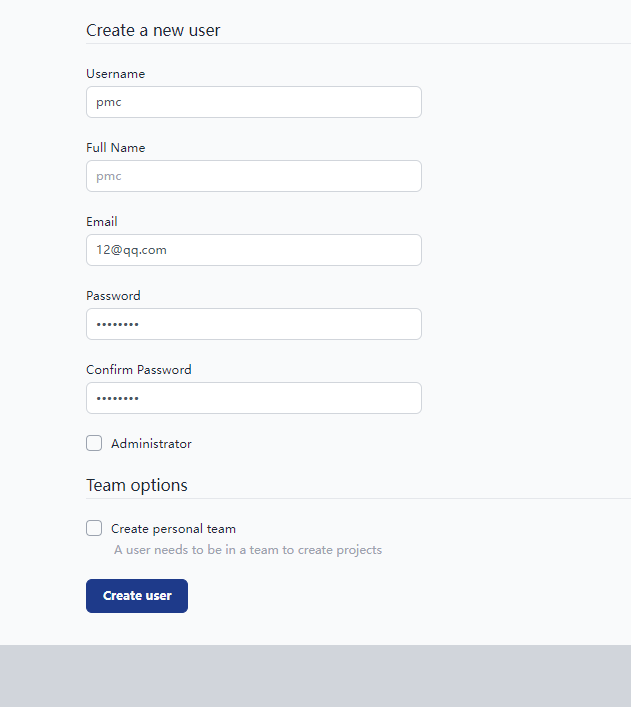
Superuser team management
Under the superuser role, http://127.0.0.1:3000/admin/teams will list all teams in the system.
In this list, there is no button to operate the team.
Users need to click on the team name to enter the team and operate team resources.
Superuser project type
In project type management, superusers can see how many projects are under each project type and how many stacks are used.
Create project type, and the project type can be bound to a stack.
Superuser instance stack
As mentioned before, the stack mentioned here refers to the version of Node-RED instances and the allocated memory, which is also stated when creating the stack.
However, personally, I feel that filling in the node-red version here is a very poor experience. The official node-red version list that has been released should be pulled for users to choose from. Multiple-choice questions are much easier to answer than short-answer questions.
Template for Super Admin
On the template management page, super admins can create templates. Within these templates, users can preset some example names, permission controls, UI paths, and whether nodes can be installed. Additionally, environment variables can be set. However, compared to the configuration of Node-RED, there are significantly fewer options available.
The created templates cannot be used directly; they need to be set as active.
Note that only one template can be active, and this active template will be used when creating projects.
Personally, I find the design here a bit odd. Since you can create multiple templates, why not choose which template to use when creating a project? Or is this a paid version feature? But I haven't seen such a description in the professional version.
Super Admin Activities
On the http://127.0.0.1:3000/admin/audit-log page, super admins can view all activities that have occurred in the system, such as who logged in, logged out, and created what.
Super management settings
On the super admin settings page, administrators can configure some basic system operations, such as whether to automatically create a team for new users after registration, whether to allow new users to invite others, and whether to enable the registration function. 
Summary
That's it for today's article. Overall, there is still much room for optimization in FF, such as internationalization, UI adjustments, and changing the input box of the Node-RED version to a dropdown box.


Leave a Reply