
The timer ID index for LUA scripts ranges from 0 to 31, with a total of 32 timers. When a timer is enabled and times out, it triggers a timer callback, where the corresponding operation is executed within the callback function. In this section, the state of a button being pressed and released is used as a light, and the timer is enabled to achieve a marquee effect. The relevant functions used are as follows:
1. On_control_notify(screen, control, value): This callback function is triggered when the user touches a modified control. It has three parameters:
- screen: represents the screen ID
- control: represents the number of the control
- value: represents the value of the control.
2. Timer callback function: on_timer(timer_id)
- timer_id: represents the ID of the timeout timer. The ID value ranges from 0 to 31
3. Start timer: start_timer(timer_id, timeout, countdown, repeat)
- timer_id: represents the timer ID, ranging from 0 to 31
- timeout: represents the timeout period, in milliseconds
- countdown: represents the direction of timing, 0 for forward timing and 1 for countdown
- repeat: represents the number of repetitions, 0 for infinite repetition
4. Stop timer: stop_timer(timer_id)
- timer_id: indicates the timer ID
5. Set control value: set_value(screen, control, value)
- screen: target screen ID
- control: target control ID
- value: control value
Note: For more LUA information, refer to the LUA Script API Function Interface chapter and website: www.runoob.com/lua
Scope of application: M series, W series, X series, F series (firmware version >= V4.2.401.0)
4.1 Timer marquee
Screen configuration
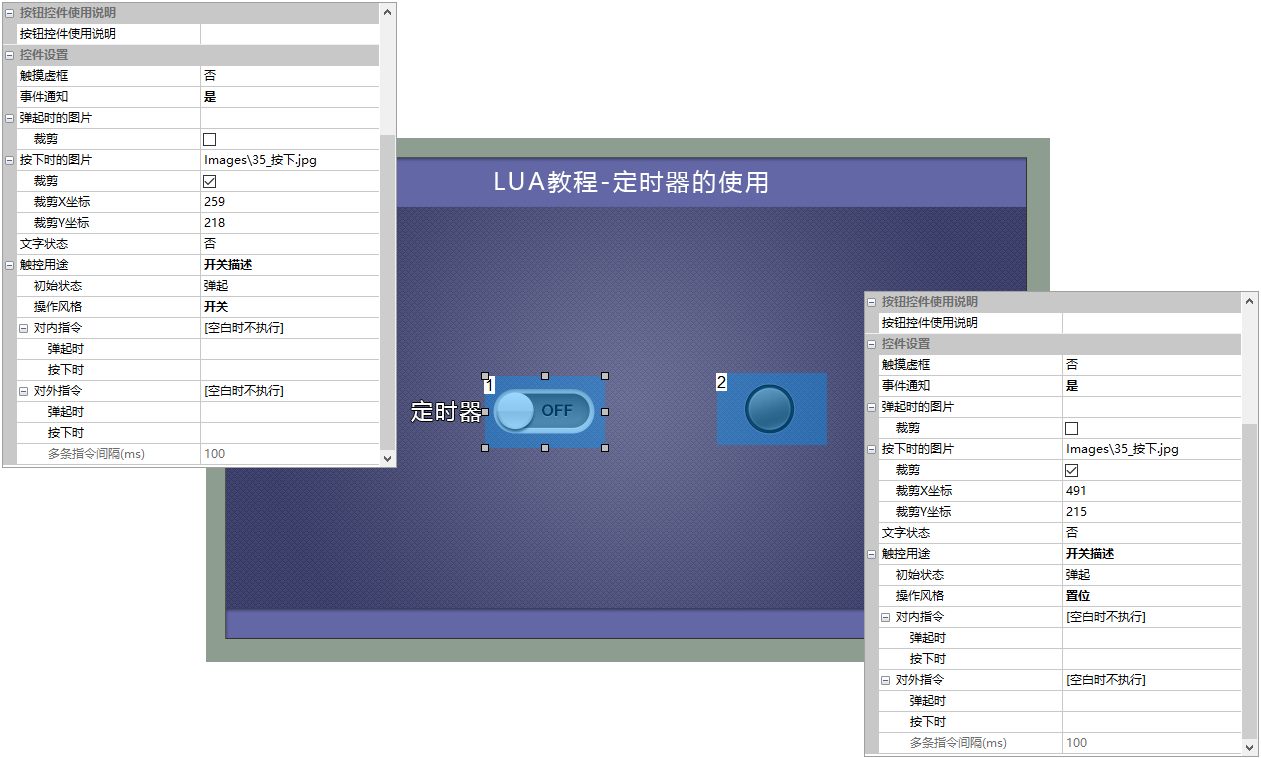
Add two button controls to the screen, with control ID1 as the on/off timer button and control ID2 to achieve the marquee effect, as shown below
- Button control ID1: Set the operation style to toggle effect, and crop the corresponding pressed and released image effects
- Button control ID2: The operation style is configured as set, and the cropping corresponds to the effect of pressing and popping up the image.
LUA script
When button control ID1 is pressed, it triggers on_control_notify(screen, control, value), then calls start_timer to start the timer. When button control ID1 pops up, it calls stop_timer(0) to close the timer. The code segment is shown below
 --[[***************************************************************************
** Function name: on_control_notify
** Descriptions:  用户通过触摸修改控件后,执行此回调函数。
                  点击按钮控件,修改文本控件、修改滑动条都会触发此事件。
                  注意:回调函数的参数和函数名固定不能修改
** Input value :  screen 画面ID
                  control 控件ID
                  value  控件值(包括文本控件输入的值)
***************************************************************************--]]
function  on_control_notify(screen,control,value)
    if screen==0 and control==1 and value==1        --按下第0页、编号1按钮
    then
        start_timer(0,1000,1,0)                      --开启定时器0,超时时间1s

     elseif screen==0 and control==1 and value==0    --弹起第0页、编号1按钮
    then
       stop_timer(0)                                --关闭定时器
    end
end
After the timer is started, after 1 second, it enters the timer callback function on_timer() due to timeout. In the callback function, the state of the light is set in a loop. The code segment is shown below
function on_timer(timer_id)
then

    if timer_id==0              --定时器0超时
    then
        if lamp_status==0       --当按钮为弹起状态
        then
            set_value(0, 2, 1)  --设置按钮2为按下状态,灯亮
            lamp_status=1
        elseif lamp_status==1   --当按钮为按下状态
        then
            set_value(0, 2, 0)  --设置按钮2为弹起状态,灯灭
            lamp_status=0
         end
    end
end
Run preview
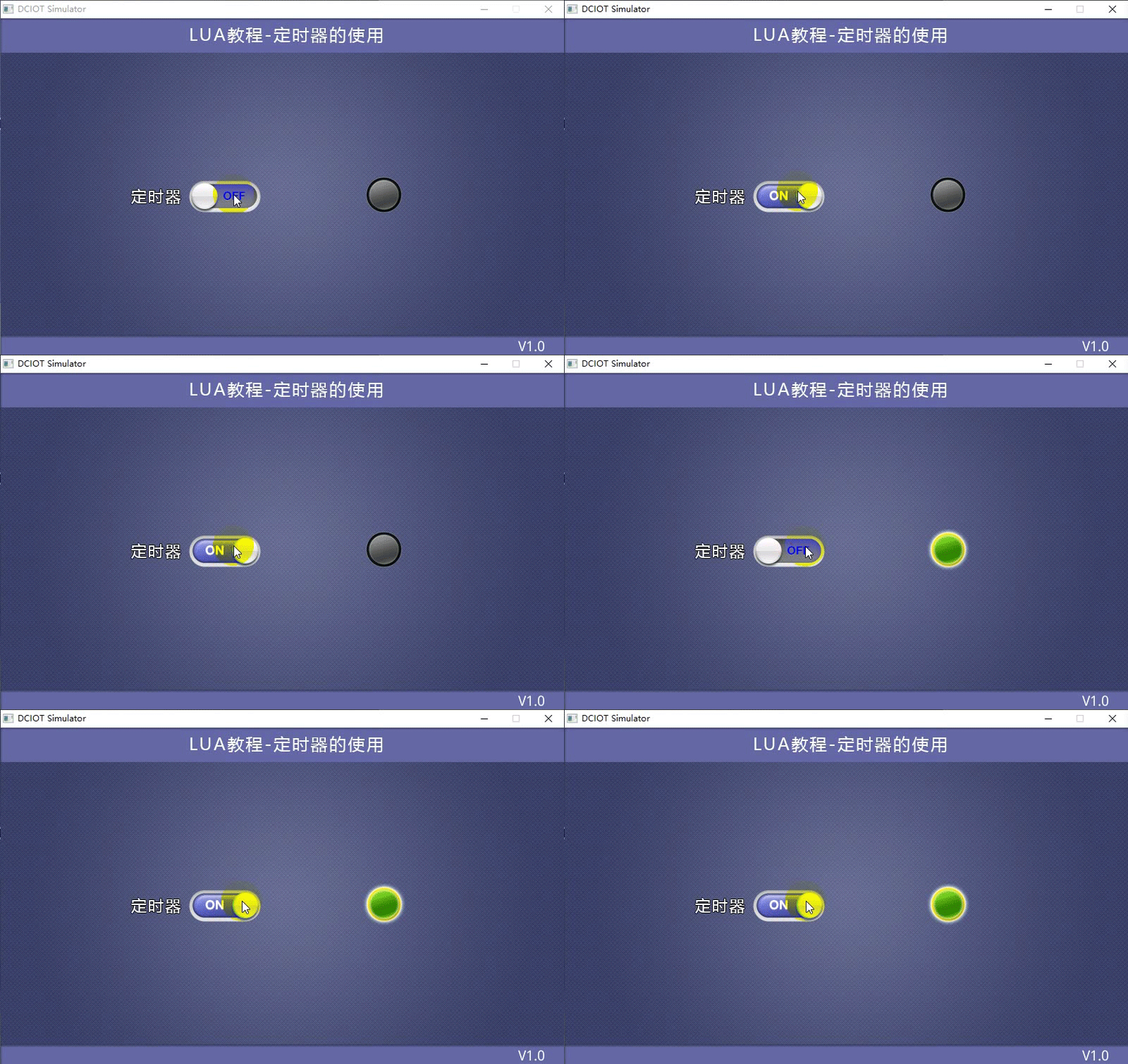
When the timer is pressed, the marquee effect is turned on. When the button pops up, the marquee is turned off. The running effect is shown below


Leave a Reply