

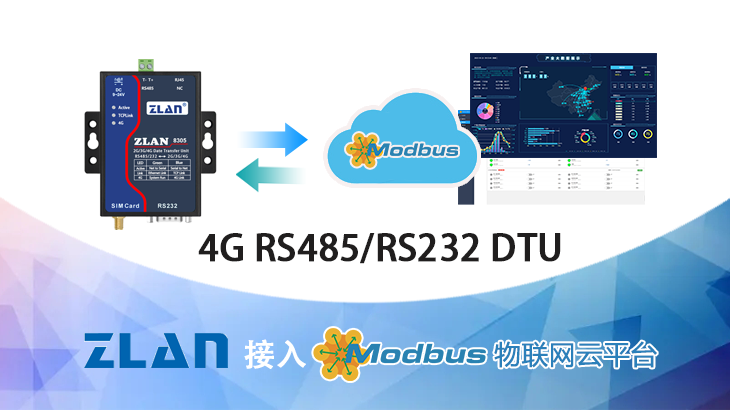
The serial server is a communication interface protocol converter that performs data conversion between RS-232/RS-485/RS-422 terminals and TCP/IP. It provides bidirectional transparent transmission of data between RS-232 terminals and TCP/IP networks, offering serial-to-TCP/IP functionality and solutions for converting RS-232/RS-485/RS-422 to TCP/IP. It allows RS-232/RS-485/RS-422 serial devices to connect to the network immediately.
The serial communication server, also known as the terminal server, essentially functions as a serial server. It enables serial devices to instantly gain networking capabilities, allowing for centralized management of scattered serial devices and hosts through a network, making it simple and convenient. It supports TCP, UDP, ARP, ICMP, HTTP, DNS, and DHCP protocols, as well as Windows Native COM and automatic network interruption recovery connection functions.
Serial servers are widely used in scenarios requiring sensor data collection and remote control. A considerable number of users of the MODBUS IoT platform utilize serial servers for device access. Typically, serial servers are connected to Modbus slave devices through RS485/232/422 ports, such as switch relays, temperature and humidity sensors, various gas sensors, electric energy meters, water meters, PLCs, motor controllers, etc. The relationship between the serial server connected to the MODBUS IoT platform and sub-devices is usually as follows:

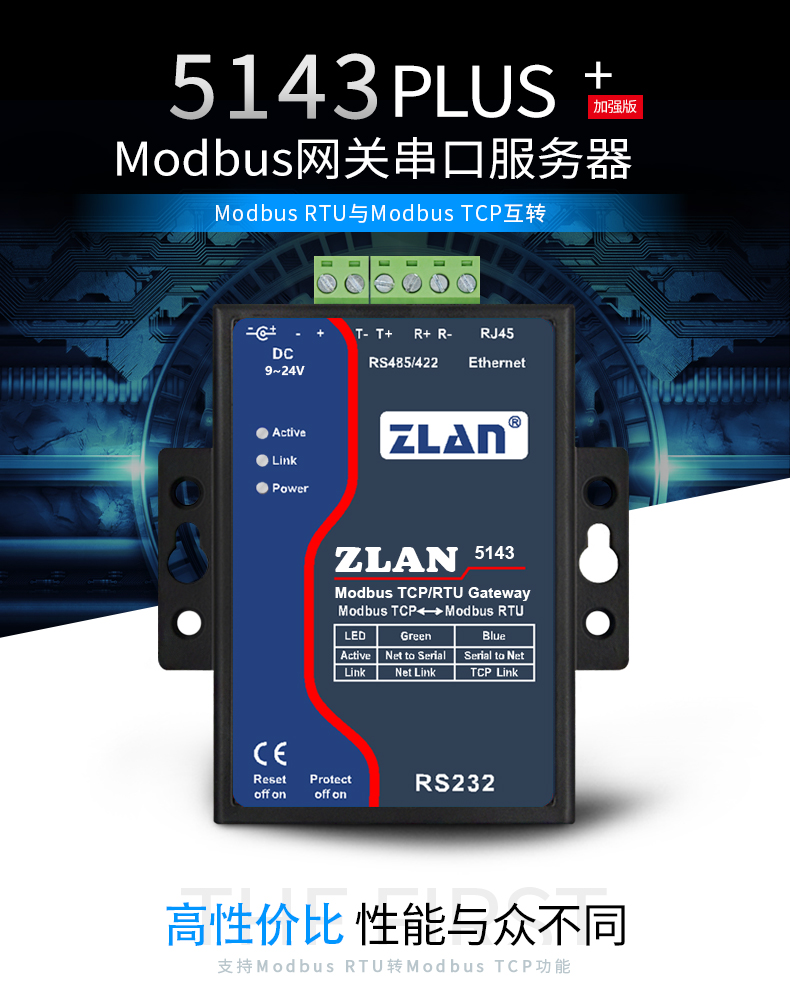
This time, we introduce the ZLAN5143 serial server from ZLAN Company, which supports access to the MODBUS IoT platform via TCP and UDP and has demonstrated exceptional stability in many users' IoT projects.
Taking this ZLAN5143 as an example, we will introduce the steps for connecting to the MODBUS IoT platform. Other serial server products from ZLAN Company can also be connected in the same way.
Preparations on the MODBUS IoT platform
In practice, we typically use the serial server as a transparent gateway to forward messages between Modbus slave devices and the cloud platform. Here, we use the TCP client mode of the serial server, and the preparations only require the following steps:
- Create a project (Project Management → New Project).
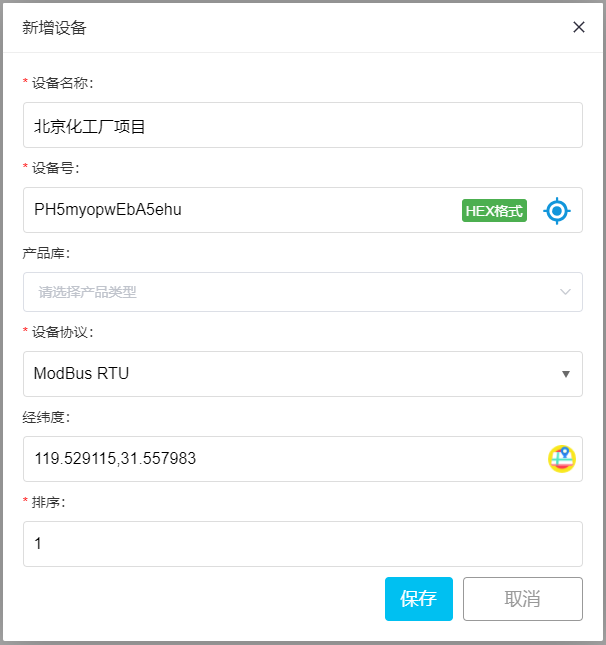
- Create a device (Device Management → Device Information → Add New Device)
- Fill in the device name, generate a device number randomly or manually, select ModBus RTU in the device protocol, locate the latitude and longitude of the device, and save it. (Copy and save the device number for future use.)
For specific steps, please refer to:Introduction to ModbusIt usually takes only a few minutes to complete.
For configuring the ZLAN5143 serial port server,
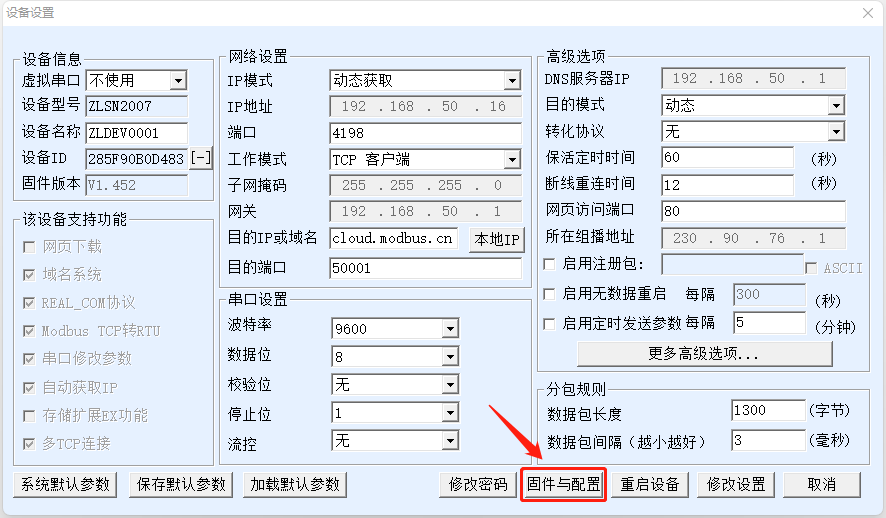
open the ZLAN virtual serial port & device manager configuration software, connect to the Ethernet port or serial port, and only need to fill in the following sections:
Step 1:
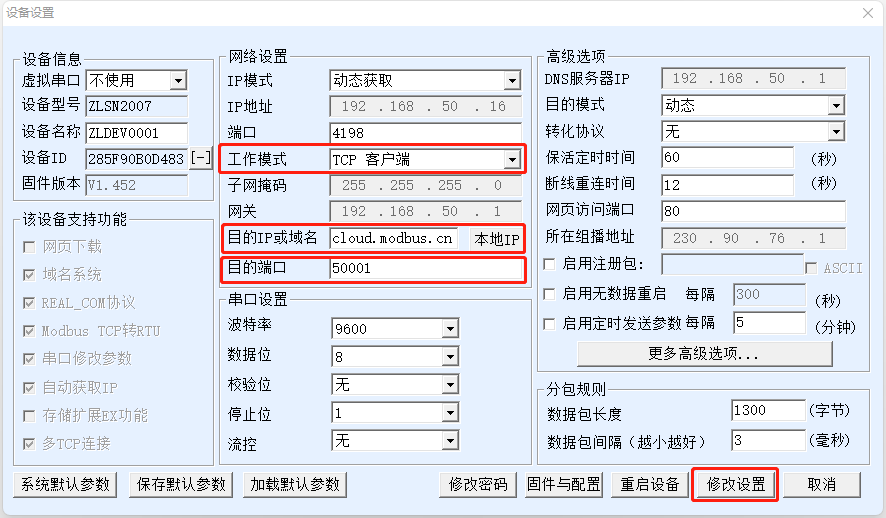
- Working mode: TCP client
- Destination IP or domain: cloud.modbus.cn
- 47.104.68.157 (alternate)
- www.wulianwang.net.cn (alternate)
- Destination port: 50001
- Modify configuration (save)
as shown below:
Step 2:
Click "Firmware and Configuration"
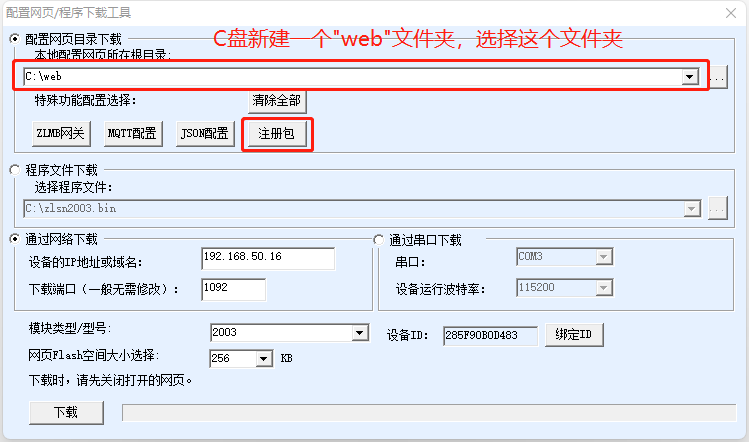
Create a new empty "web" folder on C drive, select this folder, and then click "Register Package"
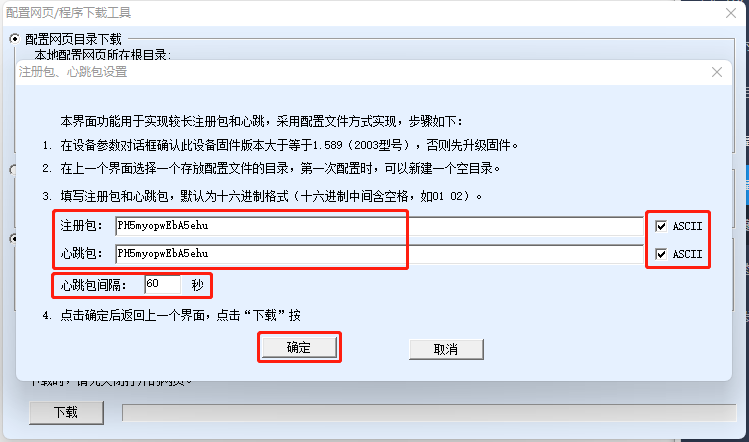
Check both the "Register Package" and "Heartbeat Package" in "ASCII" format, then fill in the device number generated by the cloud platform, set the heartbeat package interval to "60" seconds, and click "OK" to save.
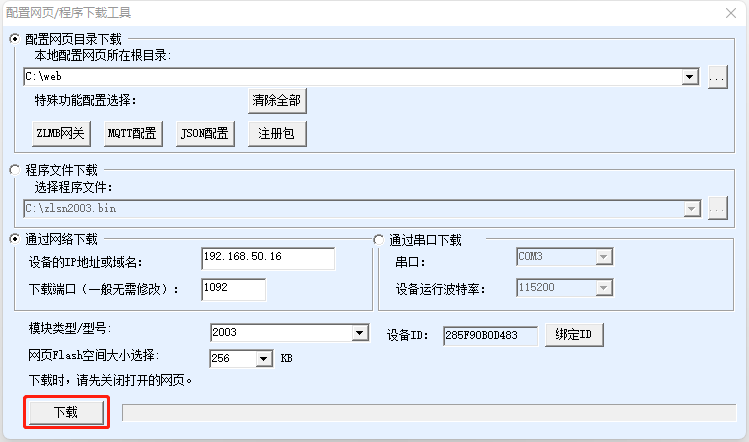
After the page jumps, click "Download".
Connect RS485 Modbus relay
Here, take the 8-channel relay as an example:
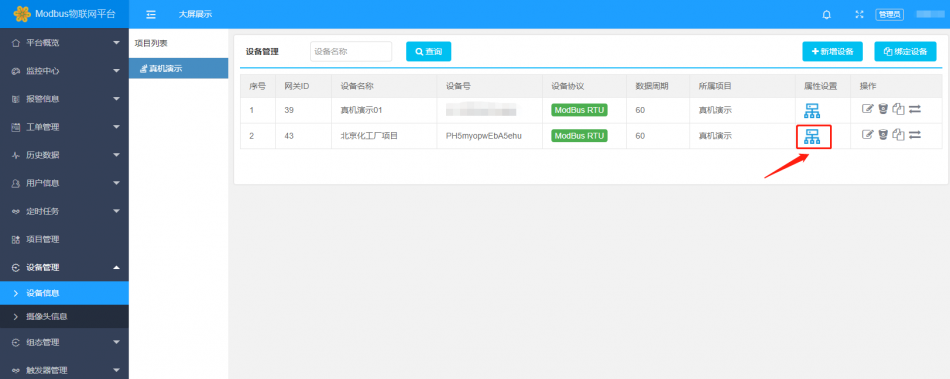
Click "Property Settings"
Click "Add Sensor" to add 1-channel relay control
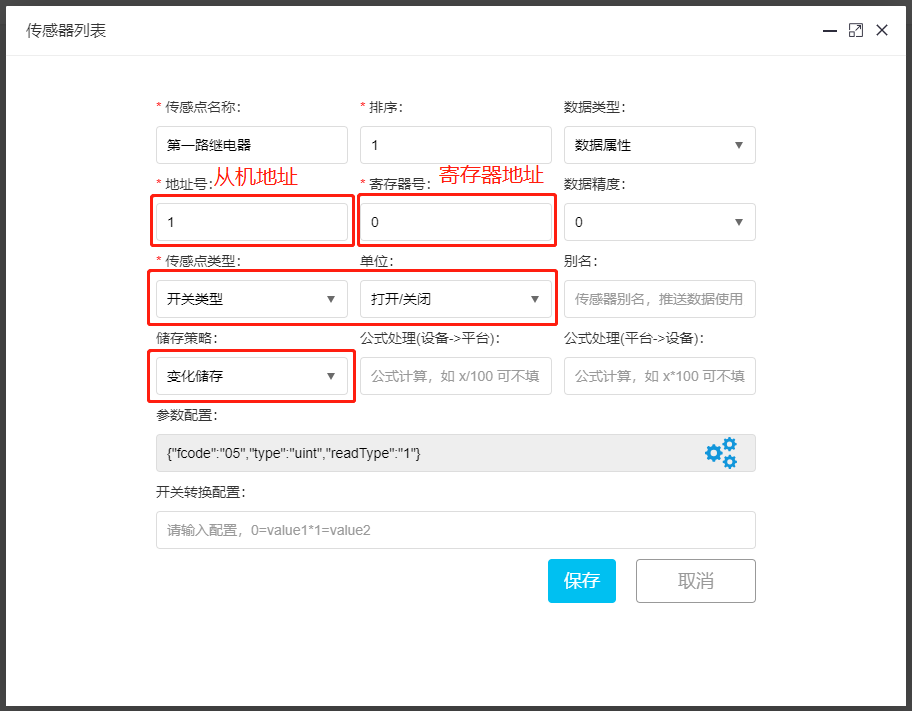
Parameter Configuration:
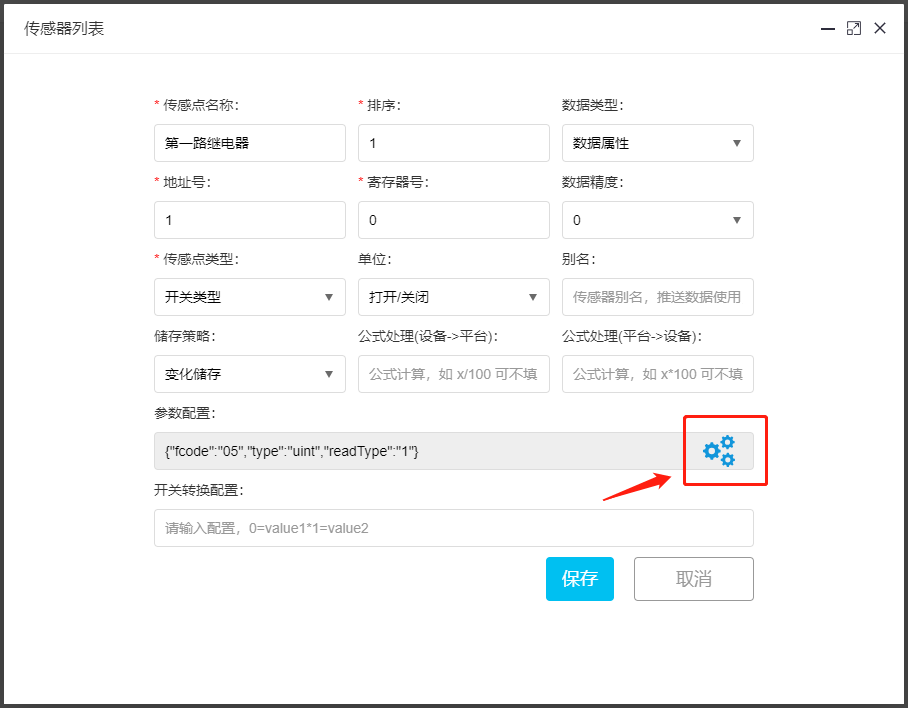
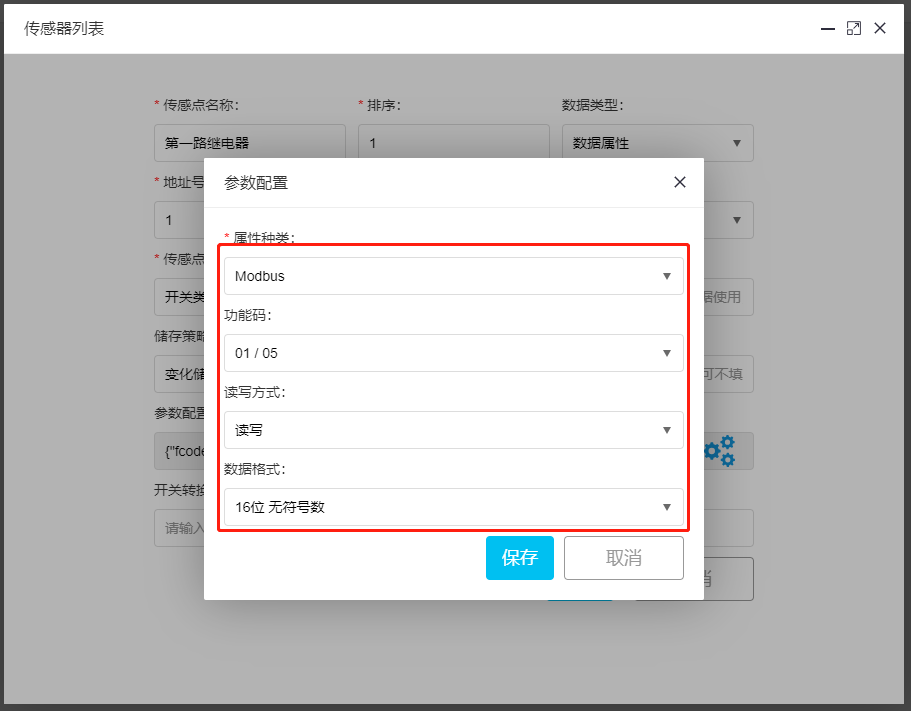
Add 8-channel relays in sequence, only needing to modify the register number.
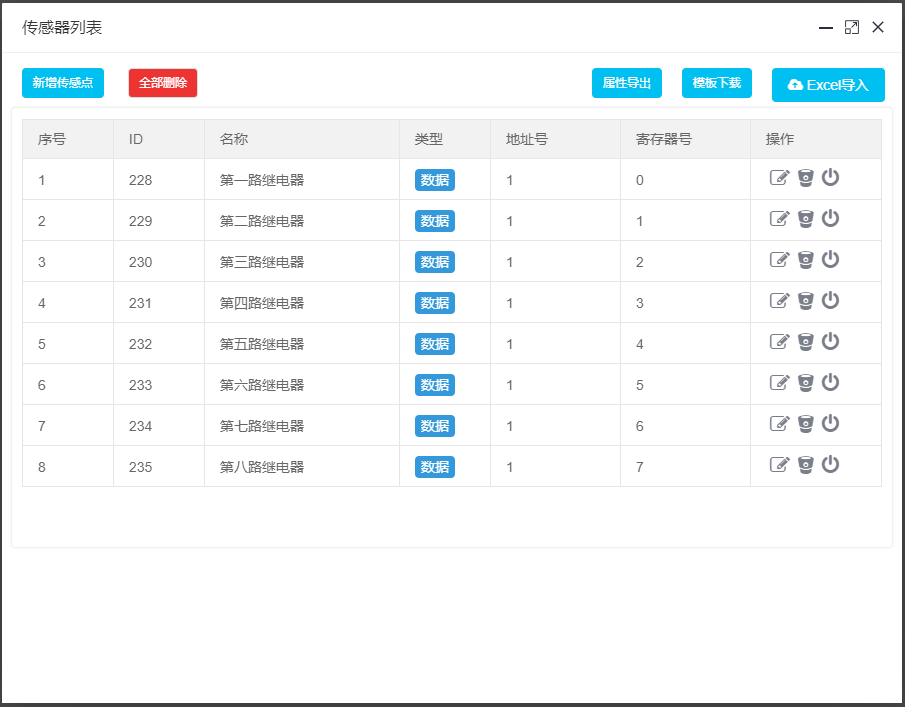
After adding all 8-channel relays, the interface is as follows
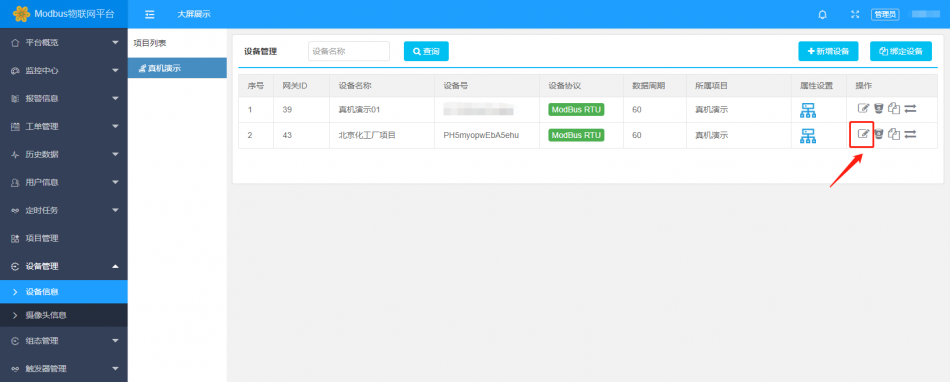
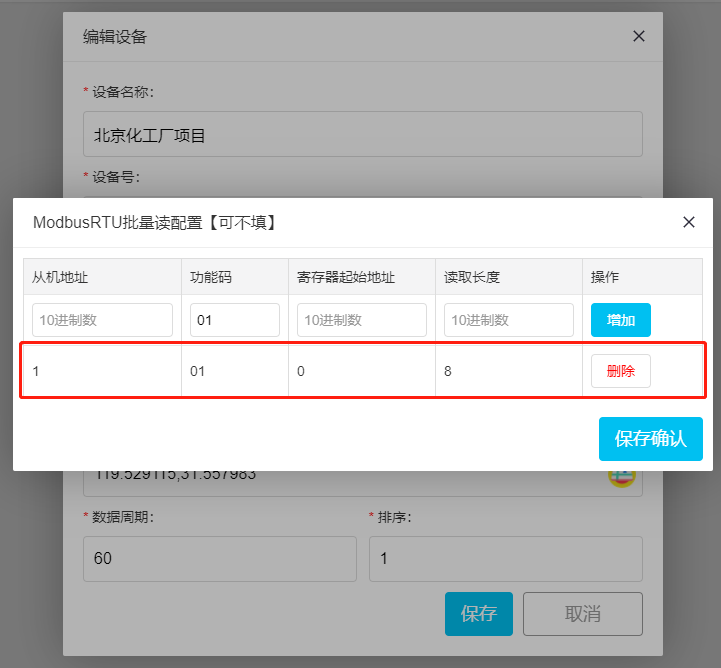
Modbus batch read configuration
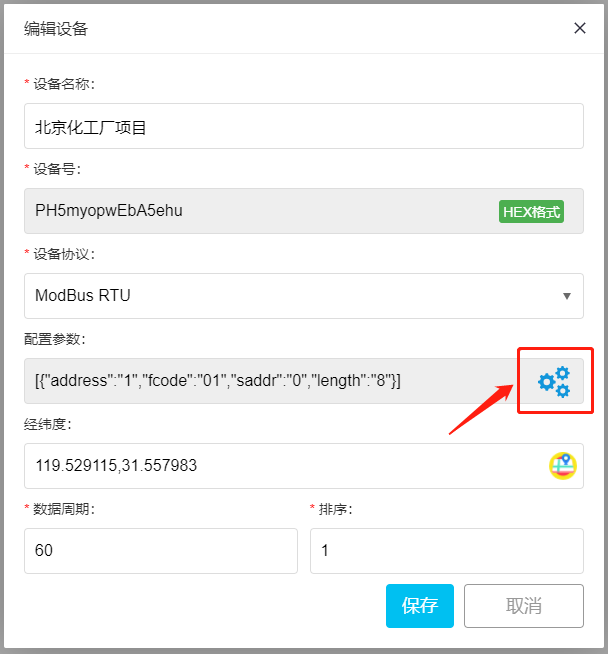
Click "Configuration Parameters"
In this article, we introduce the detailed steps for connecting the ZLAN5143 serial device server to the MODBUS IoT platform via TCP transparent transmission, uploading the 8-channel relay module to the cloud platform, and generating customized dashboards and apps. These steps are also applicable to serial device server products from other manufacturers that support TCP transparent transmission.


Leave a Reply