
Keyboard pops up for numerical, text, and password input. The keyboard in VisualHMI is aprogrammable screen- the keys on the keyboard are "virtual button" controls, driven by several system registers. This article will clarify keyboard management and system registers. Understanding this will make customizing keyboards easier.
1. Default Keyboard
By default, two keyboards are generated when creating a new project:Full KeyboardAndNumeric Keyboard. Text input supports GBK and UTF8 encoding.
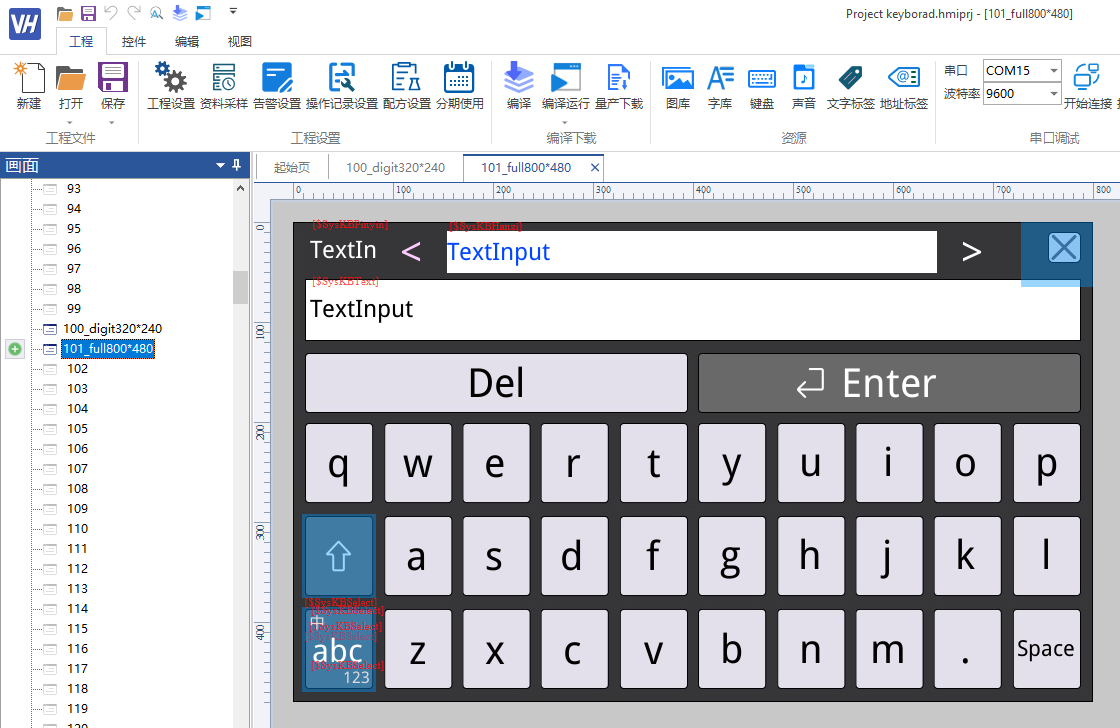
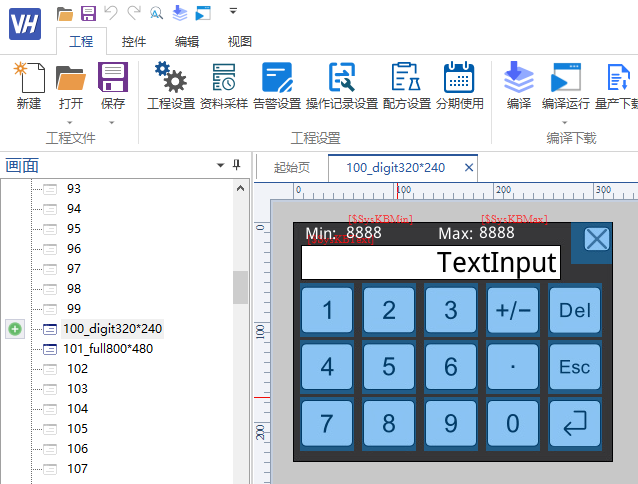
2. Keyboard Management
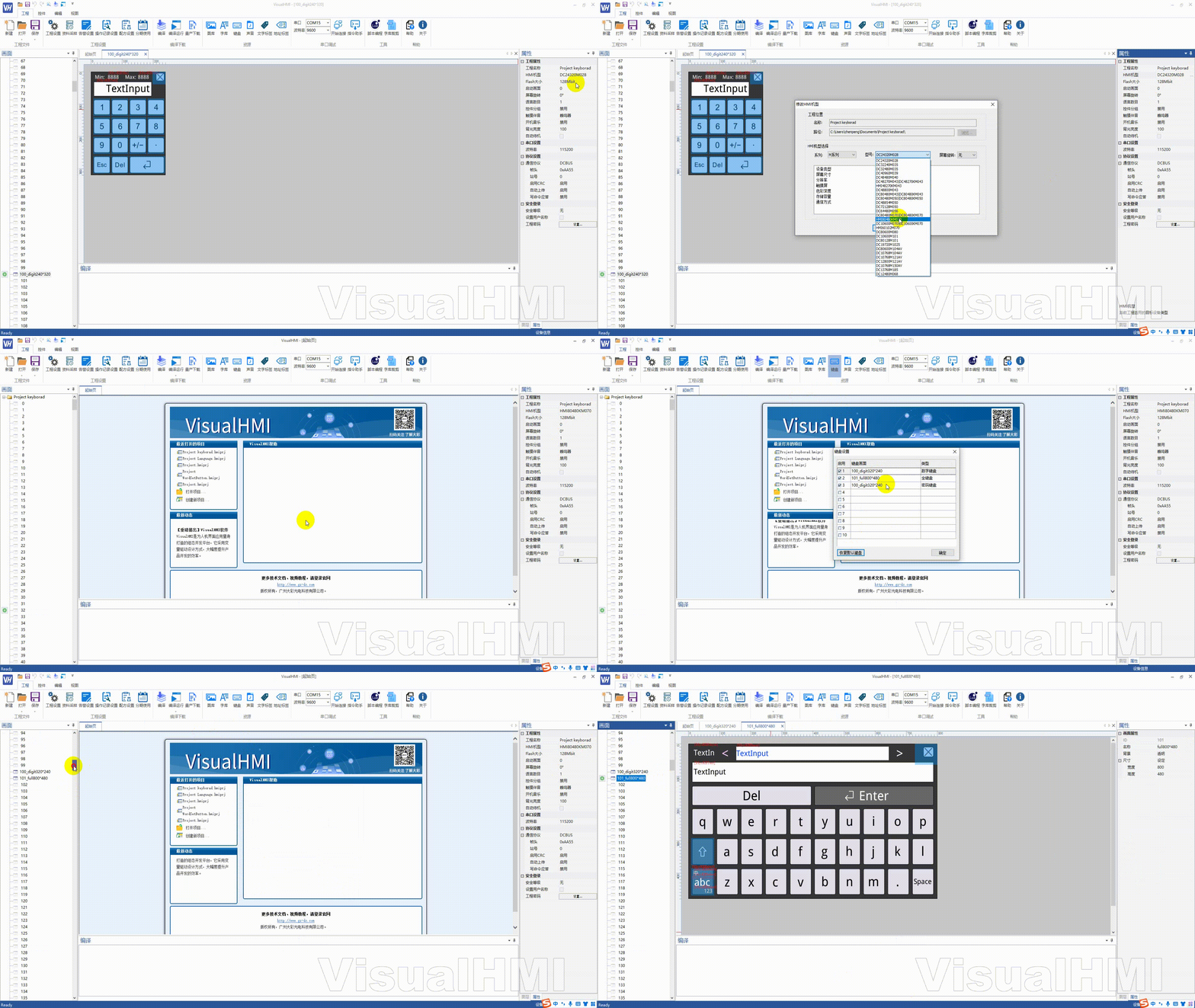
The HMI supports up to10 keyboardsIn the "Engineering" → "Keyboard" settings:
- Enable: After checking, the keyboard screen can be used
- Keyboard screen: After enabling, select the corresponding screen as the keyboard screen; the keyboard screen can be reused (e.g., a numeric keyboard and a password keyboard share the same screen)
- Restore default keyboard: Restore the default keyboard screen according to the screen resolution 100_digitxxxxxx, 101_digitxxxxxx
3. Keyboard system register (core of custom keyboard)
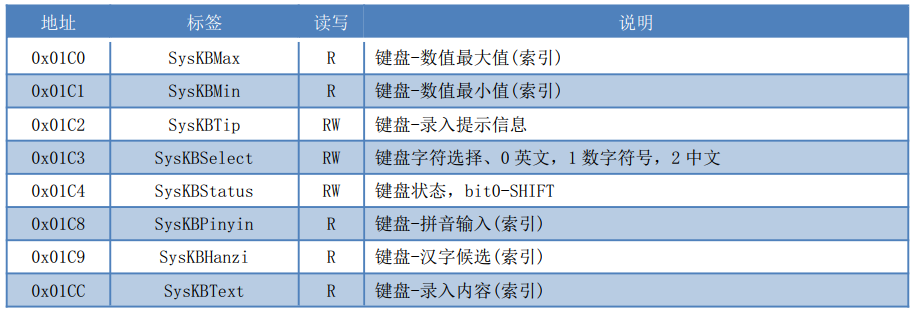
| Register | Function |
|---|---|
| SysKBMax / SysKBMin | Maximum/minimum value of numeric keyboard display range (follows the range configured by numeric control) |
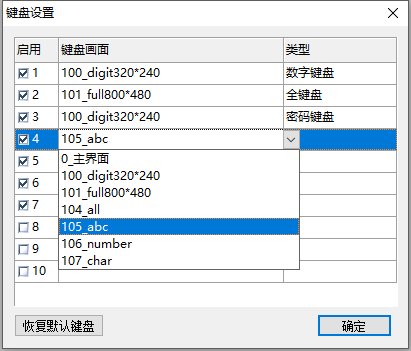
| SysKBSelect | Keyboard mode: 0=English, 1=numeric symbols, 2=Chinese |
| SysKBPinyin / SysKBHanzi | Pinyin and preselected Chinese characters display for Chinese input |
| SysKBText | Display data entered via keyboard |
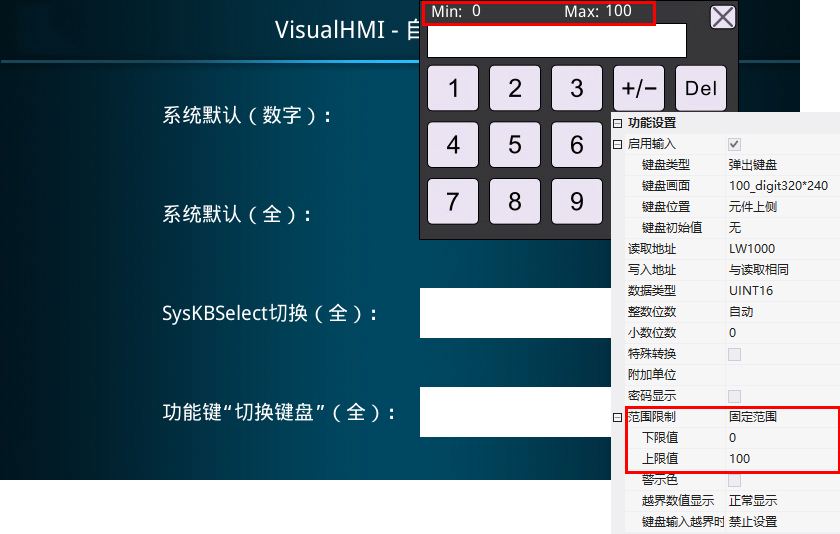
3.1 SysKBMax/Min: Range limit display
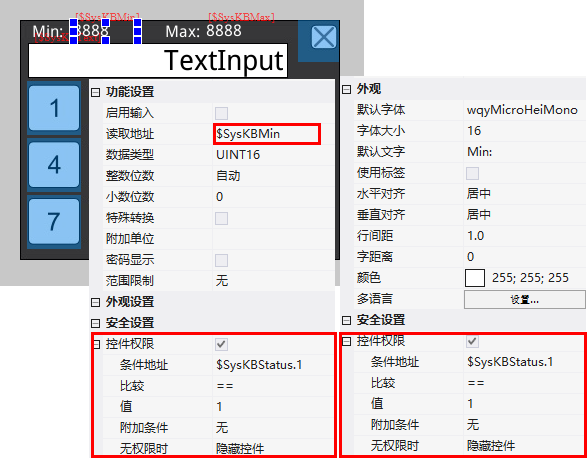
When a numeric control is configured with a range (e.g., 0~100), the pop-up numeric keyboard will display the limited maximum/minimum value. Two numeric controls are used on the keyboard screen to display SysKBMin/SysKBMax, and SysKBStatus.1 is used to control display/hide (1=configured with range limit).
3.2 SysKBSelect: Mode switching
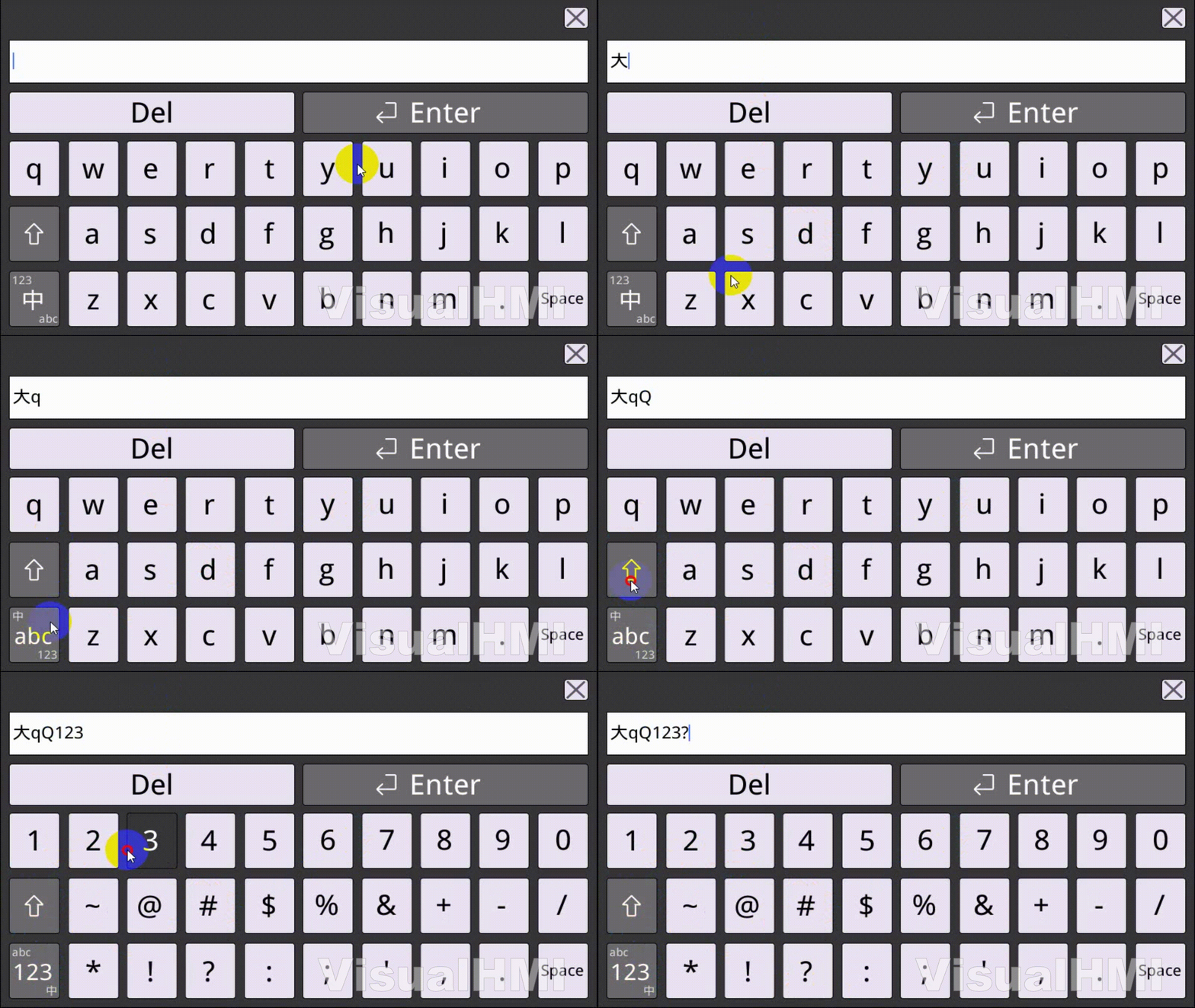
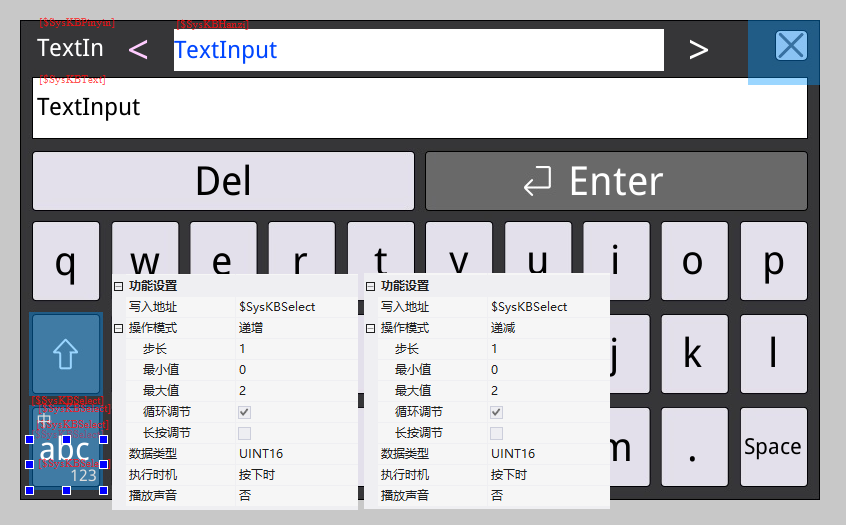
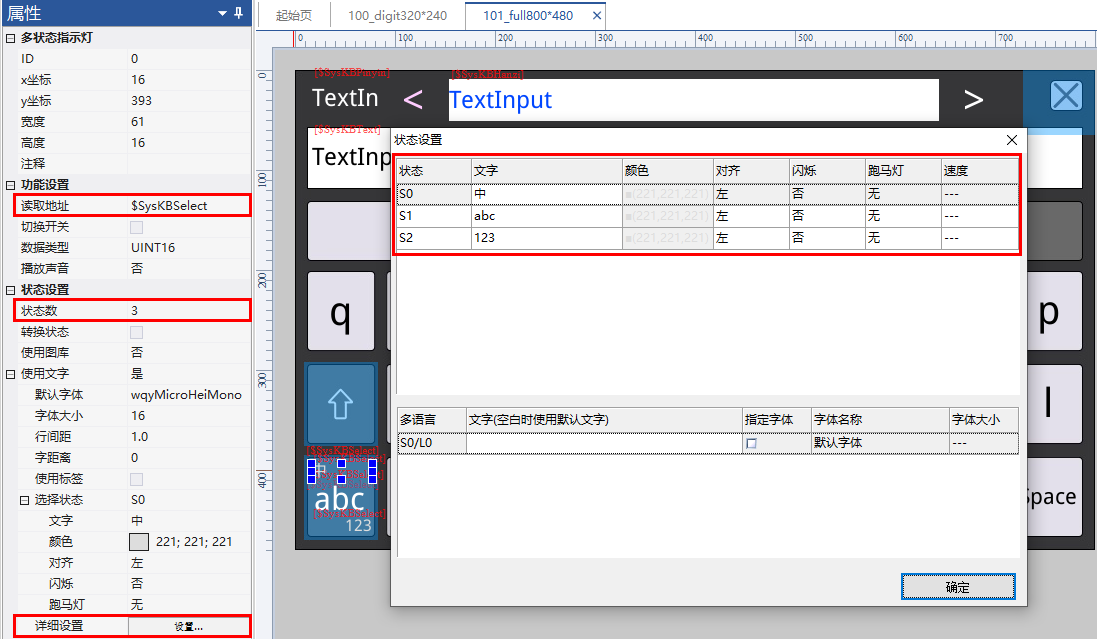
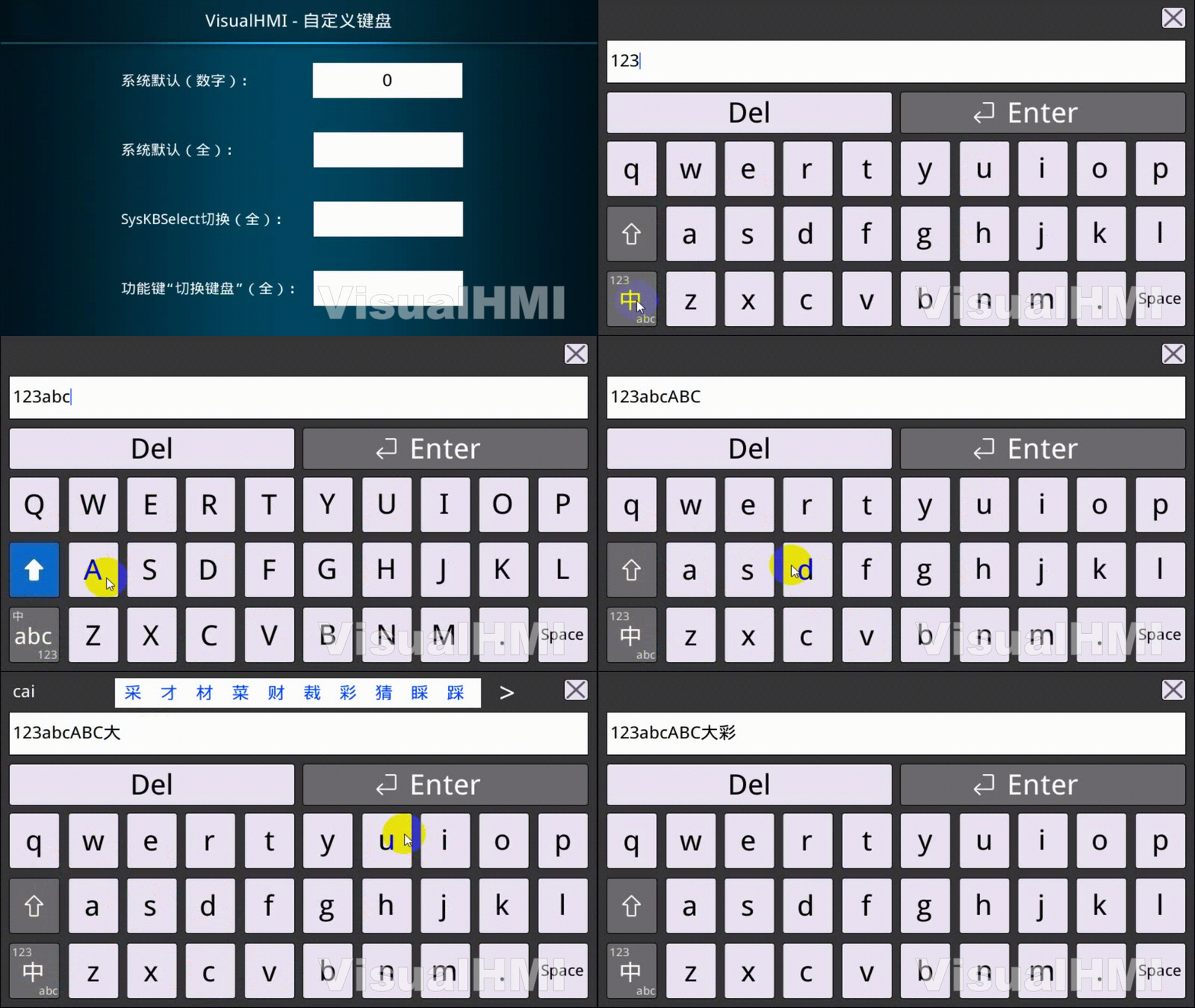
0=English (a~z, A~Z), 1=numeric symbols (!#123), 2=Chinese. The keyboard features increment/decrement buttons labeled SysKBSelect (0~2 cycle), accompanied by three multi-state indicator lights to display the current mode.
3.3 SysKBPinyin/SysKBHanzi: Chinese input
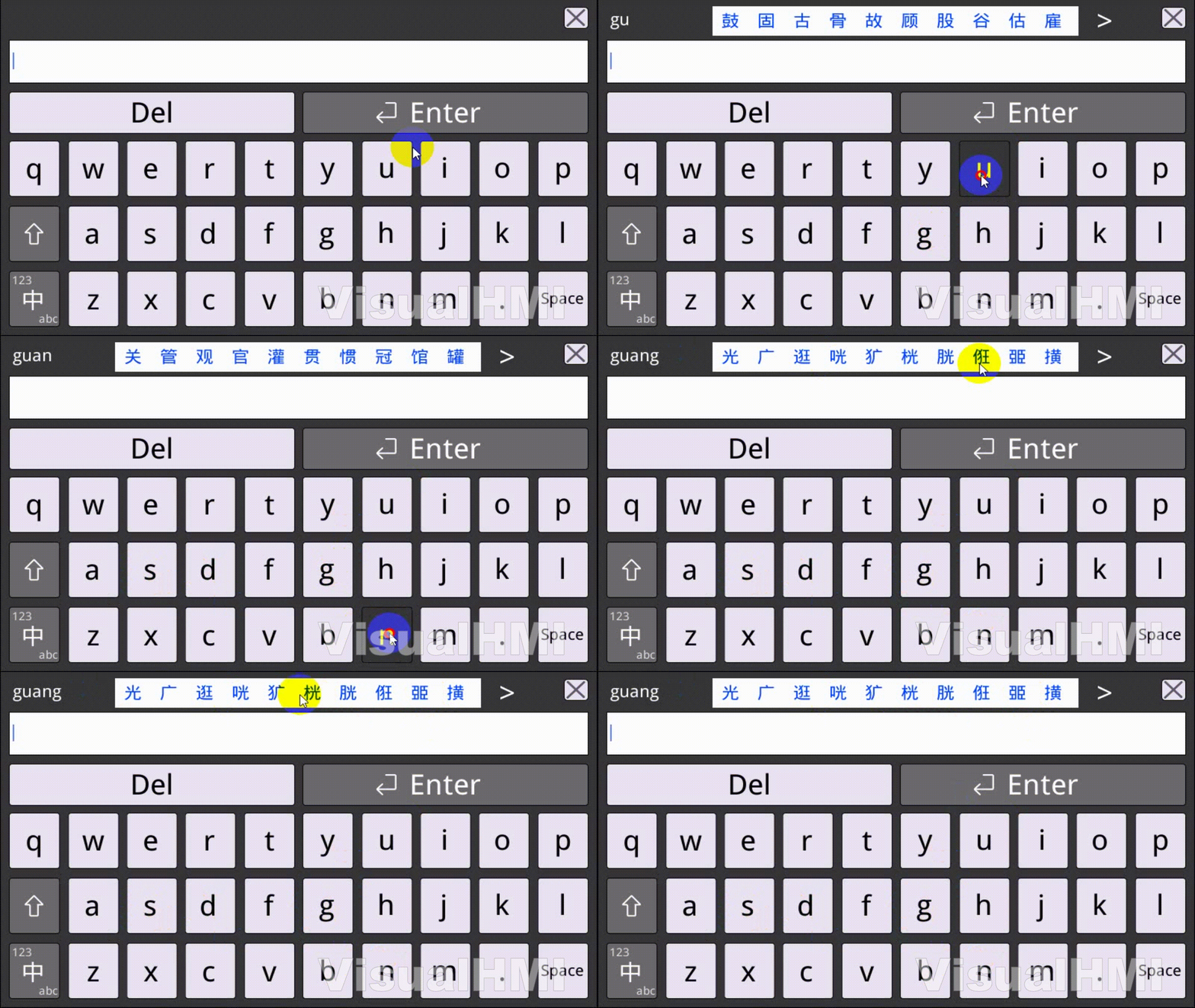
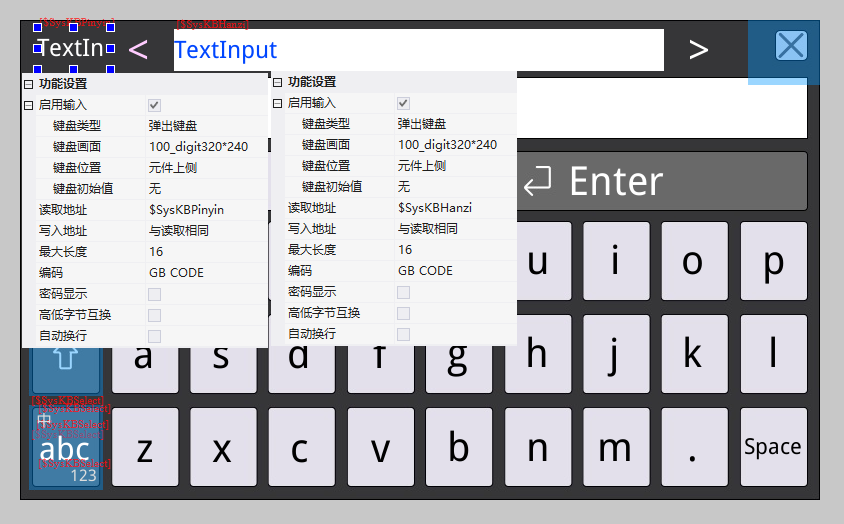
Enter "guang", SysKBHanzi pre selects Chinese characters to display "Guangguangwandang...". Add two text controls to the keyboard screen and associate them with these two registers respectively.
3.4 SysKBText: Enter Data Display
Display the content entered via the keyboard, and add a text control to the keyboard interface to associate with it.
4. Virtual keys (the "keys" of the keyboard)
The purpose of the function buttons is set tovirtual button, it becomes a key on the keyboard. Supported key types:
| Type | Description | Type | Description |
|---|---|---|---|
| Character | 0~9, a~z, visual characters, etc. | Left | Page left for pre-selected Chinese characters |
| Switch keyboard | Switch to target keyboard | Right | Page right for pre-selected Chinese characters |
| Enter | Enter | Shitf | Character switch (upper/lower case/symbol) |
| Space | Space | ESC | Exit |
| Clear | Delete all inputs | Delete | Delete single character |
Characterkey can be filled with up to 4 characters, and multi character switching can be done by Shitf or SysKBSelect:
- Fill in "q1": When SysKBSelect=0 (letter), the key code is q; when SysKBSelect=1 (character), the key code is 1
- Fill in "a~^": In letter mode, Shitf=0 records a, Shitf=1 records A; in character mode, Shitf=0 records~, Shitf=1 records ^
, as well asgallery status(associated with pop-up/press gallery),cropping, using text(displaying the content of the character bar directly) and other properties.
5. Chinese input: Left/Right page flipping
Enter "da" on the Chinese keyboard, and the pre selected Chinese characters will display "Da Da Da Da Da Ta Tai...". Add two function buttons (virtual key → Left/Right) on the keyboard screen to flip pages left and right of the pre selected Chinese characters.
6. Keyboard Switching
Keyboard screens can be switched between using virtual buttons (type=switch keyboard). In the routine, create three screens: "105_abc", "106_number", and "107_char", and use the switch button to navigate between the keyboards.
Compiled from the "Keyboard" resource introduction in the VisualHMI development document of Guangzhou Dacai Technology (hmi-doc.gz-dc.com), with copyright owned by Dacai Technology.


Leave a Reply