
Camera controls allow the HMI to directly display camera footage: The M series and DH series support two-channel AV input, and the DH series also supports USB cameras. Note:Physical screen testing is required.
1. Camera parameter requirements
| Item | CVBS (M series) | DVP (DH series) | UVC (DH series) |
|---|---|---|---|
| Maximum resolution | ≤1280×720 | ≤1280×720 | ≤1280×720 |
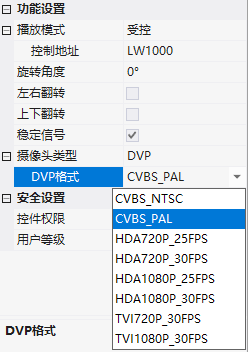
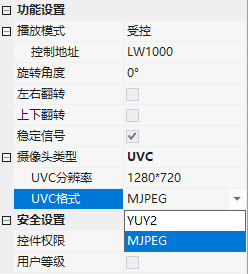
| Signal format | PAL / NTSC | CVBS_NTSC/PAL, HDA720P_25/30FPS, HDA1080P_25/30FPS, TVI720P_30FPS, TVI1080P_30FPS | YUY2 / MJPEG |
2. Attribute Introduction
2.1 Function Settings
| Attributes | Description |
|---|---|
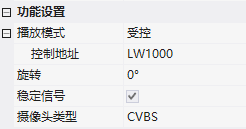
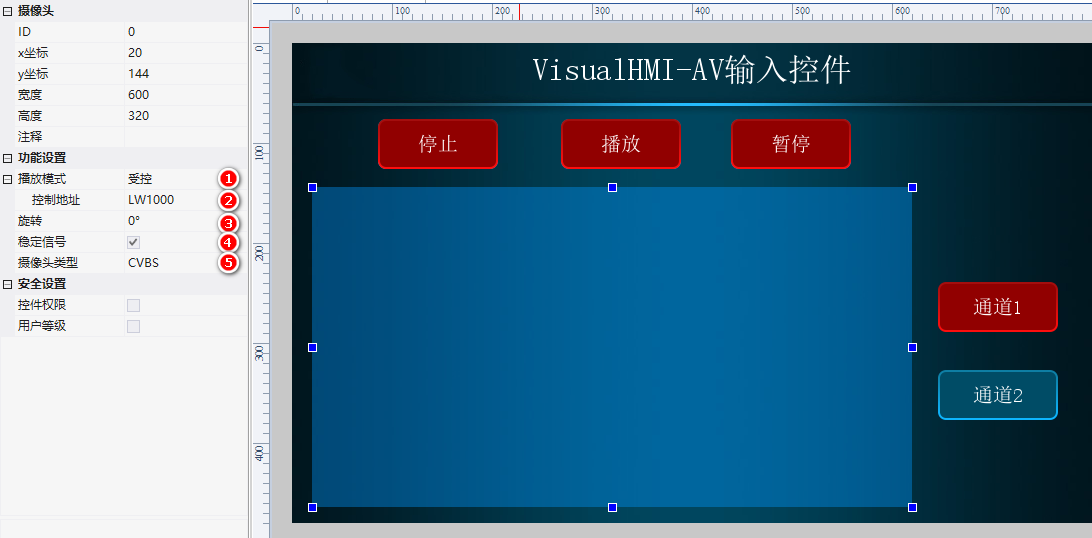
| Playback Mode | Automatic (display upon connection, turn off upon disconnection) / Controlled (controlled by control address) |
| Control Address (Controlled) | Addr+0: 0-Stop, 1-Play, 2-Pause; Addr+1: 0-Channel 1, 1-Channel 2 |
| Rotation | 0°/90°/180°/270° (only for DH series) |
| Flip horizontally/vertically | Mirror flip (only for DH series) |
| Stable signal | Check and display after signal stabilization |
| Camera type | CVBS / DVP / UVC. M series only supports CVBS; for DH series with AV interface, select DVP, and for USB, select UVC |
2.2 Filter color (exclusive for M series)
AV image of M seriesalways displayed on top, overlay controls will be covered. When you need the controls to display on top of the image, use the underlying API:
function on_init()
  -- 过滤 0x00BFBFBF~0x00C8C8C8 范围的灰白色(24位RGB)
  -- Match 6位比较规则: 101010(0x2A), 10-R/10-G/10-B
  set_color_key(0x00BFBFBF, 0x00C8C8C8, 0x0000002A)
end
It must be placed in on_init(). DH series camera controls support layer hierarchy, so you can simply place the controls directly above each other without needing a filter color.
3. Application Cases
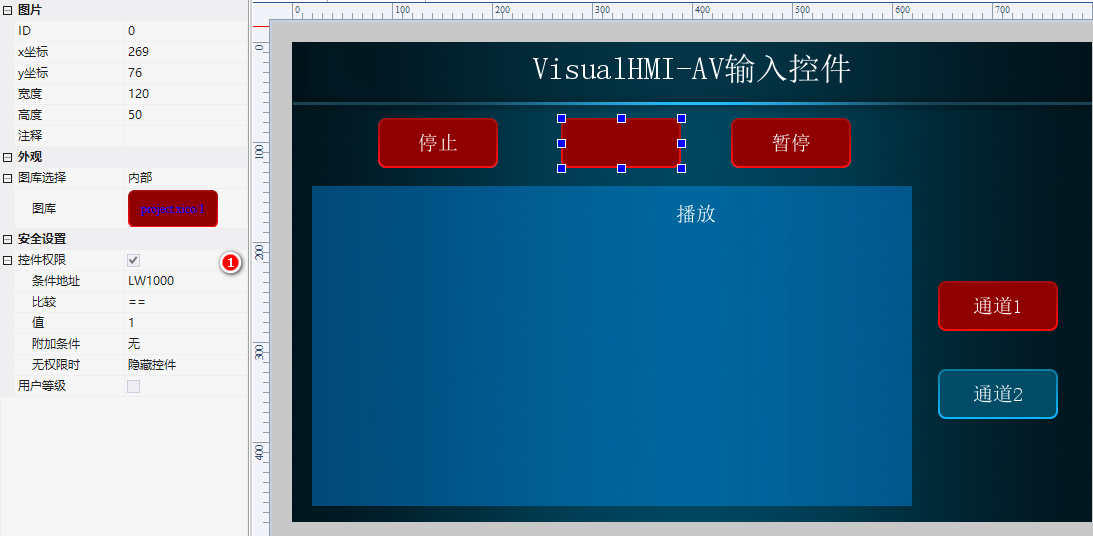
Camera Controls: Playback mode is controlled, control addressLW1000, rotate 0°, check the stable signal, type CVBS. Equipped with a setting button (write LW1000=1 to play) + 2 bit status indicator lights (LW1001 to switch channels 1/2) + image controls (permission control LW1000==1 to display selected effect).
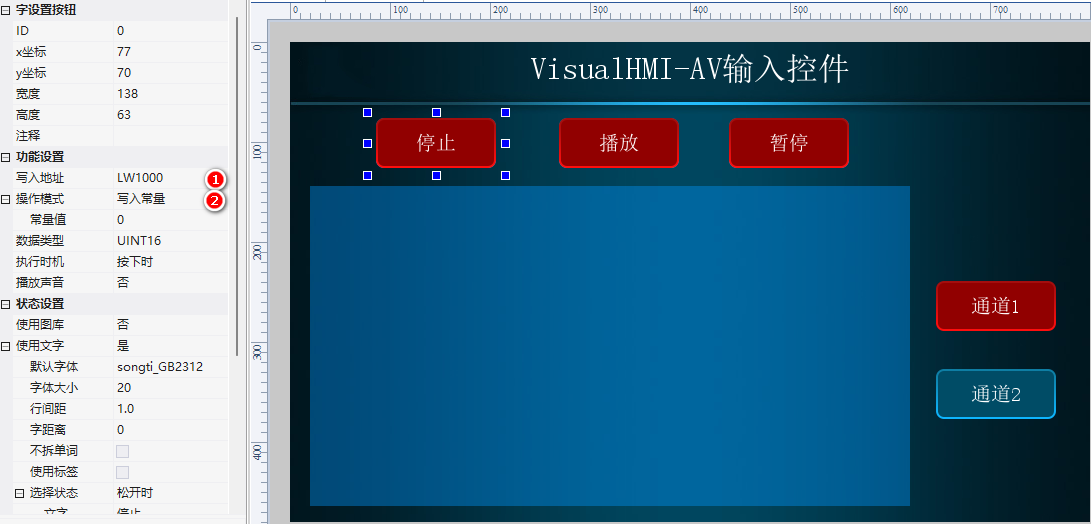
Operation: Compile and download to the physical screen, connect to an AV camera, click play, switch channels, and display the image in real time.
Compiled from the VisualHMI development document of Guangzhou Dacai Technology (hmi-doc.gz-dc.com) configuration control tutorial "Camera", copyright owned by Dacai Technology.


Leave a Reply