

What is a video control?

Our company's video AV control has two functions: playing video files and AV input. The video control's video playback function is often used for creative startup effects, or to play product operation guides, advertising demonstrations in public places, etc.
This section mainly introduces the following three points:
- Playing videos within the screen
- Playing videos from an SD card
- Introduction to LUA API
Scope of application: M series
Video formats:
- MP4 files
- H264 encoding
- Audio stream in MP3 or AAC format
- Maximum video resolution <1280*768
- Maximum frame rate<30ps
- Maximum bitrate<1400
Related routine download links:
- Startup video application"(click to jump)
- Play SD card video file" (click to jump)
The conversion operation process of the video can refer to this tutorial: Video file conversion instructions
18.1 Introduction to video control properties
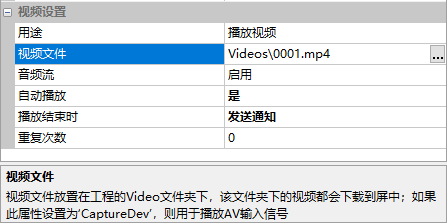
Introduction to video control properties, as shown in the following figure
Purpose
Play video and AV input, AV input requires hardware model support for the application
Video file
The video loaded into the control is named using a combination of letters (a-z), numbers (0-9), and underscores (_), and other characters are not supported
Audio stream
Enabled and disabled. When disabled, the video plays without sound
Auto play
"Yes" or "No". When selected as "Yes", the video file will automatically play upon switching to this page
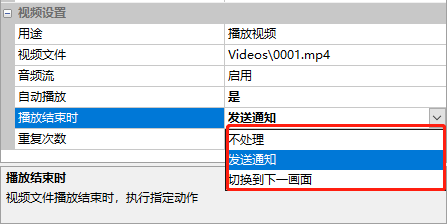
When playback ends
The action to be executed when the video playback ends. You can choose "Do not process", "Send notification", or "Switch to next page"
Repeat count
The number of times to repeat playback. 0 indicates continuous repetition
18.2 Playing on-screen video files
[Play video file within the screen] screen, introducing relevant playback instructions
Screen Configuration
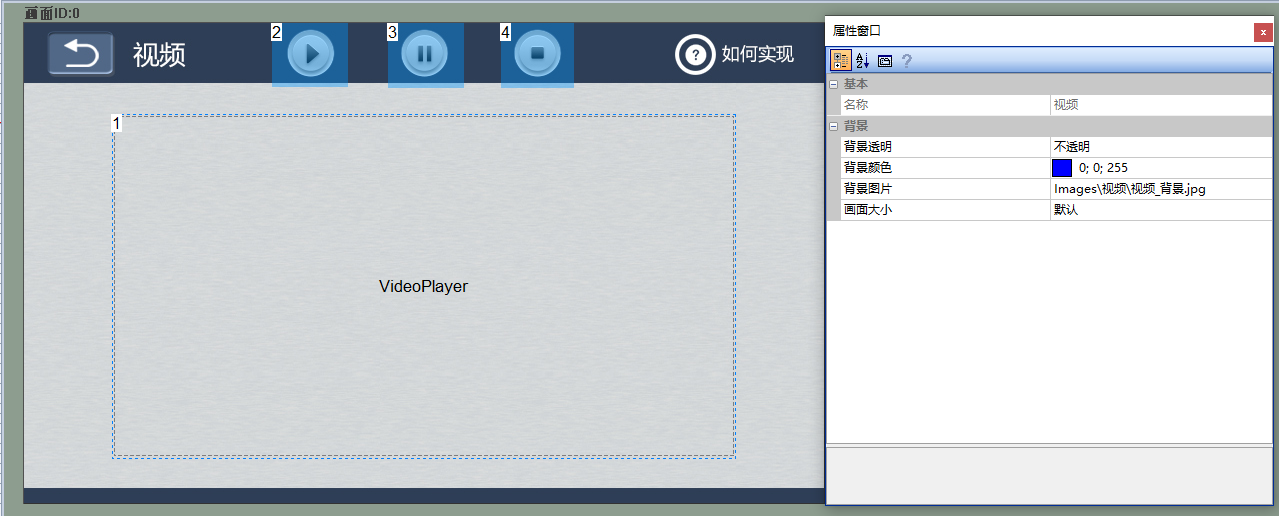
In the "Background Image" section of the "Play In-Screen Video File" screen, import the corresponding art design image and add one video control (Control ID: 1) and three button controls for setting the video playback status, as shown below
Property Configuration
Video AV Control
Set the video control purpose to "Play Video", add a video file, enable "Audio Stream", set "Auto Play" to Yes, set "Send Notification When Playback Ends" to Yes, and set "Repeat Count" to 0, as shown below
Button Control ID2 - Play
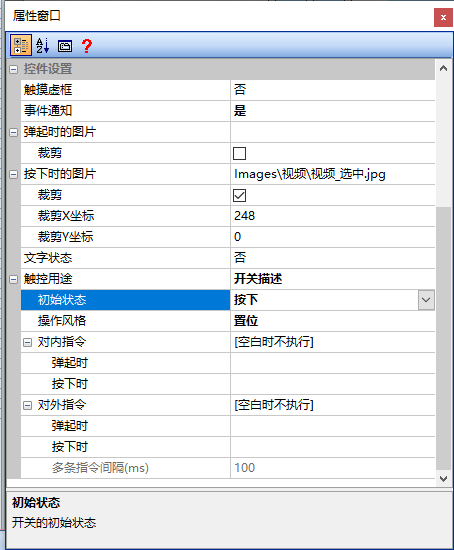
Add a "Button Control ID2" "Image When Pressed" and check "Crop"; since switching to this screen automatically plays the video, set the initial state of Button Control ID2 to "pressed"; the button action style is "Set", as shown below
Set the "Play Button", "Pause/Resume Button", and "Stop Button" to be mutually exclusive, as shown below
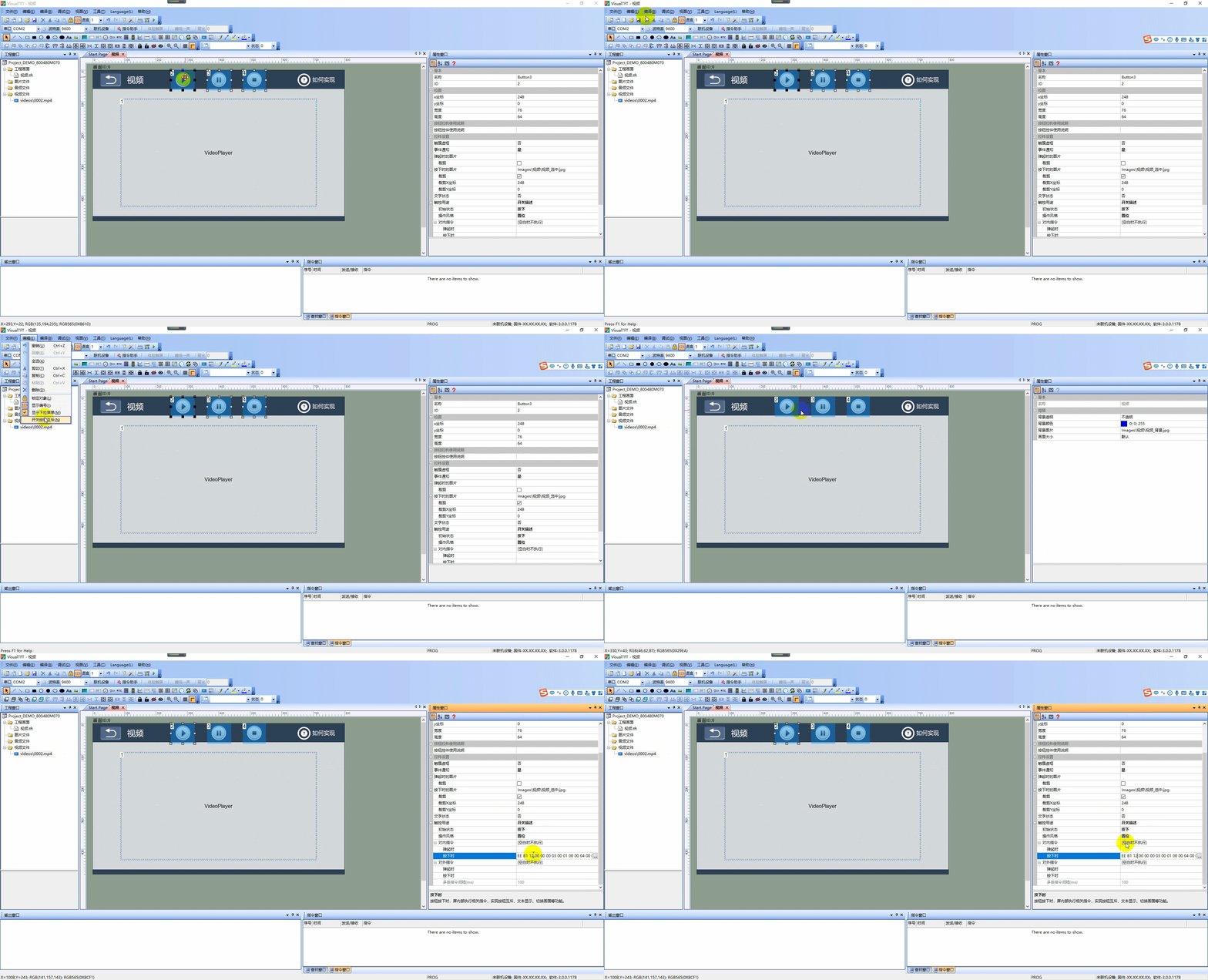
In the Command Assistant interface, select "Video AV Control" from the left navigation bar, set the control ID2 in screen ID0 to play a looping video, and fill in the corresponding button commands in the Command Assistant, as shown below
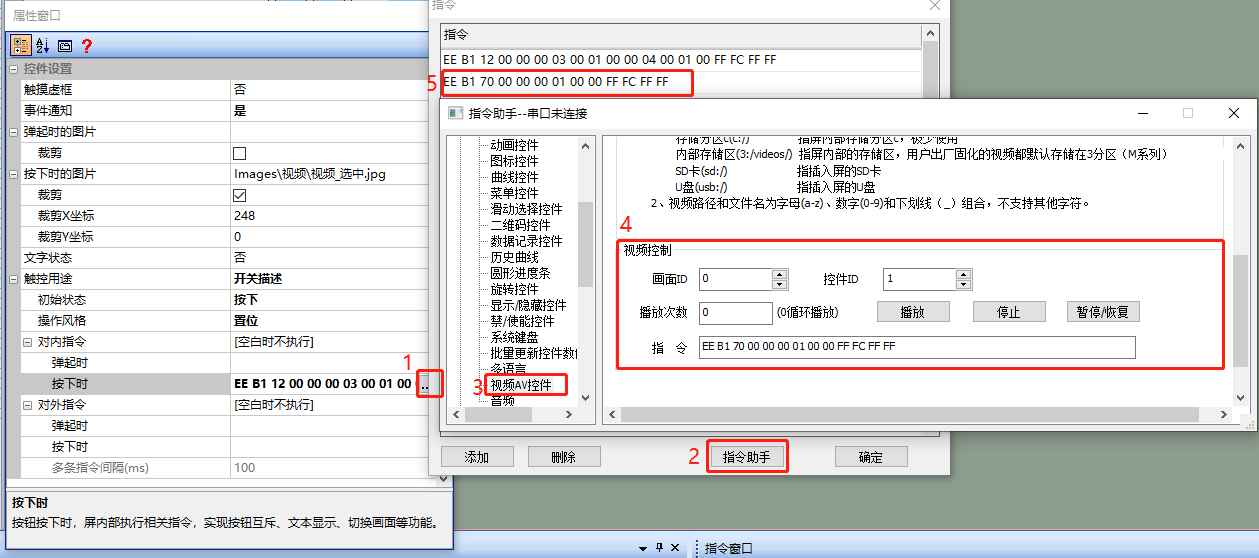
As shown above: The command format is EE B1 70 00 00 00 01 00 FF FC FF FF. This command is mainly used to control the playback of the video playback control, allowing you to set the corresponding video playback looping times and have the video play according to the settings. (Note: The video playback control must first set the video path. If the control has already loaded a video file, you only need to send the play video command. In any case, you need to send the set video playback path command first, and then send the play command.)
| Frame Header | Configuration Command | Function Code - Video Playback | Screen ID | Control ID | Playback Count | Frame Tail |
|---|---|---|---|---|---|---|
| EE | B1 | 70 | 00 00 | 00 01 | 00 | FF FC FF FF |
Button Control ID3 - Pause/Resume
The attribute configuration of Button Control ID3 is similar to that of Button Control ID2. Set the initial state of Button Control ID3 to "Popped Up", and fill it in the corresponding button's instruction assistant as shown below
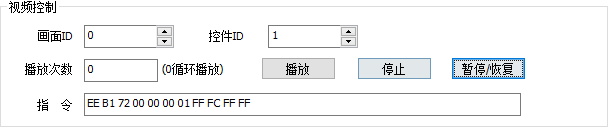
As shown above: The instruction format is EE B1 72 00 00 00 01 FF FC FF FF. This instruction is mainly used to control the video "Pause/Resume". The instruction meaning is as follows
| Frame Head | Configuration Command | Function Code - Video Pause/Resume | Screen ID | Control ID | Frame Tail |
|---|---|---|---|---|---|
| EE | B1 | 72 | 00 00 | 00 01 | FF FC FF FF |
Button Control ID4 - Stop
The attribute configuration of Button Control ID4 is similar to that of Button Control ID2. Set the initial state of Button Control ID4 to "Pop Up", and fill it in the command assistant for the corresponding button, as shown below
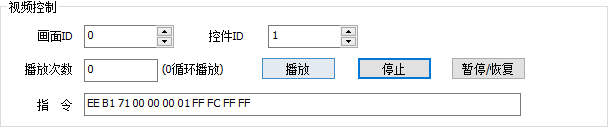
As shown above: The command format is EE B1 71 00 00 00 01 FF FC FF FF. This command is mainly used to control the video to "Stop". The command meaning is as follows
| Frame Head | Configuration Command | Function Code - Video Stop | Screen ID | Control ID | Frame Tail |
|---|---|---|---|---|---|
| EE | B1 | 71 | 00 00 | 00 01 | FF FC FF FF |
18.3 Play Video from SD Card
The steps for playing videos from an external SD card are basically the same as those for playing internal videos on the screen, except that playing videos from an external SD card requires sending a command to set the video path first. The operation process is as follows:
- Add a video playback control to the project screen (refer to Section 18.2)
- Set the video path with an internal command
- Send commands to control video playback, pause/resume, and stop (refer to Section 18.2)
Set video path for internal commands
Set playback format for SD card videos, such as playing the 0001.mp4 file from the SD card, where the drive letter of the SD card is 1:/ and the path is '1:/0001.mp4'. The command is as follows: B1 74 00 00 00 01 31 3A 2F 30 30 30 31 2E 6D 70 34 FF FC FF FF. This command is mainly used to control the video to "stop". The command meaning is as follows:
| Frame header | Configuration command | Function code - Set video playback path | Picture ID | Control ID | Path (1:/0001.mp4) | Frame tail |
|---|---|---|---|---|---|---|
| EE | B1 | 74 | 00 00 | 00 01 | 31 3A 2F 30 30 30 31 2E 6D 70 34 | FF FC FF FF |
18.4 Introduction to LUA API
play_video(file,left,top,width,height)
Play video: M series. The API part does not require the use of controls for playback, which belongs to the "canvas" video playback category.
- file: file path
- left: starting coordinate x
- top: starting coordinate y
- width: width of the video display
- height: height of the video display
Play on-screen video
For example, to play the "test.mp4" video located in the root directory of the on-screen drive, with the on-screen drive letter being "3:/", as shown below
--用户通过触摸修改控件后,执行此回调函数
--点击按钮控件,修改文本控件、修改滑动条都会触发此事件
function on_control_notify(screen,control,value)
    if screen == sc_main2
    then
        if control == 7 and value == 0
        then
            play_video('3:/test.mp4', 0, 0, 480, 272)
        end
    end
end
-- 系统回调函数,插入SD卡自动回调
function on_sd_inserted(dir)
    sd_dir = dir
end
Play SD card video
For example, to play the "test.mp4" video located in the root directory of the SD card, with the drive letter "1:/", it is recommended to create a global variable to obtain the drive letter in the callback triggered by the SD card.
local sd_dir = ''
--用户通过触摸修改控件后,执行此回调函数
--点击按钮控件,修改文本控件、修改滑动条都会触发此事件
function on_control_notify(screen,control,value)
    if screen == sc_main2
    then
        if control == 2 and value == 0
        then
            play_video(sd_dir..'/'..'test.mp4', 0, 0, 480, 272)
        end
    end
end
For more information about traversing LUA script files, video control, looping playback, etc., please refer to "Playing SD Card Video Files" (click to jump)
stop_video()
Stop video playback
on_video_notify(msg, v1, v2)
Video playback callback function
- msg: 1-playing, 0-played
- v1: current playback progress, current played duration, in seconds
- v2: total playback progress, total duration of the current video, in seconds
The code example for displaying playback progress through a progress bar and displaying playback duration through a text control is shown below. For the complete code, refer to "MBI_121 Playing SD Card Video Files MBI_122" (click to jump)Play video files from SD card>(Click to jump)
function on_video_notify(msg,v1,v2)
    local token_time = ':'
    if msg == 1
    then
        local v1_h = string.format("%02d", math.modf(v1/60/60))
        local v1_m = string.format("%02d", math.modf((v1/60) % 60))
        local v1_s = string.format("%02d", math.modf(v1%60))
        local show_v1 = v1_h..token_time..v1_m..token_time..v1_s

        local v2_h = string.format("%02d", math.modf(v2/60/60))
        local v2_m = string.format("%02d",  math.modf((v2/60) % 60))
        local v2_s = string.format("%02d", math.modf(v2%60))
        local show_v2 = v2_h..token_time..v2_m..token_time..v2_s
        set_value(sc_video, 26, (v1/v2)*1000)
        set_text(sc_video, 27, show_v1)
       set_text(sc_video, 28, show_v2)

    elseif msg == 0
    then
        paly_video_index = paly_video_index + 1
        if paly_video_index > video_cnt
        then
            paly_video_index = 1
        end

        local cur_play_page = math.modf(paly_video_index / 5)
        if paly_video_index % 5 > 0
        then
            cur_play_page = cur_play_page + 1
        end

        if cur_play_page == get_value(sc_video, 17)
        then
            my_set_video_playstate(paly_video_index)
        else
            my_set_video_playstate(0)
        end
        play_video(video_Tb[paly_video_index], video_x, video_y, video_w, video_h)
        my_setvisable_video_progress(1)
    end
end

Leave a Reply