
What is a GIF control?
GIF animations and ICON files can be displayed through animation controls. Users can set the animation control to play automatically or to be triggered by touch. This routine introduces common applications of animation controls, combining screen descriptions from engineering projects to explain the configuration of each application. Common applications are as follows:
- Boot animation: After booting, the animation plays automatically and executes a specified action after playback is complete.
- ICON file playback: Use VisualTFT software to create ICON files, and the ICON icons play in a loop.
Scope of application: Full series.
Routine download link: "GIF Control Application"] (click to jump)
7.1 Introduction to GIF control properties.
GIF control properties are as follows:
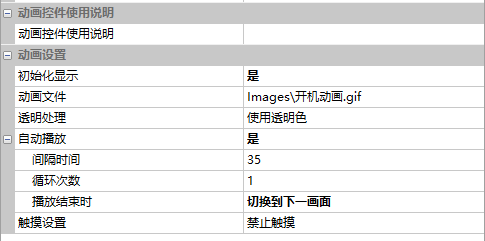
Initial display.
Whether the control is initialized and displayed when entering this screen
- Select "No" to initialize the control without displaying it. After closing, if the user wants to display the animation, they can use the command assistant's display/hide control to send a command to initialize and display it.
- Select "Yes" to enable initialization display and initialize the control for display.
Animation file
Select playback file: Supports GIF and ICON files.
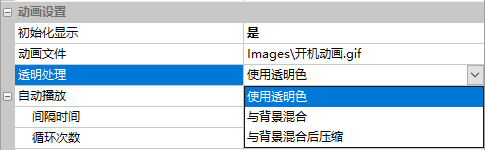
Transparent processing
- Use transparent color: The transparent color in the icon is displayed directly transparently.
- Blend with background: The transparent color in the icon displays the background color or background image at the same coordinates of the current screen.
- Blend with background color and compress: Generally used for compressing PNG images with a large number of transparent areas (ring Kyoto bars, car dashboards, etc.).
Auto play
Whether to automatically play the animation when entering this screen.
- No: Do not automatically play.
- Yes: Automatically play
- Interval: Automatic playback interval (in milliseconds)
- Loop Count: Number of loop playback times (0 indicates continuous loop playback)
- On End of Playback: Processing at the end of playback (No Processing, Send Notification, Switch to Next Screen)
Touch Settings
Whether to notify or change frames when a finger touches or slides on the control
- Disable Touch: Cannot be touched
- Allow Touch: Send notification when touching the control
- Change Frame on Horizontal/Vertical Slide: When sliding horizontally/vertically, switch frames and send a notification
- Step Size (Pixels): The unit for sliding to switch one frame. Number of frames switched = sliding distance / step size, as shown below
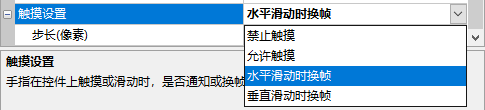
7.2 Boot Animation
[Boot animation] screen, introducing the settings for boot animation. You can set the boot animation to play automatically and automatically skip to the next page after playback ends
Screen Configuration
Import the corresponding artwork image for the "background image" of the [Boot Animation] screen. Add animation controls to this screen as shown below
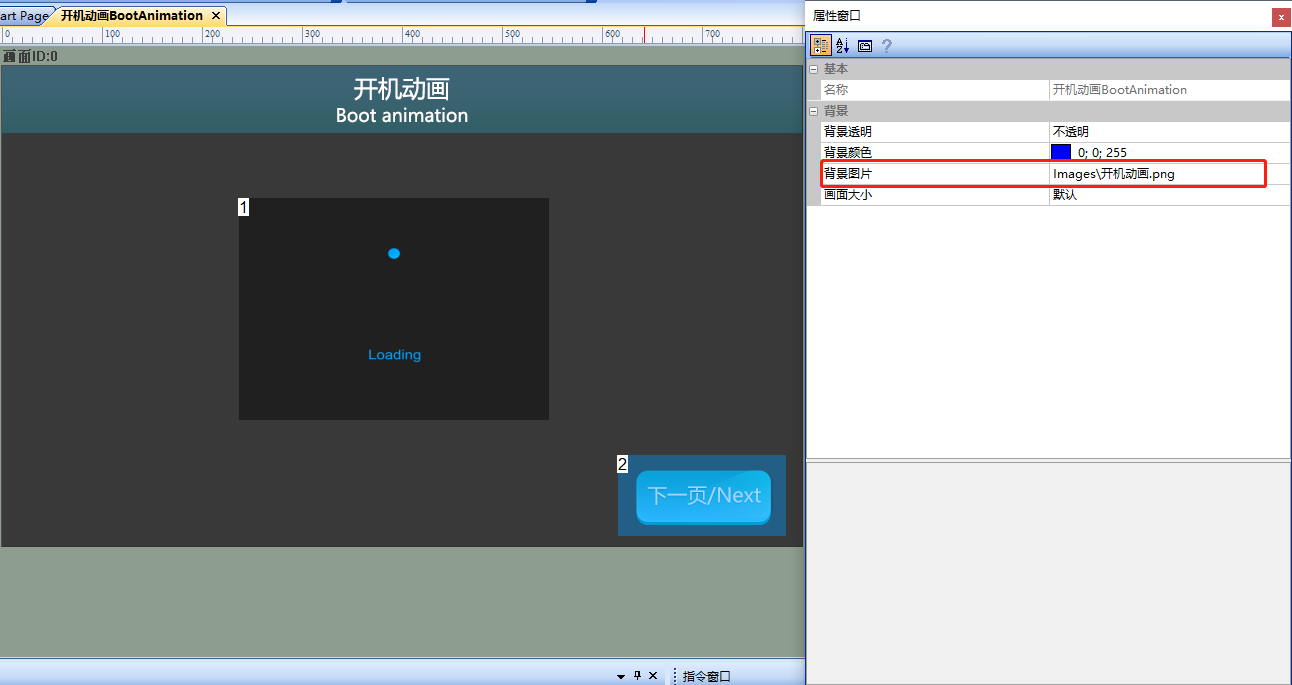
Property Configuration
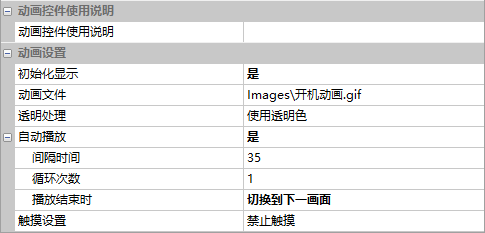
Set the properties of the animation control (Control ID: 1), select a GIF file for [Animation File], set [Interval Time] to "35", and set [On End of Playback] to "Switch to Next Frame". The configuration is as follows:
Run Preview
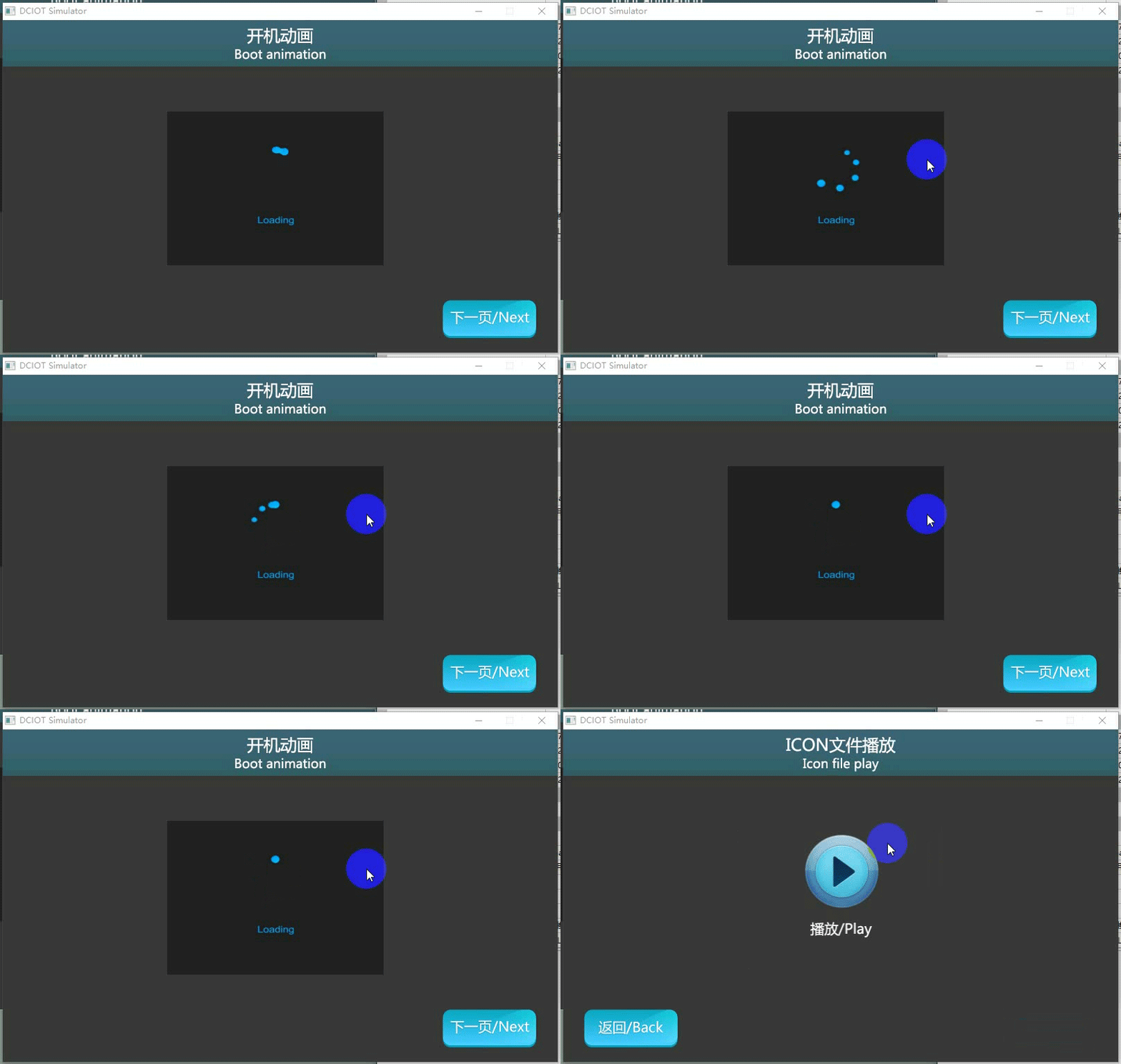
Run the virtual screen, and the animation control will automatically jump to the next page after playback is complete. The running effect is as follows
MCU controls GIF playback and pause
Refer to the function declarations in the him.dever.h file and the definitions in the him.dever.c file in the development package Keil program
MCU controls to start playing the animation
For example, if the user needs to start playing the animation, they can directly call the play animation function AnimationStart() with the following code
/********************************************************************
** Function name:     void AnimationStart(uint16 screen_id,
**                                        uint16 control_id);
** Descriptions    :  开始播放动画
** input parameters:  screen_id:   画面ID
**                    control_id:  控件ID
** output parameters: 无
** Returned value   : 无
********************************************************************/
{
  ……
  AnimationStart(0, 1); //画面ID0,控件ID1,开始播放动画
  ……
}
MCU controls to stop playing the animation
For example, if the user needs to stop playing the animation, they can directly call the stop playing animation function AnimationStop() with the following code
/********************************************************************
** Function name:    void AnimationStop(uint16 screen_id,
**                                      uint16 control_id);
** Descriptions    :  停止播放动画
** input parameters:  screen_id:   画面ID
**                    control_id:  控件ID
** output parameters: 无
** Returned value   : 无
********************************************************************/
{
  ……
  AnimationStop(0, 1); //画面ID0,控件ID1,停止播放动画
  ……
}
7.3 ICON File Playback
ICON File Playback] screen, introducing the creation of ICON files and the settings for playing ICON files
Screen Configuration
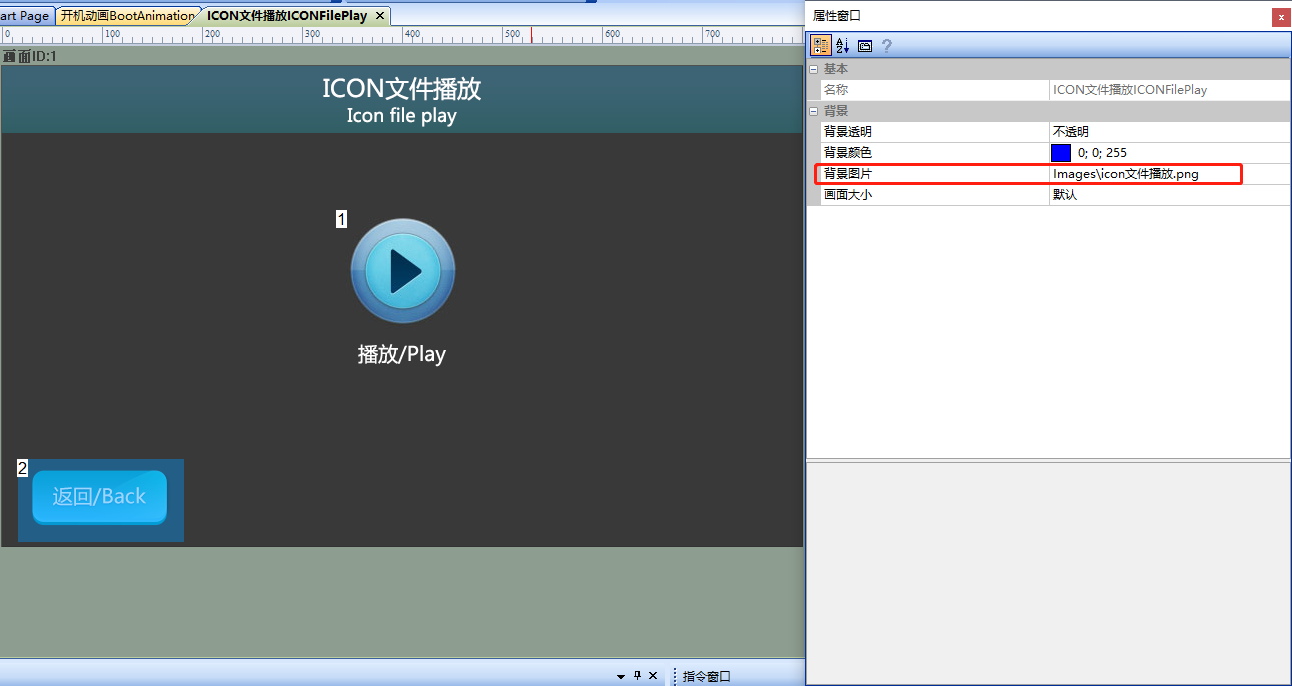
Import the corresponding artwork image for the "Background Image" in the "ICON File Playback" screen. Add animation controls to this screen as shown below
Icon Generation
This section does not elaborate on the process of creating icons. For specific details, refer to the "Icon Controls" section
Attribute Configuration
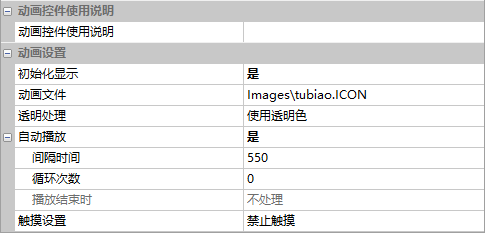
Set the properties of the animation control (control ID: 1), select the prepared ICON file for [Animation File], set [Interval Time] to "550", and the configuration is as follows:
Run Preview
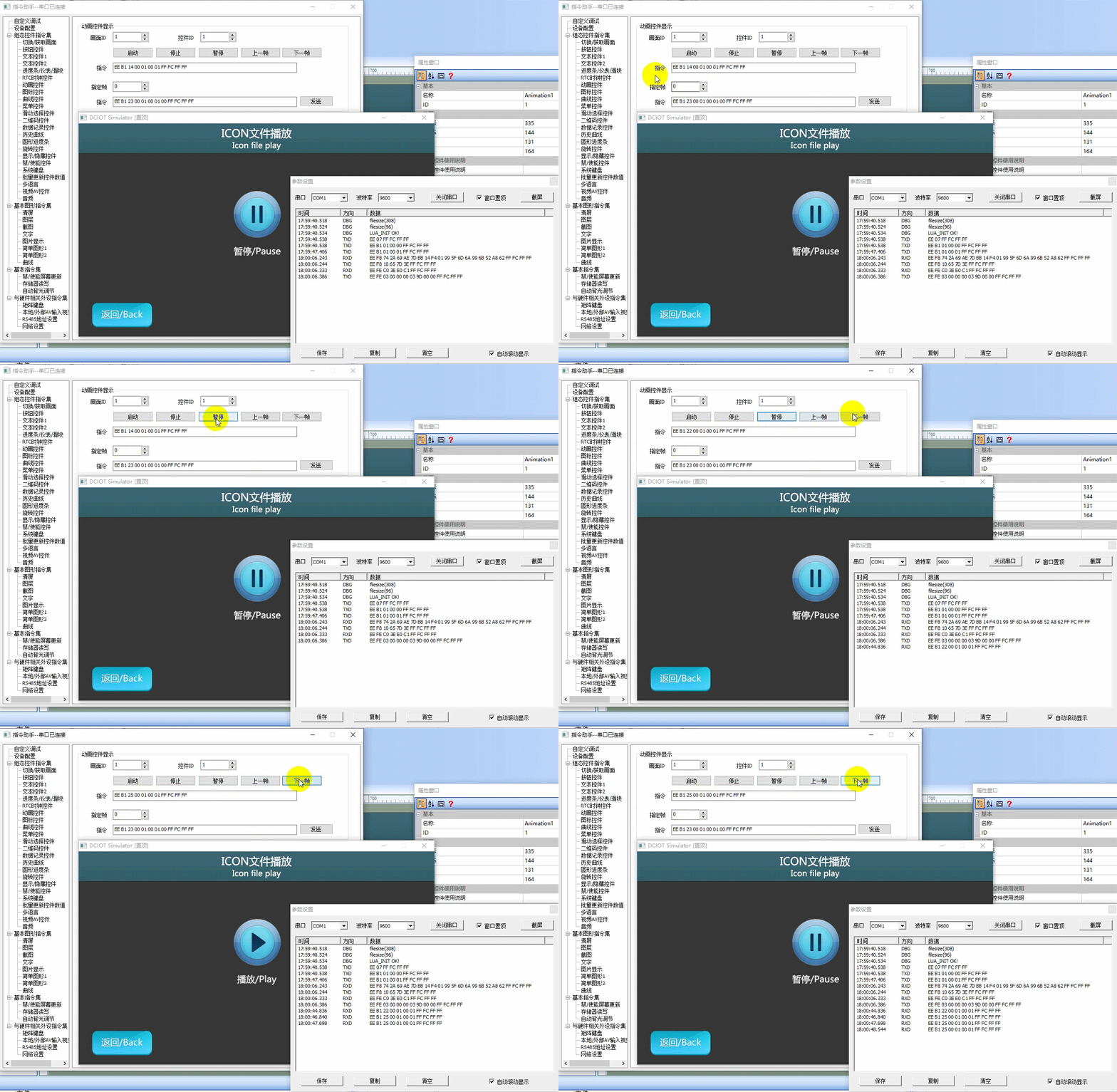
Run the virtual screen, and establish a connection between the VisualTFT software and the virtual screen using "Virtual Serial Port". Open the "Command Assistant", select "Animation Controls" from the left navigation bar, and set the command parameters in the "Animation Controls Display" area. Pause the playback of the animation control (Control ID: 1) in the screen (Screen ID: 1), and then manually display the next frame. In the virtual screen, the animation control will pause and display the next frame, with the running effect shown below
External MCU Control
Refer to the function declarations in the him.dever.h file and the definitions in the him.dever.c file in the development package Keil program. For example, if the user needs to display the next frame of the animation, they can directly call the function AnimationPlayNext() to display the next frame of the animation, and the code is as shown below
/*******************************************************************
** Function name:    void AnimationPlayNext(uint16 screen_id,
**                                          uint16 control_id);
** Descriptions    :  播放下一帧
** input parameters:  screen_id:   画面ID
**                    control_id:  控件ID
** output parameters: 无
** Returned value   : 无
********************************************************************/
{
  ……
  AnimationPlayNext(0, 1); //画面ID0,控件ID1,播放下一帧
  ……
}

Leave a Reply