
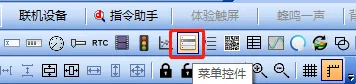
What is a menu control?
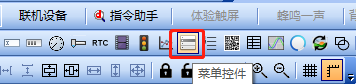
The drop-down selection box can be displayed through a menu control. Users can set the menu to pop up when a button is pressed, or pop up the menu by sending a command. After clicking the menu, the data can be output to a text control or a selection control, and then displayed on the serial port screen.
This routine introduces common applications of menu controls, and describes the configuration of each application in conjunction with the screen in the project. Common applications are as follows:
- Drop-down menu application: menu data is output to a text control.
- External host modification option: menu data is output to a selection control, and the external host modifies the options of the selection control.
Scope of application: full series.
Routine download link: "<Menu Control Application>" (click to jump)
10.1 Menu Control Properties.
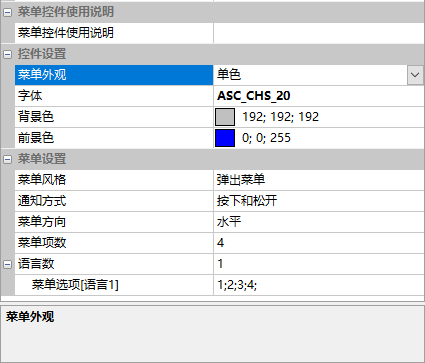
This section focuses on the properties of the menu control. The property window is shown below.
Menu Appearance
Single color, image, and image with text, as shown below
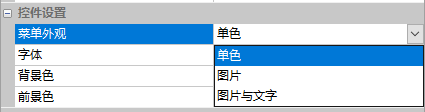
Single color
You can directly use software to generate a simple menu appearance,
- Font: font style and size
- Background color: menu background color
- Foreground color: menu font and separator color
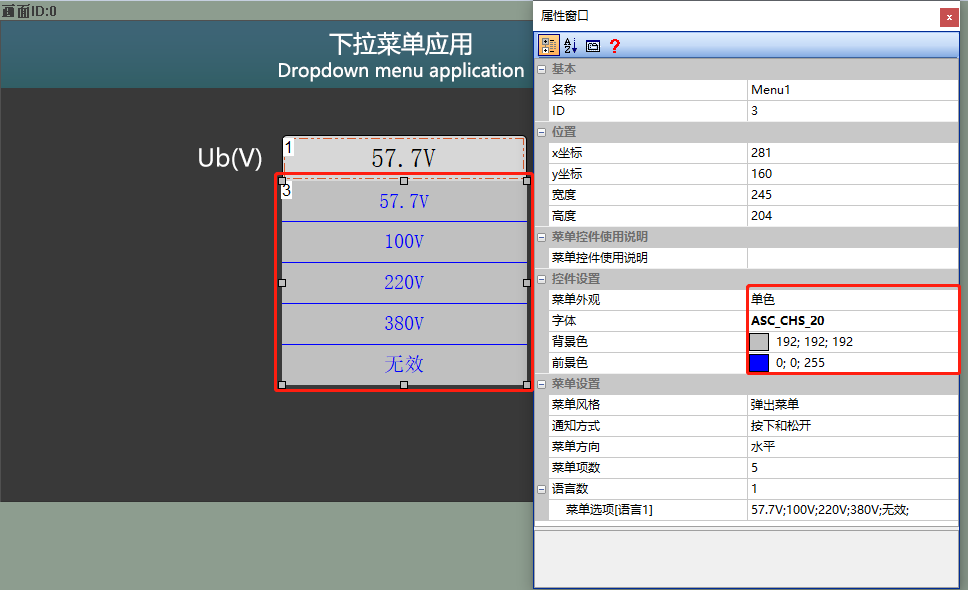
Note: Text settings are described in the "Menu Settings" section below
Image
Using an image as the background of a menu control, you can set the image when popped up and the image when pressed, with the effect shown below
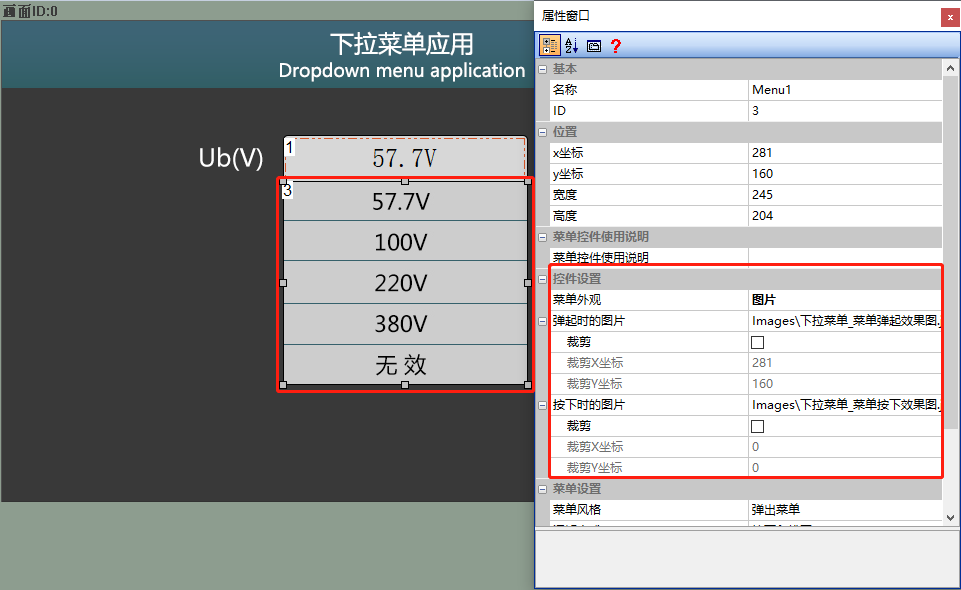
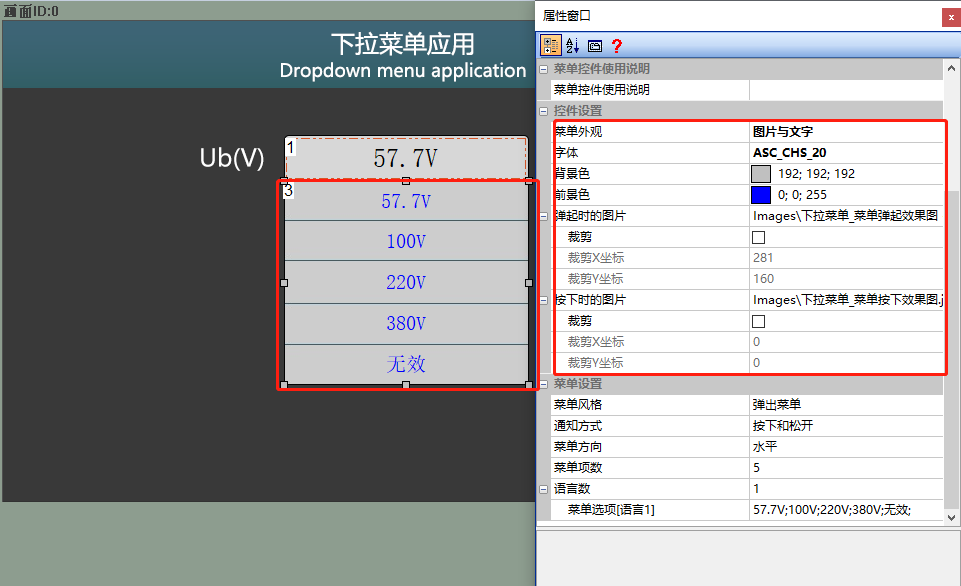
Image with text
Display the content of both single color and image functions simultaneously. You can use a custom background image, and then use the font set by the attribute for the text
Menu style
Set display style of menu
- Pop-up menu: i.e., dropdown menu, can be triggered to pop up by a button
- Fixed menu: menu displays in a fixed state
Menu direction
Set presentation style of menu options
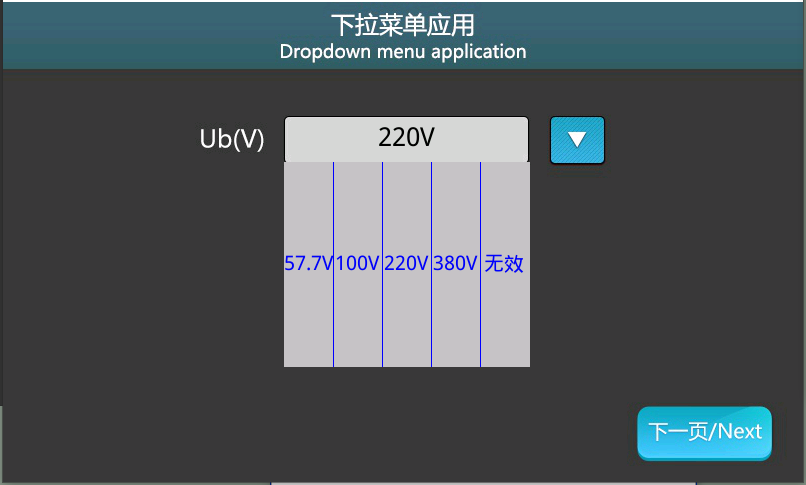
- Vertical, as shown below
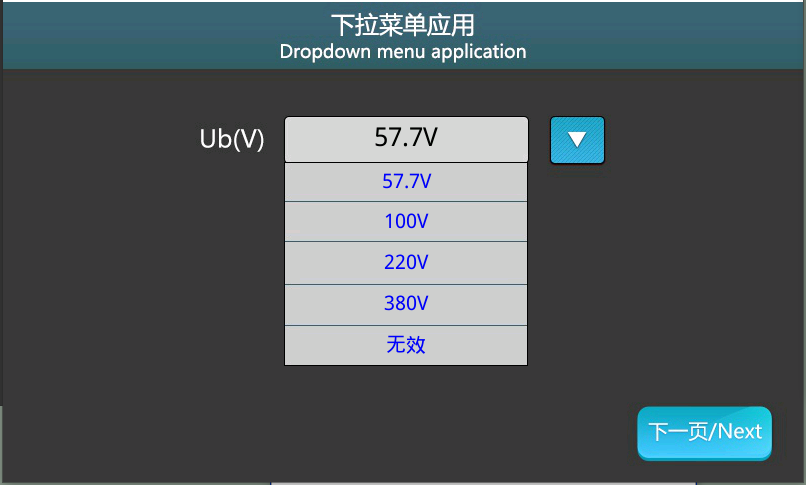
- Horizontal, as shown below
Number of menu items
Number of menu options
Number of languages
Number of menu options. This option works in conjunction with the "Multi-Language" feature. When the system language changes, the menu options will change
10.2 Dropdown menu application - text control input
The touch function of the button control can be set to pop up a menu
Screen configuration
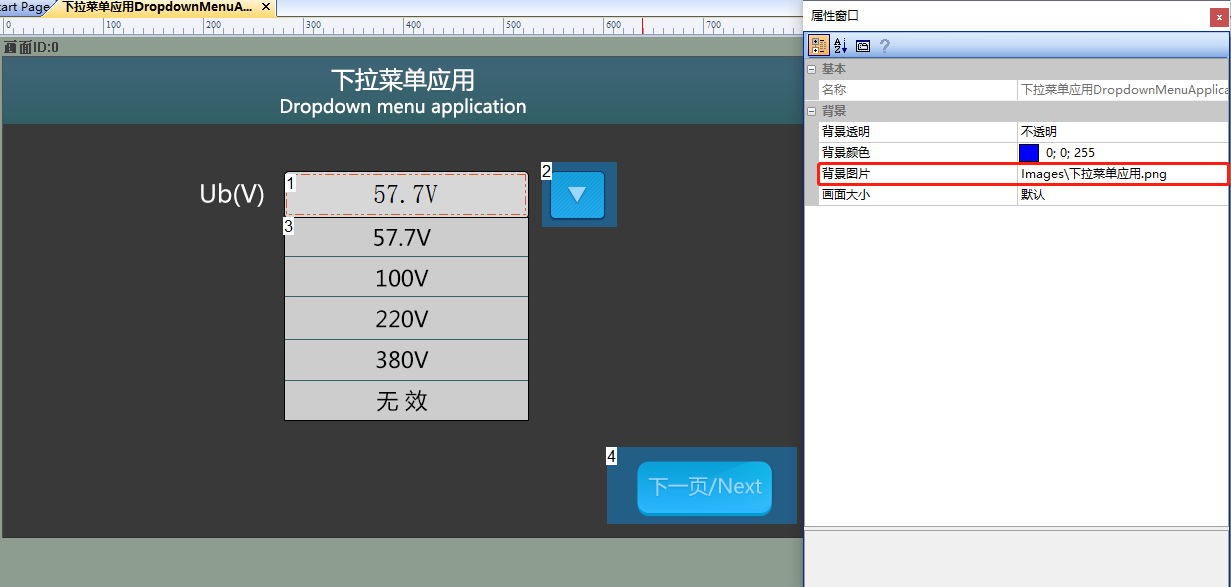
Import the corresponding artwork image for "Background Image" on the "Pull-down Menu Application" screen. Add text controls, menu controls, and button controls to this screen, as shown below
Attribute configuration
Menu control attributes
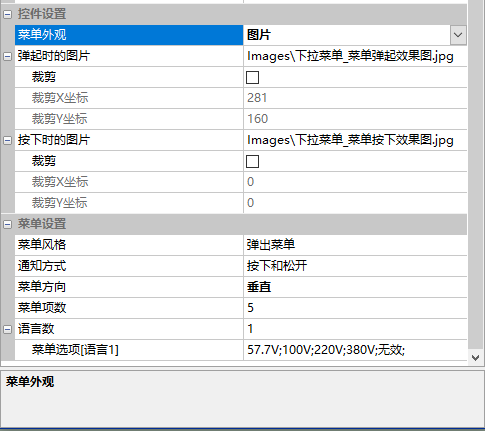
Set the appearance of the "Menu Control" to "Image", "Menu Style" to "Pop-up Keyboard", "Notification Method" to "Press and Release", "Menu Direction" to "Horizontal", "Number of Menu Items" to "5", and "Menu Options" to correspond with the text on the image, set to "57.7V;100V;220V;380V;Invalid;".
Text control attributes
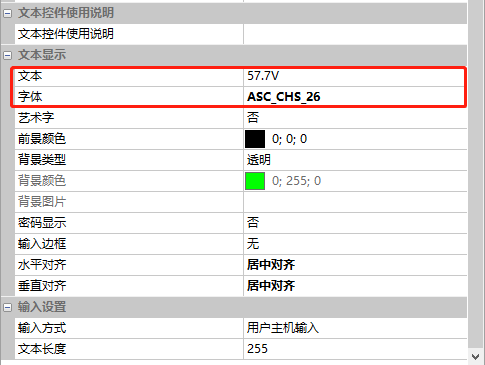
The default text is "57.7V", and the input is "User Host Input". The attribute configuration is as follows
Button control attributes
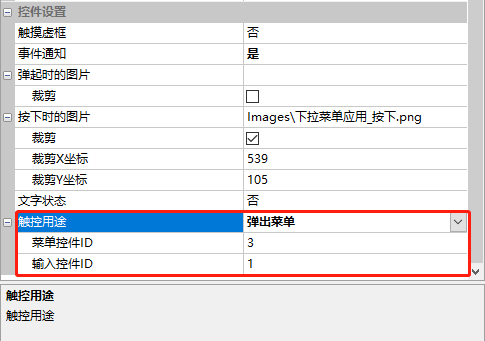
Set the touch function of the button to "Pop-up Keyboard", Menu Control ID: the ID of the menu control, Input Control ID: the ID of the text control, and the attributes are as follows
Run Preview
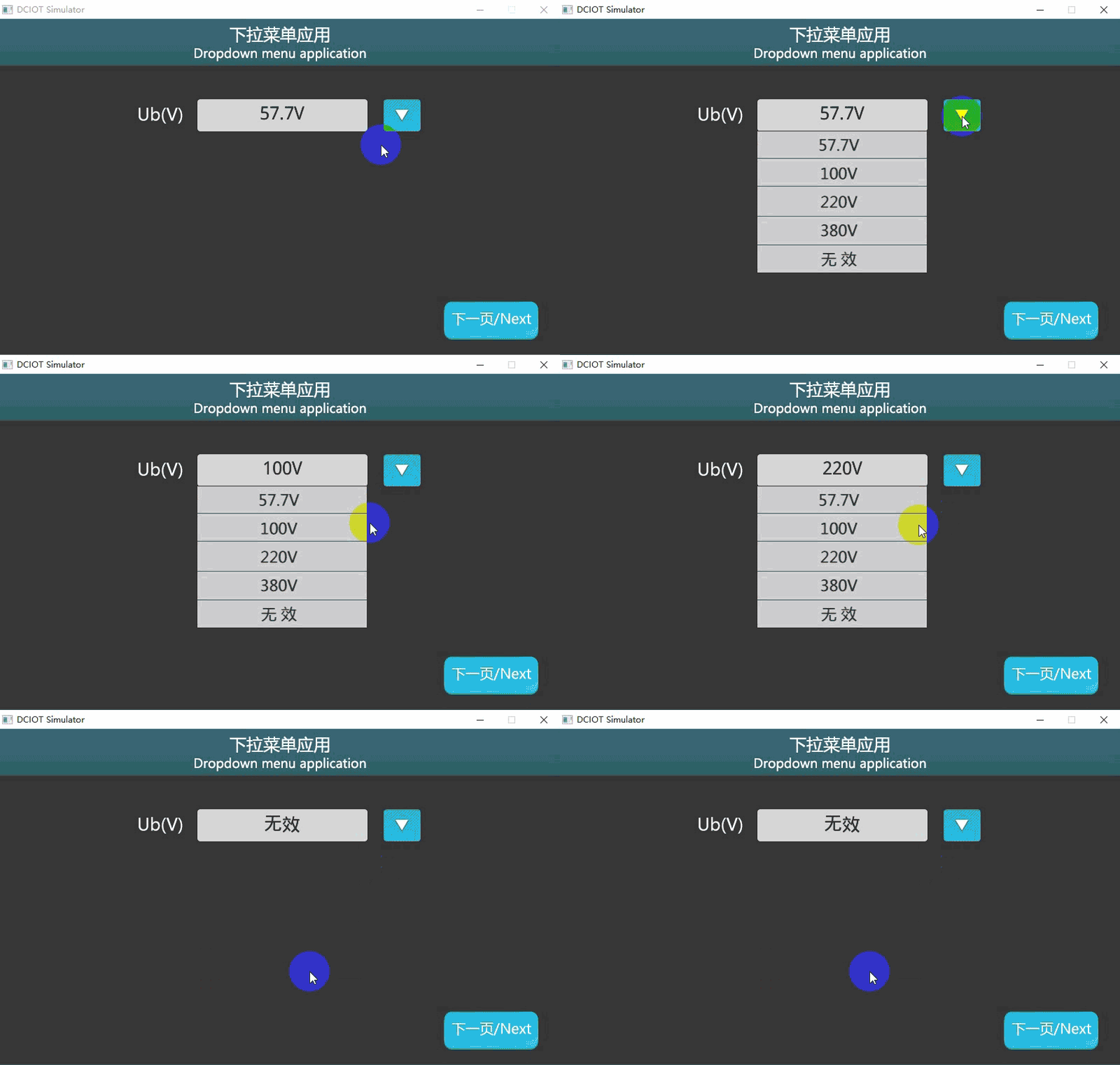
Run the virtual screen, and establish a connection between the VisualTFT software and the virtual screen using a "Virtual Serial Port". Click the button to pop up the menu, select a menu option to display it in the text box, click the menu option to update the sub-item content to the text box and dismiss the menu control. The running effect is as follows
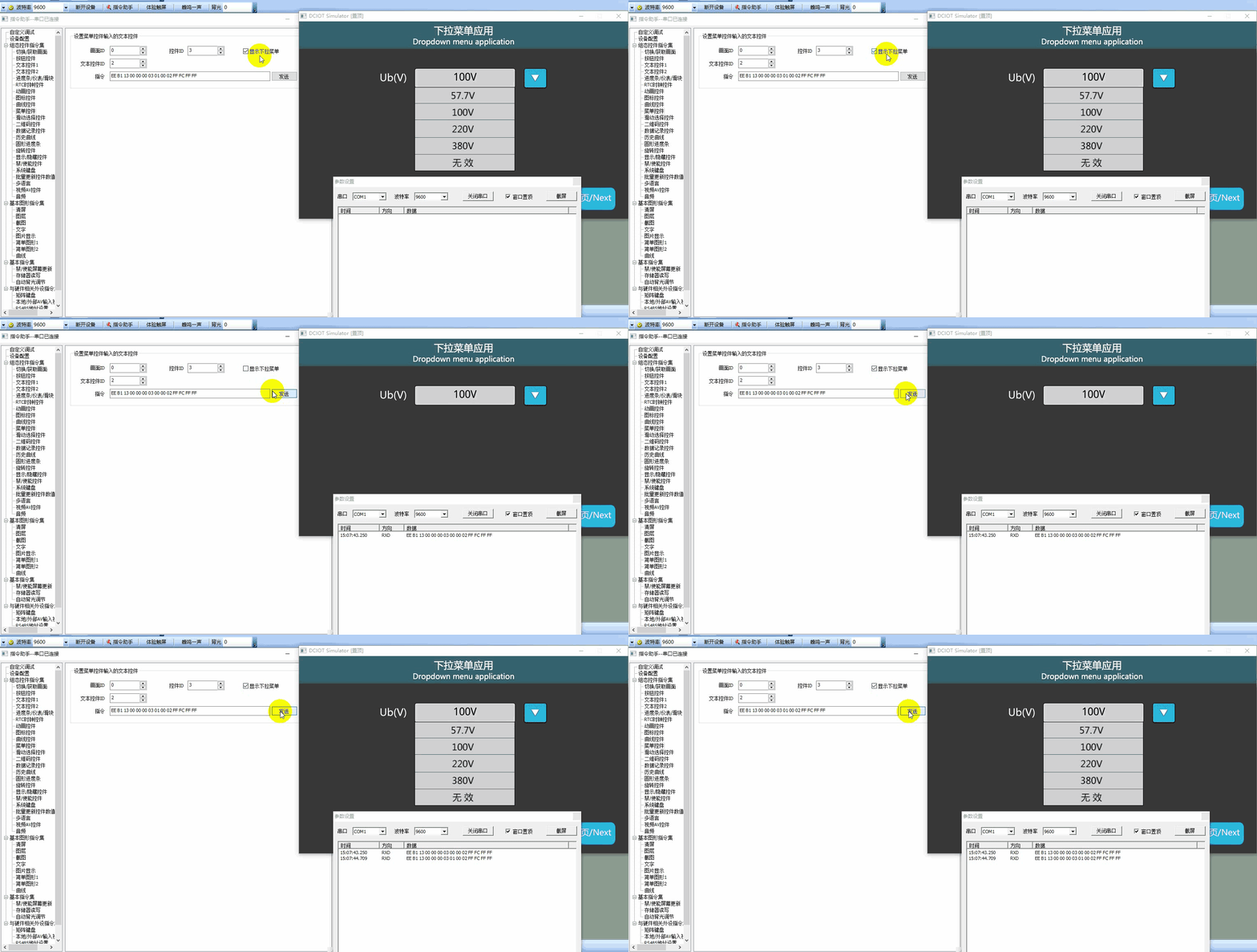
Meanwhile, in the instruction assistant, set the [Screen ID] to "0", the [Control ID] to "3", and the [Text Control ID] to "1". Check the [Display Drop-down Menu] and click "Send". Then, in the virtual screen, the menu control will automatically display as shown below
MCU controls display/hide drop-down menu
Refer to the function declaration in the him.dever.h file and the definition in the him.dever.c file in the Keil development package. For example, if the user needs to display a drop-down menu, they can directly call the menu display function ShowPopupMenu() with the code shown below
/************************************************************************
** Function name : void ShowPopupMenu(uint16 screen_id,
**                                    uint16 control_id,
**                                    uint8 show,
**                                    uint16 focus_control_id);
** Descriptions        : 设置下拉菜单显示/隐藏
** input parameters    :
**                       screen_id : 画面ID
**                       control_id:控件ID
**                       show: 0隐藏,1显示,为0时focus_control_id无效
**                       focus_control_id:关联的文本控件(菜单控件的内容输出到文本控件)
** output parameters:    无
** Returned value   :    无
************************************************************************/
{
    ……
    ShowPopupMenu(0,3,1,1);  //显示画面0、控件3的菜单控件,并
    //把输出结果显示在控件1的文本控件中
    ……
}
10.3 Drop-down Menu Application - Slider Selection Control Input
The "External Host Modification Options" screen introduces the use of sliding selection controls in combination with text controls and menu controls. The difference between this method and text controls is that when using an external microcontroller to send command control strings to a screen, the commands for text controls are relatively long, and when displaying Chinese, the Chinese characters must be converted into their corresponding encodings. However, because the options for the selection controls are already written during engineering editing, when using microcontroller control, sending the corresponding option index can display the corresponding option. The commands are relatively simple, and the option index starts from 0.
Screen Configuration
Similar to the "Drop-down Menu Application - Text Control Input" section, not elaborated
Attribute Configuration
Menu Control Attributes
Similar to the "Drop-down Menu Application - Text Control Input" section, not elaborated
Slider Selection Control Attribute Configuration
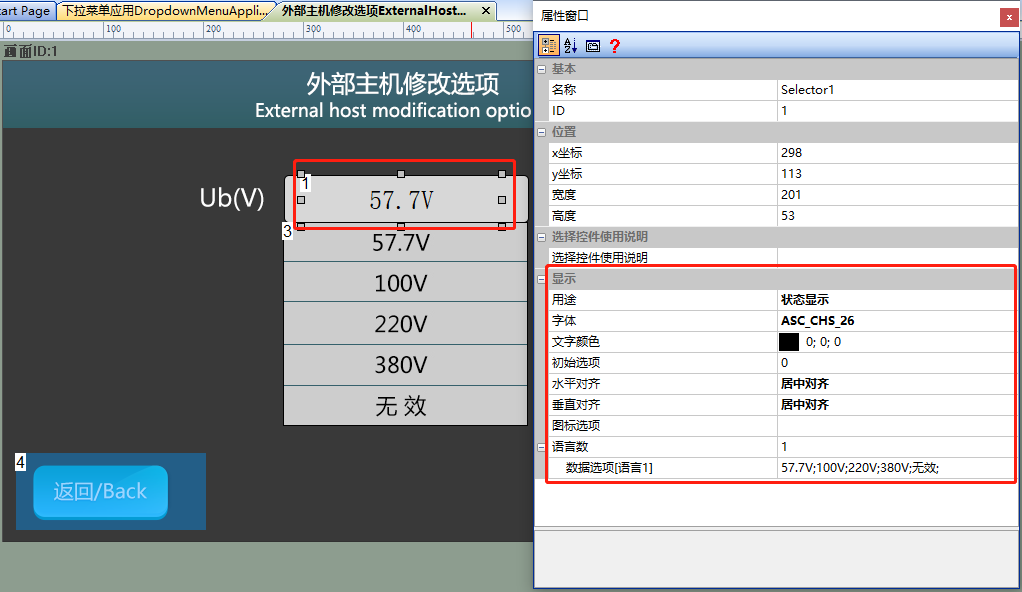
Set [Purpose] to "Status Display", and set [Data Options [Language 1]] to "57.7V; 100V; 220V; 380V; Invalid;";
The button control attribute
is similar to the section on "Pull-down Menu Application - Text Control Input", and will not be elaborated on.
Run Preview
Run Virtual Screen. The VisualTFT software and the virtual screen are connected using a "virtual serial port". Open the "Command Assistant", select the "Slide Selection Control" on the left navigation bar, and set the command parameters for "Set Slide Selection Control Value". In the Command Assistant, set the "Screen ID" to "1", the "Control ID" to "1", and the "Option Index" to "2", and click "Send". Then, in the virtual screen, the selection control displays "220V". The operation effect is shown as follows
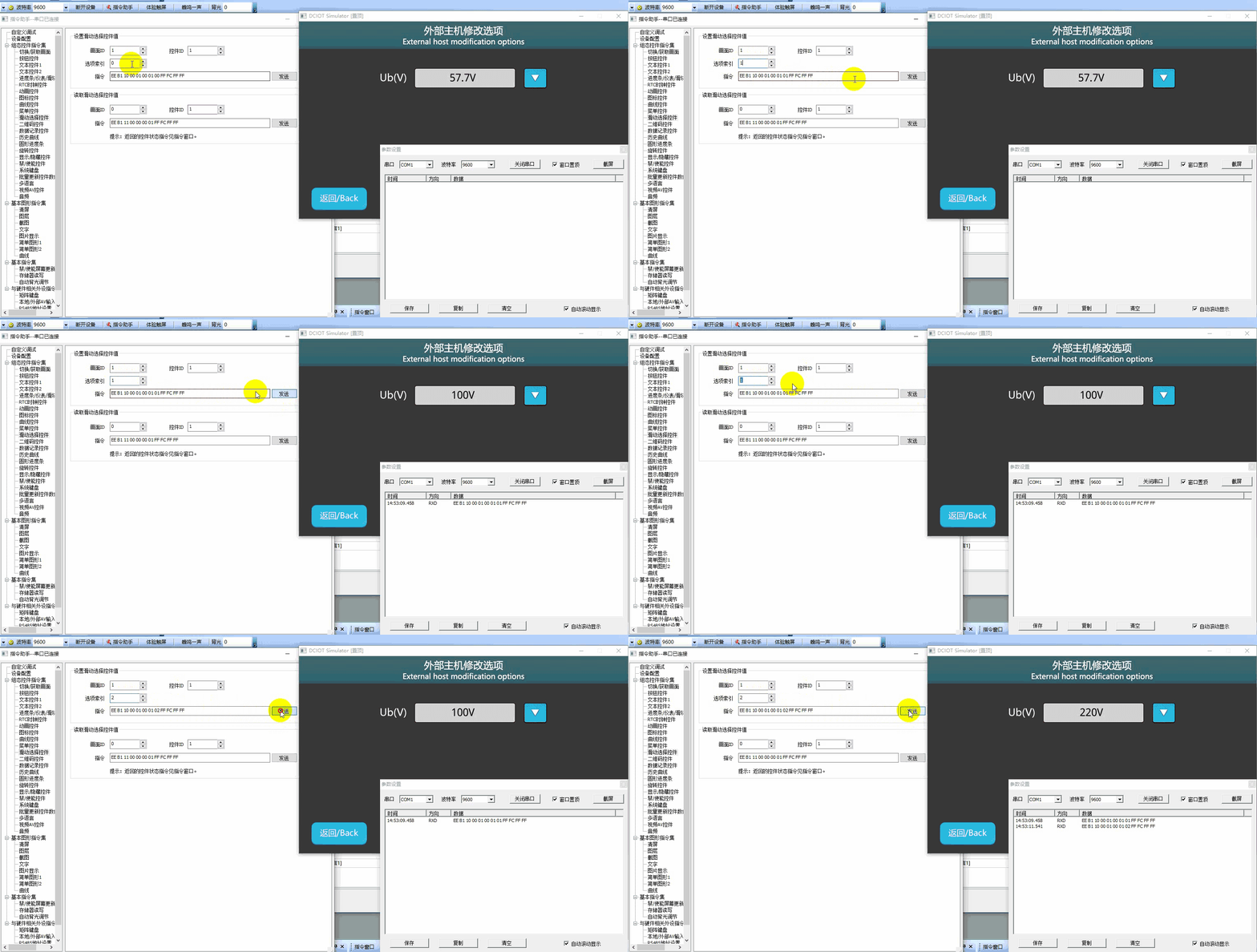
MCU controls the selection control options
Refer to the function declaration in the him.dever.h file and the definition in the him.dever.c file in the development package Keil program. For example, if the user needs to implement the selection control to display preset options, they can directly call the function SetSelectorValue() to set the options of the selection control. The code is shown below
/********************************************************************

** Function name:    void SetSelectorValue(uint16 screen_id,
**                                         uint16 control_id,
**                                         uint8 item);
** Descriptions    :  设置选择控件的选项
** input parameters:  screen_id :  画面ID
**                    control_id:  控件ID
**                    item      :  当前选项
** output parameters: 无
** Returned value   : 无
********************************************************************/
{
    ……
    SetSelectorValue(1,1,2);  //把画面1、控件1的滑动选择控件显示第2项
    ……
}

Leave a Reply