In the field of industrial control, I believe everyone is quite familiar with the Siemens brand. Currently, the most commonly used PLC is the Siemens S7-200 PLC, which has always been favored and valued by everyone as a high-performance and stable controller. So, how do we connect the Siemens PLC to an IoT cloud platform? Next, let me introduce some relevant knowledge points aboutSiemens PLC supporting cloud platforms.
Firstly, we need to make some preparations. Under normal circumstances, you need to prepare the following items: first, an S7-200 PLC. For better results, it is recommended to use a PLC with two serial ports such as CPU226 or CPU224, one for program download and online monitoring, and the other for Modbus-RTU slave communication with the GM10-DTU module. Of course, you can also consider using a Smart200 PLC. Additionally, you will need a DTU module, antenna, power adapter, SIM card, a DP9-pin male connector, a computer connected to the internet, electrical tools, and several wires.
Next, we need to prepare the materials. Firstly, prepare the DTU by connecting the DTU gateway to the antenna, inserting the SIM card, and connecting a 12V or 24V power adapter. Secondly, prepare the S7-200 PLC by connecting a 9-pin serial port header with two wires soldered to pins 3 and 8 for a 485 communication port. Then, connect pin 3 of the PLC port0 serial port to the 485A terminal of the GM10 module, and connect pin 8 to the 485B terminal of the GM10 module.
After completing the above tasks, we need to connect the 200 PLC to a computer via a programming computer, using the Step7-Micro Win programming software. Create a new project, and then add the corresponding function block in the main program. The Siemens Modbus Slave Port0 function block. The Siemens Modbus slave protocol library includes two instructions: the MBUS_INIT instruction and the MBUS_SLAVE instruction. The former is used for request services sent by the Modbus master device, while the latter is used to enable, initialize, or disable Modbus slave communication. Before using this instruction, you need to run the first instruction, and after it is completed, you should immediately set the completion bit, so that you can continue executing subsequent instructions.
After completing this step, it is necessary to set up the library storage area. After clicking on the menu bar, you can find the file. In the dropdown box, locate the library storage area allocation option, and then enter the starting address of the library storage area in the corresponding dialog box. It is important to ensure that this address does not overlap with any other addresses already used or planned to be used in the program. You can click on the suggested address to view it and avoid overlapping with the addresses occupied by Modbus function blocks and register addresses in the program.
Next, proceed to translate the programming. Once the compilation is confirmed error-free, download the program to the PLC via the PPI cable. After the download is complete, power off the system and open the program monitor to check whether the Error pin outputs of the MBUS_INIT and MBUS_SLAVE instructions are in a normal state.
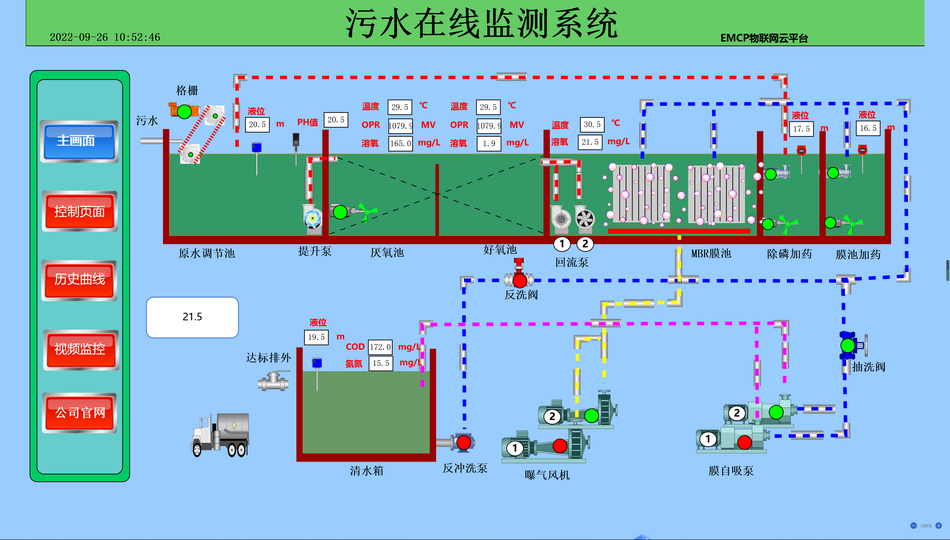
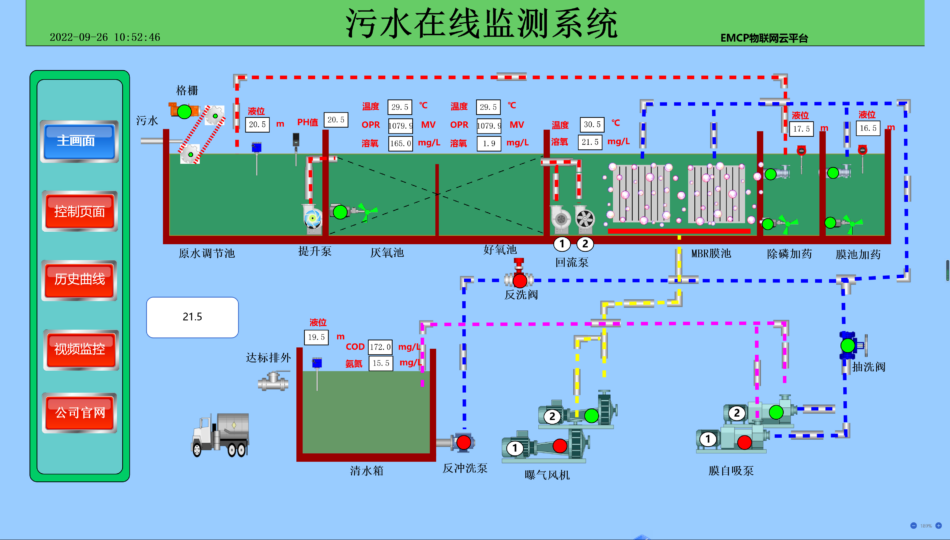
Next, we will proceed with the setup of the EMCP platform. First, log in to the platform using the administrator account and proceed with the setup of the cloud platform. For specific operations, please refer to the "EMCP IoT Cloud Platform User Manual". After logging in to EMCP, you should first navigate to the device list display page, and then proceed to the backend management to configure relevant content in the backend of the EMCP platform. The above is aboutSiemens PLC supports cloud platformsThe sharing of relevant knowledge points on how to connect to the IoT platform will undoubtedly provide assistance and inspiration for everyone's upcoming operations.


Leave a Reply