
SD card download is the most commonly used method for mass production and on-site upgrades: without needing a computer connected to the screen, you can simply copy the resource package into the SD card, insert the card, power it on, and it will automatically be programmed. This article will clarify the entire process and explain "incremental upgrade" in detail.
1. Edit / Compile
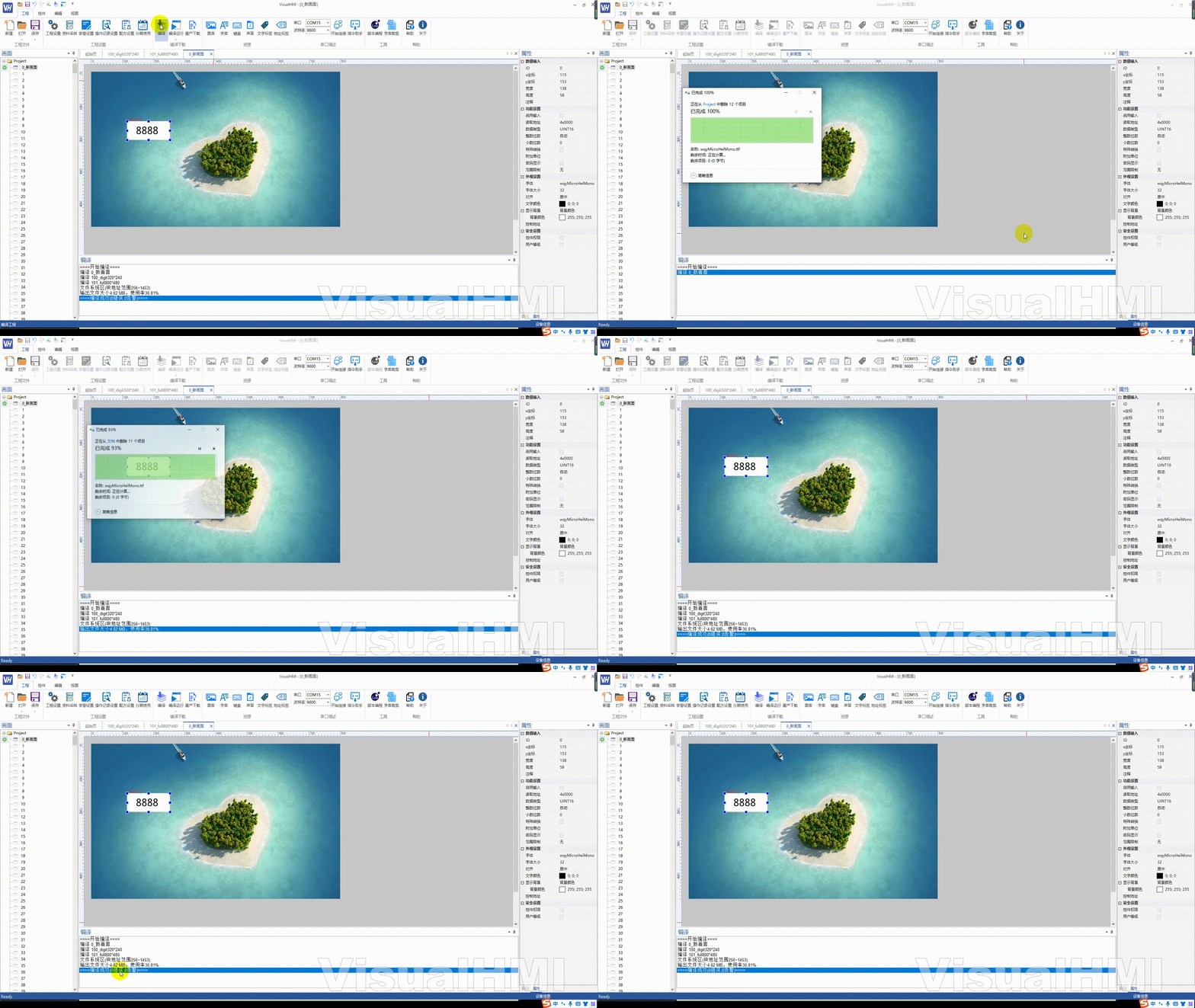
After making changes to the interface and logic in the project, click "Project" → "Compile". If the compilation is successful, a prompt will be displayed indicating success. If there are errors, the editing area will list the error messages. Fix the errors before continuing.
2. Generate Resource Package (Production Wizard)
After compilation, select "Engineering" ->"Production Wizard" from the menu, and click "SD Card Download" in the pop-up dialog box to generate the download resource package. In the result generated by
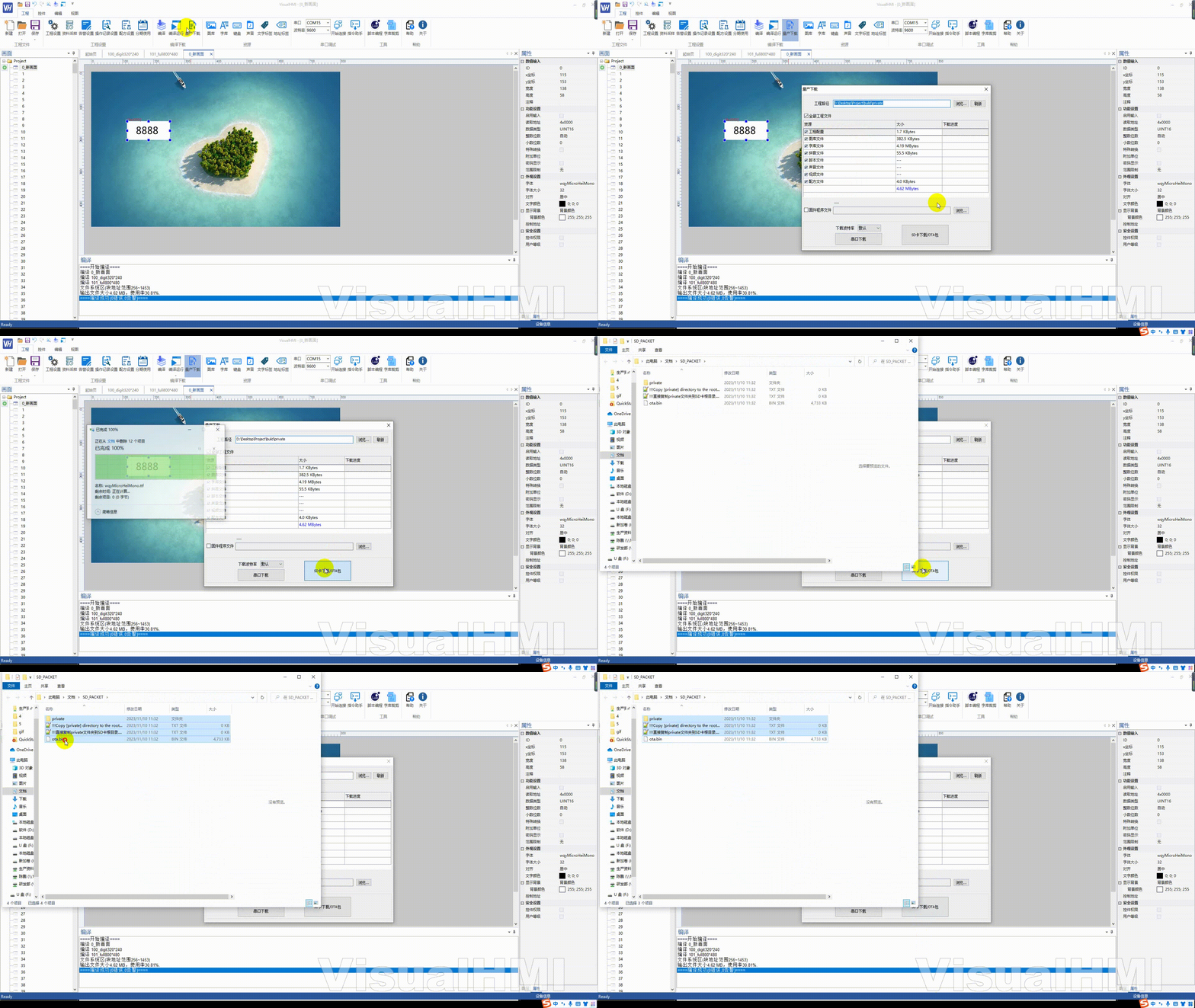
:
- private: To download the actual resource package, you need to copy it to the SD card
- and two TXT files(!!! Copy [private] directory to the root directory of SD Card. txt ""!!! Copy private folder directly to SD card root directory. txt "): For prompt use only,has no practical significance and does not affect the upgrade
- ota.bin: OTA packaging files need to be used in conjunction with a script for OTA upgrade (see LUA tutorial "OTA Upgrade")

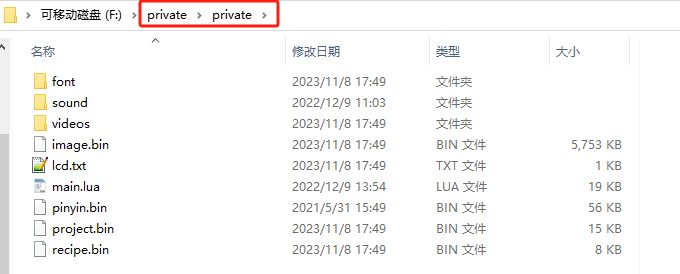
3. Download (power on with card inserted)
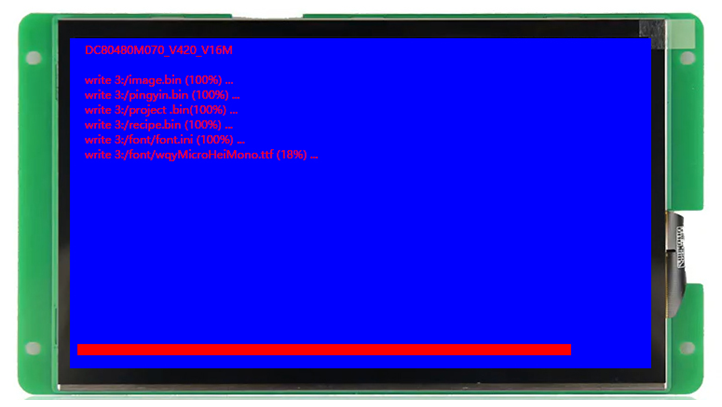
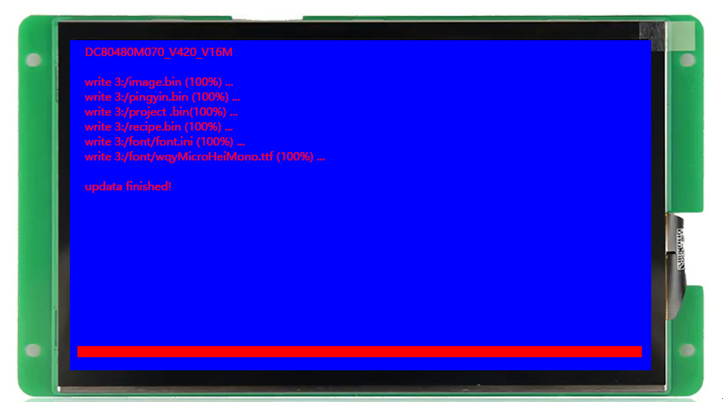
Screen powered off → Insert SD card containing resource package → Power on, the screen automatically enters the upgrade interface and displays the download progress. Displaying "updata finished!" indicates that the download is complete, and the screen will automatically load the project and enter the UI screen. At this point, you can remove the SD card.
4. Incremental upgrade (only updating the changed parts)
The above generates afull download(the entire project is reburned). It's too slow to perform a full download every time during the debugging stage, and VisualHMI supportsincremental upgrade-- only downloading the modified parts.
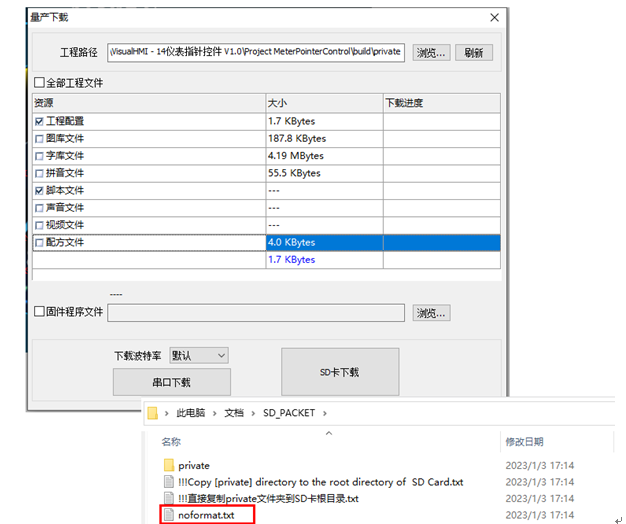
Click on "Mass Production Wizard", and check according to what you have changed:
- Changed project configuration (such as moving control positions, changing project properties) → checkEngineering configuration
- changed the LUA script → tickScript file
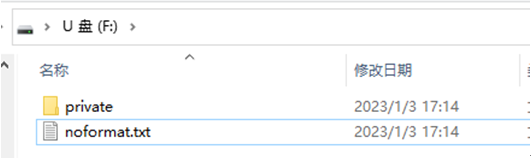
Click on "Generate Package from SD Card", and this time, an additional item will appearnoformat.txtfile will be generated - its purpose is to tell the screen "do not format, only replace the packaged files in private". This file should also be copied to the root directory of the SD card, and the download process is the same as for a full update.
Compiled from VisualHMI development documentation of Guangzhou Dacai Technology (hmi-doc.gz-dc.com) Quick Start "SD Card Download Project", copyright belongs to Dacai Technology.


Leave a Reply