
Text color control (exclusive for customized firmware) providesa global text color batch setting interface: a callback function that dynamically changes the text foreground color of all text-based controls on the screen, eliminating the need for individual configuration. A typical scenario is switching between day/night modes - dark text on a bright background, and light text on a dark background, with a single variable controlling the global theme.
1. Controls that support batch setting
Not all controls can be colored by this interface; only controls withprogrammable text color/foreground color attributesparticipate:
| Control type | Description |
|---|---|
| Static text | Most direct target object |
| Bit status indicator/multi-state indicator | Text changes color based on theme |
| Position setting button / Text setting button / Function button | Button text |
| Drop-down selection box / Scroll wheel selector | Option text |
| RTC | Time display |
2. Pre-configuration (two steps, both required)
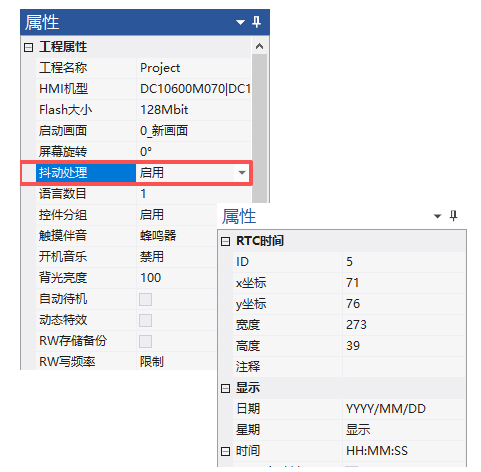
Step 1: Globally enable the control grouping function.Path: Project Properties → Control Grouping → Enable. If not enabled, all controls will ignore grouping-related properties during runtime - even if you have assigned a grouping ID.
Step 2: Assign a valid grouping identifier to the control.For each control to be included in color management, set theControl ID in the control property panelmust not be equal to 0 (0 is the default invalid value, indicating "Ungrouped"). In the on_wgt_text_color callback, this ID is used to distinguish controls.
3. API: on_wgt_text_color(screen, control)
Dynamic callback for control text color. The system calls it when refreshing controls, and uses the return value as the text color for that control.
| Parameters | Type | Description |
|---|---|---|
| screen | number | Current screen ID, used to distinguish controls with the same name across multiple pages |
| control | number | Target control ID.The callback is only triggered when control is not equal to 0 |
Return value:color(number), a 16-bit color value in RGB565 format. The entire color theme logic is contained within this function.
4. Application case: Switching themes for multi-state lights
Screen Layout: Amulti-state indicator lightserves as a color toggle switch (states 0~4 correspond to 5 thematic colors), with the screen ID set to 0; below, a batch of controls supporting text coloring (text, buttons, indicator lights, dropdown boxes, scroll wheels, RTC) are placed, with their control IDs uniformly set to 5.
In the callback, Lua reads the value of register LW3000 as the color index and returns the corresponding RGB565 color value:
function on_wgt_text_color(screen, control)
  local color = 0x001f           -- 默认蓝色
  if screen == 0 then
    if control == 5 then
      local val = get_uint16(VT_LW, 0x3000)  -- 颜色索引
      if val == 0 then
        color = 0x00FF           -- 蓝
      elseif val == 1 then
        color = 0x0562           -- 绿
      elseif val == 2 then
        color = 0x0429           -- 深绿
      elseif val == 3 then
        color = 0x0177           -- 青
      elseif val == 4 then
        color = 0xF800           -- 红
      end
    end
  end
  print(string.format("on_wgt_text_color(%d,%d,%04X)", screen, control, color))
  return color
end
When running the virtual screen and clicking the color toggle control, the text color of all UI elements with control ID 5 is updated synchronously - this is the effect of "one-click theme switching".
Compiled from the VisualHMI development documentation of Guangzhou Dacai Technology (hmi-doc.gz-dc.com), the LUA tutorial "Text Color Control", copyright reserved by Dacai Technology.


Leave a Reply