
The multi-language solution for VisualHMI is quite convenient:one set of UI, multiple language entries, and one register for switching. There's no need to create a separate interface for each language. This article thoroughly explains the maintenance of font libraries, text labels, and string IDs - the final section on "String ID Maintenance" is the most common pitfall after equipment shipment, so be sure to read it through.
1. How does multi-language work?
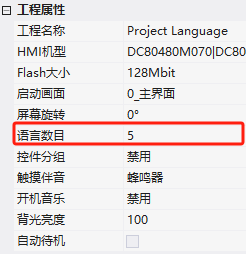
Core idea: Don't hardcode the text on the UI, use control referencesto language entries; configure the number of languages in the project properties (up to 30); set themulti-language system registerat runtime, and switch all entries with one click.
2. Font Management
2.1 System-Built Fonts
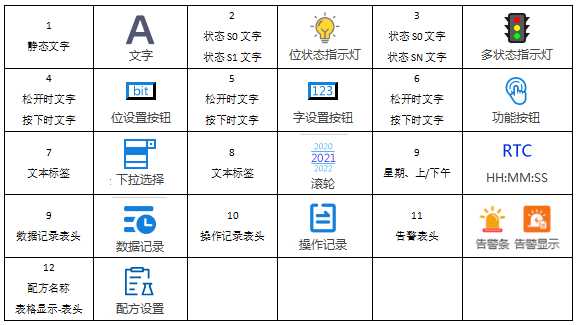
The software comes with 5 built-in fonts:
| Font | Content |
|---|---|
| DroidSans.ttf | Only containing alphanumeric characters |
| DS-DIGIB.ttf | Digital tube style, uppercase letters, numbers |
| fangsong_GB2312.ttf | Fangsong, supports both Chinese and English |
| songti_GB2312.ttf | Song typeface, supports both Chinese and English |
| wqyMicroHeiMono.ttf | Wenquan default font library, supporting Chinese/Traditional Chinese/English/Russian/French/Japanese/Korean/Portuguese/Spanish/German/Italian, preferred for multiple languages |
2.2 Add font library
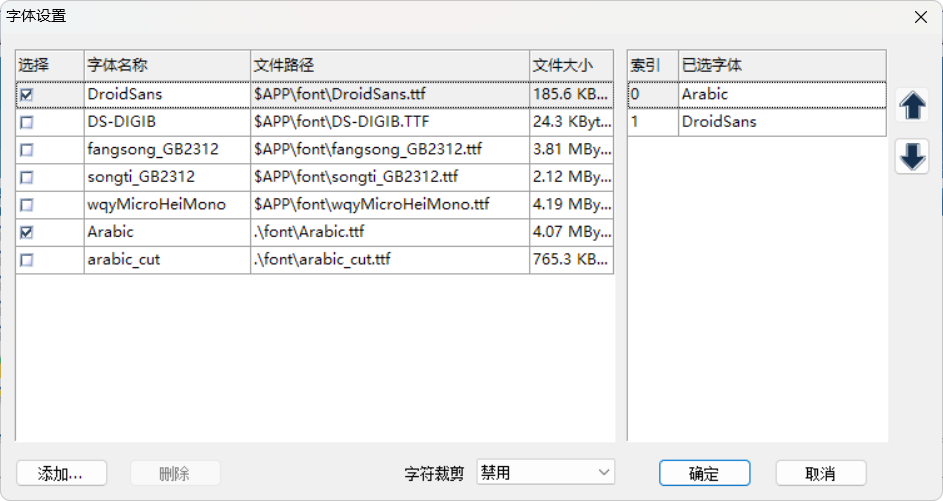
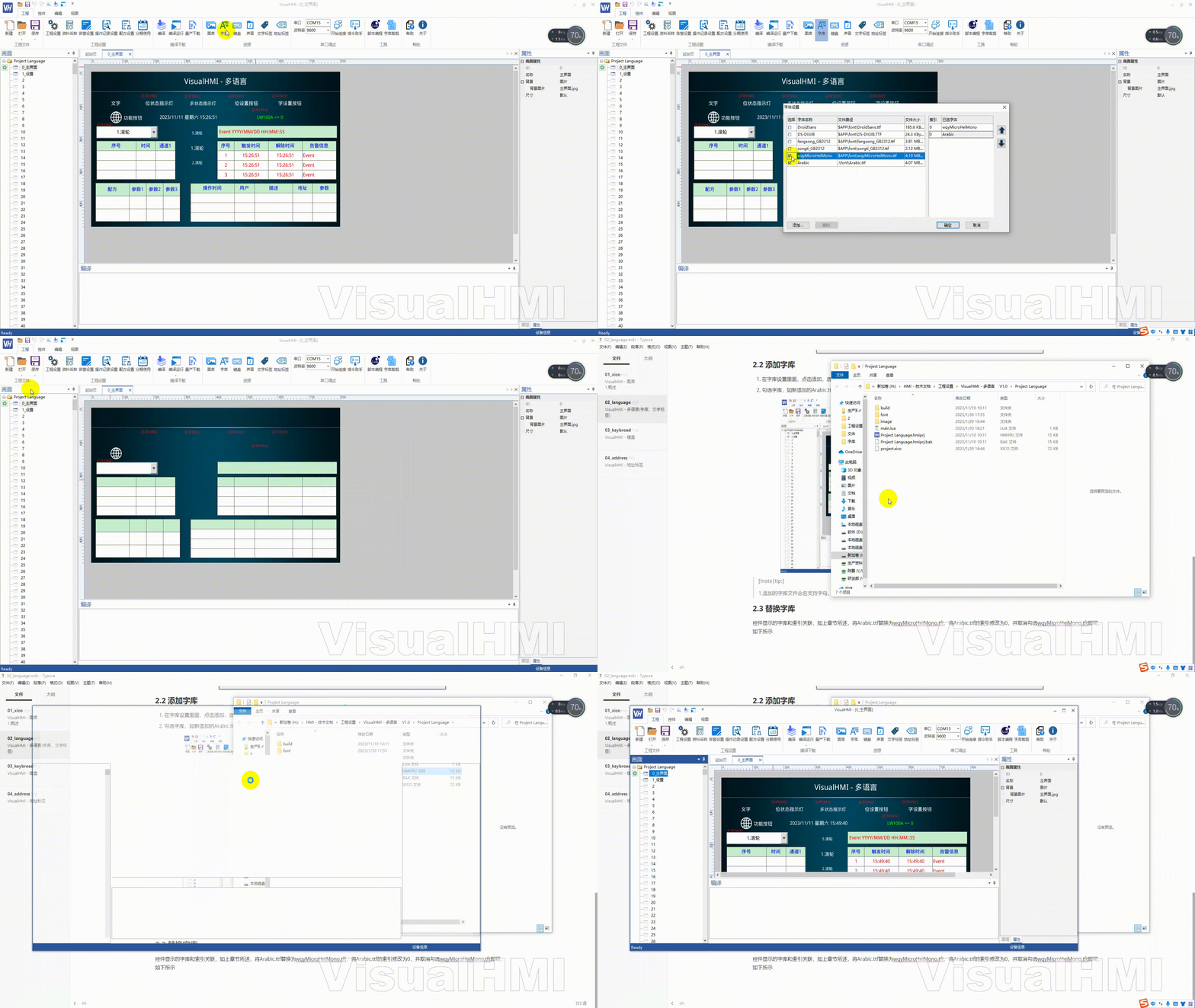
Click "Add" in Font Library Settings → select the ttf file. The new font library will create a new font folder under the project directory and place the file inside.
2.3 Replace font library
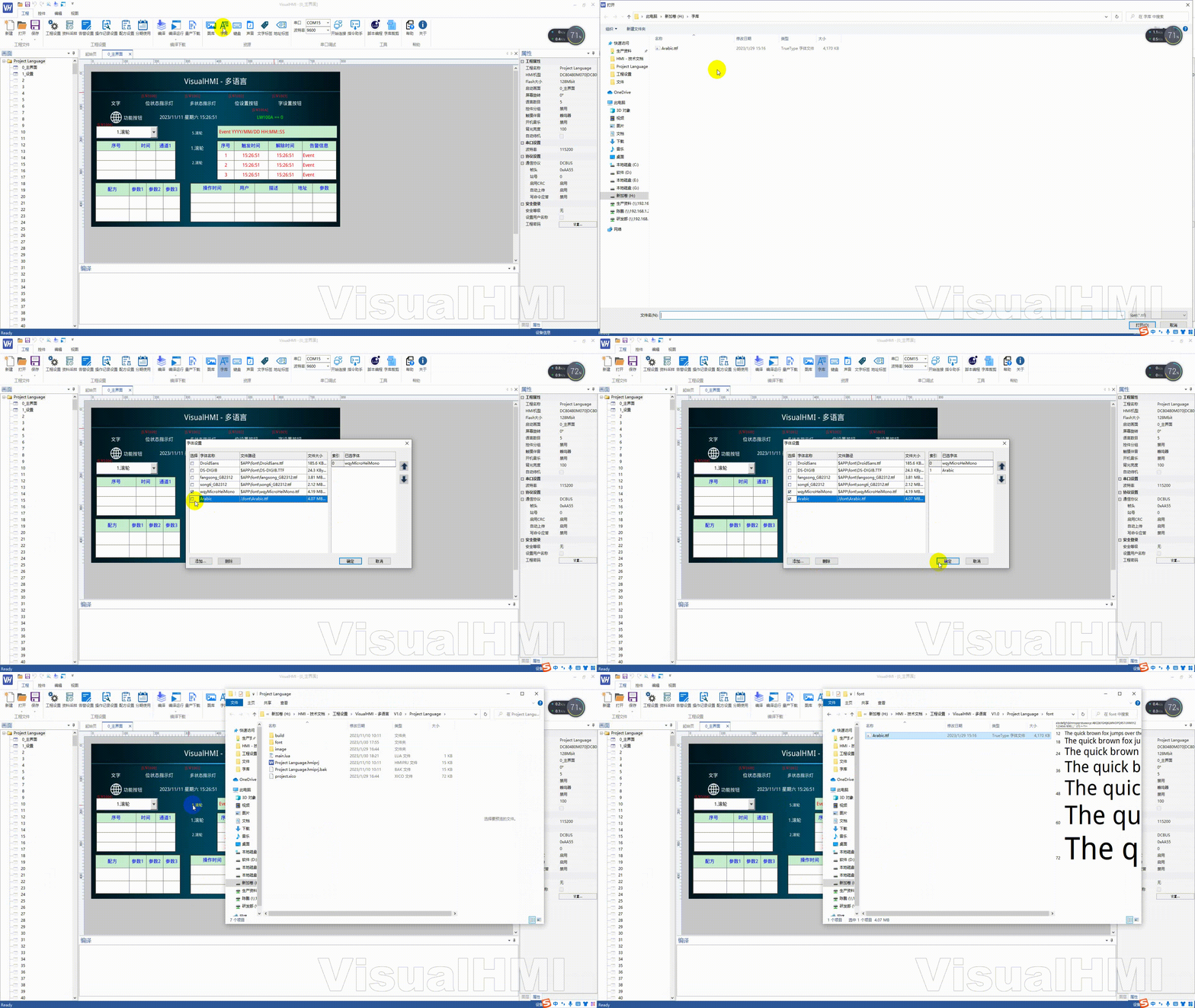
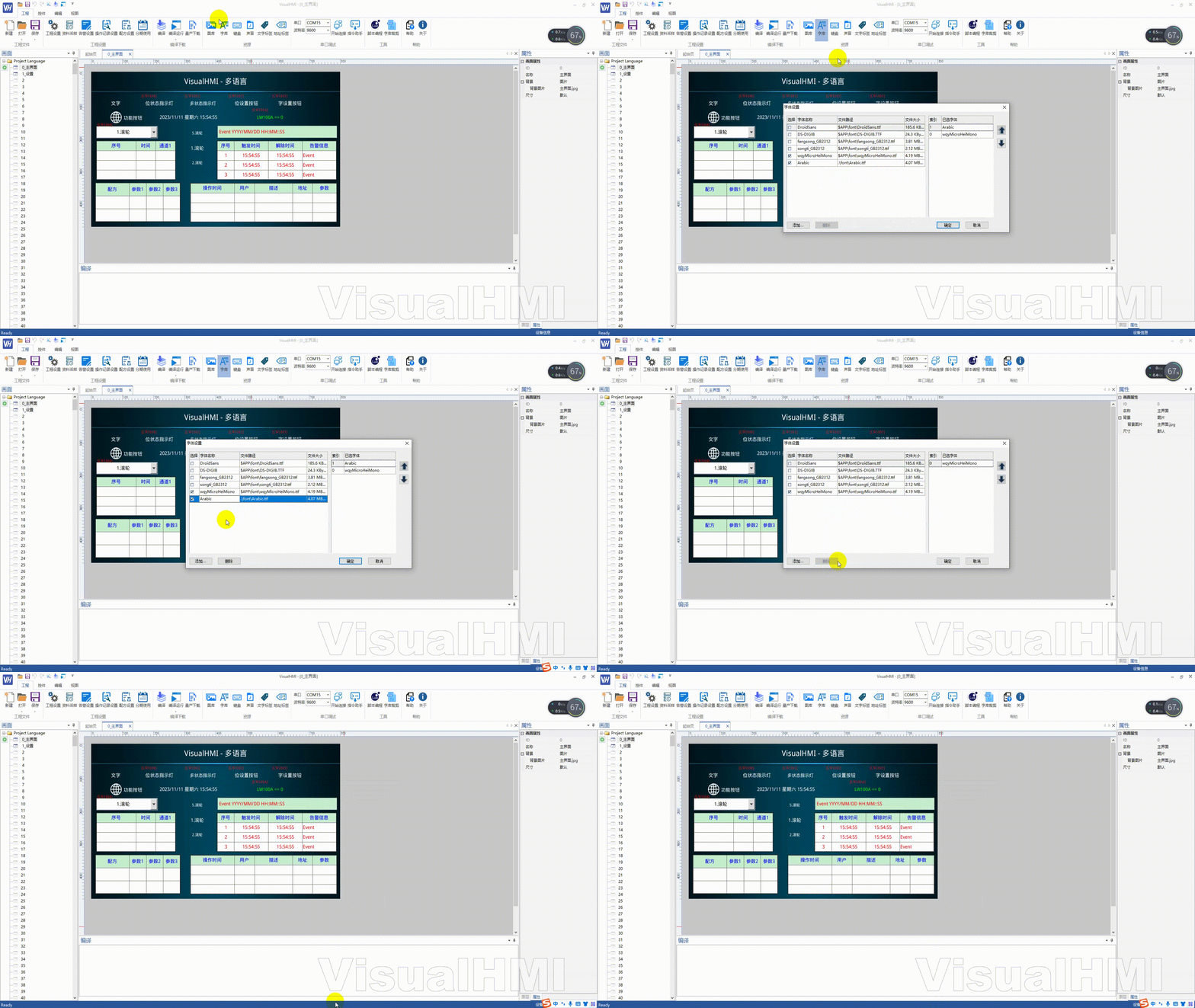
The font displayed by the control is associated with the index. Replace Arabic.ttf with wqyMicroHeiMono: change the Arabic index to 0 and uncheck wqy.
2.4 Delete font library
The system's built-in font library cannot be deleted; user-added font libraries can be deleted.
2.5 Font Pruning (to save Flash space)
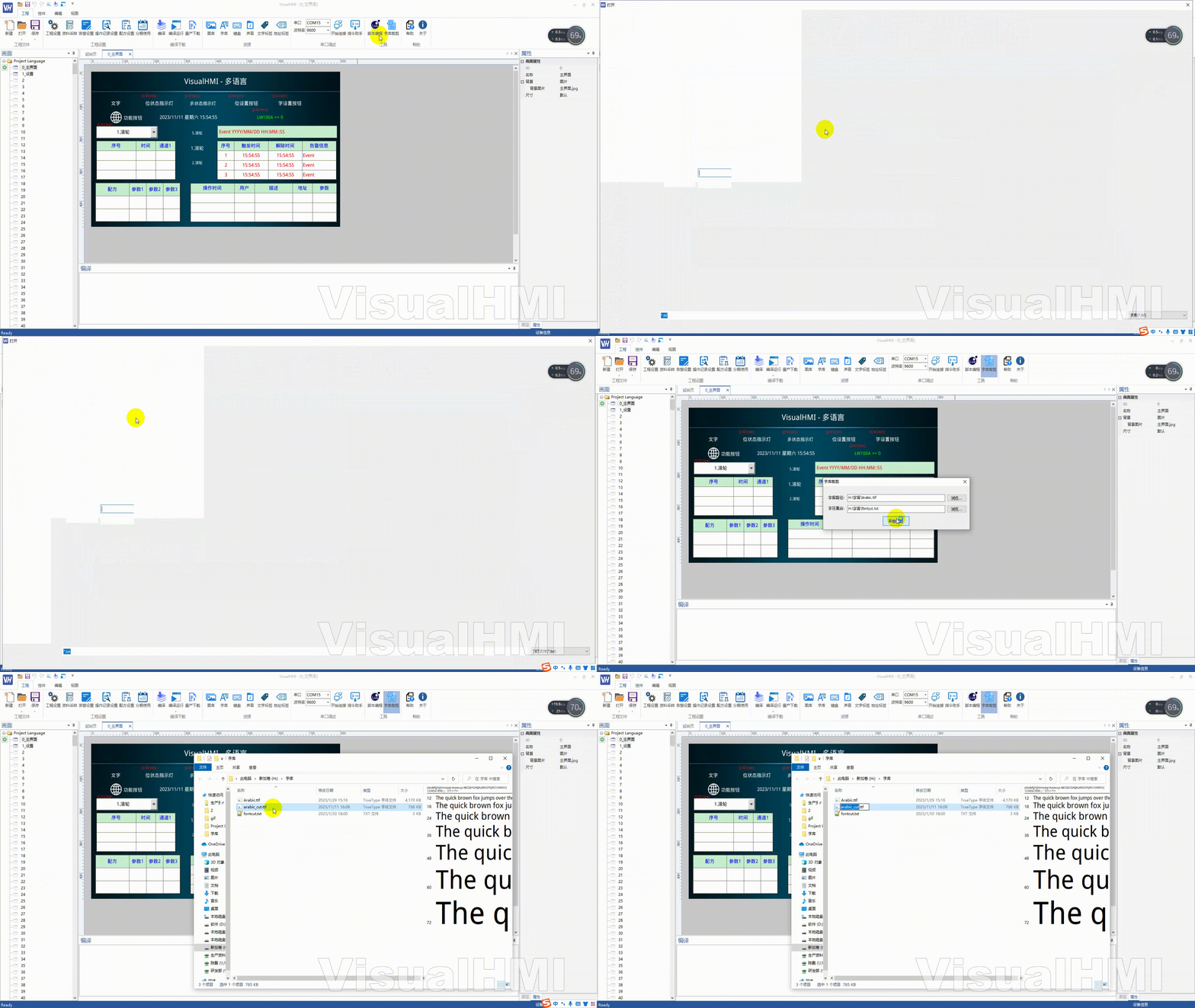
VisualHMI integrated font cutting tool: [Project] → [Font Cutting]. Select the font to be cut → Load the character set to be retained (txt must be UTF-8 encoded) → Start cutting, generating xxx_cut.ttf.
The new version also supportsProject Character Pruning: Automatic pruning when compiling and generating download files, with four modes:
| Mode | Effect |
|---|---|
| Disabled | Do not prune, retain complete font |
| Project Characters | Only retain characters used in the project |
| Project Characters + GB2312 | Engineering characters + all characters encoded in GB2312 |
| Engineering characters + GBK | Engineering characters + all characters encoded in GBK |
3. Text labels (correct way to open multiple languages)
Text labels = a container for terms, containing translations in all languages. Controls reference the same text label, making changes in one place effective across all languages, without having to repeatedly write text.
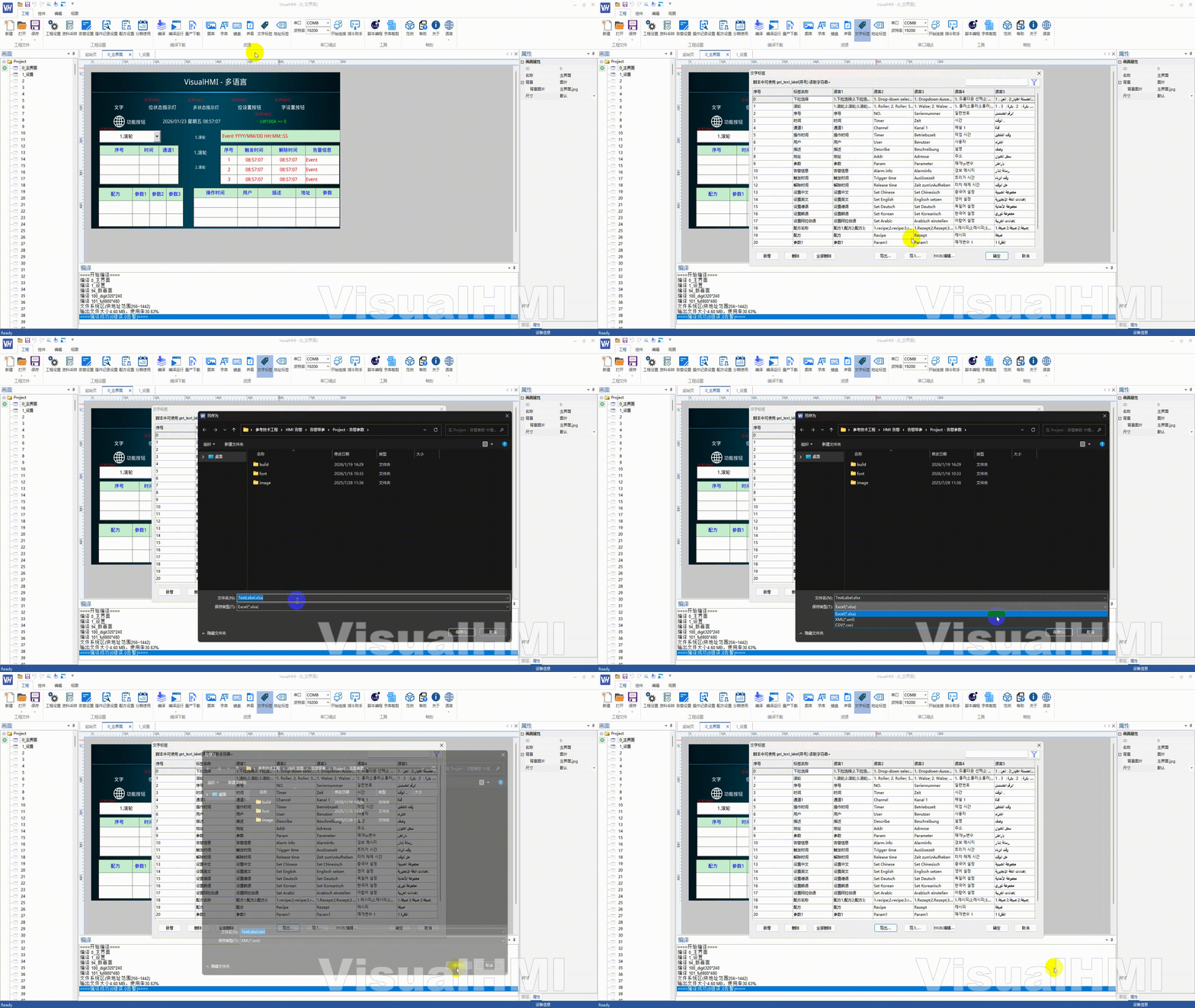
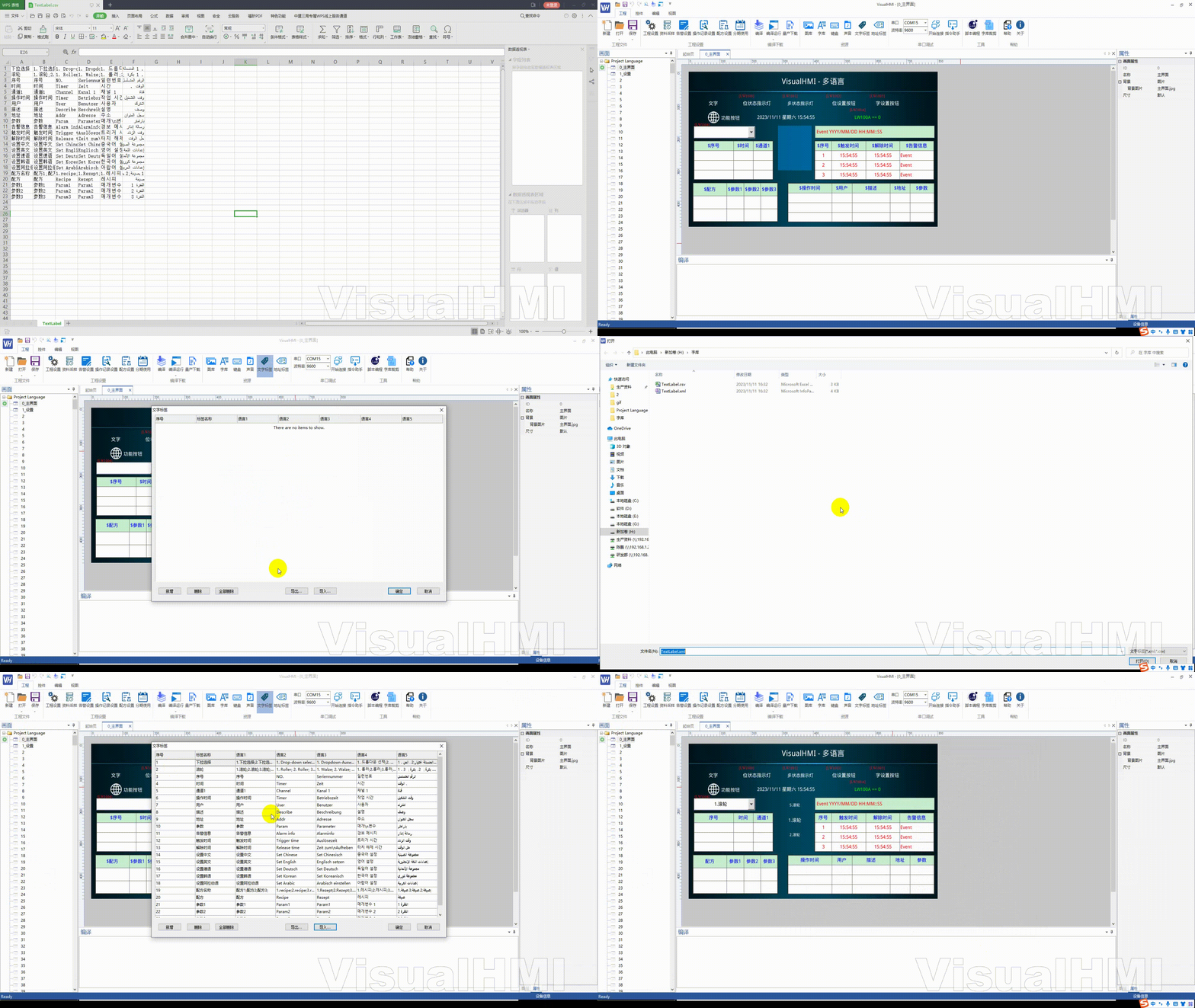
Open the management window through the menu bar [Text Label], which supports adding, modifying, deleting, exporting, and importing.
3.1 Add text labels
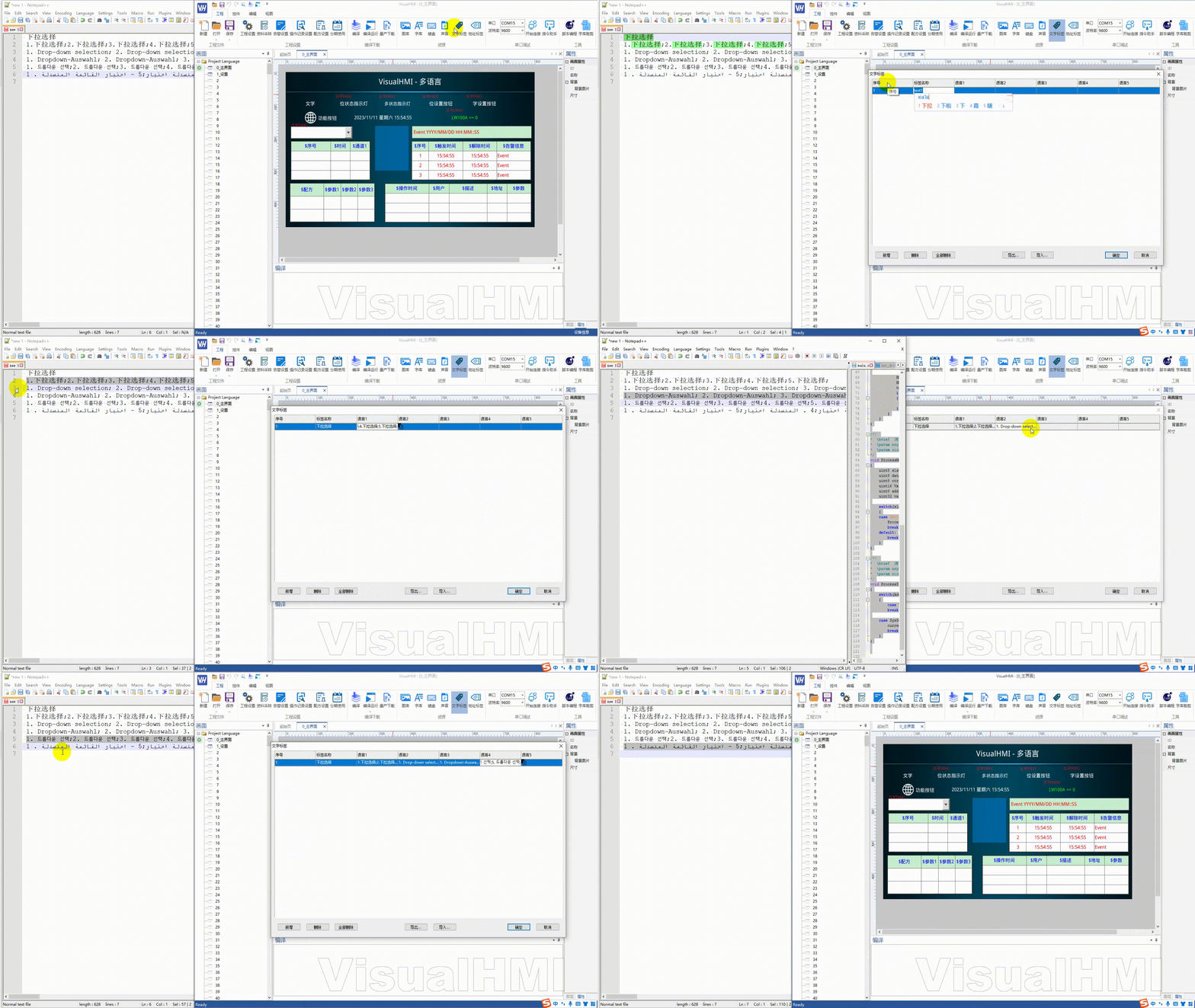
Click "Add", the default name is "text1", which can be changed to a meaningful name (such as "Temperature Setting"). Fill in the translations for each language in the corresponding language column.
3.2 Edit in Excel
Click "EXCEL Edit" to open the label in a table format for direct editing. Save and close, then return to the text label window for confirmation.
3.3 Export/Import
Supports exporting to xml, csv, xlsx for modification and subsequent import. Suitable for batch translation and multi-person collaboration.
4. String ID Maintenance (Most Important After Shipment, Must Read)
Afinal string tableis generated during compilation. String sources:
- Text in the text label table: actively maintained by the user, each entry has a fixed ID, referenced with
$(such as$温度设定) - directly filled text: text directly written in the control, automatically added to the end of the string table during compilation (no fixed ID))
- Alarm configuration string: Alarm content. If referenced by
$, use a fixed ID; if filled in directly, the
key will be automatically appended. Note: Historical records do not save text, only string IDs:
历史记录 = 时间 + 字符串ID
操作记录 = 时间 + 操作字符串ID + 值变化
告警记录 = 告警时间 + 告警字符串ID
. When displaying history, the device uses the saved ID to look up the text in the string table of thecurrent version. Therefore, the string table is adictionary of explanations for historical data-- once published, the meaning of the ID cannot be changed.
5. String ID maintenance rules (follow them to avoid errors)
- Text that must be saved by the device must use fixed text label IDs: Operation record content, parameter description, text referenced in historical records, alarm content
- Published IDs cannot be deleted: Even if this item is no longer used, the original ID should be retained
- Published IDs cannot be reused: Old IDs cannot be assigned to new content
- Published IDs cannot change meaning: Typos can be corrected and translations can be added, but "Set temperature modification" cannot be changed to "Fan mode modification"
- IDs that are no longer used should be retained in place: Mark as obsolete/Reserved/Deprecated, but do not delete
- New content should only use new IDs: Append unused IDs from the beginning
- Do not rely on automatically appended string IDs: Text filled in directly is only suitable for display on the current version interface and is not suitable as a reference basis for historical records.
- Check string table compatibility before upgrading.: Compare the new and old versions to confirm that the meaning of the published IDs has not changed.
- Establish a string ID maintenance table.: Record the purpose, Chinese and English versions, enabled status, and first usage version of each ID.
Organized from Guangzhou Dacai Technology VisualHMI development documentation (hmi-doc.gz-dc.com) resource introduction "Multi-language (Font Library, Text Labels)", copyright owned by Dacai Technology.


Leave a Reply