
Firmware is the underlying system of the screen, and Dacai will continuously iterate, optimize, and add new features. An outdated firmware can lead to issues such as: new features in the project not functioning, certain controls behaving abnormally, and new LUA interfaces being unusable. This article will discuss how to upgrade the firmware and the most common naming pitfalls to avoid.
1. When do you need to upgrade the firmware?
- When using newer controls/LUA interfaces in the project, the compilation prompts "Firmware version is too low" or there are runtime exceptions.
- The screen exhibits known bugs, and the manufacturer releases a firmware fix.
- M series screens do not support VisualHMI by default and require upgrading the firmware before using VisualHMI for development.
2. Obtaining and renaming the firmware
When the screen firmware is outdated, contact Dacai sales or technical personnel to obtain a new firmware.Only need to download and upgrade once(Firmware upgrade is a complete replacement, unlike projects which require repeated downloads).
Taking HMI80480M070_1111_0C as an example, the original file name of the firmware may beHMI80480M070_HMI.zlib. and must be renamed tofirmware.zlib, then copied to the root directory of the SD card.

3. Download Process
The download process is exactly the same as downloading a project:
- Take it
firmware.zlibPlace it in the root directory of the SD cardroot directory - Power off the screen, insert the SD card
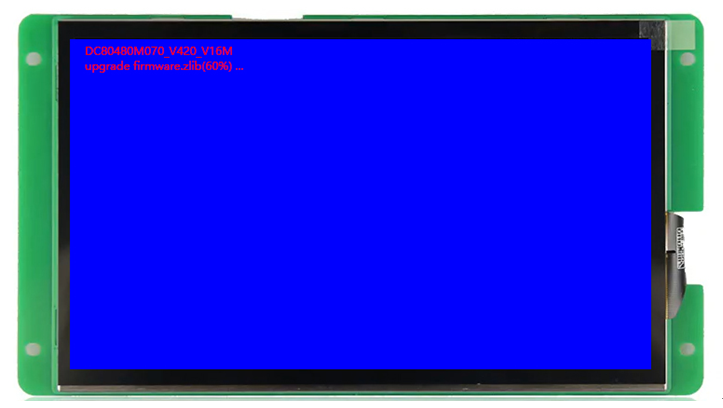
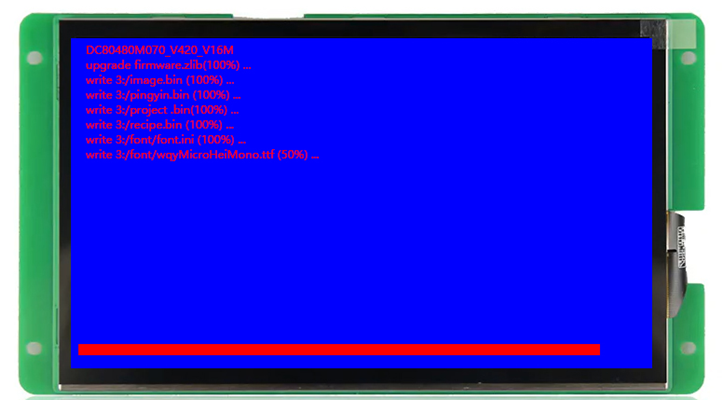
- Power on, the screen will automatically enter the upgrade interface, wait for the completion prompt
- After completion, it will automatically load, remove the card

4. Download Firmware and Project Together
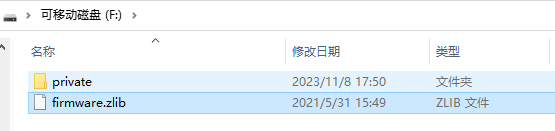
The firmware can be downloaded together with the project:Both are placed in the root directory of the SD card(firmware.zlib + private folder), and they will be updated together after powering on, solving the problem in one go.
5. Precautions after upgrading
- After upgrading the firmware, it is recommended torecompile and download the project you previously compiledto avoid incompatibility between the old and new versions
- Ensure that the new firmware matches the version of the VisualHMI software you are using (see the "Viewing Versions" section for version checking methods)
- Do not power off during the firmware upgrade process, as the risk of bricking mainly comes from powering off halfway
Compiled from the VisualHMI development documentation of Guangzhou Dacai Technology (hmi-doc.gz-dc.com), Quick Start "Upgrading Firmware via SD Card", copyright belongs to Dacai Technology.


Leave a Reply