
Serial port download is suitable for single-unit debugging: the computer is directly connected to the screen via a serial port cable, without removing or inserting a card, and the programming is completed with just a few clicks. Compared to SD card download, serial port download does not require the preparation of an SD card, and can be downloaded immediately after modification, making it suitable for repeated programming during the development stage. The prerequisite is that the serial port parameters of the screen meet the online conditions -must be 8N1.
0. Serial port download vs SD card download, how to choose?
| Comparison items | Serial port download | SD card download |
|---|---|---|
| Required hardware | Serial port cable (USB to 232/485) | SD card |
| Online conditions | The screen serial port must be 8N1 | None (insert card, power off, power on) |
| Applicable Scenario | Development and Debugging, Single Unit Upgrade | Mass Production, No Computer on-site |
| Speed | Affected by Baud Rate | SD Card Read and Write, Fast |
In Simple Terms:Use serial port for self-debugging, and use SD card for customers/mass production.
1. Connect
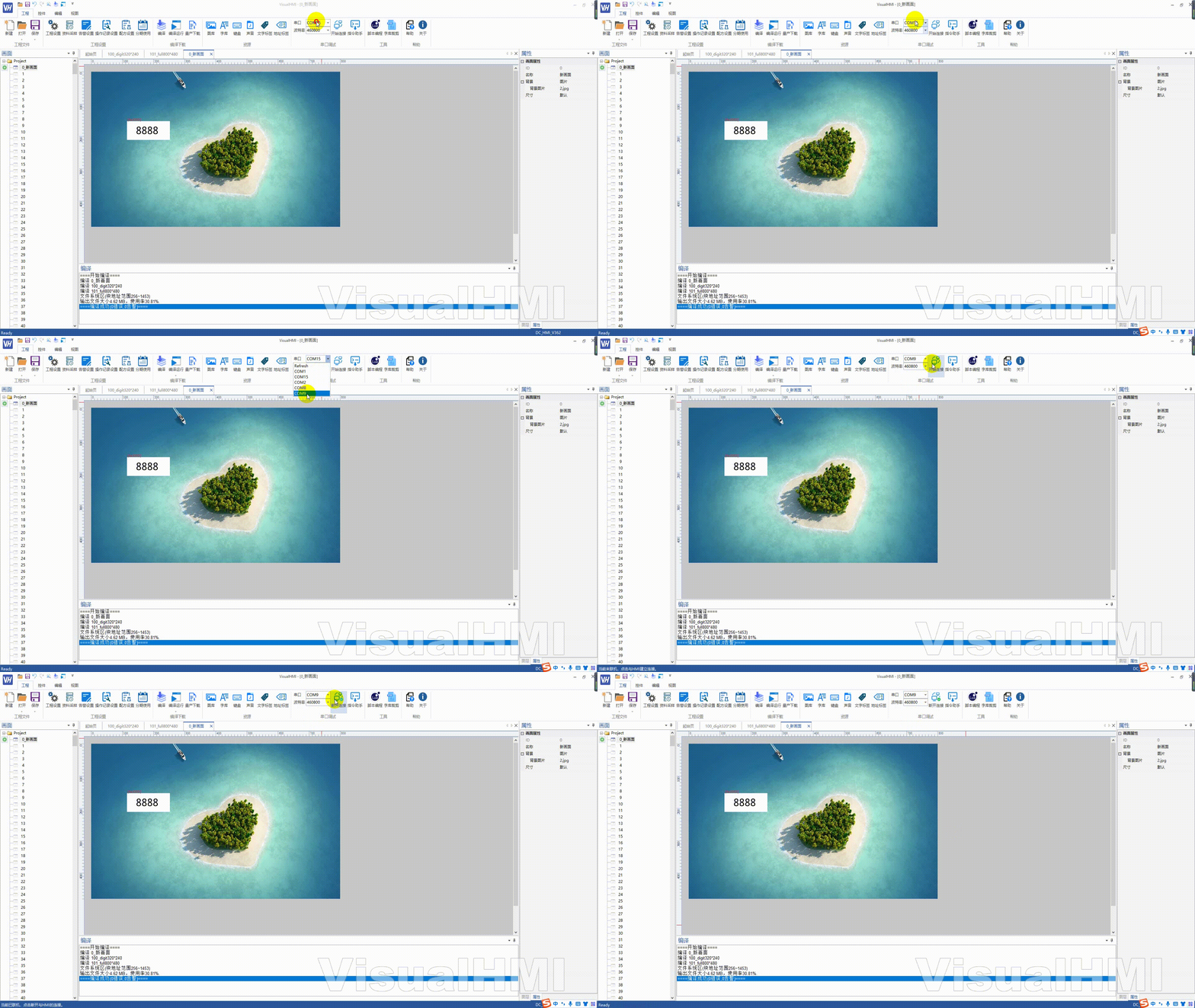
[Engineering] → [Serial Port Debugging], select the physical serial port corresponding to the screen connected to the computer, and click [Connect]. Compilation and download can only be performed after successful connection.
2. Compile
After connecting, click "Project" → "Compile". If the compilation result is normal, proceed with the download. If there are errors, fix them first. If the compilation fails, the download will not proceed.
3. Download
After the compilation passes, click "Project" → "Mass Production Wizard", and a dialog box will pop up. Select "Increase Bit Rate"from the dropdown, and click "Serial Port Download".
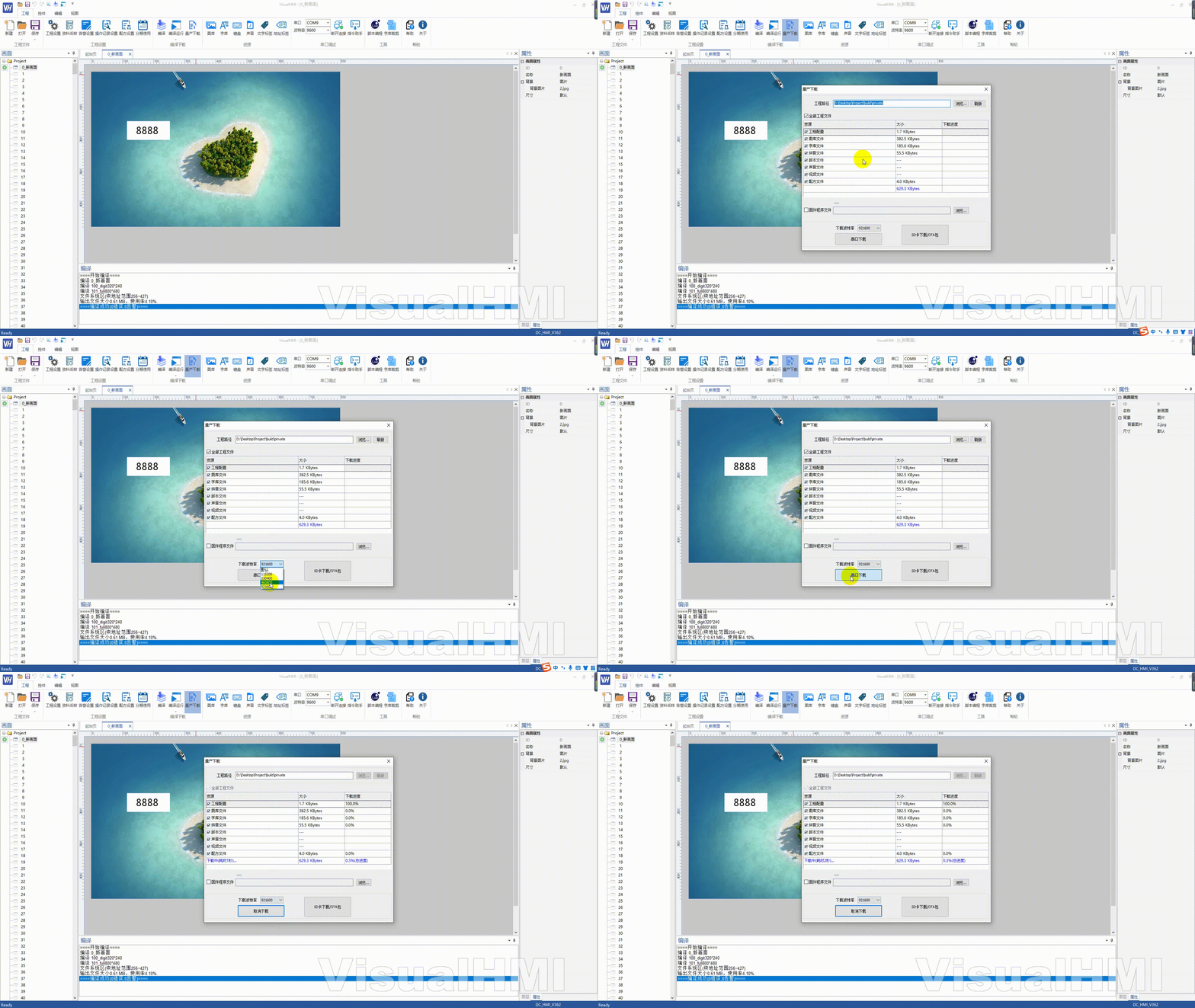
Recommended baud rate selection:For RS485, it is recommended to use 19200, and for RS232, it is recommended to use 115200. The higher the rate, the faster the download, but it is important to ensure the quality of the line. If there is significant interference on site, reduce the rate by one level.
4. Troubleshooting of Common Issues in Serial Port Download
- Online Connection Failure: Serial port number incorrect / screen not 8N1 / USB to serial port driver not installed properly / baud rate selected incorrectly
- Download stuck and not moving: Did you unplug the cable midway? Try again after powering off and on again; if there is line interference, try a lower baud rate
- Download successful but screen is black: Incorrect model selected in the project (resolution does not match the actual screen)
- Download successful but unable to communicate with PLC: Protocol/baud rate of the screen does not match that of the PLC. Go back to "Project Properties" to verify
Compiled from "VisualHMI" development documentation of Guangzhou Dacai Technology (hmi-doc.gz-dc.com) Quick Start "Serial Port Download Project". Copyright reserved by Dacai Technology.


Leave a Reply