
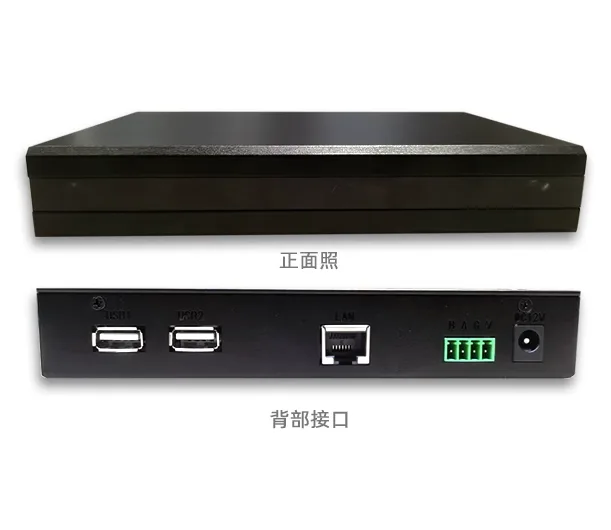
It is possible to integrate MODBUS RTU and custom RS-485 protocol devices into smart speakers for voice control. Currently,Xiaomi AI, Tmall Genie, Xiaodu Speaker, Rokee, etc. are supported (MBI_5) (Recommend using Xiaodu speaker, as the device name is more flexibleIt is recommended to use Xiaodu audio, as the device name offers high flexibility)
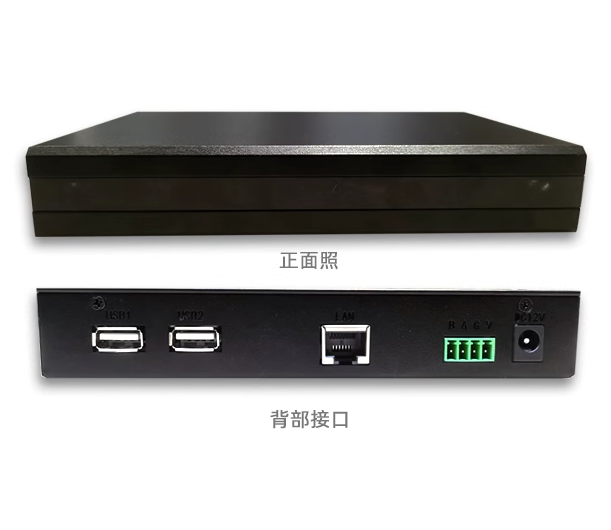
). How to use it?
1. Connect the voice gateway to the router and power it on.
2. The voice gateway will connect to the Google server to check the time. After about 2-3 minutes, you will hear the welcome message of the Smart Linkage Voice Broadcast Center, andthe IP address of the device will be broadcasted.
. 3. Log in to the voice gateway's web backend,http://xxx.xxx.xxx.xxx:6521, default password admin, admin (Note:xxx.xxx.xxx.xxxneeds to be replaced with the IP addressbroadcast by
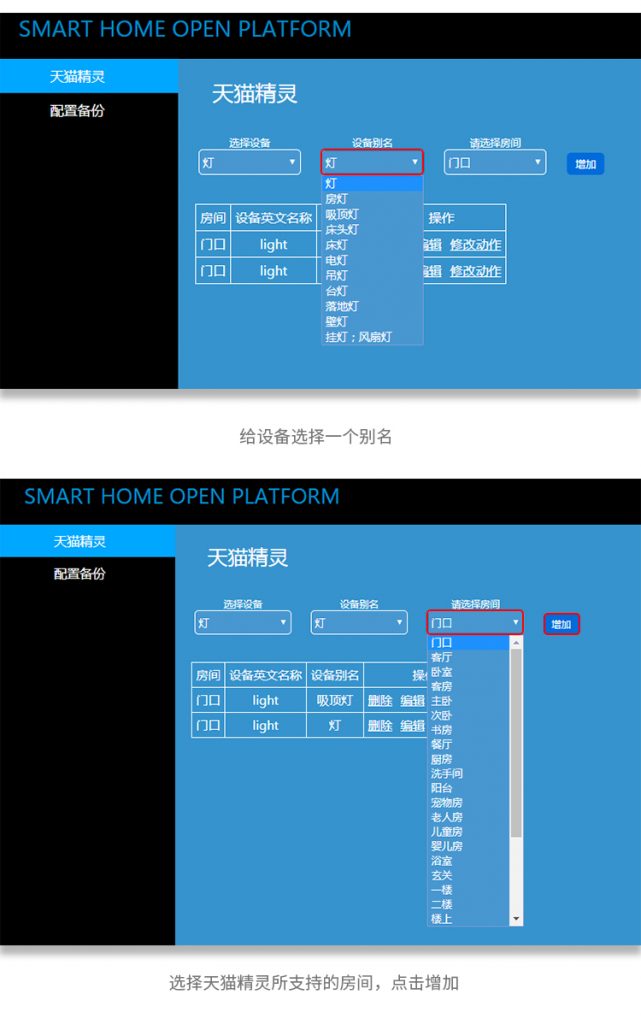
.) 4. Click "Tmall Genie" to add a device, select the device supported by Tmall Genie, give the device an alias, select the room where the device is located, and click "Add".

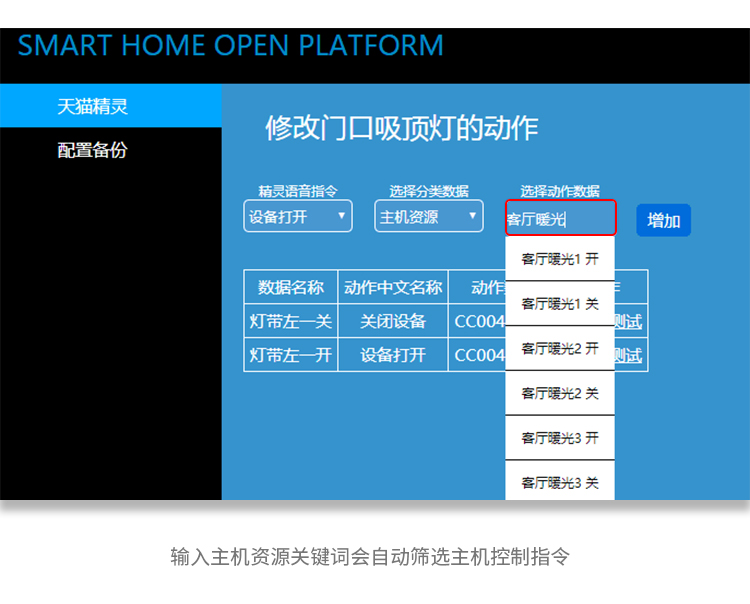
5. Select to add control commands
*Genie voice command: Select voice control to turn the device on or off.*
*Select classification data: 1. Host resources 2. Custom data. (Development version data should be filled here)*
(After writing, you can click the "Test" button to test whether the control is normal) *

and establish a connection with Tmall Genie
1. Find the "STMRTE Smart" skill in the Tmall Genie smart home, enter the registered account and password on the login page, and complete the account binding process.
2. After account binding, the control devices you added in the voice docking module will appear in the device list of the STMRTE Smart skill.
3. At this point, you can use Tmall Genie to control devices through voice.

Custom Data & Modbus Protocol Generation Control
1. In the custom data classification, select action data and click on the custom data voice gateway to send custom bus data through the 485 interface. Click on Modbus protocol generation to assist in generating the Modbus protocol.
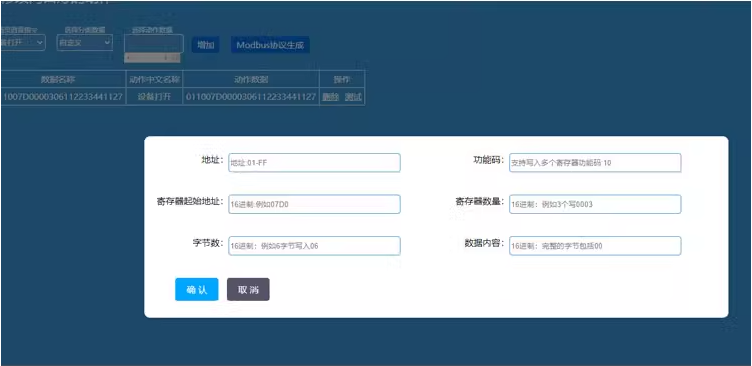
2. Click the test button and use a USB to 485 converter with a serial port assistant to monitor the custom protocol you have configured.
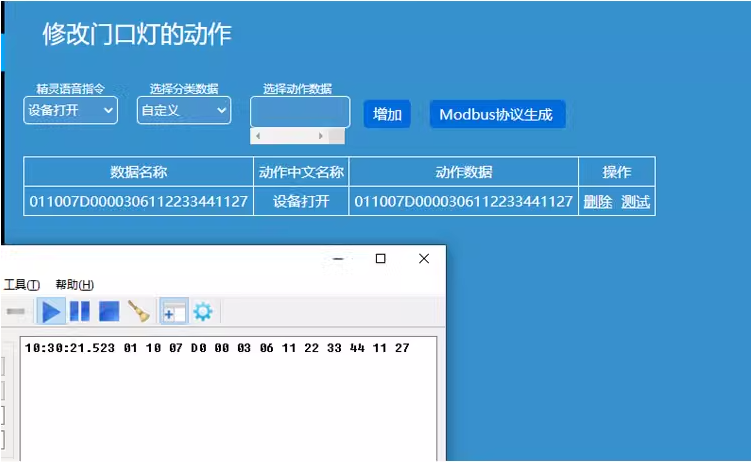
How to connect to a device via TCP/IP?
Click on system settings and enter the IP address and port number!
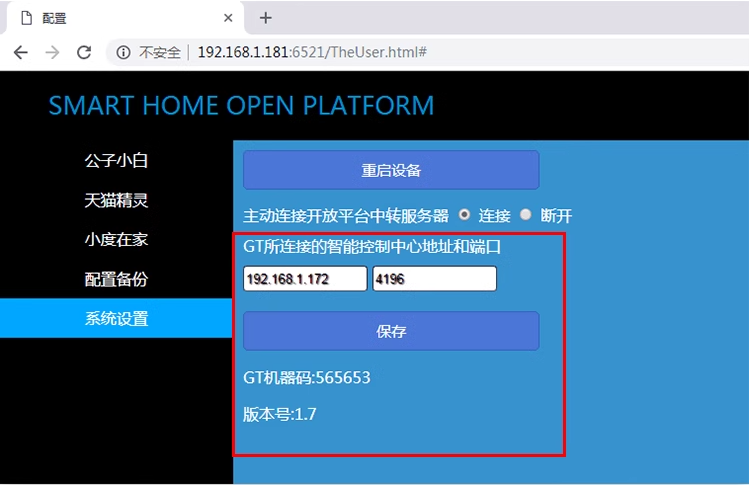
How to configure a network device with an open protocol?
After modifying the corresponding code, paste it completely into the custom - select action data box!
- SOCKET HEX- Socket configuration for sending data in HEX format
{
  "ip": "192.168.1.189",
  "port": 4198,
  "type": "sockethex",
  "data": "ddccbbaacc00b30001"
}- SOCKET ASCII- Socket configuration for sending data in ASCII format
{
  "ip": "192.168.1.11",
  "port": 8585,
  "type": "socketascii",
  "data": "这是要发送的内容,你可以任意编辑"
}- HTTP protocol- Configuration for sending data via HTTP protocol
{
  "type": "http",
  "url": "http://192.168.1.200/uartw.cgi?data=DDCCBBAACC00020001&type=1&pswd=123asadmin:admin="
}

Leave a Reply