

1. Introduction to circular clock
The circular clock displays the system time in a circular clock face, visually presenting the current time and suitable for display on the standby interface, etc.
2. How to add a circular clock
Click on the standard controls in the toolbox, select the circular clock icon, and add a circular clock, as shown in Figure 2.1.
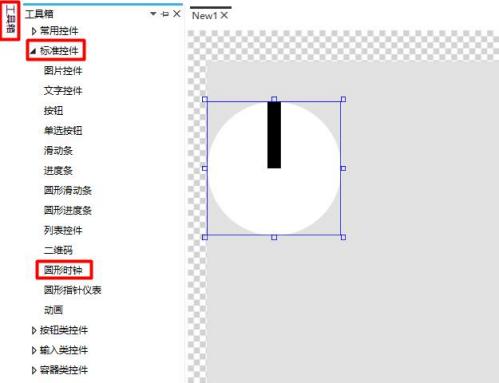
Figure2.1 Add circular clock
3. How to replace the image
Select the circular clock, click on the property window on the right side to modify the image,click the "Add" button to add the second hand display, with the background being the circular clock's base image, and the hour, minute, and second hands being the circular clock's hour, minute, and second hands, as shown in Figure 3.1.
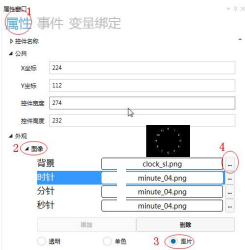
Figure3.1 Image replacement
During simulation, the circular clock starts rotating automatically, as shown in Figure 3.2.
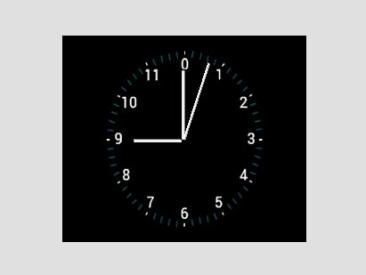
Figure3.2 Circular clock simulation demonstration
4. How to set a circular clock
When replacing the image of a circular clock, the position of the center of the base image does not match the position of the hour, minute, and second hands. It is necessary to modify the control style of the circular clock. While adjusting the size of the control, because the hour and minute hands do not change size with the size of the dial, you must select the control, right-click and choose "Modify control style" to adjust the position and size of the hour and minute hands, as shown in Figure 4.1.
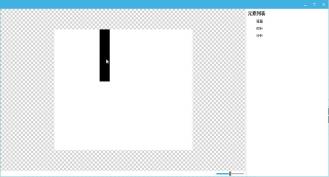
Picture4.1 Modify control style


Leave a Reply