

Mini program version, free to use!!!
Modbus Slave
Modbus via serial line. RS232 or RS485. You can use a USB serial converter.
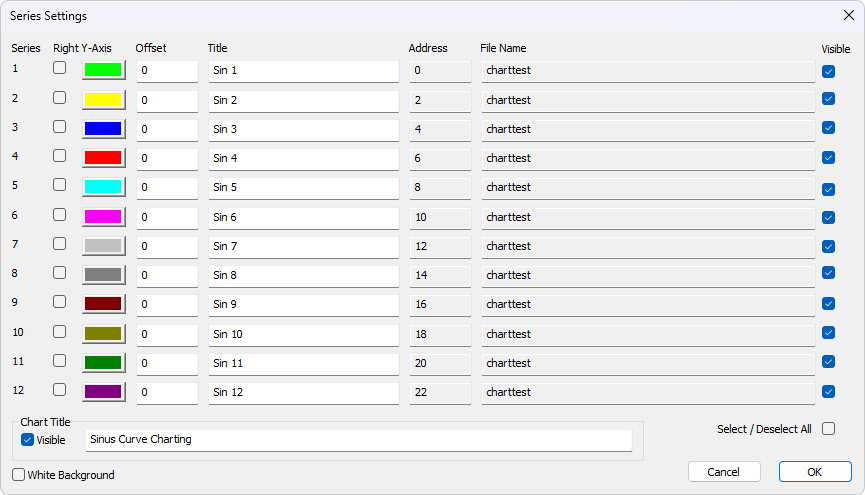
Offset is useful for aligning data points on the same Y-axis. For example, data points of 0 or 1 can be offset so that they do not plot on top of each other.
Click 'OK'. The 'Developers' tab should now be displayed in the ribbon (the rightmost tab).
Attribute Coil (Index As Integer) As Integer
Hardware requirements
Processor; Suggestions 1 GHz Or faster
1 GB RAM
5 MB Available hard disk space
1024 x 768 Display resolution operating system requirements
Support from Windows 7 Arrived Windows 11 All of them Windows Version.
Modbus Slave edition 8 In Windows XP Run on.
1.1.1. Silent installation
Silent installation does not require user intervention and has no user interface. Users cannot see any dialog boxes and will not be asked any questions.
Use the command line /S Switch.
ModbusSlave station characteristics
connect
Modbus Slave Use the following methods to read/write data from the device:
- RS232 Or RS485 On the internet Modbus RTU Or ASCII. (USB/RS232/485converter)
- Modbus TCP/IP
- TCP/IP Up Modbus. (Modbus RTUEncapsulated inTCPIn the data packet)
- agreementUDP/IP
- be based on UDP/IP of Encapsulated in Modbus. (Modbus RTUIn the data packet)UDPSupported by
Function Modbus Read the coil
- 01 (0x01) Read discrete inputs
- 02 (0x02) Read and hold registers
- 03 (0x03) Read the input register
- 04 (0x04) Write a single coil
- 05 (0x05) Write a single register
- 06 (0x06) Diagnosis (serial line only)
- 08 (0x08) Obtain communication event counter (serial line only)
- 11 (0x0B) Write multiple coils
- 15 (0x0F) Write multiple registers
- 16 (0x10) Report server
- 17 (0x11) (limited to serial lines only) IDMask write register
- 22 (0x16) Read/write multiple registers
- 23 (0x17) Read device identification
- 43 / 14 (0x2B / 0x0E) Display format
Each cell can be formatted separately.
Bit signed registers (
- 16Bit unsigned registers (Signed 16-bit register)
- 16Hexadecimal (Unsigned 16-bit register)
- Binary (Hex)
- with arbitrary word/byte orderBinary)
- Bit signed integers ( 32 with arbitrary word/byte order32-bit signed integer with any word/byte order)
- Bit unsigned integers ( 32 with arbitrary word/byte order))32-bit unsigned integer with any word/byte order)
- Having any word/byte order 64 Signed integers with arbitrary word/byte order64-bit signed integer with any word/byte order)
- unsigned integers with arbitrary word/byte order 64 floating point numbers with arbitrary word/byte order64-bit unsigned integer with any word/byte order)
- double precision floating point numbers with arbitrary word/byte order 32 other functions32-bit float with any word/byte order)
- used for connection with 64automation64-bit double float with any word/byte order)
data flow monitoring
- printing and print preview Excel VBA, Python font selection OLE/conditional color
- scaling
- real-time charts
- save/open workspace
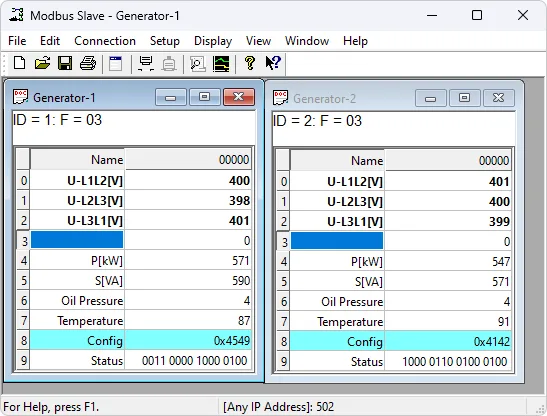
- overview
- using a multi document interface. This means that multiple windows can be opened. Each has different data content and is used to simulate different slave devices simultaneously. Slave emulator
- this photo shows two open windows. One simulates from the address
- the slave
One hold register, another analog from the address
Modbus Slave slave
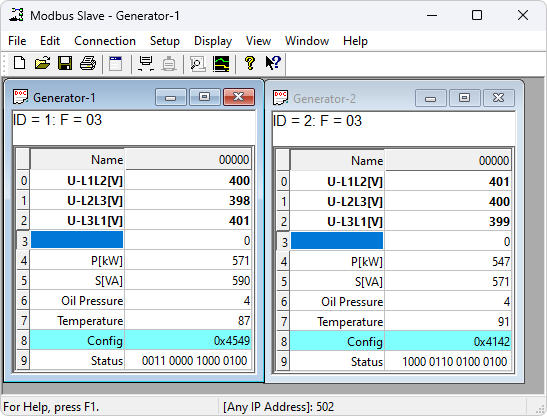
press 0 (40001) You can obtain contextual help related to the topic of the currently selected project. id 1 Call special 10 Help mode 0 (40001) The cursor changes to a help cursor (arrow+question mark). Then, users can select visible objects in the user interface, such as menu items, toolbar buttons, or windows. This will open help on the topic describing the selected project. id 2 Naming cells 10 You can type any text here to specify the value cell. You can also choose from
Copy/paste text from cells.
Value cell F1Display
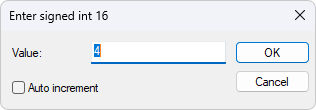
SHIFT + F1The data value of the register. If you double-click a value cell, a dialog box will appear where you can enter a new value. Typing a number in a value cell will also display an input dialog box.“Write a single register”Change font
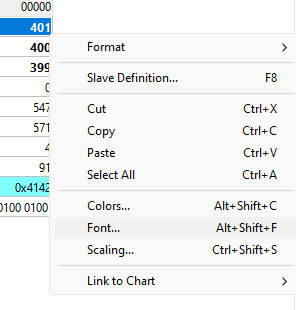
To change the font, you have
Options Excel Select the cell you want to change and right-click.
Select the cell you want to change, and then choose the menu
Display Modbus Font.
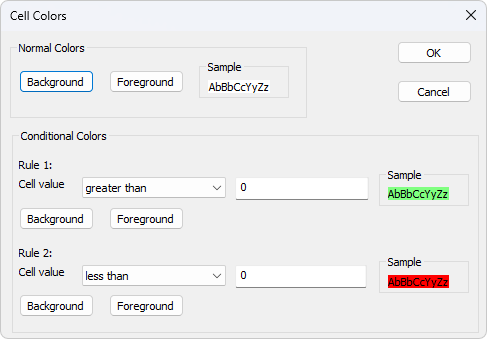
Conditional color
Conditional colors can help you visually display values within a specific range. 2 Color selection
- Default color: If there are no conditions, the color calculation result is
- Then use this color.→Rules→If the calculation result of the expression is
Priority over rules
Rules3 If the calculation result of the expression is
- Default color: If there are no conditions, the color calculation result is trueThen use this color.
- Rules 1If the calculation result of the expression is trueThen use this color selection. Rules 1 Priority over rules 2.
- Rules 2If the calculation result of the expression is trueThen use this color selection.
7 Comparison operator
- not used: Not used
- equal to: be equal to
- greater than: Greater than
- less than: Less than
- greater than or equal to: Greater than or equal to
- less than or equal to: Less than or equal to
- and: And with
When the data type is float Or 32 Position long Type cannot be used“and”Operator. If chosen“and”The condition value will be entered in hexadecimal numerical form. If any bit in the cell and condition value is 1The calculation result is: true.
Color examples
If the cell value is greater than 0, then it is green; If less than 0It is red.
Scaling
Scaling can help you scale raw values to human readable values. Scaling is only applicable to signed and unsigned 16/32 Bit integer.
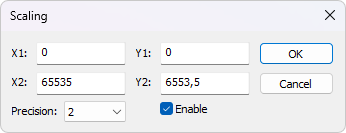
(X1,Y1) And (X2,Y2)
One passes through two points (X1,Y1) And (X2,Y2) The straight line
Slope=m=Y2−Y1/X2−X1
Linear equation
Y=m⋅(X−X1)+Y1
Accurate
The number of decimal places.
Enable
This feature must be enabled to accessModbusServer/Slave scaling values. If you choose not16/32Integer display format, scaling will be automatically disabled
Real time charts
This chart can be drawn in real-time 12 A series, with the maximum number of each series 100000 A point.
Open a new window
To open another window, you have 3 Options:
- Press CTRL+N
- Select New from the File menu
- Press
 On the toolbar
Connection dialog box
To open the connection dialog box, you have 2 Options:
- PressF3
- Select 'Connect' from the 'Connect' menu
connect (Connection)
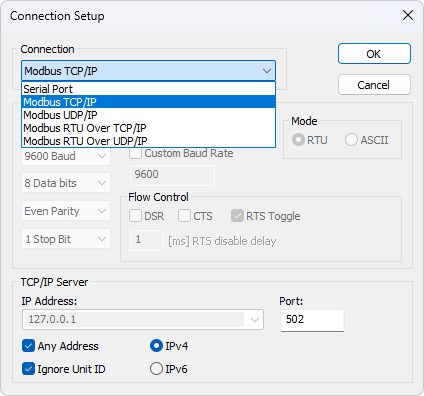
have Different types of connections: 5 Serial port:
- Through serial lines
Or Modbus. RS232 . can be used RS485Can be usedUSBSerial converter. - Modbus TCP/IP:
If you want to be with MODBUS TCP/IP Network communication, please select TCP/IP. In this case, from the station ID And with MODBUS TCP/IP The units used in ID Same.
The default port number is 502. - Modbus UDP/IP:
If you want to be with MODBUS UDP/IP Network communication, please select UDP/IP. This is related to Modbus TCP/IP Same, but using connectionless UDP Agreement. - TCP/IP Up Modbus RTU:
This is achieved through TCP/IP Sent through a network rather than a serial line RTU News. - Modbus RTU Over UDP/IP:
This is achieved through UDP/IP Sent through a network rather than a serial line RTU News.
Based on your selection, some other settings will appear grayed out.
Serial port settings (Serial Settings)
Use these parameters to set the serial port settings. Only when the connection type is“Serial port”Only then can they be used. pattern
Use this option to selectRTUOrASCIIpattern. Default RTU. NumbersSR
Specify whether to monitor DSR(Dataset ready) signal for output flow control. If the member is TRUE And DSR If closed, the output will pause until it is sent again DSR. CTS
Specify whether to monitor CTSClear the transmission signal for output flow control. If this checkbox is enabled and turned off CTSThe output will pause until it is sent again CTS. Instant strategic switching
If bytes are available for transmission, then RTS The line will be at a high level. After sending all buffer bytes,RTS The line will be at a low level.
If your 232/485 If the converter does not have an automatic direction switch, it can be used to switch directions.
| If possible, avoid using it RTS Controlled RS232/RS485 converter. ForWindows, LinuxIt is difficult to determine the specific time when the transmitter will shut down in non real time operating systems. If closed too early, the character may still be in FIFO Or UART In the sending register, and these characters will be lost. Therefore, the slave will not be able to recognize the message. On the other hand, if the shutdown is too late, the message from the slave device will be corrupted and the master device will not be able to recognize the message. |
TCP/IPThe server (TCP/IP Server)
TCP/IP Server settings are only available when using an Ethernet connection.IPAddress
Specify what to listen for IP address If your PC Having multiple network connections is very useful.Modbus Slave Each instance of can listen to a specific network. Default to local host 127.0.0.1Any address
If you wish Modbus Slave Listen to all networks, please select this option. Ignore the unit ID
ManyPLCThe device will ignore this field, and most clients default to zero. However, gateways or dedicated programs can use unit numbers to indicate what type of processing is required. Port
Server port number. Default502
From machine definition (Slave definition)
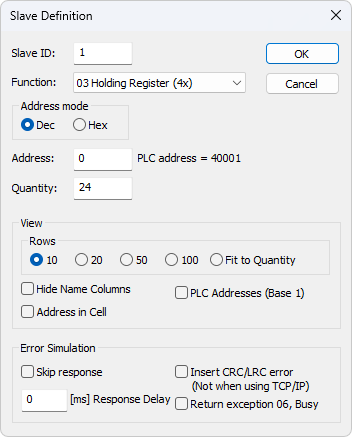
Use this command to define the data array to be defined for the active window.
To open Slave Definition Dialogue box, you have 3 Options:
- Press F8
- Select from the settings menu“Definition of sub station”
- Press
 On the toolbar
From machineID (Slave ID)
Range 1 Arrived 255. (MODBUS The protocol specifications stipulate that: 247). Value 0 You can also directly communicate with MODBUS/TCP Or MODBUS/UDP Device communication.
Function code (Function)
You can choose 4 In the functional code 1 One.
- 01Read the coil (0x). Accept write function 05 And 15
- 02Read discrete inputs (1x)
- 03Read and hold register (4x). Accept write function 06, 16, 22 And 23
- 04Reading input registers (3x)
addresses(Address)
Modbusaddresses in protocols are confusing! Some protocol specifications use protocol/message addresses, while others use device addressing.
protocol/message addresses
some protocol specifications use protocol/message addresses and function codes that count from 0 to 65535 . This is also the content used by the new Modbus specification. This is the address in messages sent over a line.
Modbus Slave using protocol/message addresses from 0 to 65535 counting.
device address
some protocol specifications use device addresses/registers. The register starts counting from 1 . The first number describes the function to be used. This means that the device address 40101 is identified by the address 100 indicates that it holds the register and“4”the register starts counting from 4x . Therefore, the reference is implicit. What is even more confusing is: 1 represents function code“4XXXX”represents function code4x bit and bit addressing 03, 3x address format 04!
5 from 6 Count up to
. The next address is not 4x from 40001 Count to 49999The next address is not50000. In the past,9999 One address is enough. In some cases9999Not enough yet. Then add a zero.40101 Becoming 400101And so on. This is called 6 Bit addressing or extended addressing.
This is for Modbus Slave It's not a problem.410001 become 10000. “4”Abandoned, the rest 10001 Reduce 1Because we come from 0 instead of 1 Start counting.
Example address
These examples demonstrate how to set up device addresses in a standardized manner Modbus From the station.
Define and maintain registers
You want to access the device ID 2 The device address 40011 definition 20 A register. From“4”We know this is a function 03“Read and hold registers”.
- From machine ID = 2
- Function =“03 Read and hold registers (4x)”
- Address = 10 (11 Reduce 1)
- quantity Define discrete inputs = 20
You want to go from the station
The address ID 5 definition 110201 A coil. From 1000 We know this is a function“1”Read discrete inputs 02“From machine”
- Function ID = 5
- Read discrete inputs =“02 Address (1x)”
- quantity Hide the name column = 10200 (10201 - 1)
- Hide all name columns. If you don't use them, this can easily free up more space. = 1000
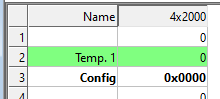
The address in the cell (Hide name columns)
If enabled, the address will also be displayed in the value cell, for example:
The address in the cell (Address in cell)
Address (base address2000 = 00000
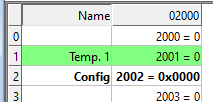
PLC Address 1) PLC Addresses (Base 1)
Number of rows
Real time chart(Rows)
Use this command to draw up to
Data series in real-time in the chart(Real time Charting)
Real time chart is fast and can draw new lines as soon as new data is received 12 All chart settings are saved in the workspace file. Save/Open workspace
To open the real-time chart dialog box, you have
| Options: Press |
To open the real-time chart dialog box, you have 2 Options:
- press Alt + R
- Select from the display menu“Real time charts”
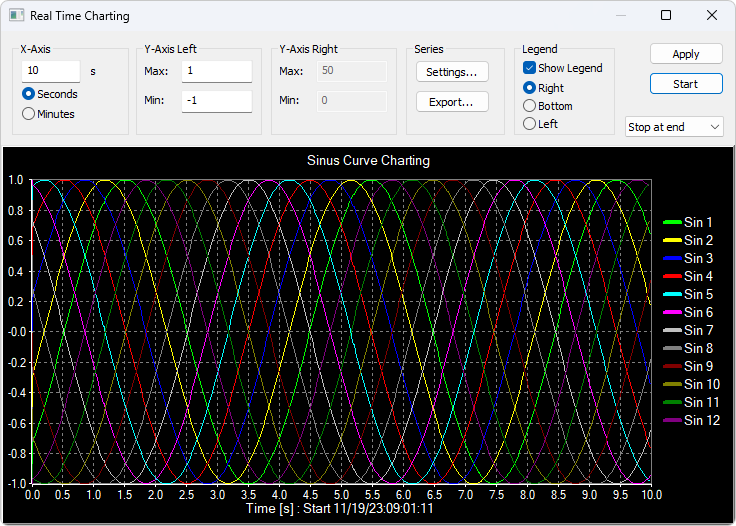
X The axis displays the number of seconds since the chart was started.
When the point reaches the end of the chart, there is 3 Options:
- Stop at the end:The chart stops.
- Restart at the end:Start the chart again.
- Continue: Continue,Until reaching the maximum point or pressing the stop button.
set up(Settings)
By default, all 12 All series are linked to the left side Y Axis. If you want to link the series to the right Y Axis, please select“Right Y Axis”Check box. appoint
- color Right
- Axis Y title. If the title is empty, initialize using the name in the reading window
- Offset
- Exhibition
File name
- Address
- Offset for the same
Aligning data points on the axis is very useful. For example, Y Or0 The data points can be offset so that they are not plotted on top of each other. 1 Series settings
If you want to view more detailed information, enlarging the chart would be very useful. Zoom is controlled by the left mouse button. To zoom in on a specific part of the chart, simply left click on the chart (which will be the top left corner of the zoom rectangle) and drag it to the bottom right corner. A rectangle will appear. Once the mouse button is released, the axis will automatically adjust to the area you have selected.
If you left click on the chart (such as to start zooming), but if you move to the top left corner, all modifications made using the zoom and pan functions will be canceled (the chart will remain in its original state) before performing the pan and zoom operations.
Translation function
To pan a control, right-click somewhere on the control and move the mouse. The point below the mouse will follow the movement of the mouse.
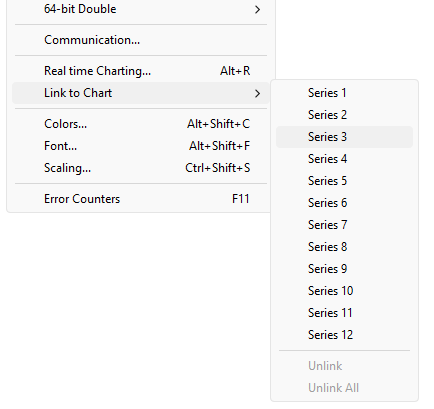
Link data to chart series
Unless
The data unit is linked to Modbus One of the series, otherwise the chart doesn't know which data to use. To do this, please select a value cell and then go to the menu 12 Display selection→Link to chart“Chart link”.
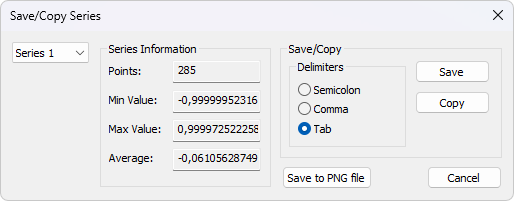
Save the series data to disk or copy it to the clipboard. Paste the data directly into
Further processing will be carried out. Excel Despite using non comma field separators, the file still has
Extension name. .csv Delimiter:
Select the characters that separate the values in the text file. Copy/paste toUse tab separators. In addition, some additional information was provided. Excel point
- Maximum score
- Minimum score
- Average score
- Save/Copy Series
Mark the cells to be formatted. Select from the display menu
Mark the cells to be formatted. Select from the display menu 28 One of the display formats.
This machine Modbus Register
16 Position Modbus Register can be used to: 4 Display in different modes.
- Sign
- Not signed
- hexadecimal
- ASCII - hexadecimal
- Binary
32 Signed integers(32-bit signed integer)
It combines 2 One 16 Position Modbus Register. It can be used 4 Display different word/byte orders.
- Signed integer with large tail number
- Signed integer with small tail number
- Signed integer big endian byte swapping
- Signed integer small endian byte swap example byte order:AB CD(Big end)
Decimal numbers 123456789 Or hexadecimal numbers07 5B CD 15
Modbus The order of transmission through the line in the message:07 5B CD 15
32 Unsigned integer(32-bit unsigned integer)
It combines 2 One 16 Position Modbus Register. It can be used 4 Display different word/byte orders.
- Unsigned integer with large tail number
- Unsigned integer with small tail number
- Unsigned integer Big-endian Byte exchange
- Example of unsigned integer small endian byte swap byte order:AB CD(Big end)
Decimal numbers 123456789 Or hexadecimal numbers07 5B CD 15
Modbus The order of transmission through the line in the message:07 5B CD 15
64 Signed integers(64-bit signed integer)
It combines 4 One 16 Position Modbus Register. It can be used 4 Display different word/byte orders.
- Signed integer with large tail number
- Signed integer with small tail number
- Signed integer big endian byte swapping
- Signed integer small endian byte swap example byte order:AB CD EF GH(Big end)
Decimal numbers -1,234,567,890,123,456,789 Or hexadecimal numbersEE DD EF 0B 82 16 7E EB
Modbus The order of the lines in the message:EE DD EF 0B 82 16 7E EB
64 Unsigned integer(64-bit unsigned integer)
It combines 4 One 16 Position Modbus Register. It can be used 4 Display in different word/byte orders.
- Unsigned integer with large tail number
- Unsigned integer with small tail number
- Unsigned integer Big-endian Byte exchange
- Example of unsigned integer small endian byte swap byte order:AB CD EF GH(Big end)
Decimal numbers 1,234,567,890,123,456,789 Or hexadecimal numbers11 22 10 F4
7D E9 81 15 Modbus The order of the lines in the message:11 22 10 F4 7D E9 81 15
32Floating point number(32-bit floating)
It combines 2 One 16 Position Modbus Register. It can be used 4 Display different word/byte orders.
- Floating point large tail number
- Floating point number with small tail
- Floating point big endian byte swapping
- Example byte order for floating-point byte swapping:AB CD(Big end)
Floating point number 123456.00 Or hexadecimal47 F1 20 00
Modbus The order of the lines in the message:47 F1 20 00
64Double precision floating-point number(64-bit double)
It combines 4 One 16 Position Modbus Register. It can be used 4 Display different word/byte orders.
- Double tailed number
- Double small end
- Double terminal byte exchange
- Example of Double Small End Byte Swap Byte Order:AB CD EF GH(Big end)
Floating point number 123456789.00 Or hexadecimal41 9D 6F 34 54 00 00 00
Modbus The order of the lines in the message:41 9D 6F 34 54 00 00 00
Save/Open workspace
If you open many related ones Modbus Window, which can conveniently save all opened and arranged files in one workspace Modbus A snapshot of the current layout of the window.
Workspace (*msw) It is a file that contains display information and file names for all open windows. Not the actual content. For this, please go to the file→Save workspace.
The connection and chart settings are stored in the workspace file.
When you open a workspace file,Modbus Slave Will open all Modbus Window and display them in the layout you have saved.
Communication traffic
Select menu“Display”→“Communication”To display the traffic on the serial line or Ethernet cable. Use the stop button to temporarily pause the update for inspection.
Use the copy button to copy the selected row to the clipboard.
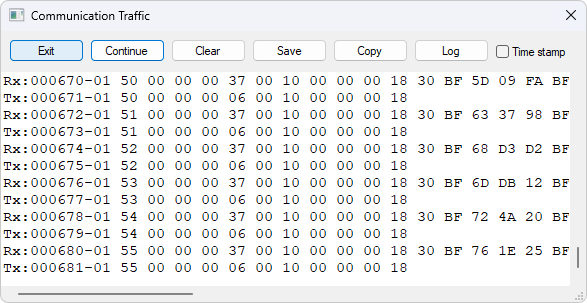
| This window only displays Modbus The data sent and received from the station. You cannot use it as a data sniffer. |
| Keep this window open while executing other commands. |
OLE/Automation
Automation (formerly known as OLE Automation enables one application to manipulate objects implemented in another application.
An automation client is an application that can manipulate public objects belonging to another application. This is also known as an automation controller.
An automation server is an application that exposes programmable objects to other applications.Modbus SlaveIt is an automated server.
This means that you can use any supportVBA (Visual Basic for Applications)Explain and display the program (e.g., etc.) according to your specific requirementsVisual Basic, Exceldata ExamplemodbusWhen you want to write a macro, you should display
Excel Developers
Tab or run in developer mode.“Developer tab”single click
Excel 2007
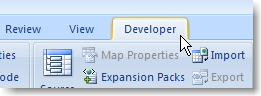
- Options. Microsoft Office single click Excel popular
- , and then select“Display the Developer tab in the ribbon”Checkbox.“Please note that the functional area is”A part of the user interface.
Click on the File tab. Microsoft Fluent Click on the option.
Excel 2010, 2016
- The options window will open.
- Click in the left paneExcel Customize the functional area
- On the right pane“Main tab”.
- Next, select“Developers”Checkbox.“single click”determine
- Developers“The tab should now be displayed in the ribbon (the rightmost tab).”. “Example code”This example opens a window that simulates holding registers.
Excel It is hidden, but you can uncomment it
Go ahead and display it. This will display one of the windows.
Modbus Slave The installation also includes an example.“ShowWindow”Start
Modbus Slave All programs
Example → Example → Modbus Slave → Excel ExampleExcel VBA This
Public doc As Object
Public app As Object
Dim status As Integer
Dim n As Integer
Private Sub StartSlave_Click()
   ' Create an application object. You can only create 1 application object
   Set app = CreateObject("Mbslave.Application")
   ' Create a new Modbus Slave document (Data Window)
   ' This is the same as open a new data window in Modbus Slave
   ' You can create up to 50 Modbus Slave documents (Data Window)
   Set doc = CreateObject("Mbslave.Document")
   ' Show Modbus Slave
   ' res = doc.ShowWindow()
   ' Create doc2 if needed.
   ' Set doc2 = CreateObject("Mbslave.Document")
   ' Set one of 5 connection types.
   app.Connection = 1 ' Modbus TCP/IP
   ' TCP/IP settings.
   ' No need to set IP address. We listen to any address. (Default).
   app.ServerPort = 502
   app.IPVersion = 4
   ' Open the connection.
   res = app.OpenConnection()
   Range("D5").Value = res
   res = doc.SetupHoldingRegisters(1, 100, 8)
   doc.SRegisters(0) = 1     ' Modbus address 100
   doc.SRegisters(1) = -10   ' Note that the Index used counts from 0
   doc.URegisters(2) = 50000 ' no matter the Modbus address used.
   doc.URegisters(3) = 60000
   doc.Longs(4) = 10000      ' A long takes 2 registers
   doc.Floats(6) = 123.45    ' A float takes 2 registers
   ' Now a master can read 8 Holding registers with a mix of 3 data types
End Sub
PythonExample: Open a window and set all possible data formats.
Example Python Connection function/attributePython The following properties and functions are related to you in the connection dialog box
import win32com.client as win32
SIGNED = 0
UNSIGNED = 1
HEX = 2
BINARY = 3
FLOAT_LE_BS = 4
FLOAT_BE = 5
DOUBLE_LE_BS = 6
DOUBLE_BE = 7
S32_LE_BS = 8
S32_BE = 9
FLOAT_LE = 10
FLOAT_BE_BS = 11
DOUBLE_LE = 12
DOUBLE_BE_BS = 13
S32_LE = 14
S32_BE_BS = 15
U32_BE = 17
U32_LE_BS = 18
U32_BE_BS = 19
U32_LE = 20
S64_BE = 21
S64_LE_BS = 22
S64_BE_BS = 23
S64_LE = 24
U64_BE = 25
U64_LE_BS = 26
U64_BE_BS = 27
U64_LE = 28
#Endianness
BE = 0
LE = 3
BE_BS = 2
LE_BS = 1
App = win32.Dispatch('Mbslave.Application')
App.Connection = 1
App.IPAddress = "127.0.0.1"
App.ServerPort = 502
App.OpenConnection
#Create a Modbus display window called Win1
Win1 = win32.Dispatch("Mbslave.Document")
# Setup 100 holding registers with slave ID 1, address 0 (40001)
Win1.SetupHoldingRegisters(1, 0, 100)
# Show the Modbus window
Win1.ShowWindow()
# Show 20 rows
Win1.Rows(1)
# Disable refresh for speed
Win1.EnableRefresh = False
# Set all different formats
# This sets how the value is displayed
# Use ByteOrder to set the actual endianness
Win1.SetFormat(0, SIGNED)
Win1.SetFormat(1, UNSIGNED)
Win1.SetFormat(2, HEX)
Win1.SetFormat(3, BINARY)
Win1.SetFormat(4, S32_BE)
Win1.SetFormat(6, S32_LE)
Win1.SetFormat(8, S32_BE_BS)
Win1.SetFormat(10, S32_LE_BS)
Win1.SetFormat(12, U32_BE)
Win1.SetFormat(14, U32_LE)
Win1.SetFormat(16, U32_BE_BS)
Win1.SetFormat(18, U32_LE_BS)
Win1.SetFormat(20, S64_BE)
Win1.SetFormat(24, S64_LE)
Win1.SetFormat(28, S64_BE_BS)
Win1.SetFormat(32, S64_LE_BS)
Win1.SetFormat(40, U64_BE)
Win1.SetFormat(44, U64_LE)
Win1.SetFormat(48, U64_BE_BS)
Win1.SetFormat(52, U64_LE_BS)
Win1.SetFormat(60, FLOAT_BE)
Win1.SetFormat(62, FLOAT_LE)
Win1.SetFormat(64, FLOAT_BE_BS)
Win1.SetFormat(66, FLOAT_LE_BS)
Win1.SetFormat(80, DOUBLE_BE)
Win1.SetFormat(84, DOUBLE_LE)
Win1.SetFormat(88, DOUBLE_BE_BS)
Win1.SetFormat(92, DOUBLE_LE_BS)
# Set all Names to used format
Win1.SetName(0, "SIGNED")
Win1.SetName(1, "UNSIGNED")
Win1.SetName(2, "HEX")
Win1.SetName(3, "BINARY")
Win1.SetName(4, "S32_BE")
Win1.SetName(6, "S32_LE")
Win1.SetName(8, "S32_BE_BS")
Win1.SetName(10, "S32_LE_BS")
Win1.SetName(12, "U32_BE")
Win1.SetName(14, "U32_LE")
Win1.SetName(16, "U32_BE_BS")
Win1.SetName(18, "U32_LE_BS")
Win1.SetName(20, "S64_BE")
Win1.SetName(24, "S64_LE")
Win1.SetName(28, "S64_BE_BS")
Win1.SetName(32, "S64_LE_BS")
Win1.SetName(40, "U64_BE")
Win1.SetName(44, "U64_LE")
Win1.SetName(48, "U64_BE_BS")
Win1.SetName(52, "U64_LE_BS")
Win1.SetName(60, "FLOAT_BE")
Win1.SetName(62, "FLOAT_LE")
Win1.SetName(64, "FLOAT_BE_BS")
Win1.SetName(66, "FLOAT_LE_BS")
Win1.SetName(80, "DOUBLE_BE")
Win1.SetName(84, "DOUBLE_LE")
Win1.SetName(88, "DOUBLE_BE_BS")
Win1.SetName(92, "DOUBLE_LE_BS")
# Set different values
Win1.SRegisters(0, -100)
Win1.SRegisters(1, 100)
Win1.URegisters(2, 43690)
Win1.URegisters(3, 65535)
Win1.ByteOrder = BE
Win1.Ints_32(4, -123456)
Win1.ByteOrder = LE
Win1.Ints_32(6, -123456)
Win1.ByteOrder = BE_BS
Win1.Ints_32(8, -123456)
Win1.ByteOrder = LE_BS
Win1.Ints_32(10, -123456)
Win1.ByteOrder = BE
Win1.UInts_32(12, 123456)
Win1.ByteOrder = LE
Win1.UInts_32(14, 123456)
Win1.ByteOrder = BE_BS
Win1.UInts_32(16, 123456)
Win1.ByteOrder = LE_BS
Win1.UInts_32(18, 123456)
Win1.ByteOrder = BE
Win1.Ints_64(20, -123456)
Win1.ByteOrder = LE
Win1.Ints_64(24, -123456)
Win1.ByteOrder = BE_BS
Win1.Ints_64(28, -123456)
Win1.ByteOrder = LE_BS
Win1.Ints_64(32, -123456)
Win1.ByteOrder = BE
Win1.UInts_64(40, 123456)
Win1.ByteOrder = LE
Win1.UInts_64(44, 123456)
Win1.ByteOrder = BE_BS
Win1.UInts_64(48, 123456)
Win1.ByteOrder = LE_BS
Win1.UInts_64(52, 123456)
Win1.ByteOrder = BE
Win1.Floats (60, 123.456)
Win1.ByteOrder = LE
Win1.Floats (62, 123.456)
Win1.ByteOrder = BE_BS
Win1.Floats(64, 123.456)
Win1.ByteOrder = LE_BS
Win1.Floats(66, 123.456)
Win1.ByteOrder = BE
Win1.Doubles(80, 123.456)
Win1.ByteOrder = LE
Win1.Doubles(84, 123.456)
Win1.ByteOrder = BE_BS
Win1.Doubles(88, 123.456)
Win1.ByteOrder = LE_BS
Win1.Doubles(92, 123.456)
# Refresh
Win1.EnableRefresh = True
Win1.ResizeAllColumns ()
Win1.ResizeWindow()
print (Win1.GetName(1))
_ = input("Press ENTER to quit:")
The settings in are the same.
connect (F3) Select the required connection. You can choose either a serial port or an Ethernet connection.
Attributes
connect
Is a valid integer valueSerial portExample
0 = Serial port
1 = Modbus TCP/IP
2 = Modbus UDP/IP
3 = Modbus RTU over TCP/IP
4 = Modbus RTU over UDP/IP
Example
Connection = 0
Baud rate
Only applicable for connection = 0
AttributesBaudRate as LongEffective value
300
600
1200
2400
4800
9600(default)
14400
19200
38400
56000
57600
115200
128000
153600
230400
256000
460800
921600example
BaudRate = 9600
Data bits
Only applicable for connection = 0
AttributesDataBitsAs a valid integer value
7
8(default)
example
DataBits = 8
Checksum
Only applicable for connection = 0
PropertyAt Par As a valid integer valueNone
0 = Odd numbers
1 = Even numbers (default)
2 = example
Stop position
Parity = 2
Only applicable for connection
Attributes = 0
As a valid integer valueStopBits(default)
1example
2
Serial port
StopBits = 1
Only applicable for connection
Attributes = 0
As a valid integer valueSerialPortDefault value
1…255
example = 1Server port
SerialPort = 1
Only applicable for connection
Attributes = 1…4
ForServerPortEffective value LongDefault value
0…65535
example = 502edition
ServerPort = 502
IPOnly applicable for connection
Attributes = 1…4
As a valid integer valueIPVersionedition
4 = IP (default) 4edition
6 = IP example 6
Any address
IPVersion = 4
Only applicable for connection
Attributes = 1…4
As a valid integer valueAnyAddressAny address
0 = Any address = false
1 = (default) = trueexample
Ignore the unit
AnyAddress = 1
Only applicable for connectionID
Attributes = 1…4
asIgnoreUnitIDas IntegerEffective value
0 = Ignore the unit ID = false
1 = Ignore the unit ID = true(default)
example
IgnoreUnitID = 1
Open connection
Open and use“connect”Connection for attribute selection.
FunctionOpenConnection () As an integer
Return value:
If successful, it will be zero. If it fails, it will be non-zero. How to open it Modbus TCP/IP Examples of connections
Public app As Object
Dim res As Integer
' Create an object to Modbus Slave
Set app = CreateObject("Mbslave.Application")
app.Connection = 1 ' Select Modbus TCP/IP
app.IPVersion = 4
' app.IPAddress = "192.168.1.27"    ' No need to setup if AnyAddress = 1. Modbus Slave listen on all.
app.ServerPort = 502
res = OpenConnection()
Example of how to set up a serial connection
Public app As Object
Dim status As Integer
' Create an object to Modbus Slave
Set app = CreateObject("Mbslave.Application")
app.Connection = 0         ' Mode is serial port
app.SerialPort = 1         ' Com port 1
app.BaudRate = 9600        ' 9600 baud
app.Parity = 0             ' None parity
app.Mode = 0               ' RTU mode
status = app.OpenConnection()
Close the connection
FunctionCloseConnection () As IntegerReturn value
If successful, it will be zero. If it fails, it is non-zero.
Display communication and transportation
FunctionShowCommunicationTraffic ()
Display the communication traffic window.
Close communication and transportation
FunctionCloseCommunicationTraffic ()
Close the communication traffic window (if displayed).
Automated setting function
The following functions are available in the Read/Write Definition dialog box (F8) The functions set in are the same. Reading function and Modbus Related to the website document. (Window with data)
.Example
Res = doc.SetupDiscreteInputs (1, 100, 5)
Coils (0) = 1    ' Address 100 = 1
Coils (1) = 0    ' Note that the index used in Coils starts from 0
Coils (2) = 1    ' no matter the address used.
Coils (3) = 0
Coils (4) = 1
' Now the Master reads 1, 0, 1, 0, 1 when read 5 discrete inputs starting from address 100
Set the coil
Function SetupCoils (SlaveID As Integer, Address As Long, Quantity As Integer) As IntegerReturn value
If successful, it is true. If unsuccessful, it is a false parameter
SlaveID: Slave address 1 To 255
Address:Data address (base address 0)
quantity:data quantity.1 to 10000
set discrete input
functionset discrete input (SlaveID as integer, address as integer, quantity as integer) returns an integer value
If successful, it is true. If unsuccessful, it is a false parameter
SlaveID: Slave address 1 To 255
Address:Data address (base address 0)
quantity:data quantity.1 to 10000
set hold register
functionSetupHoldingRegisters (SlaveID As Integer, Address As Long, Quantity As Integer) As Integerreturn value
true if successful. false if unsuccessful
SlaveID: slave address 1 to 255
address:data address (base address) 0)
quantity The quantity of data.To1 Set input register 10000
Function
Return valueSetupInputRegisters (SlaveID As Integer, Address As Long, Quantity As Integer) As IntegerIf successful, it is true. If unsuccessful, it is a false parameter
Slave address
SlaveID: To 1 Address: 255
Data address (base addressquantity: 0)
data quantity.to1 window display 10000
function
by default,ShowWindow ()
document window is hidden.Modbus function makesShowWindow visible and displays documents with data content. Modbus Poll get name
function
(index is an integer) is a string descriptionGetNameGet the name of the value.
Indexes
Corresponding to the first one 0 Address. Modbus Set the name
Function
(Index as integer, name as string) DescriptionSetNameName of the set value.
Indexes
Corresponding to the first one 0 Address. Modbus Automatic increment
Attributes
(Index as integer) is a Boolean value descriptionAutoIncrementAutomatic increment of setting values.
Indexes
Corresponding to the first one 0 Address. Modbus Syntax
Automatic increment
(Index)New value[=Format everything]
Function
(formatted as an integer)FormatAllFormat all value cells using the selected format. Parameters
Format:
The format of the value cell.Obtain format
Function
(Index as integer) as an integer descriptionGetFormatobtain
The display format of values.ModbusFormat
| ID | Sign |
|---|---|
| 0 | Not signed |
| 1 | hexadecimal |
| 2 | hexadecimal |
| 3 | Binary |
| 4 | Floating point small end byte swapping |
| 5 | Floating point large tail number |
| 6 | Double small end byte exchange |
| 7 | Double major end |
| 8 | 32 Bit signed small byte exchange |
| 9 | 32 A signed large tailed number |
| 10 | Floating point number with small tail |
| 11 | Floating point big endian byte swapping |
| 12 | Double small tail number |
| 13 | Double terminal byte exchange |
| 14 | 32 Bit signed small endian byte order |
| 15 | 32 Bit signed big endian byte swapping |
| 17 | 32 Unsigned big endian byte order |
| 18 | 32 Unsigned small byte exchange |
| 19 | 32 Unsigned big endian byte swapping |
| 20 | 32 Unsigned small end byte order |
| 21 | 64 A signed large tailed number |
| 22 | 64 Bit signed small byte exchange |
| 23 | 64 Bit signed big endian byte swapping |
| 24 | 64 Bit signed small endian byte order |
| 25 | 64 Unsigned big endian byte order |
| 26 | 64 Unsigned small byte exchange |
| 27 | 64 Unsigned big endian byte swapping |
| 28 | 64 Unsigned small end byte order |
| This setting is only for display purposes. use Get/Set When using the value function, you still need to use it byteOrder To obtain the correct byte order. |
Format setting
FunctionSetFormat(Index as integer, format as integer) Description
set up Modbus Display format of values. Please refer to the format values above.
Adjust the window size
FunctionResizeWindow ()
Adjust the size of the open window to fit the grid.
Number of rows
FunctionRows (NumberRows)
Specify the number of rows in the grid. Parameters
NumberRows: The number of rows in the grid.
| ID | Description |
|---|---|
| 0 | 10 Row (default) |
| 1 | 20 that 's ok |
| 2 | 50 that 's ok |
| 3 | Suitable quantity |
Automated data attributes
The following attributes are used for setting or obtaining Modbus Write/read values from arrays within the station. The index used is not Modbus address No matter what address is used, the index always starts from 0 Start counting. Data attributes and Modbus Associate with website documents. (Window with data)
Example 1:
' doc is assumed created first. See Excel example.
doc.SRegisters(0) = 1
doc.SRegisters(1) = 10
doc.SRegisters(2) = 1234
Example of using floating-point values 2:
doc.Floats(0) = 1.3
doc.Floats(2) = 10.5
doc.Floats(4) = 1234.12
Coil (Coils)
Attribute coil (index As Integer) As Integer
description
set a coil in the write array structure or return a coil from the read array
syntax
Coils(Index) [=newvalue]
short integer register (SRegisters)
attribute short integer register (index) As Integer) As Integer
Description
Set a register in the write array structure or return a register from the read array.
Grammar
SRegisters(Index) [=newvalue]
Unsigned register (URegisters)
Attribute unsigned register (index As Integer) As Long
description
set a register in the write array structure or return a register from the read array
syntax
URegisters(index)[=New value]
32Bit integer (Ints_32)
Attributes 32Bit integer (index As Integer) As Double
description
set one in write array structure32bit integer or return one from read array
syntax
URegisters(Index) [=newvalue]
unsigned32bit integer (UInts_32)
attribute unsigned32bit integer (index As Integer) As Double
description
set one in write array structure32bit unsigned integer or return one from read array
syntax
UInts_32(Index) [=newvalue]
64bit integer (Ints_64)
attribute 64bit integer (index As Integer) As Double
description
set one in write array structure64bit integer or return one from read array)
syntax
Ints_64(Index) [=newvalue]
unsigned64bit integer (UInts_64)
attribute unsigned64bit integer (index As Integer) As Double
description
set one in write array structure64bit unsigned integer or return one from read array). An unsigned integer.
syntax
UInts_64(Index) [=newvalue]
floating-point number (Floats)
property floating-point number (index As Integer) As Single
description
set a floating-point number in the write array structure or return a floating-point number from the read array.
syntax
Floats(Index) [=newvalue]
Double precision floating-point number (Doubles)
Double precision floating-point number property (index As Integer) As Double
description
sets a double precision floating-point number in the write array structure or returns a double precision floating-point number from the read array
syntax
Doubles(Index) [=newvalue]
byte order (ByteOrder)
propertyByteOrderdescribes as an integer
sets the byte order used for Ints_32, UInts_32, Ints_64, UInts_64, floating-point number and double precision floating-point number properties
| ID | byte order |
|---|---|
| 0 | big endian (default) |
| 1 | Small end sequential byte exchange |
| 2 | Big endian byte exchange |
| 3 | Little-endian |
Ints_32 Example:
Byte order: big endian
Decimal numbers123456789 Or hexadecimal 07 5B CD 15
InModbusThe transmission order in the message:07 5B CD 15
Grammar
Byte order [=New value]
Mini program version, free to use!!!


非常需要找个软件
试试看
求软件
good
good
支持
学习求教
adada
求软件
一直在找这个软件,终于找到 ,非常好用
*这软件不错*
OK
网络上还没看到这么详尽的教程太棒了!
教程挺详细的,我还需要软件
求编程
666
woxuyao
很全很赞
教程挺详细的,我还需要软件
贼好用
需要需要,下载测试
66
666
v
666
很棒,太需要了
太棒了,正需要
好好好666
好好好
教程详细!太棒了!
666