
Witte Software® https://www.modbustools.com
2023-08-11
1. Modbus Slave
Modbus Slave is for simulating up to 100 slave devices in 100 windows!. Speed up your PLC programming with this simulating tools. Start programming and test before you receive your slave device from supplier. 데이터 contained with any 열기 document is accessible to the master application. Same user interface as Modbus Poll.
Monitoring of serial traffic. OLE 자동화 for interfacing with Visual Basic, Excel etc. To interpret and show the Modbus 데이터 according to your specific requirements. E.g. edit your slave 데이터 in Excel. Try the Excel example.xls included with the program.
Each window 열기ed within Modbus Slave may be configured to represent 데이터 from the same or different slave nodes.
1.1. System requirements for Modbus Slave
Hardware requirements
Processor; 1 GHz or faster recommended
1 GB RAM
5 MB of available hard drive space
1024 x 768 display resolutionOS requirements
All Windows versions from Windows 7 to Windows 11 are supported.
Modbus Slave version 8 runs on Windows XP.
1.1.1. Silent install
Silent install require no user intervention and have no user interface. The user doesn’t see any dialog and isn’t asked any questions.
Use the command line /S switch.
1.2. End User License Agreement
You should carefully read the following terms and conditions before using Modbus Slave. Unless you have a different license agreement signed by Witte Software, your use of this software indicates your acceptance of this license agreement and warranty. If you do not accept these terms you must cease using this software immediately.
복사right.
Modbus Slave ("The Software") is copyright 2002-2023 by Witte Software, all rights reserved.
Evaluation and Registration.
This is not free software. You are hereby licensed to use the Software for evaluation purposes without charge for a period of 30 days.
If you use the Software after the 30 day evaluation period a registration fee is required.
Unregistered use of the Software after the 30-day evaluation period is in violation of U.S. and international copyright laws.
One registered copy of the Software may either be used by a single person who uses the software personally on one or more computers, or installed on a single computer used by multiple people, but not both.
For information on order and pricing, please visit https://www.modbustools.com/order.html
Modbus Slave licenses are perpetual. Once you buy a license to a specific major version, and as long as you abide by the license agreement, you can use that version forever with no additional cost.
Distribution.
Provided that you do not include your License Key you are hereby licensed to make copies of the Software; give exact copies of the original to anyone; and distribute the Software in its unmodified form via electronic means. You are specifically prohibited from charging for any such copies.
LIMITED WARRANTY.
THE SOFTWARE IS PROVIDED AS IS AND WITTE SOFTWARE DISCLAIMS ALL WARRANTIES RELATING TO THIS SOFTWARE, WHETHER EXPRESSED OR IMPLIED, INCLUDING BUT NOT LIMITED TO ANY IMPLIED WARRANTIES OF MERCHANTABILITY AND FITNESS FOR A PARTICULAR PURPOSE.
LIMITATION ON DAMAGES.
NEITHER WITTE SOFTWARE NOR ANYONE INVOLVED IN THE CREATION, PRODUCTION, OR DELIVERY OF THIS SOFTWARE SHALL BE LIABLE FOR ANY INDIRECT, CONSEQUENTIAL, OR INCIDENTAL DAMAGES ARISING OUT OF THE USE OR INABILITY TO USE SUCH SOFTWARE EVEN IF WITTE SOFTWARE HAS BEEN ADVISED OF THE POSSIBILITY OF SUCH DAMAGES OR CLAIMS. IN NO EVENT SHALL WITTE SOFTWARE’S LIABILITY FOR ANY DAMAGES EXCEED THE PRICE PAID FOR THE LICENSE TO USE THE SOFTWARE, REGARDLESS OF THE FORM OF CLAIM. THE PERSON USING THE SOFTWARE BEARS ALL RISK AS TO THE QUALITY AND PERFORMANCE OF THE SOFTWARE.
2. Modbus Slave Features
2.1. Connections
Modbus Slave read/write 데이터 from devices using:
- Modbus RTU or ASCII on RS232 or RS485 networks. (USB/RS232/485 Converter)
- Modbus TCP/IP
- Modbus Over TCP/IP. (Modbus RTU encapsulated in a TCP packet)
- Modbus UDP/IP
- Modbus Over UDP/IP. (Modbus RTU encapsulated in a UDP packet)
2.2. Supported Modbus 기능s
- 01 (0x01) Read Coils
- 02 (0x02) Read Discrete Inputs
- 03 (0x03) Read Holding 회원가입s
- 04 (0x04) Read Input 회원가입s
- 05 (0x05) Write Single Coil
- 06 (0x06) Write Single 회원가입
- 08 (0x08) Diagnostics (Serial Line only)
- 11 (0x0B) Get Comm Event Counter (Serial Line only)
- 15 (0x0F) Write Multiple Coils
- 16 (0x10) Write Multiple 회원가입s
- 17 (0x11) Report Server ID (Serial Line only)
- 22 (0x16) Mask Write 회원가입
- 23 (0x17) Read/Write Multiple 회원가입s
- 43 / 14 (0x2B / 0x0E) Read Device Identification
2.3. Display formats
Each cell can be individual formatted.
- Signed 16-bit register
- Unsigned 16-bit register
- Hex
- Binary
- 32-bit signed integer with any word/byte order
- 32-bit unsigned integer with any word/byte order
- 64-bit signed integer with any word/byte order
- 64-bit unsigned integer with any word/byte order
- 32-bit float with any word/byte order
- 64-bit double float with any word/byte order
2.4. Miscellaneous features
- OLE/자동화 for interfacing with Excel VBA, Python etc.
- Monitoring of 데이터 traffic
- Print and print preview
- Font selection
- Conditional colors
- Scaling
- Real time charting
- Save/Open workspace
3. Overview
Modbus Slave uses a multiple document interface. That means several windows can be 열기ed. Each one with different 데이터 contents for simulation of different slave devices at the same time.
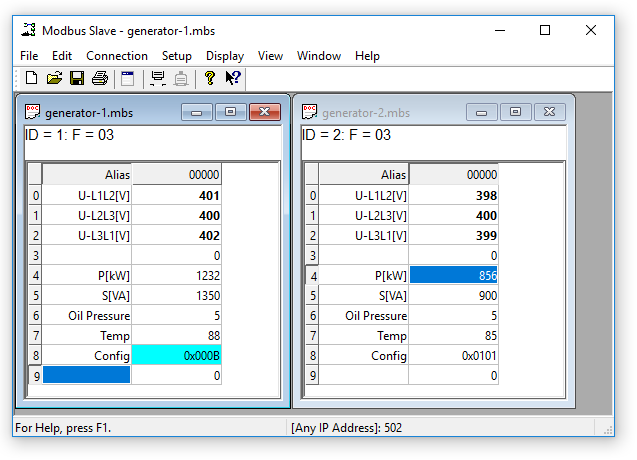
This picture shows two 열기 windows. One simulating 10 Holding registers from 주소 0 (40001) slave id 1 and another simulating 10 Holding registers from 주소 0 (40001) slave id 2.
3.1. Help from anywhere
Press F1 and get context sensitive help on a topic associated with the current selected item.
SHIFT + F1 invokes a special "help mode" in which the cursor turns into a help cursor (arrow + question mark). The user can then select a visible object in the user interface, such as a menu item, toolbar button, or window. This 열기s help on a topic that describes the selected item.
3.2. 이름 cells
Here you can type any text for designation of the value cells. You can also copy/paste text from Excel cells.
3.3. Value cells
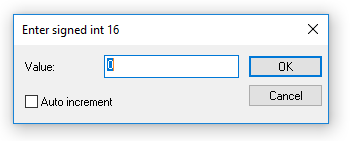
Show the 데이터 values of the Modbus 레지스터s. If you double click a value cell a dialog box lets you enter a new value to the value cell. Typing a number in a value cell shows the input dialog as well.
3.4. Change font
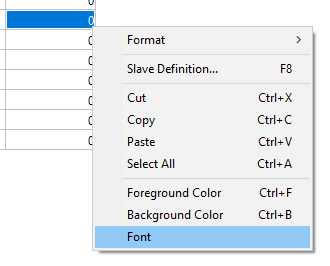
To change the font you have 2 options
- Select the cells to be changed and then right click.
- Select the cells to be changed and then Menu→Display→Font.
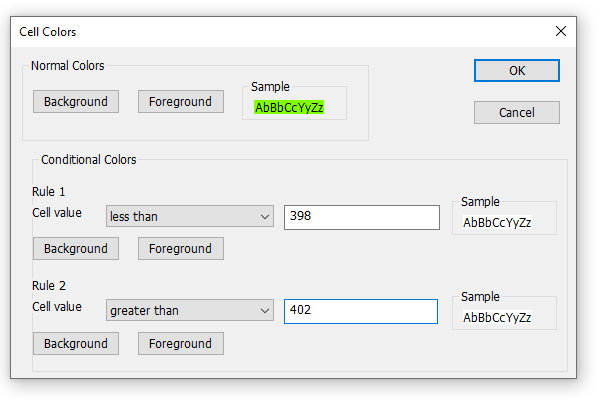
3.5. Conditional colors
Conditional colors help you visually show values in specific ranges.3 color options
- Default color: This color is used if none of the conditional colors evaluates to true.
- Rule 1: This color selection is used if the expression evaluates to true. Rule 1 has precedence over rule 2.
- Rule 2: This color selection is used if the expression evaluates to true.
7 Comparison operators
- not used
- equal to
- greater than
- less than
- greater than or equal to
- less than or equal to
- and
The "and" operator cannot be used when the 데이터 type is of float or 32 bit long type. The condition value is entered as a hex number if "and" is selected. It evaluates to true if any of the bits in both the cell and the condition value is 1.
3.5.1. Color example
Green color if the cell value is between 398 and 402
3.6. Scaling
Scaling helps you scale raw values to human readable values. Scaling works only for signed and unsigned 16/32 bit integers.
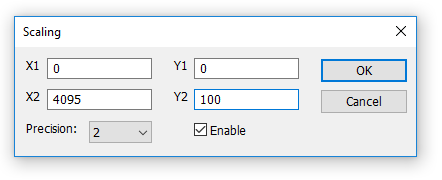
(X1,Y1) and (X2,Y2)
A line passing through the two points (X1,Y1) and (X2,Y2)
Slope=m=Y2−Y1X2−X1�����=�=�2-�1�2-�1Line equation
Y=m⋅(X−X1)+Y1�=�⋅(�-�1)+�1Precision
Number of digits after the decimal point.Enable
Must be enabled to scale the value from the Modbus server/slave. Scaling is automatically disabled if other than a 16/32 bit integer display format is selected.
3.7. Real time charting
The chart can plot 12 series in real time with up to 100000 points in each series.
3.8. Open a new window
To 열기 another window you have 3 options:
- Press CTRL+N
- Select new in the file menu
- Press
 on the tool bar
4. Connection dialog
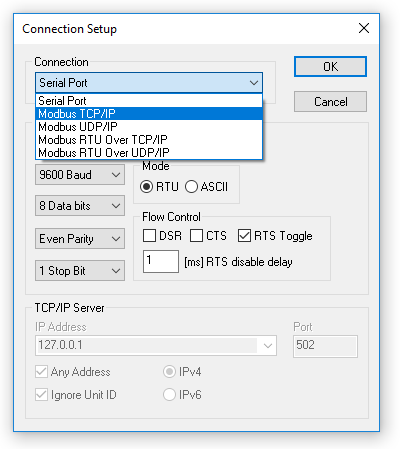
To 열기 the connection dialog you have 2 options:
- Press F3
- Select connect from the connection menu
4.1. Connection
There are 5 different connection types:
- Serial:
Modbus over serial line. RS232 or RS485. A USB serial converter can be used. - Modbus TCP/IP:
Select TCP/IP if you want to communicate with a MODBUS TCP/IP network. In this case, slave ID is the same as the Unit ID used in MODBUS TCP/IP.
The port number is default 502. - Modbus UDP/IP:
Select UDP/IP if you want to communicate with a MODBUS UDP/IP network. This is the same as Modbus TCP/IP but the connection less UDP protocol is used instead. - Modbus RTU Over TCP/IP:
This is a RTU message sent over a TCP/IP network instead of serial lines. - Modbus RTU Over UDP/IP:
This is a RTU message sent over a UDP/IP network instead of serial lines.
| Connection type 3-5 is not standard Modbus as specified by www.modbus.org but they are added for convenience. |
Depending on your selection some other settings will be grayed.
4.2. Serial Settings
Use these 파라미터s to set 시리얼 포트 settings. They are only available if the connection type is "Serial Port".Mode
Use this option to select RTU or ASCII mode. Default RTU.DSR
Specifies whether the DSR (데이터-set-ready) signal is monitored for output flow control. If this member is TRUE and DSR is turned off, output is suspended until DSR is sent again.CTS
Specifies whether the CTS (clear-to-send) signal is monitored for output flow control. If this checkbox is enabled and CTS is turned off, output is suspended until CTS is sent again.RTS Toggle
Specifies that the RTS line will be high if bytes are available for transmission. After all buffered bytes have been sent, the RTS line will be low.
You can use this to switch direction if you have a 232/485 converter without automatic direction switch.
| The use of RTS controlled RS232/RS485 converters should be avoided if possible. It is difficult to determine the exact time when to switch off the transmitter with non real-time operating systems like Windows and Linux. If it is switched off too early characters might still sit in the FIFO or the transmit register of the UART and these characters will be lost. Hence the slave will not recognize the message. On the other hand if it is switched off too late then the slave’s message is corrupted and the master will not recognize the message. |
4.3. TCP/IP Server
TCP/IP server settings are only available when using an 이더넷 connection.IP 주소
Specify which IP 주소 to listen to. This is useful if you have several network connections on your PC. Each instance of Modbus Slave can listen to a specific network. Default is local host 127.0.0.1Any 주소
Check this on if you want Modbus Slave to listen on all networks.IgnoreUnit ID
Many PLC devices will ignore this field, and most clients default value to zero. However gateways or specialized programs can use the unit number to indicate what type of processing is desired.Port
Server port number. Default 502
5. Slave definition
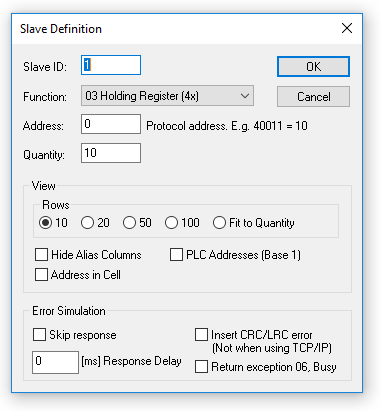
Use this command to define the 데이터 array to be defined for the active window.
To 열기 the Slave Definition dialog you have 3 options:
- Press F8
- Select "Slave Definition" from the Setup menu
- Press
 on the tool bar
5.1. Slave ID
Range 1 to 255. (MODBUS protocol specifications say 247). The value 0 is also accepted to communicate directly to a MODBUS/TCP or MODBUS/UDP device.
5.2. 기능 code
You can select 1 of 4 기능 코드s.
- 01: Read coils (0x). Accepts write functions 05 and 15
- 02: Read discrete inputs (1x)
- 03: Read holding registers (4x). Accepts write functions 06, 16, 22 and 23
- 04: Read input registers (3x)
5.3. 주소
주소es in the Modbus protocol are confusing! Some protocol specifications use the protocol/message 주소 and others use device 주소ing.
5.3.1. Protocol/message 주소
Some protocol specifications use the protocol/message 주소 counting from 0 to 65535 along with a 기능 코드. This is also what the new Modbus specifications use. This is the 주소 inside the message sent on the wire.
Modbus Slave use protocol/message 주소 counting from 0 to 65535.
5.3.2. Device 주소
Some protocol specifications use device 주소/registers. 회원가입s counts from 1. The first digit describes the function to be used. That means the device 주소 40101 is identified by 주소 100. The "4" means Holding registers and 4x registers counts from 1. And even more confusing: 4x means 기능 코드 03 and 3x means 기능 코드 04!
5.3.3. 5 digits vs. 6 digits 주소ing
The 주소 format 4x counts from 40001 to 49999. The next 주소 is not 50000. In the old days 9999 주소es was enough. There are cases where 9999 is not enough. Then a zero is added. 40101 becomes 400101 and so on. This is called 6 digits 주소ing or extended 주소ing.
This is not a problem with Modbus Slave. 410001 become 10000. The "4" is thrown away and the rest 10001 is decremented by 1 as we count from 0 instead of 1.
5.3.4. 주소 examples
These examples show how to set up Modbus Slave if a specification uses device 주소es.
Define Holding 회원가입s
You want to define 20 registers from device 주소 40011 from slave ID 2. From the "4" we know this is function 03 "Read Holding 회원가입s".
- Slave ID = 2
- 기능 = "03 Read Holding 회원가입s (4x)"
- 주소 = 10 (11 minus 1)
- Quantity = 20
Define Discrete Inputs
You want to Define 1000 coils from 주소 110201 from slave ID 5. From the "1" we know this is function 02 "Read Discrete Inputs"
- Slave ID = 5
- 기능 = "02 Read Discrete Inputs (1x)"
- 주소 = 10200 (10201 - 1)
- Quantity = 1000
5.4. Hide name columns
Hide all name columns. This is convenient to make more space if they are not used.
5.5. 주소 in cell
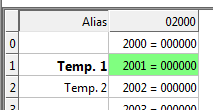
If enabled, the 주소 is also shown in the value cell like: 2000 = 00000
5.6. PLC 주소es (Base 1)
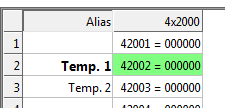
This option will show the 주소es as device 주소es.
5.7. Rows
Specify the number of rows in the grid you prefer.
6. Real time Charting
Use this command to plot up to 12 데이터 series in a chart in real time.
The real time chart is high speed and capable of drawing a new line as fast as new 데이터 is received.
| All chart settings are saved in the workspace file. Save/Open Workspace |
To 열기 the Real time charting dialog you have 2 options:
- Press Alt + R
- Select "Real time Charting" from the Display menu
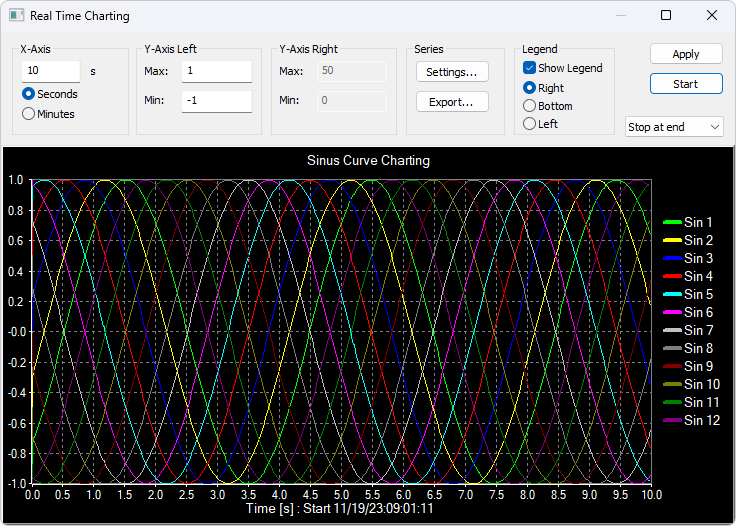
The X-Axis displays the number of seconds since the chart was 시작ed.
When the points reach the end of the chart there are 3 options:
- Stop at end: The charting stops.
- Re시작 at end: The charting 시작s all over again.
- Continue: It continues until it reaches the max number of points or stop is pressed.
6.1. Settings
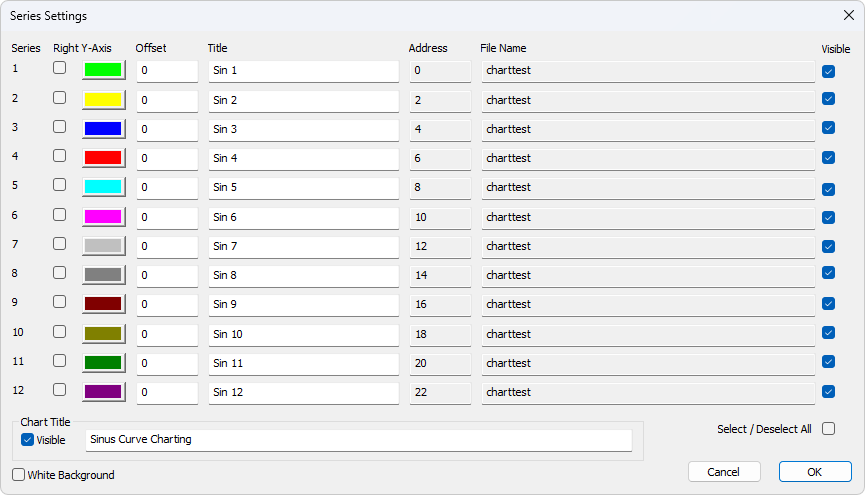
By default all 12 series are linked to the left Y-Axis. Check the "Right Y-Axis" check box if you want to link a series to the right Y-Axis.Specify
- Colors
- Right Y-Axis
- Title. If title is empty it is initialized with the name from the reading window
- Offset
Show
- File name
- 주소
The offset is useful to align 데이터 points on the same Y-Axis. For example, 데이터 points that are either 0 or 1 can be offset so they are not drawn on top of each other.
6.2. Zoom function
Zooming in on the chart can be useful if you want to see more details. The zoom is controlled with the left mouse button. To zoom a specific part of the chart, simply left-click on the chart (this will be the upper-left corner of the zoomed rectangle) and drag to the bottom-right. A rectangle will appear. As soon as you release the mouse button, the axes will automatically adjust themselves to the region you have selected.
If you left-click on the chart (like for 시작ing a zoom) but if you move to the top-left corner instead, all the modifications done with the zoom and pan features will be canceled (the chart will be in the state it was before the manipulations with the pan and zoom).
6.3. Pan function
To pan the control, right-click somewhere on the control and move the mouse. The point under the mouse will follow the movement of the mouse.
6.4. Link 데이터 to the chart series
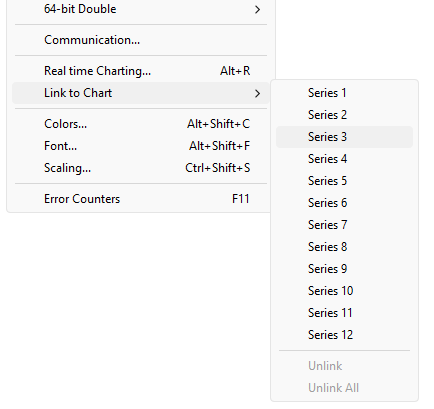
The chart doesn’t know what 데이터 to use unless you link a Modbus 데이터 cell to one of the 12 series. To do this, select a value cell and choose "Link to chart" from Menu→Display.
6.5. Export series
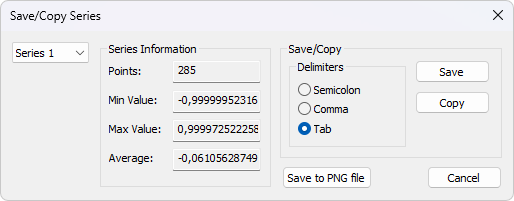
Save series 데이터 to disk or copy to clipboard. Paste the 데이터 direct in Excel for further processing.
The file is given a .csv extension despite the use of a non-comma field separator.
Delimiters: Select the character that separates values in your text file. Use tab delimiter when copy/paste to Excel.Furthermore some additional information is given.
- Number of points
- Max point value
- Min point value
- Average point value
7. Display formats
Mark the cells to be formatted. Select one of the 28 display formats from the display menu.
7.1. Native Modbus 레지스터s
The 16-bit Modbus 레지스터s can be displayed in 4 different modes.
- Signed
- Unsigned
- Hex
- ASCII - Hex
- Binary
7.2. 32-bit signed integer
This combines 2 16-bit Modbus 레지스터s. It can be displayed in 4 different word/byte orders.
- Signed integer Big-endian
- Signed integer Little-endian
- Signed integer Big-endian byte swap
- Signed integer Little-endian byte swapExampleByte Order: AB CD (Big-endian)
The decimal number 123456789 or in hexadecimal 07 5B CD 15
Order as they come over the wire in a Modbus message: 07 5B CD 15
7.3. 32-bit unsigned integer
This combines 2 16-bit Modbus 레지스터s. It can be displayed in 4 different word/byte orders.
- Unsigned integer Big-endian
- Unsigned integer Little-endian
- Unsigned integer Big-endian byte swap
- Unsigned integer Little-endian byte swapExampleByte Order: AB CD (Big-endian)
The decimal number 123456789 or in hexadecimal 07 5B CD 15
Order as they come over the wire in a Modbus message: 07 5B CD 15
7.4. 64-bit signed integer
This combines 4 16-bit Modbus 레지스터s. It can be displayed in 4 different word/byte orders.
- Signed integer Big-endian
- Signed integer Little-endian
- Signed integer Big-endian byte swap
- Signed integer Little-endian byte swapExampleByte Order: AB CD EF GH (Big-endian)
The decimal number -1,234,567,890,123,456,789 or in hexadecimal EE DD EF 0B 82 16 7E EB
Order as they come over the wire in a Modbus message: EE DD EF 0B 82 16 7E EB
7.5. 64-bit unsigned integer
This combines 4 16-bit Modbus 레지스터s. It can be displayed in 4 different word/byte orders.
- Unsigned integer Big-endian
- Unsigned integer Little-endian
- Unsigned integer Big-endian byte swap
- Unsigned integer Little-endian byte swapExampleByte Order: AB CD EF GH (Big-endian)
The decimal number 1,234,567,890,123,456,789 or in hexadecimal 11 22 10 F4 7D E9 81 15
Order as they come over the wire in a Modbus message: 11 22 10 F4 7D E9 81 15
7.6. 32-bit floating
This combines 2 16-bit Modbus 레지스터s. It can be displayed in 4 different word/byte orders.
- Float Big-endian
- Float Little-endian
- Float Big-endian byte swap
- Float Little-endian byte swapExampleByte Order: AB CD (Big-endian)
The floating point number 123456.00 or in hexadecimal 47 F1 20 00
Order as they come over the wire in a Modbus message: 47 F1 20 00
7.7. 64-bit double
This combines 4 16-bit Modbus 레지스터s. It can be displayed in 4 different word/byte orders.
- Double Big-endian
- Double Little-endian
- Double Big-endian byte swap
- Double Little-endian byte swapExampleByte Order: AB CD EF GH (Big-endian)
The floating point number 123456789.00 or in hexadecimal 41 9D 6F 34 54 00 00 00
Order as they come over the wire in a Modbus message: 41 9D 6F 34 54 00 00 00
8. Save/Open Workspace
If you 열기 many related Modbus windows it is convenient to save a snapshot of the current layout of all 열기 and arranged Modbus Windows in one workspace.
A workspace (*msw) is a file that contains display information and file names of all 열기 windows. Not the actual contents. To do this, go to File→Save Workspace.
The Connection and Chart settings are stored in the Workspace file.
When you 열기 a workspace file, Modbus Slave 열기s all Modbus Windows and displays them in the layout that you saved.
9. Communication traffic
Select the menu Display→Communication to show the traffic on the serial line or 이더넷 cable. Use the stop button to temporary stop the update for inspection.
Use the copy button to copy the selected line to the clipboard.
| This window shows only 데이터 sent and received by Modbus Slave. You can’t use it as a 데이터 sniffer. |
| Leave this window 열기 while doing other commands. |
10. OLE/자동화
자동화 (formerly known as OLE 자동화) makes it possible for one application to manipulate objects implemented in another application.
An 자동화 client is an application that can manipulate exposed objects belonging to another application. This is also called an 자동화 controller.
An 자동화 server is an application that exposes programmable objects to other applications. Modbus Slave is an automation server.
That means you can use any program that supports VBA (Visual Basic for Applications) such as Visual Basic, Excel etc. to interpret and show the modbus 데이터 according to your specific requirements.
10.1. Excel example
You should display the Developer tab or run in developer mode when you want to write macros.
10.1.1. Excel 2007
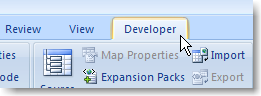
- Click the Microsoft office button and then click Excel options.
- Click popular and then select the show Developers tab in the ribbon check box.
Note the ribbon is part of the Microsoft fluent user interface.
10.1.2. Excel 2010, 2016
- Click on the file tab.
- Click options. Excel Options window will 열기.
- On the left pane click Customize Ribbon.
- On the right pane, under Main Tabs, check the Developer check box.
- Click OK. The Developer tab should now show in the ribbon (right most tab).
10.1.3. Excel sample code
This example 열기s a window simulating Holding registers.
Modbus Slave is hidden but you can show it by uncomment the "ShowWindow" line. This will show one of the windows.
An example is also included with the Modbus Slave installation.
Start → All Programs → Modbus Slave → Excel Example
Excel VBA Example
Public doc As Object
Public app As Object
Dim status As Integer
Dim n As Integer

Private Sub StartSlave_Click()
   ' Create an application object. You can only create 1 application object
   Set app = CreateObject("Mbslave.Application")

   ' Create a new Modbus Slave document (데이터 Window)
   ' This is the same as 열기 a new 데이터 window in Modbus Slave
   ' You can create up to 50 Modbus Slave documents (데이터 Window)
   Set doc = CreateObject("Mbslave.Document")

   ' Show Modbus Slave
   ' res = doc.ShowWindow()

   ' Create doc2 if needed.
   ' Set doc2 = CreateObject("Mbslave.Document")

   ' Set one of 5 connection types.
   app.Connection = 1 ' Modbus TCP/IP

   ' TCP/IP settings.
   ' No need to set IP 주소. We listen to any 주소. (Default).
   app.ServerPort = 502
   app.IPVersion = 4

   ' Open the connection.
   res = app.OpenConnection()
   Range("D5").Value = res

   res = doc.SetupHolding회원가입s(1, 100, 8)
   doc.S회원가입s(0) = 1     ' Modbus 주소 100
   doc.S회원가입s(1) = -10   ' Note that the Index used counts from 0
   doc.U회원가입s(2) = 50000 ' no matter the Modbus 주소 used.
   doc.U회원가입s(3) = 60000
   doc.Longs(4) = 10000      ' A long takes 2 registers
   doc.Floats(6) = 123.45    ' A float takes 2 registers
   ' Now a master can read 8 Holding registers with a mix of 3 데이터 types

End Sub
10.2. Python example
This Python example 열기s a window and set all possible 데이터 formats.
Python Example
import win32com.client as win32

SIGNED = 0
UNSIGNED = 1
HEX = 2
BINARY = 3
FLOAT_LE_BS = 4
FLOAT_BE = 5
DOUBLE_LE_BS = 6
DOUBLE_BE = 7
S32_LE_BS = 8
S32_BE = 9
FLOAT_LE = 10
FLOAT_BE_BS = 11
DOUBLE_LE = 12
DOUBLE_BE_BS = 13
S32_LE = 14
S32_BE_BS = 15

U32_BE = 17
U32_LE_BS = 18
U32_BE_BS = 19
U32_LE = 20

S64_BE = 21
S64_LE_BS = 22
S64_BE_BS = 23
S64_LE = 24

U64_BE = 25
U64_LE_BS = 26
U64_BE_BS = 27
U64_LE = 28

#Endianness
BE = 0
LE = 3
BE_BS = 2
LE_BS = 1

App = win32.Dispatch('Mbslave.Application')

App.Connection = 1
App.IP주소 = "127.0.0.1"

App.ServerPort = 502
App.OpenConnection

#Create a Modbus display window called Win1
Win1 = win32.Dispatch("Mbslave.Document")

# Setup 100 holding registers with slave ID 1, 주소 0 (40001)
Win1.SetupHolding회원가입s(1, 0, 100)
# Show the Modbus window
Win1.ShowWindow()
# Show 20 rows
Win1.Rows(1)

# Disable refresh for speed
Win1.EnableRefresh = False

# Set all different formats
# This sets how the value is displayed
# Use ByteOrder to set the actual endianness
Win1.SetFormat(0, SIGNED)
Win1.SetFormat(1, UNSIGNED)
Win1.SetFormat(2, HEX)
Win1.SetFormat(3, BINARY)

Win1.SetFormat(4, S32_BE)
Win1.SetFormat(6, S32_LE)
Win1.SetFormat(8, S32_BE_BS)
Win1.SetFormat(10, S32_LE_BS)

Win1.SetFormat(12, U32_BE)
Win1.SetFormat(14, U32_LE)
Win1.SetFormat(16, U32_BE_BS)
Win1.SetFormat(18, U32_LE_BS)

Win1.SetFormat(20, S64_BE)
Win1.SetFormat(24, S64_LE)
Win1.SetFormat(28, S64_BE_BS)
Win1.SetFormat(32, S64_LE_BS)

Win1.SetFormat(40, U64_BE)
Win1.SetFormat(44, U64_LE)
Win1.SetFormat(48, U64_BE_BS)
Win1.SetFormat(52, U64_LE_BS)

Win1.SetFormat(60, FLOAT_BE)
Win1.SetFormat(62, FLOAT_LE)
Win1.SetFormat(64, FLOAT_BE_BS)
Win1.SetFormat(66, FLOAT_LE_BS)

Win1.SetFormat(80, DOUBLE_BE)
Win1.SetFormat(84, DOUBLE_LE)
Win1.SetFormat(88, DOUBLE_BE_BS)
Win1.SetFormat(92, DOUBLE_LE_BS)

# Set all 이름s to used format
Win1.Set이름(0, "SIGNED")
Win1.Set이름(1, "UNSIGNED")
Win1.Set이름(2, "HEX")
Win1.Set이름(3, "BINARY")

Win1.Set이름(4, "S32_BE")
Win1.Set이름(6, "S32_LE")
Win1.Set이름(8, "S32_BE_BS")
Win1.Set이름(10, "S32_LE_BS")

Win1.Set이름(12, "U32_BE")
Win1.Set이름(14, "U32_LE")
Win1.Set이름(16, "U32_BE_BS")
Win1.Set이름(18, "U32_LE_BS")

Win1.Set이름(20, "S64_BE")
Win1.Set이름(24, "S64_LE")
Win1.Set이름(28, "S64_BE_BS")
Win1.Set이름(32, "S64_LE_BS")

Win1.Set이름(40, "U64_BE")
Win1.Set이름(44, "U64_LE")
Win1.Set이름(48, "U64_BE_BS")
Win1.Set이름(52, "U64_LE_BS")

Win1.Set이름(60, "FLOAT_BE")
Win1.Set이름(62, "FLOAT_LE")
Win1.Set이름(64, "FLOAT_BE_BS")
Win1.Set이름(66, "FLOAT_LE_BS")

Win1.Set이름(80, "DOUBLE_BE")
Win1.Set이름(84, "DOUBLE_LE")
Win1.Set이름(88, "DOUBLE_BE_BS")
Win1.Set이름(92, "DOUBLE_LE_BS")

# Set different values
Win1.S회원가입s(0, -100)
Win1.S회원가입s(1, 100)
Win1.U회원가입s(2, 43690)
Win1.U회원가입s(3, 65535)

Win1.ByteOrder = BE
Win1.Ints_32(4, -123456)
Win1.ByteOrder = LE
Win1.Ints_32(6, -123456)
Win1.ByteOrder = BE_BS
Win1.Ints_32(8, -123456)
Win1.ByteOrder = LE_BS
Win1.Ints_32(10, -123456)

Win1.ByteOrder = BE
Win1.UInts_32(12, 123456)
Win1.ByteOrder = LE
Win1.UInts_32(14, 123456)
Win1.ByteOrder = BE_BS
Win1.UInts_32(16, 123456)
Win1.ByteOrder = LE_BS
Win1.UInts_32(18, 123456)

Win1.ByteOrder = BE
Win1.Ints_64(20, -123456)
Win1.ByteOrder = LE
Win1.Ints_64(24, -123456)
Win1.ByteOrder = BE_BS
Win1.Ints_64(28, -123456)
Win1.ByteOrder = LE_BS
Win1.Ints_64(32, -123456)

Win1.ByteOrder = BE
Win1.UInts_64(40, 123456)
Win1.ByteOrder = LE
Win1.UInts_64(44, 123456)
Win1.ByteOrder = BE_BS
Win1.UInts_64(48, 123456)
Win1.ByteOrder = LE_BS
Win1.UInts_64(52, 123456)

Win1.ByteOrder = BE
Win1.Floats (60, 123.456)
Win1.ByteOrder = LE
Win1.Floats (62, 123.456)
Win1.ByteOrder = BE_BS
Win1.Floats(64, 123.456)
Win1.ByteOrder = LE_BS
Win1.Floats(66, 123.456)

Win1.ByteOrder = BE
Win1.Doubles(80, 123.456)
Win1.ByteOrder = LE
Win1.Doubles(84, 123.456)
Win1.ByteOrder = BE_BS
Win1.Doubles(88, 123.456)
Win1.ByteOrder = LE_BS
Win1.Doubles(92, 123.456)

# Refresh
Win1.EnableRefresh = True

Win1.ResizeAllColumns ()
Win1.ResizeWindow()

print (Win1.Get이름(1))

_ = input("Press ENTER to quit:")
10.3. Connection 기능s/Properties
The following properties and functions do the same as you setup in the connection dialog (F3).
10.3.1. Connection
Connection selects the desired connection. A 시리얼 포트 or one of the 이더넷 connections can be selected.
Property Connection as IntegerValid values
0 = Serial port
1 = Modbus TCP/IP
2 = Modbus UDP/IP
3 = Modbus RTU over TCP/IP
4 = Modbus RTU over UDP/IP
Example
Connection = 0
10.3.2. BaudRate
Applicable only for Connection = 0
Property BaudRate as LongValid values
300
600
1200
2400
4800
9600 (Default)
14400
19200
38400
56000
57600
115200
128000
153600
230400
256000
460800
921600
Example
BaudRate = 9600
10.3.3. 데이터Bits
Applicable only for Connection = 0
Property 데이터Bits as IntegerValid values
7
8 (Default)
Example
데이터Bits = 8
10.3.4. Parity
Applicable only for Connection = 0
Property Parity as IntegerValid values
0 = None
1 = Odd
2 = Even (Default)
Example
Parity = 2
10.3.5. StopBits
Applicable only for Connection = 0
Property StopBits as IntegerValid values
1 (Default)
2
Example
StopBits = 1
10.3.6. SerialPort
Applicable only for Connection = 0
Property SerialPort as IntegerValid values
1…255
Default value = 1
Example
SerialPort = 1
10.3.7. ServerPort
Applicable only for Connection = 1…4
Property ServerPort as LongValid values
0…65535
Default value = 502
Example
ServerPort = 502
10.3.8. IPVersion
Applicable only for Connection = 1…4
Property IPVersion as IntegerValid values
4 = IP Version 4 (Default)
6 = IP Version 6
Example
IPVersion = 4
10.3.9. Any주소
Applicable only for Connection = 1…4
Property Any주소 as IntegerValid values
0 = Any 주소 = false
1 = Any 주소 = true (Default)
Example
Any주소 = 1
10.3.10. IgnoreUnitID
Applicable only for Connection = 1…4
Property IgnoreUnitID as IntegerValid values
0 = Ignore unit ID = false
1 = Ignore unit ID = true (Default)
Example
IgnoreUnitID = 1
10.3.11. OpenConnection
Opens the connection selected with the Connection property.
기능 OpenConnection() As Integer
Return Value:
Zero if success. Nonzero value if failed.
Example how to 열기 a Modbus TCP/IP connection
Public app As Object
Dim res As Integer
' Create an object to Modbus Slave
Set app = CreateObject("Mbslave.Application")
app.Connection = 1 ' Select Modbus TCP/IP
app.IPVersion = 4
' app.IP주소 = "192.168.1.27"    ' No need to setup if Any주소 = 1. Modbus Slave listen on all.
app.ServerPort = 502
res = OpenConnection()
Example how to setup a serial connection
Public app As Object
Dim status As Integer
' Create an object to Modbus Slave
Set app = CreateObject("Mbslave.Application")

app.Connection = 0         ' Mode is 시리얼 포트
app.SerialPort = 1         ' Com port 1
app.BaudRate = 9600        ' 9600 baud
app.Parity = 0             ' None parity
app.Mode = 0               ' RTU mode
status = app.OpenConnection()
10.3.12. 닫기Connection
기능 닫기Connection() As IntegerReturn Value
Zero if success. Nonzero value if failed.
10.3.13. ShowCommunicationTraffic
기능 ShowCommunicationTraffic()
Shows the communication traffic window.
10.3.14. 닫기CommunicationTraffic
기능 닫기CommunicationTraffic()
닫기s the communication traffic window if shown.
10.4. 자동화 setup 기능s
The following functions do the same as you setup in the read/write definition dialog (F8). Read functions are associated with a Modbus Slave document. (The window with 데이터)
.Example
Res = doc.SetupDiscreteInputs (1, 100, 5)
Coils (0) = 1    ' 주소 100 = 1
Coils (1) = 0    ' Note that the index used in Coils 시작s from 0
Coils (2) = 1    ' no matter the 주소 used.
Coils (3) = 0
Coils (4) = 1
' Now the Master reads 1, 0, 1, 0, 1 when read 5 discrete inputs 시작ing from 주소 100
10.4.1. SetupCoils
기능 SetupCoils(SlaveID As Integer, 주소 As Long, Quantity As Integer) As IntegerReturn Value
True if success. False if not successParameters
SlaveID: The slave 주소 1 to 255
주소: The 데이터 주소 (Base 0)
Quantity: The number of 데이터. 1 to 10000
10.4.2. SetupDiscreteInputs
기능 SetupDiscreteInputs(SlaveID As Integer, 주소 As Long, Quantity As Integer) As IntegerReturn Value
True if success. False if not successParameters
SlaveID: The slave 주소 1 to 255
주소: The 데이터 주소 (Base 0)
Quantity: The number of 데이터. 1 to 10000
10.4.3. SetupHolding회원가입s
기능 SetupHolding회원가입s(SlaveID As Integer, 주소 As Long, Quantity As Integer) As IntegerReturn Value
True if success. False if not successParameters
SlaveID: The slave 주소 1 to 255
주소: The 데이터 주소 (Base 0)
Quantity: The number of 데이터. 1 to 10000
10.4.4. SetupInput회원가입s
기능 SetupInput회원가입s(SlaveID As Integer, 주소 As Long, Quantity As Integer) As IntegerReturn Value
True if success. False if not successParameters
SlaveID: The slave 주소 1 to 255
주소: The 데이터 주소 (Base 0)
Quantity: The number of 데이터. 1 to 10000
10.4.5. ShowWindow
기능 ShowWindow()
As default Modbus document windows are hidden. The ShowWindow function makes Modbus Poll visible and shows the document with 데이터 content.
10.4.6. Get이름
기능 Get이름(Index As Integer) As StringDescription
Gets the name of a value.
Index 0 corresponds to the first Modbus 주소.
10.4.7. Set이름
기능 Set이름(Index As Integer, 이름 As String)Description
Sets the name of a value.
Index 0 corresponds to the first Modbus 주소.
10.4.8. AutoIncrement
Property AutoIncrement(Index As Integer) As BooleanDescription
Sets automatic increment of a value.
Index 0 corresponds to the first Modbus 주소.
Syntax
AutoIncrement(Index) [=newvalue]
10.4.9. FormatAll
기능 FormatAll(Format As Integer)
Format all value cells with the selected format.Parameters
Format: The format of the value cell.
10.4.10. GetFormat
기능 GetFormat(Index As Integer) As IntegerDescription
Gets the display format of the Modbus value.
| ID | Format |
|---|---|
| 0 | Signed |
| 1 | Unsigned |
| 2 | Hex |
| 3 | Binary |
| 4 | Float little-endian byte swap |
| 5 | Float big-endian |
| 6 | Double little-endian byte swap |
| 7 | Double big-endian |
| 8 | 32-bit Signed little-endian byte swap |
| 9 | 32-bit Signed big-endian |
| 10 | Float little-endian |
| 11 | Float big-endian byte swap |
| 12 | Double little-endian |
| 13 | Double big-endian byte swap |
| 14 | 32-bit Signed little-endian |
| 15 | 32-bit Signed big-endian byte swap |
| 17 | 32-bit Unsigned big-endian |
| 18 | 32-bit Unsigned little-endian byte swap |
| 19 | 32-bit Unsigned big-endian byte swap |
| 20 | 32-bit Unsigned little-endian |
| 21 | 64-bit Signed big-endian |
| 22 | 64-bit Signed little-endian byte swap |
| 23 | 64-bit Signed big-endian byte swap |
| 24 | 64-bit Signed little-endian |
| 25 | 64-bit Unsigned big-endian |
| 26 | 64-bit Unsigned little-endian byte swap |
| 27 | 64-bit Unsigned big-endian byte swap |
| 28 | 64-bit Unsigned little-endian |
| This setting is only for display. You still need to use byteOrder to get the correct endianness when using Get/Set value functions. |
10.4.11. SetFormat
기능 SetFormat(Index As Integer, Format As Integer)Description
Sets the display format of the Modbus values. See Format values above.
10.4.12. ResizeWindow
기능 ResizeWindow()
Resize an 열기ed window to fit the grid.
10.4.13. Rows
기능 Rows(NumberRows)
Specify the number of rows in the grid.Parameters
NumberRows: Number of rows in the grid.
| ID | Description |
|---|---|
| 0 | 10 Rows (Default) |
| 1 | 20 Rows |
| 2 | 50 Rows |
| 3 | Fit to 수량 |
10.5. 자동화 데이터 properties
The below properties are used to set or get values in the internal write/read arrays in Modbus Slave. The Index used is not a Modbus 주소. The Index always counts from 0 no matter of the 주소 used. The 데이터 properties are associated with a Modbus Slave document. (The window with 데이터)
Example 1:
' doc is assumed created first. See Excel example.
doc.S회원가입s(0) = 1
doc.S회원가입s(1) = 10
doc.S회원가입s(2) = 1234
Example 2 with floating point values:
doc.Floats(0) = 1.3
doc.Floats(2) = 10.5
doc.Floats(4) = 1234.12
10.5.1. Coils
Property Coils(Index As Integer) As IntegerDescription
Sets a coil in the write array structure or return a coil from the read array.Syntax
Coils(Index) [=newvalue]
10.5.2. S회원가입s
Property S회원가입s(Index As Integer) As IntegerDescription
Sets a register in the write array structure or return a register from the read array.Syntax
S회원가입s(Index) [=newvalue]
10.5.3. U회원가입s
Property U회원가입s(Index As Integer) As LongDescription
Sets a register in the write array structure or return a register from the read array.Syntax
U회원가입s(Index) [=newvalue]
10.5.4. Ints_32
Property Ints_32(Index As Integer) As DoubleDescription
Sets a 32-bit integer in the write array structure or return an integer from the read array.Syntax
Ints_32(Index) [=newvalue]
10.5.5. UInts_32
Property UInts_32(Index As Integer) As DoubleDescription
Sets a 32-bit unsigned integer in the write array structure or return an unsigned integer from the read array.Syntax
UInts_32(Index) [=newvalue]
10.5.6. Ints_64
Property Ints_64(Index As Integer) As DoubleDescription
Sets a 64-bit integer in the write array structure or return an integer from the read array.Syntax
Ints_64(Index) [=newvalue]
10.5.7. UInts_64
Property UInts_64(Index As Integer) As DoubleDescription
Sets a 64-bit unsigned integer in the write array structure or return an unsigned integer from the read array.Syntax
UInts_64(Index) [=newvalue]
10.5.8. Floats
Property Floats(Index As Integer) As SingleDescription
Sets a float in the write array structure or returns a float from the read array.Syntax
Floats(Index) [=newvalue]
10.5.9. Doubles
Property Doubles(Index As Integer) As DoubleDescription
Sets a double in the write array structure or return a double from the read array.Syntax
Doubles(Index) [=newvalue]
10.5.10. ByteOrder
Property ByteOrder As IntegerDescription
Sets the byte order used by Ints_32, UInts_32, Ints_64, UInts_64, Floats and Doubles properties.
| ID | Endianness |
|---|---|
| 0 | Big-endian (Default) |
| 1 | Little-endian byte swap |
| 2 | Big-endian byte swap |
| 3 | Little-endian |
Example for Ints_32:
Byte Order: Big-endian
The decimal number 123456789 or in hexadecimal 07 5B CD 15
Order as they come over the wire in a Modbus message: 07 5B CD 15Syntax
ByteOrder [=newvalue]


답글 작성